Microsoft Word, a ubiquitous word processing program, empowers millions globally to craft professional documents. Its extensive features facilitate the creation of polished materials for diverse applications. Nevertheless, a common quandary Word users encounter is the appearance of an unsolicited gray background within their documents. This gray tint can prove distracting, diminishing the overall legibility of the content. This article delves into the underlying reasons for this gray background phenomenon in Word and furnishes detailed, step-by-step instructions on its removal.
Unraveling the Mystery of the Gray Background
The presence of a gray background in Microsoft Word documents can stem from various sources. It might be a consequence of the default settings embedded within a document template, the selection of a specific theme, or even the application of hidden formatting to particular sections of the text. A clear understanding of these potential causes is paramount for effectively eradicating the gray background.
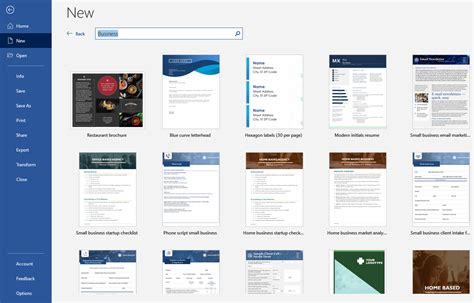
When considering default settings, Word offers a rich selection of document templates, each designed to address distinct needs, such as those for newsletters or brochures. Some of these templates may incorporate a pre-established background color, which can include various shades of gray. While such a choice might lend an air of sophistication and elegance to a document, it can also become a source of vexation if a different background color is preferred.
Themes within Word also exert a significant influence on a document's visual presentation. Themes provide a swift and effortless method for applying a cohesive look and feel across an entire document. However, certain themes may integrate shades of gray as an integral component of their design. Although this can imbue a document with a contemporary and refined aesthetic, it may not always be suitable for every context.
The enigma of the gray background can also be attributed to hidden formatting. Occasionally, during the editing process, formatting, including background colors like gray, might be inadvertently applied to specific segments of the document. This can occur, for instance, when content is copied from another source that already possesses such formatting. Vigilance regarding these hidden formatting elements is crucial to ensure that a document appears precisely as intended.
The Impact of Gray Backgrounds on Readability and Professionalism
The gray background can exert a considerable influence on the readability of a Word document. The diminished contrast between the gray backdrop and the text can render the content more challenging to decipher, particularly for individuals with visual impairments or when viewed on devices with lower screen resolutions.
Imagine the arduous task of perusing an extensive report adorned with a gray background. The text might tend to blend into the background, leading to eye strain and impeding the ability to concentrate on the core content. This can prove especially frustrating for users who rely on assistive technologies, such as screen readers, to access and comprehend the information contained within the document.
Beyond mere readability, a gray background can also detract from the professional presentation of a document. Whether one is preparing a report for professional purposes or submitting a proposal to clients, a clear, uncluttered document free from distracting gray backgrounds is indispensable for effectively conveying its message.
Consider this: when presented with a document featuring a gray background, does it not prompt a questioning of the author's credibility and professionalism? A document boasting a crisp white background is frequently perceived as more polished and trustworthy, allowing the content to command attention without any visual impediments.
Therefore, the next time a gray background manifests in your Word document, pause to investigate its potential origins and contemplate its impact on readability and overall presentation. By understanding the reasons behind the gray background and implementing the appropriate measures for its removal, you can ensure your document achieves its optimal appearance and effectively communicates your message to its intended audience.
A Step-by-Step Approach to Eradicating Gray Backgrounds in Word
Having thoroughly explored the causes and consequences of a gray background, we now proceed to the practical steps involved in its removal from your Word documents.
Before embarking on this practical guide, it is worth acknowledging the remarkable versatility of Microsoft Word. This potent word processing software has been a cornerstone in offices, educational institutions, and households for decades. From the creation of professional documents to the composition of creative works, Word has consistently been an invaluable aid in our writing endeavors.
The Practical Guide: Removing the Gray Background
Initiate the Process: Begin by opening the Word document that exhibits the gray background.
Navigate to Formatting Options: Proceed to the "Page Layout" tab, typically located at the top of the Word interface, within the ribbon.
Access Page Color Settings: Within the "Page Layout" tab, locate and click on the "Page Color" button. This button is usually situated within the "Page Background" group.
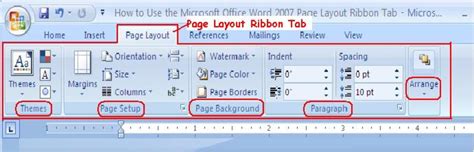
Select "No Color": A drop-down menu will materialize, presenting a spectrum of color choices. To eliminate the gray background, select the "No Color" option. This action is akin to a magical gesture, causing the gray hue to dissipate, leaving behind a pristine white canvas.
Addressing Persistent Gray Formatting: Should the gray background persist even after selecting "No Color," it is probable that hidden formatting has been applied to specific sections of the document. To rectify this, select the affected text, then right-click on it. From the contextual menu that appears, choose "Clear Formatting." This effectively acts as a cleansing process, illuminating and dispelling any lingering traces of the gray background from those particular areas.
How to Clear Formatting in Microsoft Word | Clear Formatting Keyboard Shortcut
Leveraging the "Page Color" Feature
The "Page Color" feature within Microsoft Word offers a streamlined method for altering the background color of your document. By opting for "No Color," you can effectively remove the gray background and revert to a clean, white backdrop. This is akin to providing yourself with a fresh canvas, ready to be filled with your thoughts and ideas.
Consider the boundless possibilities! You can select vibrant colors to harmonize with your mood or the overarching theme of your document. From soothing blues to invigorating yellows, the "Page Color" feature empowers you to establish the desired tone and craft a visually engaging document.
Adjusting the Document Theme
If the gray background is a consequence of the chosen document theme, modifying the theme can resolve the issue. To achieve this, navigate once more to the "Page Layout" tab, click on the "Themes" button, and then select an alternative theme that does not incorporate a gray background.
Themes, oh, how they possess the power to transform a document's appearance! With just a few clicks, you can alter font styles, color palettes, and even the overall design aesthetic. It's akin to giving your document a complete makeover, allowing it to radiate with a fresh and revitalized look.
Removing Gray Background from Specific Document Sections
In certain scenarios, the gray background might be confined to particular sections of the document. To address this, simply select the text within the affected areas and follow the aforementioned steps to either remove the formatting or adjust the background color specifically for that section.
Is it not remarkable how Word grants you the autonomy to customize your document down to the minutest detail? Whether it pertains to a single paragraph, an entire page, or the entirety of the document, you retain complete command over its visual presentation. So, proceed with confidence, unleash your creativity, and ensure your document is a true embodiment of your unique style and personality.
And there you have it! A comprehensive guide designed to empower you in removing the gray background from your Word documents. Armed with these straightforward steps, you can bid farewell to the gray and welcome a document that is both clean and visually appealing. Now, go forth, create, and allow your words to take center stage!
Troubleshooting Persistent Gray Background Issues
While the preceding steps are designed to facilitate the successful removal of gray backgrounds in Word documents, there may be instances where the issue persists or inexplicably reappears after saving or printing. Below are some troubleshooting tips to consider:
Gray Background Remains Visible Post-Removal
If the gray background continues to be visible even after diligently following the removal instructions, it is advisable to scrutinize the document for any additional, layered formatting. For example, headers, footers, or watermarks might possess their own independent background settings. Systematically review each section of the document, ensuring that the background color is consistently set to "No Color."
Furthermore, consider closing and reopening the document to ascertain if the modifications have been duly registered. Occasionally, transient display anomalies can create the illusion that the gray background is still present.
Gray Background Reappears After Saving or Printing
Should the gray background resurface after saving or printing the document, the cause might lie in compatibility issues or printer settings that are overriding your intended changes. Verify that you are saving the document in a compatible format, such as DOCX. Additionally, meticulously review your printer settings to confirm they are not inadvertently altering the background color.
Other Formatting Anomalies Linked to Gray Backgrounds
If you encounter other formatting discrepancies associated with the gray background in Word, seeking assistance from the Microsoft Word support community or consulting the official Microsoft Word documentation may prove beneficial. These resources can provide supplementary guidance and troubleshooting advice tailored to your specific version of Word.
Proactive Measures: Preventing Future Gray Background Incidents
Prevention, as the adage goes, is superior to cure. Fortunately, there are proactive steps you can implement to circumvent the gray background issue in Word altogether. Ponder the following recommendations:
Prudent Template Selection
When initiating a new document, exercise discernment in the template you select. Favor templates that feature a clean and uncluttered design, devoid of any pre-established gray backgrounds. By making an appropriate template choice from the outset, you can preemptively sidestep potential complications related to background formatting.
Vigilance During Content Copying
If your workflow involves frequent copying and pasting of content from external sources into Word, remain vigilant regarding any background formatting that might accompany the text. To mitigate this, consider pasting content as plain text or meticulously remove the formatting immediately after pasting.
Regular Checks for Hidden Formatting
Periodically inspect your Word documents for any hidden formatting that could be introducing the gray background. Collaborative editing, multiple copy-pasting operations, or the import of content from external resources can sometimes embed hidden formatting elements. To rectify this, select the affected text, right-click, and choose "Clear Formatting" from the contextual menu.
By adhering to these preventive measures, you can significantly reduce the likelihood of encountering the gray background issue, thereby ensuring your Word documents consistently maintain a professional and visually appealing presentation.
For further streamlining of your document creation workflow, consider exploring digital asset management platforms. Such platforms can offer centralized storage, organization, and sharing of your digital assets, including Word documents, enhancing productivity and facilitating seamless document management through features like version control and collaboration tools. The underlying principle is that while the individual load of certain anti-scraping measures might be negligible, at a large scale, it significantly increases the cost and effort for automated scrapers. This serves as a preliminary solution, allowing more time to be dedicated to sophisticated methods like fingerprinting and identifying headless browsers, potentially through their font rendering characteristics, thereby avoiding the need to present challenge-based proofs of work to users who are more likely to be legitimate. It is important to note that advanced anti-bot solutions may require modern JavaScript features that some browser plugins might disable.

In response to a specific user dilemma regarding the removal of gray shading without clearing all formatting, particularly for citations where italics need to be preserved, a solution has been found through the "Merge Formatting" option under Paste Special. While previously attempted without success, it now appears to function as intended, offering a valuable side benefit of learning new Word functionalities.
The method for removing shading is contingent upon whether it is applied to a paragraph or specific text. The "Shading" button on the Home tab can sometimes be unreliable. A more robust approach involves using the "Borders" button, then selecting "Borders and Shading," navigating to the "Shading" tab, and choosing "No Color" after identifying the applied shading for either "Paragraph" or "Text." If the shading does not appear in printouts, investigate "File > Options > Advanced > Show document content" and adjust the "Field shading" setting to "When selected" or "Never." To ensure text adopts the formatting of the selection, pasting as plain text, such as using the "Keep Text Only" option on the Paste Options button, is recommended. This approach aims to preserve desired formatting while eliminating unwanted background elements.