Adobe InDesign, a cornerstone for designers and publishers, can sometimes present challenges that disrupt the creative flow. When the software begins to behave erratically, exhibiting unexpected issues like unselectable objects, displaced elements, or even persistent crashes, the culprit often lies within its intricate preference settings. This comprehensive guide delves into the various methods of resetting InDesign preferences, from simple adjustments to more comprehensive troubleshooting steps, aiming to restore your application to its optimal performance.
Understanding InDesign Preferences: The Foundation of Your Workflow
InDesign preferences encompass a wide array of settings that govern how the application functions, from the visual layout of your workspace to the nuanced behaviors of typography and graphics. These settings include panel positions, measurement options, display preferences for graphics and typography, and much more. For instance, the General tab of the Preferences dialog box allows for crucial configurations. Within the Font Downloading and Embedding section, you can specify a threshold to trigger font subsetting based on the number of glyphs a font contains.
When you scale a text frame, selecting "Apply To Content" ensures the point size changes accordingly. Conversely, if this option is selected when scaling a graphics frame, the image's percentage size changes, but the frame itself reverts to 100%. The "Adjust Scaling Percentage" option provides a helpful visual cue, displaying the original point size in parentheses alongside the new point size when text is scaled.
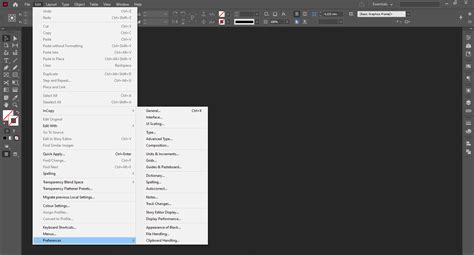
Beyond these, InDesign offers previews of your documents within File Explorer (Windows) and Finder (macOS). You can configure these previews by selecting the number of pages to save as previews (First Page, First 2 Pages, First 5 Pages, First 10 Pages, or All Pages) and the desired preview size (Small, Medium, Large, or Extra Large). Furthermore, InDesign allows you to configure scaling preferences to uniformly scale the user interface based on your screen resolution. The UI scaling slider can be adjusted to increase or decrease UI sizing, a particularly useful feature for high-resolution monitors that often require a higher scaling factor. A preview of the scaled UI is displayed adjacent to the slider, and a restart of InDesign is necessary to apply these updated settings. The number of stops on the slider is dynamically determined by your screen's resolution.
When no documents are open, changes made to preferences set the defaults for all new documents. If you consistently use the same page size and language for most of your projects, you can modify these defaults by closing all open documents, navigating to File > Document Setup, and selecting your desired page size. It is a prudent practice to maintain backup copies of your preference files, typically named "InDesign Defaults" and "InDesign SavedData."
The Core Problem: Corrupted Preferences and Their Symptoms
The user's initial struggle with hyphenation issues, specifically the refusal to hyphenate words containing an asterisk or semicolon (common in German-style gendering like "Mitarbeiter:innenbefragung" and "fahrer:innentypisch"), points towards a potential corruption or misconfiguration within the application's preference files. While the user diligently compared preferences between a template and a new file, and even attempted the common Ctrl+Shift+Alt (Windows) or Shift+Option+Command+Control (macOS) shortcut to trash preferences, the problem persisted. This suggests that the issue might be more deeply embedded or that the standard reset method wasn't fully effective in addressing the underlying corruption.
Hidden preferences, while less common as a primary cause for such specific issues, can sometimes contribute to unexpected behavior. However, the most frequent cause of erratic behavior in InDesign, including the inability to start, file corruption, or unexpected crashes, is the corruption of its preference files. These files are generated and updated each time you quit InDesign. If the application crashes or is closed improperly, these files can become corrupted, leading to the symptoms described.
Method 1: The Standard Preference Reset (The "Trash Preferences" Method)
This is the most common and often effective method for resolving issues stemming from corrupted preferences. It essentially reverts all your InDesign settings to their factory defaults.
For Windows users:
- Quit Adobe InDesign completely.
- Press and hold
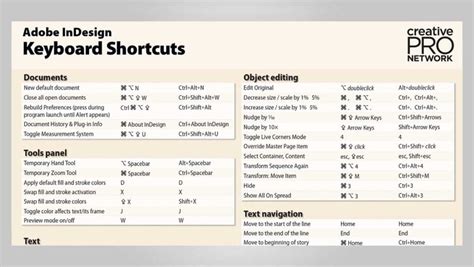
Ctrl + Alt + Shiftimmediately as you click to start Adobe InDesign. - You will be prompted with a dialog box asking, "Delete your InDesign Preferences files?" Click "Yes."
- InDesign will then launch with its default settings.
For macOS users:
- Quit Adobe InDesign completely.
- Press and hold
Shift + Option + Command + Controlimmediately as you click to start Adobe InDesign. - You will be prompted with a dialog box asking, "Delete your InDesign Preferences files?" Click "Yes."
- InDesign will then launch with its default settings.
After performing this reset, it is advisable to go back to Edit > Preferences > General (Windows) or InDesign > Preferences > General (macOS) and reconfigure your essential settings, such as panel layouts, measurement units, and display options, to match your preferred workflow.
Method 2: The "Reset Preferences on Quit" Soft Reset (for newer versions)
Adobe has introduced a more user-friendly "soft reset" option for InDesign versions 2024 and newer. This method allows for a reset of basic preference settings, including UI components that often cause the most problems, without completely discarding all user and system data.
- Open InDesign.
- Navigate to
Preferences > General. - Locate and click the "Reset Preferences on Quit" option.
- Quit and then restart InDesign.
This method is less disruptive than the full reset but may not resolve deeper-seated corruption.
Method 3: Deeper Preference Reset (Cache and Configuration Files)
If the standard reset doesn't resolve the issue, or if you suspect UI-specific problems like panels not opening or appearing empty, you might need to delve deeper by also clearing cache and configuration files. This process involves renaming specific folders, forcing InDesign to create new ones upon its next launch.
For macOS users:
- Close all Adobe applications.
- Open Finder.
- From the Finder menu bar, select "Go" > "Go to Folder."
- Type
~/Library/Caches/and press Enter. Locate and rename thecom.adobe.indesignfolder tocom.adobe.indesign.old. - Repeat step 3 and 4 for
~/Library/Preferences/and rename theAdobe InDesignfolder toAdobe InDesign.old. - Additionally, navigate to
/Library/Application Support/Adobe/and rename theCEPfolder toCEP.old. - Then, navigate to
/Library/Application Support/Adobe/and rename theUXPfolder toUXP.old. - Relaunch InDesign from the Creative Cloud app.
For Windows users:
- Close all Adobe applications.
- Open File Explorer.
- In the address bar, type
%USERPROFILE%\AppData\Roaming\Adobe\and press Enter. Locate and rename theInDesignfolder toInDesign.old. - In the address bar, type
%USERPROFILE%\AppData\Local\Adobe\and press Enter. Locate and rename theInDesignfolder toInDesign.old. - Relaunch InDesign.
By renaming these folders, you are essentially forcing InDesign to create fresh, default versions of these configuration files upon its next launch. This can resolve issues caused by corrupted cache or configuration data.
Method 4: The "Nuclear Option" - Full Uninstall and Reinstall
If all other methods fail, the most drastic but often effective solution is a complete uninstall and reinstall of InDesign. This process ensures that all application files, preferences, and associated data are thoroughly removed before a fresh installation.
Uninstall InDesign: Use the Adobe Creative Cloud Desktop app to uninstall InDesign.
Clean Up Residual Files: Even after uninstallation, some residual files might remain. It's crucial to locate and delete these. The locations vary slightly between macOS and Windows:
macOS Application Roaming Data Folder:
/Users/[User Name]/Library/Preferences/Adobe InDesign/Version #macOS Application Local Cached Data Folder:
/Users/[User Name]/Library/Caches/Adobe InDesign/Version [#]Windows 10/11 Roaming Data Folder:
%USERPROFILE%\AppData\Roaming\Adobe\InDesign\Windows 10/11 Local Cached Data Folder:
%USERPROFILE%\AppData\Local\Adobe\InDesign\Within these folders, you might find subfolders like
InDesign Recovery,Scripting Support,FindChangeData,FontMask Cache,idletask log,InDesign ClipboardScrap,InDesign DragDropScrap,InDesign SavedData,Color Settings,Composite Fonts,Find-Change Queries,InDesign Defaults,InDesign Scripts,Workspaces, andMenu Sets. While a full uninstall through Creative Cloud should remove most of these, manually checking and deleting any remaining InDesign-related folders can ensure a clean slate.Reinstall InDesign: After ensuring all residual files are removed, use the Creative Cloud Desktop app to reinstall InDesign.
Adobe InDesign Lag Fix – Boost Performance & Eliminate Freezing or Slowness
Beyond Preference Resets: Other Troubleshooting Avenues
While resetting preferences is a primary solution for many InDesign issues, several other factors can contribute to erratic behavior or crashes.
- System Resources: Ensure your computer meets or exceeds the recommended system requirements for InDesign, particularly RAM. At least 16GB of RAM is generally recommended for effective InDesign performance.
- Restart Your Computer: A simple restart can resolve temporary glitches. Quit InDesign and all other applications, restart your computer, and then try launching InDesign again.
- Test on Another Computer: If possible, move your InDesign document and linked graphics to another computer and try opening it. If it works fine, the issue might be with your original computer's operating system, applications, or hardware. Testing with a different user login on the same computer can also help identify user-specific corruption.
- Safe Mode: Booting your computer in Safe Mode can help determine if third-party software, system drivers, or login item corruption is interfering with InDesign.
- OS Utilities: Run operating system housekeeping utilities like DiskWarrior, OnyX, or CleanMyMac (macOS) or CCleaner, Fortect, or Iolo System Mechanic (Windows) to clean up temporary files and identify potential system issues.
- Font Management: Corrupt or problematic fonts are a frequent cause of InDesign issues. Use font management software or InDesign's built-in font preview features to identify and disable or remove suspect fonts. Check the "Hide fonts based on language settings" option in font settings and consider "Restore default font settings."
- Third-Party Plugins: Conflicts with third-party plugins, especially font activation plugins, can cause instability. Try temporarily disabling or removing any non-essential plugins.
- Network Drives: If you are working from a network server, try moving your InDesign file to your local hard drive and working from there. Network connectivity issues can sometimes lead to file corruption or crashes.
- macOS Specifics:
- Magnet and Similar Apps: Apps like Magnet, Rectangle, BetterSnap Tool, and BenQ Display Pilot have been reported to interfere with InDesign. Try disabling or removing them.
- Full-Disk Access: Ensure InDesign has full-disk access in System Settings > Privacy & Security > Full Disk Access, especially if you experience lag or interface problems.
- Windows 11 Patches: In early 2025, a specific Windows 11 update (KB5050094) was found to cause issues with object positioning and selection. Uninstalling this specific update if installed can resolve such problems.
- Rollback Strategy: If a recent InDesign update introduces bugs, consider rolling back to a previous stable version using the Creative Cloud app.
- Performance Optimization: Several InDesign features can be turned off to improve performance:
Preferences > Advanced Type > Type Contextual ControlsPreferences > General > Show Home Screen When No Documents Are OpenPreferences > Display Performance > Typical(for faster image rendering at screen resolution, sacrificing color management)Preferences > Interface > Options > Live Screen Drawing > NeverPreferences > File Handling > Saving InDesign files > Save Preview ImagesPreferences > Type > Smart Text Reflow- Pages Panel: Deselect "Show Thumbnails."
- Hyperlinks: Deselect "Auto Update URL Status."
- Consider removing completed assignments from the Assignment panel.
- Threaded textframes: Flow and thread text for fewer pages/frames at a time.
- Simplify paragraph styles and consider omitting GREP styles.
- Cross-references can also impact performance.
By systematically working through these troubleshooting steps, starting with the simplest preference resets and progressing to more involved solutions, you can effectively address the underlying causes of InDesign's erratic behavior and restore a smooth, productive workflow. The key often lies in understanding that the application's preferences, while powerful, can also be a source of instability when corrupted.