Selecting multiple photos in Adobe Lightroom, whether for editing, exporting, or organizing, is a fundamental skill that can dramatically enhance your workflow efficiency. While it might seem like a straightforward task, Lightroom offers a variety of methods to achieve this, catering to different scenarios and user preferences. This guide will delve into the intricacies of selecting photos, from the most basic techniques to more advanced strategies, ensuring you can master this essential aspect of your Lightroom experience.
The Foundation: Basic Selection Techniques
At its core, selecting photos in Lightroom relies on intuitive mouse and keyboard interactions. These methods are universally applicable across different versions of Lightroom, including older iterations like Lightroom 3, 4, 5, 6, and Lightroom Classic CC, as well as the more recent Adobe Lightroom CC.
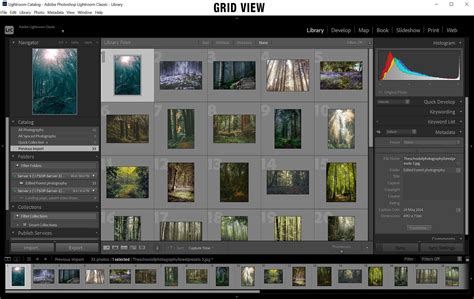
Selecting Sequential Photos:The most common scenario involves selecting a contiguous block of images. This is efficiently achieved using the Shift key.
- Click on the first photo in the series you wish to select. The border around your chosen photo will turn a lighter shade of gray, indicating it is selected.
- Hold down the
Shiftkey. - Click on the last photo in the series. All photos between the first and last click, including the endpoints, will now be selected, indicated by a light gray border.
This method is also effective when working with the Filmstrip view at the bottom of the screen. Simply click the first photo in the filmstrip, hold Shift, and click the last photo in the desired sequence.
Selecting Non-Sequential Photos:When your desired photos are scattered throughout a collection or folder, the Command (on Mac) or Control (on Windows) key becomes your best friend.
- Click on the first photo you want to select.
- Hold down the
Command(Mac) orControl(Windows) key. - While holding the modifier key, click on each additional photo you wish to include in your selection. Each click adds or removes a photo from your active selection.
This technique is invaluable for picking out specific images from a large set, such as selecting several best shots from a photoshoot for a particular edit or export.
Leveraging Keyboard Shortcuts for Speed
For those who prioritize speed and a streamlined workflow, keyboard shortcuts offer a powerful way to manage selections. These shortcuts are often consistent with those found in other operating system applications, making them relatively easy to learn.
Selecting All Photos:The quickest way to select every photo currently visible in your view (whether it's a folder, collection, or search result) is by using the "Select All" command.
- On Mac: Press
Command + A. - On Windows: Press
Control + A.
This command is significantly faster than manually clicking individual checkboxes or using the "All Filmstrip Photos" option.
Navigating and Selecting with Arrow Keys:You can also use the arrow keys in conjunction with the Shift key for selection.
- Select a single photo.
- Hold down the
Shiftkey. - Use the left or right arrow keys to move the selection cursor. Each photo you move to will be added to your selection.
This method can be useful for incrementally selecting a range of photos when precise keyboard control is preferred.
Advanced Selection Strategies and Filters
Beyond basic clicking and modifier keys, Lightroom provides more sophisticated methods for selecting photos, often tied to organizational tools and metadata.
Using the Toolbar and Filter Options:The Lightroom toolbar, typically located below the image view, offers various options. While the "Use:" dropdown might seem relevant, its utility for general photo selection is limited, with "Flagged Photos" being the most practical for pre-filtered selections.
Working with Flags and Ratings:Flags (Picked, Rejected, Unflagged) and star ratings are powerful tools for culling and organizing your photos. Once you've assigned these attributes, you can use them to quickly select groups of photos.
- In the Library module, you can access filtering options. For instance, selecting "Flagged Photos" from a filter menu will display only those images you've marked as "Picked" or "Rejected."
- In the Loupe view (viewing a single photo), the Info and Rating panel allows for quick flagging and rating using swipe gestures on mobile devices. Swiping up or down on the right half of the screen can flag a photo as picked, rejected, or unflagged.
How To Organize & Cull Thousands Of Photos In Less Time - Lightroom Tutorial
Selecting Photos by Location:Lightroom's Map module can be a unique way to select photos. When you navigate to a location on the map, you'll see orange callout boxes indicating the number of photos captured in that area. Clicking on such a callout box will select all photos associated with that specific location. This is particularly useful for photographers who geotag their images.
Inverting Selections:Sometimes, it's easier to select the photos you don't want and then invert your selection.
- Select the few images you don’t want included. You can do this using
Shift-click for sequential photos orCommand/Control-click for non-sequential ones. - Navigate to the menu at the top.
- Select "Edit."
- From the dropdown menu, choose "Invert Selection." This will deselect the photos you initially chose and select all other photos in the current view.
Selections During Import
The import process in Lightroom offers its own set of selection tools.
- When you plug in your memory card or connect a device, Lightroom typically selects all images on that device by default in the grid view.
- At the top of the import screen, you'll find an "All photos" checkbox. This is the most obvious and straightforward way to ensure every image from your source is ready for import.
- Alternatively, you can manually check or uncheck the individual checkboxes next to each thumbnail to curate your import selection.
Selections within Albums and Collections
Albums and Collections in Lightroom are dynamic organizational tools. Selecting photos within them follows similar principles but is often tied to actions like moving, deleting, or exporting.
- Entering Multi-Selection Mode: In the Grid view of an album or collection, long-pressing (on mobile) or clicking on a photo and then using
Command/ControlorShiftkeys will initiate multi-selection. On desktop, simply clicking a photo selects it, and then you can useCommand/ControlorShiftfor further selections. - Choosing Best Photos: Lightroom's "Choose Best Photos" feature analyzes your images based on quality and facial recognition. You can adjust a "Quality Threshold" slider to influence how many images are automatically selected as "best." You can also lock individual photos to prevent them from being moved out of the "Keep" or "Move to other" sections during this process.
- Adding/Moving Photos: To add or move photos between albums, you first select the desired photos using the methods described above, and then you can drag and drop them into a new album or use context menus to move them.
- Removing Photos from Albums: Selecting photos within an album and then choosing to remove them will delete them from that specific album but not from your Lightroom library itself.
Selections for Specific Actions: Exporting and Editing
The ability to select multiple photos is crucial for batch operations, saving significant time.
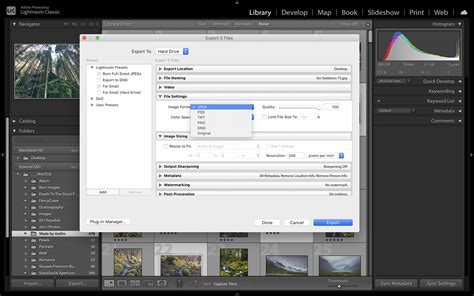
- Batch Exporting: Once you have selected the photos you wish to export, you can right-click on any of the selected images and choose "Export." This will open the export dialog where you can configure your settings for all selected photos simultaneously. This applies whether you're exporting a few specific images or an entire folder.
- Batch Editing: Similarly, selecting multiple photos before entering the Develop module allows you to apply edits to all of them at once. Any adjustments made will be applied to the entire selection, or you can use the "Sync Settings" feature to copy edits from one photo to a group of selected photos.
- Deleting Culled Photos: After reviewing a photoshoot and marking unwanted images for deletion (e.g., using the "Rejected" flag), selecting all rejected photos and then deleting them is a common and efficient workflow.
Understanding Version Differences: Lightroom CC vs. Classic CC
While the core selection principles remain consistent, there might be subtle differences in how these actions are presented or performed between Adobe Lightroom CC (the cloud-centric version) and Lightroom Classic CC (the desktop-focused version). Generally, the Shift and Command/Control key combinations for selecting sequential and non-sequential photos are universal. The interface elements and menu structures might vary slightly, but the underlying logic of selection is the same.
For instance, in Lightroom CC on mobile, long-pressing a photo initiates a multi-selection mode. In Lightroom Classic on desktop, clicking and using modifier keys are the primary methods.
Avoiding Common Misconceptions and Pitfalls
- The
FnKey on Mac: Some users, accustomed to other operating systems or applications, might mistakenly believe theFnkey is used for multiple selections on a Mac. This is incorrect. TheFnkey has different functions and is not involved in selecting multiple items in Lightroom or the macOS Finder. The correct modifier keys areShiftfor contiguous selections andCommandfor discontinuous selections. - Accidental Selections: Be mindful of where your cursor is and what tool is active. Sometimes, unintended selections can occur if you accidentally click or drag across photos. Using the "Invert Selection" feature or simply re-selecting the correct group can rectify this.
- Selection Scope: Remember that your selection is usually confined to the current view or module. If you switch modules or change your view (e.g., from a specific folder to "All Photos"), your selection might be cleared or behave differently.
By mastering these various methods of selecting photos in Lightroom, you can significantly streamline your post-production workflow, making tasks like editing, exporting, organizing, and culling much more manageable and efficient. The key is to understand the context of your selection and choose the method that best suits your immediate goal.