In the realm of digital photography, a perfectly captured moment can often be marred by the presence of unexpected distractions. From the casual photobomber who unwittingly steps into your carefully composed shot to the unsightly trash can that detracts from a scenic landscape, these intrusive elements can significantly diminish the impact of an otherwise stellar image. Fortunately, the evolution of photo editing technology, particularly the advent of sophisticated Artificial Intelligence (AI) tools, has empowered creators to seamlessly eliminate these unwanted guests, transforming flawed captures into polished masterpieces. This article delves into the most effective methods for removing people and other objects from the background of photographs, focusing on the power of AI-driven solutions that make the once-arduous process remarkably simple and efficient.
The Rise of AI-Powered Object Removal
The traditional approach to removing objects from photos often involved intricate manual selection and cloning techniques, a process that was time-consuming and required a considerable degree of skill. Even then, achieving a natural and convincing result could be challenging, often leaving subtle artifacts or an unnatural flatness in the edited area. The emergence of AI-powered tools has revolutionized this workflow, offering a more intuitive and significantly faster alternative.
These advanced tools leverage complex algorithms trained on vast datasets of images to understand context, texture, and lighting. When you identify an object to be removed, the AI analyzes the surrounding pixels and intelligently generates a replacement that blends seamlessly with the rest of the image. This means that instead of simply copying and pasting pixels, the AI reconstructs the background as if the unwanted element was never there.
Generative Remove: A Powerful Solution in Adobe Firefly
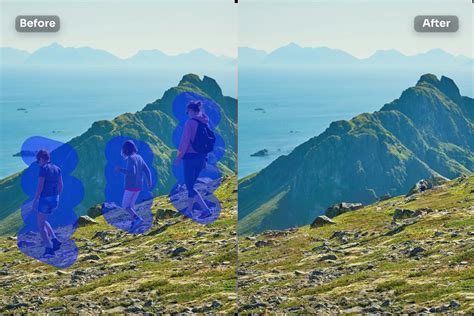
Adobe Firefly's Generative Remove feature stands as a prime example of this cutting-edge technology. Designed with both novice and professional users in mind, it simplifies the process of eliminating distractions. The core principle is straightforward: users simply paint over the object they wish to remove with a brush tool. The size and hardness of this brush can be easily adjusted to accommodate different objects and desired levels of precision. Once the area is marked, a single click on "Generate" initiates the AI's magic.
Firefly automatically analyzes the selected area and its surroundings to fill the void with natural-looking content. This is particularly effective for removing people who might be photobombing your shot, large crowds that detract from a subject, or even extraneous elements in landscape photography such as power lines, wires, street signs, and those ubiquitous trash cans. The AI is adept at preserving the authentic details of the image, ensuring that the final result is clean, polished, and true to the original creative intent.
Furthermore, Generative Remove can be used to eliminate less obvious but equally distracting elements like random logos, watermarks, or stray text that might mar an otherwise perfect photograph. The ability to brush away unwanted text in mere seconds, while maintaining the integrity of the surrounding details, makes Firefly an invaluable tool for ensuring your images are presentation-ready.
The process within Firefly is initiated by logging in with an Adobe ID or creating a free account. Users then navigate to the Firefly image editor, select "Generative Remove" from the Quick Actions Menu, use the brush tool to highlight the unwanted object, and click "Generate." The results can then be downloaded, copied to the clipboard, or shared directly. Crucially, Adobe Firefly's generative AI models are trained on commercially safe content, including licensed material from Adobe Stock and public domain works, offering peace of mind for professional use. The platform emphasizes that no specific design skills are required to achieve impressive results, making advanced photo editing accessible to a broader audience.
Canva's Magic Eraser: Seamless Editing for Everyone
Canva, a platform widely recognized for its user-friendly design interface, also offers a powerful "Magic Eraser" tool that rivals dedicated photo editing software. This feature makes the often-complex task of removing unwanted objects from photos incredibly simple. Within Canva's photo editor, users can select the Magic Eraser tool, brush over the object they wish to eliminate, and witness it being "auto-magically" removed. This ensures that the main subject of the photograph can truly stand out and shine without competing distractions.
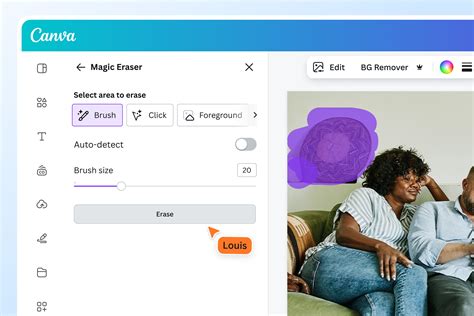
The utility of Canva's Magic Eraser extends beyond simple removal. The platform also introduces "Magic Edit," a feature that allows users not only to erase something but also to replace or add new objects, making them appear as if they were always part of the original image. Imagine adding a palm tree to a beach scene, changing a picture on a wall, or populating a sky with birds - Magic Edit can facilitate these creative transformations. By brushing over an area and then typing a description of what should appear, users can guide the AI to generate the desired outcome.
For those who require even finer control, Canva also provides a manual eraser. This tool can be used to trim or refine the edits made by the Magic Eraser, allowing for precise adjustments to achieve the perfect look.
Canva's photo editing capabilities are not limited to object removal. Users can also crop, rotate, resize, adjust color and texture, and apply various effects and filters. This comprehensive suite of tools means that a single platform can cater to a wide range of editing needs, from preparing images for social media campaigns with specific brand aesthetics to fine-tuning black-and-white portfolios with precise control over contrast and saturation. The platform also offers tools for creating transparent backgrounds and integrating edited photos into larger designs using templates, stickers, icons, text, and frames from its extensive elements library.
The Magic Eraser tool is available within the Canva app on iOS devices as well. Users can upload their photos, navigate to the Effects panel, and utilize the Magic Eraser by drawing over unwanted objects. The editor then renders the cleaned-up photo. While Canva is generally free for individual use, premium features like the Magic Eraser are part of Canva Pro, which offers enhanced capabilities for creating professional designs and content.
Understanding the Mechanics: How AI Object Removal Works
At its core, AI-powered object removal relies on sophisticated machine learning models. These models are trained on massive datasets of images, learning to recognize patterns, textures, edges, and the relationships between different visual elements. When an object is selected for removal, the AI performs several key steps:
Object Identification and Segmentation: The AI first identifies the precise boundaries of the object to be removed. This involves differentiating the object from its background, a process that can be complex for objects with irregular shapes or those that blend into their surroundings.
Contextual Analysis: Once the object is segmented, the AI analyzes the surrounding pixels to understand the context. It looks at the colors, textures, lighting, and patterns of the background. For instance, if removing a person from a brick wall, the AI needs to understand the pattern and color of the bricks to reconstruct the wall accurately.
Inpainting/Content Generation: This is the crucial step where the AI fills the void left by the removed object. Using techniques like "inpainting," the AI generates new pixels that are consistent with the surrounding visual information. This can involve replicating existing textures, extending patterns, or even generating entirely new details that logically fit the scene. Advanced models can even infer depth and perspective to ensure the reconstructed area looks natural from all angles.
Refinement and Blending: The final stage involves ensuring that the newly generated area blends seamlessly with the rest of the image. This includes matching color tones, lighting, and sharpness to avoid any noticeable seams or artifacts.
But how do AI images and videos actually work? | Guest video by Welch Labs
Best Practices for Effective Object Removal
While AI tools have made object removal remarkably accessible, employing a few best practices can significantly enhance the quality of your results:
Start with a High-Quality Image: The better the original image resolution and quality, the more information the AI has to work with, leading to more accurate and natural-looking results. Images that are too small or heavily compressed can challenge even the most advanced AI.
Be Precise with Your Selection: While AI is powerful, a more accurate brushstroke around the object to be removed will generally yield better results. Avoid selecting excessive background areas unless necessary for context.
Consider the Background Complexity: Simple, repetitive backgrounds (like a clear sky or a plain wall) are generally easier for AI to reconstruct than highly detailed or complex scenes with intricate patterns.
Iterate and Refine: Sometimes, the first generation might not be perfect. Don't hesitate to try generating again, perhaps with a slightly adjusted selection or brush size. For more intricate edits, consider using the manual eraser tool (if available) to fine-tune the AI's output.
Understand AI Limitations: While AI can mimic human intelligence remarkably well, it cannot fully replace it. For highly critical or complex edits, human judgment and artistic skill remain invaluable.
Leverage Contextual Tools: If your editing software offers features like "Magic Edit" or similar functionalities, consider them if you need to replace an object rather than just remove it.
Beyond Removal: Enhancing Your Edited Images
Once unwanted elements have been successfully removed, the edited photograph can be further enhanced. This might involve adjusting color balance, contrast, and saturation to ensure consistency across the entire image. Applying subtle filters or effects can also help to unify the composition and further refine the aesthetic. Tools for cropping and resizing allow for final composition adjustments, ensuring the subject is perfectly framed. The goal is to create an image that not only lacks distractions but also possesses a strong visual impact and professional polish.
The ability to remove people and other distracting objects from photographs has transitioned from a niche skill for professional retouchers to a readily available feature for anyone with a digital camera or smartphone. Tools like Adobe Firefly's Generative Remove and Canva's Magic Eraser have democratized advanced photo editing, empowering individuals to achieve stunning results with unprecedented ease. By understanding the capabilities of these AI-driven technologies and employing effective techniques, creators can confidently transform their photographic visions into reality, ensuring that every image tells the story they intend, unburdened by unwanted elements.