In today's visually driven digital landscape, effective marketing and connection-building are paramount for bloggers, authors, designers, and any professional seeking success and longevity. The hustle is real, requiring constant awareness of emerging trends, innovative apps, and cutting-edge gadgets. Maintaining a strong visual presence on social media and delivering valuable, engaging content are no longer optional; they are necessities. This is where the power of mockups, particularly iPhone mockups, emerges as a game-changer, offering a win-win solution for creating compelling content and fostering meaningful connections simultaneously.
The Power of Realistic Visuals: Understanding Mockups
Mockups are invaluable tools that empower creators to showcase their work within realistic contexts, transforming flat designs into tangible representations. They bridge the gap between a digital creation and its real-world application, making it easier for audiences to visualize and connect with the content. While some mockups, especially those in PSD format, leverage Photoshop's advanced features like Smart Objects, many, including those used in video tutorials and readily available as JPEGs, are accessible with any image editor. This includes popular platforms like Photoshop, Canva, and PicMonkey, democratizing the creation of professional-looking visuals. The fundamental principle is simple: we capture images of our lives and work with our phones, and mockups allow us to present these within the context of the very devices we use daily.
Why iPhone Mockups are a Designer's Best Friend
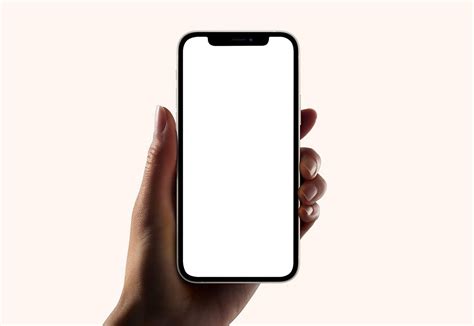
The iPhone mockup, in particular, has become a staple in digital marketing strategies. Its ubiquity means that audiences are already familiar with the device, making any presented content instantly relatable. This familiarity is crucial for engagement. For designers, especially those creating digital products like apps, design templates, and graphics, iPhone mockups provide an ideal platform to showcase their creations in a realistic setting. Similarly, service providers can utilize them to share details about their offerings and contact information in a visually appealing manner.
For authors, iPhone mockups offer a straightforward way to promote their work. An image of an ebook cover placed within an iPhone mockup instantly communicates that the book is available in digital format and can be easily displayed on multiple devices. This can be further enhanced by sharing a screenshot of a compelling passage or a favorite quote from the book, directly on the iPhone screen. This not only promotes the book but also invites readers to engage with the author's content on platforms like Instagram.
Crafting Your iPhone Mockup: A Step-by-Step Approach
Creating an effective iPhone mockup involves several key steps, whether you're using advanced software like Photoshop or more accessible online tools. The core idea is to seamlessly integrate your content onto the iPhone's screen.
Method 1: Photoshop for Precision and Control
For those who prefer granular control and advanced editing capabilities, Photoshop offers a robust environment for creating realistic iPhone mockups. This method often involves leveraging Smart Objects, which allow for non-destructive editing and easy updates to your design.
Setting Up the Canvas: Begin by creating a new document in Photoshop. The dimensions will depend on the specific iPhone model you are targeting, but a common starting point for an iPhone screen might be a rectangle with dimensions like 375x812 pixels, with no stroke and a bright, easily distinguishable fill color. This rectangle will serve as a placeholder for your design.
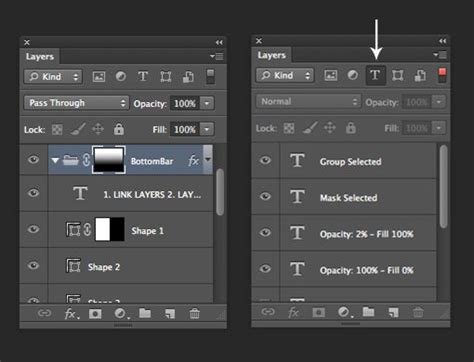
Utilizing Smart Objects: To ensure your design can be easily updated, it's crucial to convert this placeholder rectangle into a Smart Object. Double-click the Smart Object thumbnail in the Layers panel. This will open a new document where you will place your actual design.
Importing Your Design: Within the opened Smart Object document, import your design from Photoshop, Adobe XD, Illustrator, or any other design software. You can then resize and position your design to fit within the Smart Object's canvas. Once satisfied, save and close the Smart Object document. Your design will now automatically appear on the iPhone screen in your main mockup document.
Adjusting and Refining: After the design is placed, you might need to adjust its position or scale using Free Transform (Ctrl+T or Cmd+T). Holding Shift while resizing maintains proportions, and holding Alt/Option scales from the center.
Adding Backgrounds and Context: The flexibility of Photoshop allows for extensive customization of the background. You can select from pre-made designs, upload your own custom background image, or even make the background transparent. This step is crucial for creating a cohesive and visually appealing final mockup.
Advanced Techniques for Realism: For an even more realistic look, Photoshop offers advanced tools:
- Magic Eraser (Pro): Swiftly removes unwanted details from an image.
- Magic Edit: Effortlessly adds or replaces elements within your mockup.
- Magic Expand (Pro): Expands an image to enhance clarity and composition.
- Layer Styles: Employing effects like drop shadows, gradients, and strokes can add depth and dimension.
- Textures and Filters: The Noise Filter can simulate metallic finishes, while the Brush Tool can add subtle scratches or smudges for a worn, realistic feel.
- Shadows and Highlights: Precisely placed shadows and highlights, often achieved through Layer Styles or manual brushwork, are key to giving the iPhone a three-dimensional appearance.
Method 2: Online Mockup Generators for Speed and Simplicity
For those who prioritize speed and ease of use, online mockup generators offer a streamlined solution. Platforms like Canva and Mockey.ai provide user-friendly interfaces and a vast library of templates.
Choosing a Template: Navigate to the iPhone mockup category on your chosen platform. You'll find a wide array of iPhone models and orientations to select from.
Uploading Your Design: Most generators allow you to directly upload your image or design file. The platform will then automatically integrate it into the selected iPhone mockup.
Customization Options: Many online tools offer customization for backgrounds, device colors, and even subtle lighting effects. This allows for a degree of personalization without requiring complex editing skills.
Mockey.ai Example: Mockey.ai, for instance, simplifies the process. After signing up and selecting an iPhone mockup, you can upload your design. The platform handles the placement and perspective adjustments, often presenting a polished mockup in seconds.
Canva's Seamless Experience: Canva is renowned for its intuitive design process. You can either upload a branded photo and let its mockup generator do the work, or create your own mockup by placing your design onto an iPhone template. The platform's extensive customization options and user-friendly interface make it an addictive and highly effective tool for generating professional-looking mockups.
How to Create iPhone Mockup in Canva
Leveraging iPhone Mockups in Your Marketing Strategy
The true value of iPhone mockups lies in their versatility as marketing tools. They are not merely aesthetic additions; they are strategic assets that can significantly boost engagement and brand visibility.
Showcasing Social Media Presence
One of the most effective uses of iPhone mockups is to showcase your activity on social media platforms. A mockup featuring a screenshot of your Instagram Story, for example, not only demonstrates your presence but also visually highlights your username and the content you share. This serves as a compelling introduction in the digital age, inviting new followers and connections.
Promoting Digital Products and Services
For creators selling digital products, such as design templates or apps, iPhone mockups are indispensable for showcasing their work in a realistic context. This visual appeal can significantly influence purchasing decisions. Similarly, service providers can use mockups to present their offerings, contact details, and client testimonials in an engaging format.
Creating Engaging "How-To" Visuals
iPhone mockups are exceptionally well-suited for creating "how-to" guides and tutorials. By presenting a screenshot of a process or a visual tip directly on an iPhone screen, you offer clear, actionable information in a highly digestible format. This is an excellent way to connect with your audience by providing value and demonstrating expertise.
Cross-Platform Promotion
A powerful aspect of iPhone mockups is their ability to facilitate cross-platform promotion. For instance, a compelling Instagram Story screenshot placed within an iPhone mockup can be shared on your blog or other social media platforms. This encourages followers on one platform to connect with you on another, creating a synergistic marketing effect.
Enhancing Author Platforms
Authors can use iPhone mockups to display their ebooks, share excerpts, or promote their latest releases. This visual representation makes their work more tangible and accessible to a wider audience. Encouraging fellow authors to participate by sharing their own mockups can create a collaborative marketing effort.
Tips for Creating Professional Mockups
To ensure your iPhone mockups are not just functional but also professional and impactful, consider these best practices:
- Aspect Ratio Consistency: Ensure that any image or screenshot you use for the iPhone screen has a 16:9 aspect ratio, as this is standard for all iPhone screens.
- High-Quality Images: Always use high-resolution images for both your design and any background elements to maintain clarity and professionalism.
- Cohesion and Organization: Ensure all elements of your mockup â the iPhone, the background, and your design â are cohesive and well-organized. This contributes to a strong first impression.
- Contextual Relevance: Consider adding context to your mockup. Showing the phone being used in a realistic situation or adding a human element can make it more engaging.
- Customization Options: When using mockup generators, explore the various customization options available. Polishing the look to fit specific iPhone generations and ensuring clarity can make a significant difference.
- Consider the Audience: While professional mockups are important, remember the goal is connection. A mockup that is relatable and clearly communicates your message will be more effective than one that is overly complex or sterile.
By mastering the art of iPhone mockups, creators can significantly enhance their marketing efforts, build stronger connections with their audience, and ultimately achieve greater success in the digital realm. The process, whether through the detailed control of Photoshop or the streamlined efficiency of online generators, offers a powerful way to bring your creative work to life.