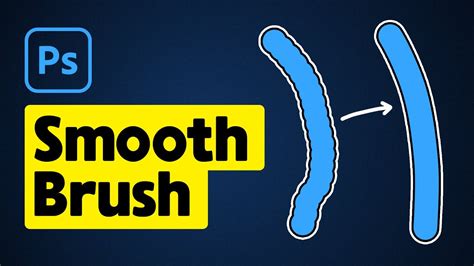
Everybody wants to use the Photoshop tools that allow us to clean up the line art as we want our work to look flawless every time. To make a piece of art look great takes a lot of effort and care. As a result, each ink stroke should be as smooth as possible. This tutorial will give you everything which you need to know about drawing smooth lines and will provide you with a comprehensive guide along the way. Are you all set?
The Fundamentals of Line Smoothing in Photoshop
The first step in creating a smooth line is to draw a line on Photoshop’s blank page. The second step is to detect the smoothing control, which can be found on the brush toolbar, adjacent to the opacity and flow bars, in the top middle section. By default, the toolset is fixed at 10%, which aids in the smoothing of lines when drawing. The smoothing control must then be set and smoothing settings must be adjusted before you begin drawing. If you want extremely smooth lines, for example, you can set smoothing to 100%.
In Photoshop CC 2018 and later versions, there is a feature that smoothes out brush, pencil, and eraser strokes. Now let’s get started with the pencil tool, after you have selected the tool, the smoothing effect will be shown at the top and you can decrease or increase the smoothing by moving the slider left and right. You can also tap numbers using your keyboard, for example pressing Alt + 7 to get 70% smoothing.
Advanced Smoothing Options and Brush Stabilizer Modes
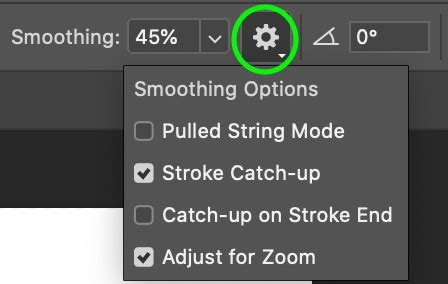
Now, just beside the smoothing percentage option, you will see four smoothing options in the gear icon. So, click on it and you will see "Stroke Catchup" and "Adjust for Zoom" options, which are selected already by default.
- Adjust for Zoom: This setting increases smoothing when we zoom in and decreases smoothing when we zoom out. This dynamic adjustment helps maintain a consistent feel to your strokes regardless of your zoom level.
- Catch up on Stroke End: With "Catch up on Stroke End" enabled, you can draw your line and if you pause, then your stroke will catch up to where your cursor is released. The pointer becomes attached to the stroke when you use this smoothing option. When you apply the Brush Leash, you’ll notice a line connecting the lagging stroke and the cursor.
Smoothing line tool options allow you to implement a variety of modes to make working with a Photoshop brush stabilizer easier.
Pulled String Mode
In "Pulled String" mode, the screen will display a line with a circle. The lag of the stroke is indicated by the line, and the circle indicates where you will begin painting. If you need to stop drawing a line and make curves, then this is extremely beneficial. Without mistakenly distorting the image, you can leave the pointer inside the circle. If you wish to change the orientation of the line, this option is also beneficial. Slowly drawing shortens the line until it catches up with the cursor. This mode aids in the precise application of the brush. As a result, the movement becomes smoother, and the brush’s speed decreases.
Other Smoothing Modes
There are other modes designed to aid in stroke completion. One mode, for instance, can be unpredictable because the line jumps from the cursor to the spot where the pen was removed when you remove it from the tablet. You can try out multiple modes to see which one suits your needs the best.
Refining Imperfect Lines with Liquify
If you are not getting the perfect curve, then you can go to "Filter" then choose "Liquify." Now you can easily go over the line and make your desired shape. This tool offers a powerful way to sculpt and refine your lines after they have been drawn, allowing for minute adjustments to achieve the exact curvature you envision.
How I Use the Liquify Tool in Photoshop (Natural Portrait Editing)
Creating Smooth Straight and Curved Lines
If you are wondering how to make smooth lines in Photoshop, then you need to have a look at our article above. However, if you are thinking of creating smooth straight lines, then press B to pick the Brush Tool and click once on your canvas to determine the line’s starting point. Now, while holding Shift, click on a different part of your Canvas. This obviously restricts you to purely vertical or horizontal lines, but at the very least, the lines will not be pixelated. However, by holding Shift and clicking in small increments to build a curved shape, you may generate reasonably smooth curves with this method. Smoothing in the brush choices should make the curves smoother, so give it a shot.
The Role of Input Devices and Alternative Software
If you use Photoshop regularly, then you should know how to make smooth lines in Photoshop. People have a tendency to use a lot of things at once and fail to understand the fundamentals. In Photoshop, there is a smoothing option in the brushes dialog which can somewhat smooth a brush stroke as you apply it, but probably not enough to smooth out the jitters caused by using a mouse. A graphics tablet like a Wacom would be a better input device.
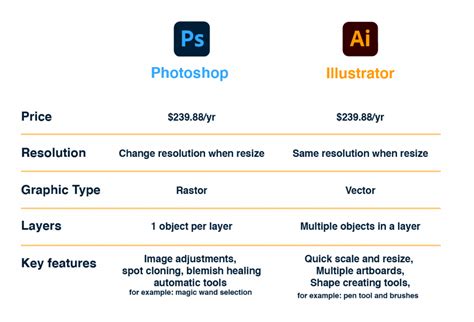
However, ultimately, Photoshop is really the wrong kind of software for what you are trying to achieve if your primary focus is vector-based line art. Adobe Illustrator is a vector image editor, and is more suitable for line art and illustration. In Illustrator, you can adjust the smoothness and fidelity of the Brush Tool.
Here is an example of a vector line drawn in Photoshop with the Pen Tool (set to "Shape" in the options) with a stroke applied, and no fill applied. Similarly, I also show the Bezier controls. I also used a mouse to create this. Another example of what's possible with Illustrator, again drawn with a mouse.
Smoothing Edges When Compositing Images
One of Photoshop’s most powerful features is the ability to cut out an element from an image using the Selection tool and a layer mask, and then add it into a different image. It’s a fundamental component of the photo editing process. And once you’ve combined elements from multiple images, you need to smooth out their jagged edges in order to make them look natural occupying the same space.
Anti-aliasing
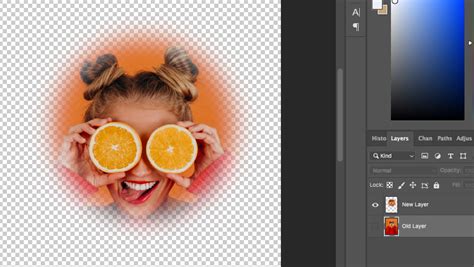
When adding something new to an existing image, anti-aliasing gently softens the opacity and color transition between edge pixels and background pixels, preserving the image’s clarity and detail. This process helps to blend the edges of your cut-out element seamlessly into the new background.
Feathering
Another way to smooth the edges of your image is feathering. Feathering basically softens up the edges of your selection by gently fading between the pixels on the border and the pixels in the surrounding area.
- Feather it: Enter a number into the Feather Radius field. This number determines how many pixels away from the edge of your selection the Feather tool will go before it starts smoothing and blending.
- Strengthen it: Use the Strength drop-down menu at the top of the screen to select how intense you want the blurring to be.
Smooth edges when cutting out subjects from the background to prevent jagged edges. Minimal smoothing has little effect on quality.
The Skill vs. System Debate
I've seen people draw in Adobe Photoshop; however, unlike my sketchy lines, theirs come out a lot smoother, and I mean a lot. I was just wondering how to do this and if it's a system thing rather than a skills thing. By using a Wacom or other high-quality graphics tablet, one gets perfect lines - but only if he or she has got what it takes to draw perfect lines by hand. He or she can also get good results by using an accurate high-resolution mouse. I have seen those just in front of my eyes when a talented person worked with Photoshop. The rest of us get perfect lines by using paths - the Bezier curves. Paths are clunky to use in Photoshop for drawing.