In the ever-evolving digital landscape, web browsers constantly seek methods to optimize user experience and streamline data transfer. One such optimization that has gained traction is the WebP image format, championed by Google. While WebP offers significant advantages in terms of file size reduction, leading to faster loading times and reduced bandwidth consumption, it has also introduced a point of friction for users who prefer or require traditional image formats like JPG and PNG. This article delves into the intricacies of the WebP format, explores the challenges it presents when saving images, and provides practical solutions to regain control over your image downloads.
The Rise of WebP: A Quest for Efficiency
Google introduced the WebP image format with a clear objective: to enhance web performance by offering superior compression capabilities compared to established formats like JPEG and PNG. As documented by Google Developers, WebP images can be more than 25% smaller than their conventional counterparts while maintaining comparable image quality. This substantial reduction in file size translates directly into faster page load times, a critical factor in user engagement and search engine optimization. For websites, this means less bandwidth usage, which can be particularly impactful for users with limited data plans or slower internet connections.
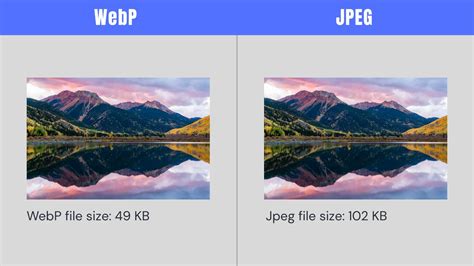
The transition to WebP is not merely an aesthetic choice; it's a strategic move driven by the desire to make the internet more efficient. However, this efficiency comes at a cost for some users. The very nature of WebP, being a more modern and compressed format, means that it is not universally supported by all applications and platforms, especially older software or operating systems. This incompatibility is where the frustration often begins for individuals who rely on specific image editing software or viewing applications that do not natively support WebP.
The Saving Predicament: When Browsers Dictate Format
A common scenario that highlights the WebP challenge arises when users attempt to save an image directly from a webpage. While familiar formats like JPG, GIF, and PNG have long been the default choices, Google's Chrome browser has increasingly shifted towards saving images in the WebP format. This change, while beneficial for Google in terms of data efficiency, can be a significant hurdle for users.
The behavior can sometimes seem arbitrary. Whether an image is served in its original format (such as JPG or PNG) or as WebP can appear random. This variability is often due to content delivery networks (CDNs) and web servers that dynamically serve images. If a browser's HTTP request header indicates support for WebP, the server might opt to send the image in this compressed format to reduce data traffic. This is a deliberate choice by web designers and server administrators to leverage the benefits of WebP, aiming to make their sites load faster and use less bandwidth.
The problem becomes acute when users, expecting a standard JPG or PNG, find themselves with a WebP file that their current software cannot open or process. This incompatibility can disrupt workflows, particularly for graphic designers, web developers, or anyone who frequently downloads images for editing or archival purposes. The inability to open a downloaded image file is a direct impediment to productivity and a source of considerable user frustration.
Overcoming the WebP Hurdle: Practical Solutions for Chrome Users
Fortunately, for users of the Google Chrome desktop browser, there are effective workarounds to circumvent the default WebP saving behavior. The primary and most recommended solution involves utilizing a browser extension specifically designed to address this issue.
Installing and Using the "Save image As Type" Extension
One of the most popular and effective extensions for this purpose is "Save image As Type." This extension empowers users to regain control over the format in which images are saved, offering the flexibility to choose between JPG, PNG, or even WebP if desired.
- Open the Chrome Web Browser: Ensure you are using the desktop version of Chrome, as the mobile app does not support extensions.
- Install the Extension: Navigate to the Chrome Web Store, search for "Save image As Type," and install the extension.
- Pin the Extension: For easier access, it is highly recommended to pin the extension to your Chrome toolbar. After installation, click on the puzzle piece icon (Extensions) in your toolbar and then click the pin icon next to "Save image as Type." This will display a small image icon on your toolbar.
- Restart Chrome: After installing and pinning the extension, it's advisable to close and re-open Chrome for the changes to take full effect.
Once installed and pinned, using the "Save image As Type" extension is straightforward:
- Navigate to a Webpage with an Image: Open any webpage containing an image you wish to download.
- Right-Click the Image: Perform a right-click on the image.
- Select "Save image as Type": From the context menu that appears, hover over or click on "Save image as Type."
- Choose Your Desired Format: A sub-menu will appear, presenting options such as "Save as JPG," "Save as PNG," or "Save as WebP." Select the format you prefer.
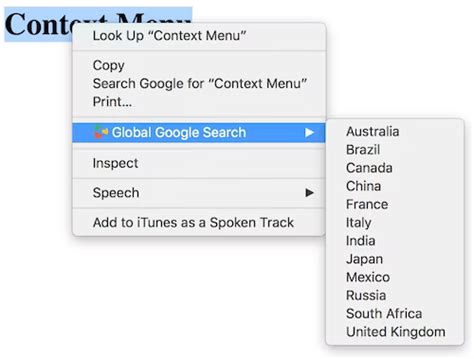
Your image will then be downloaded in the chosen format, bypassing the default WebP saving behavior. This method provides a seamless way to ensure your downloaded images are in a universally compatible format, eliminating the need for post-download conversion.
Alternative Chrome Extension: "Save Image As PNG"
Another specialized extension that can be used is "Save Image As PNG." This extension, as its name suggests, focuses specifically on converting WebP images to PNG format during the download process. It offers a streamlined experience for users who primarily need PNG files. The installation and usage are similar to "Save image As Type," with the key difference being its singular focus on PNG output.
Deeper Dive: Understanding HTTP Headers and Workarounds
For users who prefer not to rely on extensions or wish to understand the underlying mechanisms, a more technical approach involves manipulating HTTP request headers. Web servers often use these headers to determine what content a browser can handle.
The Role of the "Accept" Header
The "Accept" request header is a crucial component of HTTP communication. It informs the web server about the media types (like image formats) that the client (your browser) is capable of processing. For Chrome, the default "Accept" header often includes image/webp, signaling to the server that it can serve WebP images. The default header for Chrome typically looks something like this: text/html,application/xhtml+xml,application/xml;q=0.9,image/webp,image/apng,/;q=0.8.
By modifying this header to exclude image/webp, you can trick the server into believing your browser does not support the format, prompting it to serve the image in an older, more compatible format like JPG or PNG.
Using the "ModHeader" Extension
The "ModHeader" Chrome extension is a powerful tool for modifying HTTP request headers. Here's how it can be used to address the WebP issue:
- Install ModHeader: Add the ModHeader extension to your Chrome browser.
- Configure Headers: Open the ModHeader extension's options.
- Add a New Header:
- Header Name:
Accept - Header Value: Remove
image/webpfrom the default list. For example, you might set it totext/html,application/xhtml+xml,application/xml;q=0.9,image/apng,/;q=0.8.
- Header Name:
- Enable the Header: Ensure the header is enabled.
- Permanent Spoofing (Optional but Recommended): To avoid breaking your general browsing experience, use the "Permanent Spoof List" feature within ModHeader. This allows you to apply the header modification only to specific websites or patterns, rather than globally.
The "User-Agent" Switcher Approach
In conjunction with modifying the "Accept" header, altering the "User-Agent" string can also be effective. The User-Agent string identifies the browser and operating system to the web server. By spoofing a User-Agent string from an older browser that does not support WebP (e.g., Internet Explorer 9), you can influence the server's response.
- Install "User-Agent Switcher": Add this extension to Chrome.
- Select an Older Browser: Choose a User-Agent string that represents a browser known to not support WebP.
- Combine with Header Modification: For maximum effectiveness, combine this with the "Accept" header modification using ModHeader.
It's important to note that these header manipulation methods, while powerful, can sometimes be complex and may require trial and error. Caching mechanisms can also interfere, meaning that changes might not be immediately reflected.
How to use the User-Agent Switcher and Manager browser extension (Tutorial)
WebP Viewing and Editing: When You Can't Avoid It
While the focus has been on avoiding WebP downloads, it's worth noting that many modern browsers, including Chrome, Firefox, and Edge, can display WebP images natively. If you do end up with a WebP file and need to view or edit it, you don't necessarily need to convert it immediately.
Viewing WebP Files
Simply opening a .webp file in Chrome, Firefox, Opera, or Edge will usually display the image without any issues. This means that if your primary concern is just viewing downloaded images, the WebP format might not be an insurmountable obstacle.
Editing WebP Files
For editing purposes, popular image editing software like Adobe Photoshop, GIMP, and even Microsoft Paint (on newer Windows versions) have added support for the WebP format. If you don't have these installed, you can often perform basic edits directly within your browser by opening the WebP file.
The Firefox Perspective: A Different Set of Challenges
While Chrome has provided extensions to manage WebP downloads, the situation in Firefox has historically presented its own set of complications. Historically, Firefox has been lauded for offering users greater control and choice, but the WebP issue has been a point of contention for some of its long-time users.
Firefox's "Accept" Header and Transparent Handling
Similar to Chrome, Firefox also sends an "Accept" header that includes image/webp. This signals to web servers that Firefox can handle WebP images. The concept of "transparently handling" these images means that Firefox can receive a WebP image and display it without the user necessarily being aware of the underlying format change.
The challenge in Firefox arises when saving these images. Unlike Chrome's built-in converter in the save dialog, older versions of Firefox lacked a direct mechanism to convert WebP back to a more common format like JPG or PNG during the save process. This meant that if a server sent a WebP image, Firefox would save it as WebP, even if the original request was for a JPG.
Firefox Configuration Workarounds
For Firefox users encountering this issue, several configuration tweaks have been suggested:
Disabling WebP Support in
about:config:- Open a new tab in Firefox and type
about:configinto the address bar, then press Enter. - Accept the warning if it appears.
- Search for the preference
image.webp.enabled. - Double-click on this preference to toggle its value to
false. - This setting instructs Firefox not to accept WebP images. However, this can sometimes lead to broken images on websites that exclusively serve WebP.
- Open a new tab in Firefox and type
Viewing Image Information (Firefox 89+): In more recent versions of Firefox (89 and later), the ability to view image information, which previously offered a pathway to save in original formats, might be hidden. To re-enable this:
- Navigate to
about:config. - Search for
browser.menu.showViewImageInfo. - Set this preference to
true. - You can then right-click an image and select "View Image Info" to access details and potentially save in a different format.
- Navigate to
Using Page Info Dialog (Older Firefox Versions): In Firefox versions 87-88, the "Save as…" button within the Page Info dialog (accessible via
Ctrl+ion Windows) could be used. You would need to manually locate the image within the "Media" tab of the Page Info window.
These Firefox-specific workarounds aim to either prevent WebP from being served or provide alternative methods for saving images in desired formats. However, users have reported that some of these methods, particularly those involving about:config changes, can inadvertently break functionality on certain websites, highlighting the delicate balance between user control and web compatibility.
The Broader Implications: User Choice and Browser Design
The ongoing debate surrounding the WebP format underscores a larger tension in browser development: the balance between imposing optimizations for efficiency and providing users with granular control. Google's decision to push WebP, while technically sound from a performance perspective, has been met with resistance from users who value compatibility and predictability.
Many users, like the retired systems developer quoted in the provided text, express a desire for simple, user-selectable options within browser settings. The sentiment is that complex workarounds involving browser extensions or about:config edits are not ideal for the average user. A straightforward setting to choose the default save format, with an option for automatic conversion if needed, would be a welcome addition.
The proliferation of WebP also touches upon the broader trend of browsers and web services making design decisions that assume user adaptation. While innovation is crucial, alienating a significant portion of the user base by removing established functionalities or forcing new, incompatible formats can have detrimental effects. For browsers like Firefox, which traditionally prided themselves on user control and customization, such decisions can lead to a loss of user loyalty and a decline in market share, as some users reluctantly switch to browsers that offer a more familiar or controllable experience.
The core issue is that while WebP offers advantages, its widespread adoption without universal, seamless compatibility or easily accessible user controls creates friction. The "Save image As Type" extension for Chrome, and the configuration options for Firefox, represent community-driven solutions to a problem that many users feel should be addressed more directly by browser developers themselves. The goal is not to reject WebP outright, but to ensure that users have the agency to manage their downloaded image formats according to their specific needs and preferences, without compromising their existing workflows or software dependencies.
The frustration often stems from the expectation that saving an image should yield a file that is immediately usable with commonly available software. When this expectation is unmet due to a format shift, it highlights the need for browsers to act as transparent conduits rather than imposing format changes that can disrupt user workflows. Ultimately, the ability to save files in the desired format, whether JPG, PNG, or WebP, should be a user-selectable option, ensuring that technological advancements enhance, rather than hinder, the user experience.