Working with layer masks in Adobe Photoshop is a fundamental skill for any digital artist or retoucher. While creating masks to isolate subjects or elements is common, the ability to precisely subtract one mask from another unlocks a new level of control and efficiency. This article delves into the intricacies of subtracting layer masks, exploring various techniques and addressing common challenges users encounter, from beginners to seasoned professionals.
The Foundation: Understanding Layer Masks
Before diving into subtraction, it's crucial to grasp the core concept of layer masks. A layer mask is a grayscale image attached to a layer, controlling the layer's transparency. White areas on the mask reveal the layer's content, black areas conceal it, and shades of gray create partial transparency. The beauty of layer masks lies in their non-destructive nature; they allow you to edit visibility without permanently altering the pixel data of the layer itself.
The Challenge: Subtracting One Mask from Another
A common scenario arises when you have a complex background mask that inadvertently includes parts of your subjects. You then have separate masks for your subjects and wish to "cut out" these subjects from the background mask. This is where the subtractive function of layer masks becomes indispensable.
One user, working with Photoshop version 25.0.0, described a specific issue: "I have a complex background mask on its own layer. The background mask includes some of the subjects. I would like to subtract the subject layer masks, one at a time, from the background mask. I used 'select subject' to create multiple empty groups, each group having a layer mask revealing one of the subjects."
The user attempted a common method: "Converting the target layer mask (the background mask) to a selection is successful. When I press and hold Alt + Ctrl, the cursor shows a minus sign for subtraction: successful. Still holding down Alt + Ctrl, when I left-click on the subject mask in the other group layer, to subtract the subject from the background, a blue border briefly flashes around the Layers panel, and the subject layer mask is selected, while the target background layer mask is deselected. Not what I intended."
This illustrates a common pitfall: the intended operation of subtracting a mask from another mask by clicking on the mask thumbnail while holding modifier keys doesn't always yield the desired result directly. Photoshop's selection-based operations often require a slightly different approach to achieve mask manipulation.
Technique 1: Using Selections and the "Subtract from Selection" Mode
The most robust method to subtract one mask from another involves converting masks into selections and then utilizing Photoshop's selection manipulation tools.
Convert Background Mask to Selection: As the user noted, Command-click (Mac) or Control-click (Win) on the thumbnail of your background layer mask. This loads the mask as a selection.
Enter "Subtract from Selection" Mode: Now, you need to prepare to subtract the subject masks. There are several ways to do this:
- Using Modifier Keys: While the background selection is active, hold down Alt+Control+Shift (Mac) or Alt+Ctrl+Shift (Win). Your cursor will change to indicate the "Intersect with selection" mode. Then, Command-click (Mac) or Control-click (Win) on the thumbnail of the subject layer mask you want to subtract. This will subtract the subject's mask from the active background selection.
- Using the Options Bar: With the background selection active, look at the Options bar at the top of your Photoshop window. You'll see icons representing "New Selection," "Add to Selection," "Subtract from Selection," and "Intersect with Selection." Click the "Subtract from Selection" icon. Then, Command-click (Mac) or Control-click (Win) on the thumbnail of the subject layer mask.
Apply the Result to the Background Mask: Once you have the desired selection (the background with the subject areas removed), you need to apply this back to your background layer mask.
- Ensure your background layer mask is still targeted (i.e., it's selected in the Layers panel).
- With the refined selection active, press Ctrl+Delete (Mac) or Alt+Backspace (Win) if your background layer mask is filled with white. This will fill the selected areas with black, effectively subtracting them.
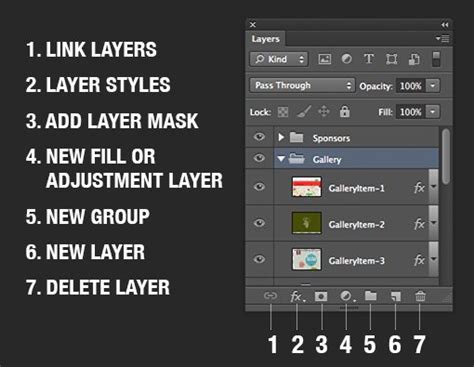
- Alternatively, you can create a new mask from the selection by clicking the "Create Layer Mask" button in the Layers panel while holding Alt (Mac) or Option (Win). This will create a mask that is the inverse of your selection, which you can then invert (Ctrl+I or Cmd+I) to achieve the subtraction.
This method ensures that you are directly manipulating the selection based on the mask's content, and then applying that refined selection to modify the target mask.
Technique 2: Leveraging the Option/Alt Key for Brush and Eraser Modes
For users who prefer a more direct, brush-based approach, the Option (Mac) or Alt (Win) key plays a crucial role. A long-time Photoshop user highlighted this preference: "I normally edit a picture using layer mask with a brush or eraser and no matter what tool I'm using, if I press option key (mac) it will turn that tool into subtract mode or add mode (depending if I'm using a brush or eraser) making the process very easy."
This functionality is indeed powerful for on-the-fly mask editing. However, the user encountered an issue after reinstalling Photoshop: "Now when I press the option key with the eraser it shows this message: 'Could not use the history eraser because the history state does not contain a corresponding layer.' and when I use the option key with the brush tool it pick the eyedropper tool…"
This message indicates a misunderstanding of how the Option/Alt key interacts with the Brush and Eraser tools in relation to layer masks.
With the Brush Tool: When working on a layer mask, holding Option/Alt before clicking with the Brush tool will sample a color from the image and set it as the foreground color. This is the Eyedropper behavior. To use the brush for adding or subtracting from a mask, you should ensure your foreground and background colors are set to black and white. Then, painting with white adds to the mask (reveals), and painting with black subtracts from the mask (conceals). The X key is the shortcut to swap foreground and background colors, effectively toggling between painting with black and white.
With the Eraser Tool: The Eraser tool, by default, erases pixels. When used on a layer mask, it erases pixels from the mask itself, which means it's painting with black, thus subtracting from the visible area. The "History Brush" error suggests the user might have been trying to use the Eraser tool in conjunction with the History panel, which is a different function altogether.
To achieve the subtractive effect with the brush tool:
- Ensure you have a layer mask selected in the Layers panel.
- Set your foreground color to black. You can do this by clicking the foreground color swatch or by pressing D (to set default black/white) and then X (to swap to black as foreground).
- Select the Brush Tool.
- Paint on the layer mask. Painting with black will subtract from the mask, making that area of the underlying layer invisible.
If you want to quickly switch between adding (painting with white) and subtracting (painting with black) while using the Brush tool on a mask, simply press the X key. This toggles your foreground and background colors, allowing you to paint with white or black without leaving the Brush tool.
Photoshop Layer Masks Explained in 7 Minutes!
Technique 3: Right-Clicking on Layer Masks for Quick Operations
Another efficient method, often overlooked, is right-clicking on a layer mask thumbnail. This brings up a context-sensitive menu with various options for manipulating the mask.
A user shared their workflow: "I want to add a little saturation to Amelie. I donât need to make the mask again, or even copy it to the new layer. Voila! To quickly re-select a previous selection, simply Ctrl-click on the mask. Ok, what if I want to brighten that grass behind her legs? Thereâs no need for careful masking around her body â Iâve already done the hard work! This time, I want to brighten up her jacket. Again, thereâs no need to select it too carefully â Iâve already done most of the hard work!"
While this describes re-selecting masks, the right-click menu offers more direct mask manipulation. For instance, if you have a selection active and you right-click on a layer mask thumbnail, you'll see options like "Add Mask to Selection," "Subtract from Mask," and "Intersect with Mask." These are powerful shortcuts for directly applying selection operations to masks without needing to load them as selections first.
To subtract a subject mask from a background mask using this method:
- Load your background mask as a selection (Command/Control-click).
- Ensure your subject mask is loaded as a selection as well (Command/Control-click on its thumbnail).
- Go to the Layers panel, right-click on the background layer mask thumbnail.
- Choose "Subtract from Mask." This will use the currently active selection (which would be the subject mask) to subtract from the background mask.
Technique 4: Using Temporary Layers for Complex Selections
For very intricate subtractions or when working with older versions of Photoshop, creating temporary layers can be a useful strategy. A user mentioned: "I want to change the color of the space betwwen the red box and the black boxes. - Then just delete the temporary Layer used to create the selection and there you go."
This approach involves creating a new layer, using selection tools (like the Polygonal Lasso Tool, Pen Tool, or Marquee Tools) to draw out the areas you want to subtract, filling that selection with black on the temporary layer's mask, and then using that temporary mask's content to modify your main background mask.
- Create a new, empty layer above or below your main layers.
- On this new layer, create a layer mask.
- Use your preferred selection tools to draw the shapes that represent the subjects you want to subtract from the background. For example, if you have a red rectangle and three black rectangles, you might select the area between them.
- Fill the selection on this temporary layer's mask with black.
- Now, load this temporary mask as a selection (Command/Control-click its thumbnail).
- Target your main background layer mask.
- With the temporary mask's selection active, you can then subtract this selection from the background mask using the methods described in Technique 1 or 3.
- Once the subtraction is complete, you can delete the temporary layer.
This method is particularly helpful when the shapes to be subtracted are precise geometric forms or when you want to isolate a complex area for subtraction without affecting your primary masks directly until the final step.
Addressing Version-Specific Issues and Preferences
It's important to acknowledge that Photoshop's interface and some shortcut behaviors can evolve across versions. The user who mentioned using Photoshop CS3, for instance, might find slightly different dialog boxes or modifier key behaviors compared to someone using the latest Creative Cloud version.
CS3 User's Approach: The CS3 user described creating a "red" rectangle and three "black" rectangles within a single mask. This implies they were using selection tools to define these shapes and then filling those selections with black or white on a layer mask. For subtraction in CS3, the principles remain the same: load a mask as a selection, use selection tools with modifier keys (like Alt/Option) to subtract from that selection, and then apply the resulting selection to modify another mask.
Customization and Preferences: As one user stated, "There are so many ways to accomplish the same outcome in Ps. None of which are any easier, it's just which one is easiest for you!" This sentiment is key. Photoshop is highly customizable. While standard shortcuts and workflows are efficient, understanding the underlying principles allows you to adapt them to your personal workflow and Photoshop preferences. If a specific shortcut or modifier key combination isn't behaving as expected, it's worth checking Photoshop's Keyboard Shortcuts preferences to ensure they align with your expectations or to reassign them.
Beyond Subtraction: Intersecting and Adding Masks
While this article focuses on subtraction, it's worth noting that the same selection-based workflows can be used for other Boolean operations on masks:
- Adding to a Mask: To add the content of one mask to another, load both masks as selections, then use the "Add to Selection" mode (or hold Shift while Command/Control-clicking).
- Intersecting Masks: To keep only the areas that are common to both masks, load both as selections and use the "Intersect with Selection" mode (or hold Alt+Shift while Command/Control-clicking).
These operations are performed using the same principles as subtraction, by selecting the appropriate mode in the Options bar or using the corresponding modifier keys.
Conclusion: Precision Through Practice
Subtracting layer masks in Photoshop is a powerful technique that can significantly streamline your editing process, especially when dealing with complex compositions or when you need to refine existing masks. Whether you prefer direct brushwork, selection-based operations, or utilizing context menus, understanding the underlying logic of how selections and masks interact is key. By practicing these techniques, you can gain precise control over your layer visibility and achieve professional-looking results with greater efficiency. Remember to experiment with different methods to discover what best fits your personal workflow and Photoshop version.