Photoshop's "Open Recent" feature is a powerful tool for quickly accessing your most frequently used files. However, as your project list grows, this list can become cluttered, making it difficult to find specific documents. Furthermore, for privacy or organizational reasons, you might want to clear this list entirely or prevent certain files from appearing. This guide will walk you through the various methods of managing your recent files in Photoshop, from clearing the entire list to selectively removing individual entries, and even customizing how the recent files are displayed.
Understanding the "Open Recent" Functionality
When you open files in Photoshop, the application automatically keeps a record of these actions. This record is primarily accessible through the "File" menu, under the "Open Recent" submenu. This submenu typically displays a list of recently accessed files, often with thumbnails if the "Recent Files Workspace" is enabled. The "Start screen" in Photoshop CC also prominently features recent files, allowing for quick access upon launching the application or after closing all open documents.
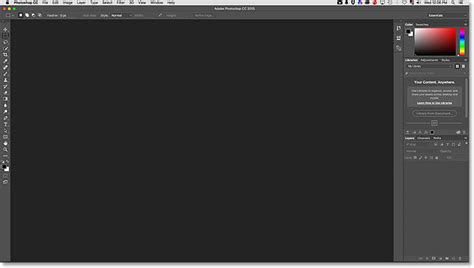
The Start screen serves as a central hub, presenting your recent files as clickable thumbnails. This visual representation is incredibly helpful for quickly identifying and reopening projects. However, a common point of confusion for users is how to access this screen or the recent files list when a document is already open. By default, the Start screen only appears when no other documents are open. To view recent files while another document is active, you must navigate to "File" > "Open Recent." This presents the files as a list of names, which can be less intuitive if you don't recall the exact file names.
Clearing the Entire Recent Files List
The most straightforward method for tidying up your recent files is to clear the entire list. This action is designed to be simple and effective, providing a clean slate for your recent file history.
To clear the recent file list, navigate to File > Open Recent > Clear Recent File List. A single click on this option will remove all previously listed files. This is a quick and effective way to keep your workspace clean and organized.
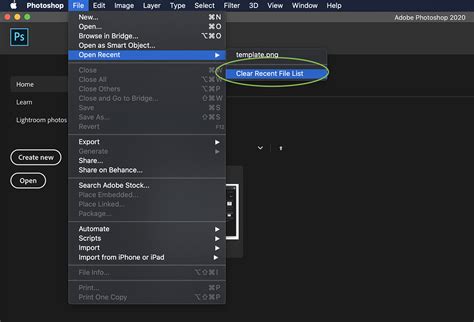
It is important to understand what this action entails. As the name suggests, "Clear Recent File List" only removes the list of files from Photoshop's memory. It does not delete the actual files from your computer's hard drive. This distinction is crucial, as some users have expressed confusion, mistakenly believing that clearing the recent list also removes the files themselves. If you have accidentally deleted files from your drive, this option will not restore them.
Removing Individual Files from the Recent List
A common user query revolves around the ability to remove individual files from the "Open Recent" list without clearing the entire history. This is particularly useful when you have a specific file that you no longer wish to see in the list, perhaps due to a completed project, an abandoned attempt, or a file that has been moved or deleted.
The initial responses in forums often suggest that deleting the file from your drive will automatically remove it from the recent list. The logic is that when you click on a link in the recent list for a file that no longer exists on your drive, Photoshop will detect the missing file and remove that specific link from the list. However, user experiences indicate that this is not always the case. Some users report that even after deleting a file from their Mac's desktop, the file still appears in the "Recent Files" list, and clicking it results in an error message without automatically removing the entry.
To effectively remove individual files, especially those that are no longer on your drive but persist in the list, you generally need to manage them through your file browser.
- On Windows: Use File Explorer.
- On macOS: Use Finder.
- Using Adobe Bridge: This is another powerful tool that can help manage your files and their associated metadata, including recent file entries.
The process involves locating the specific file within your file browser, and then using the delete function (typically by pressing the "Delete" key) to remove it. Once the file is deleted from your drive, Photoshop will then recognize its absence and should remove the corresponding entry from the "Open Recent" list the next time you access it.
If you have recent projects where the link is gone, but the pictures are still there, and you want to delete them from the list, this needs to be done in your file browser. Find the file, then hit the delete key. This ensures that the file is removed from both your system and Photoshop's recent file history.
Customizing the Display of Recent Files
Photoshop offers several preferences that allow you to customize how recent files are displayed and managed, enhancing your workflow and user experience.
Enabling the "Recent Files" Workspace
By default, the "Recent Files" workspace, which displays thumbnails, might be turned off. Enabling this feature can significantly improve your ability to quickly identify and reopen files.
To enable this feature:
- On a Windows PC: Navigate to Edit > Preferences > General.
- On a Mac: Navigate to Photoshop > Preferences > General.
In the Preferences dialog box, look for the option "Show 'Recent Files' Workspace When Opening A File." Check this box to enable it.
After making this change, you will need to quit and relaunch Photoshop for the setting to take effect. Once relaunched, when you choose File > Open, instead of the default File Explorer or Finder window appearing, you will see the "Recent Files" panel. This panel acts as a mini Start screen, displaying your recent files as thumbnails, alongside options to create new documents or open files from your computer. This allows you to keep multiple images open simultaneously and easily switch between them by accessing recent files without closing your current work.
To disable this feature, simply return to the same preferences, uncheck the option, and relaunch Photoshop.
Hiding Thumbnails from the Welcome Screen
For users who wish to maintain privacy or avoid displaying client images on the welcome screen, there's a way to hide these thumbnails. This is particularly relevant when preparing for livestreams or presentations where sensitive information should not be visible.
To hide the thumbnails from Photoshop's welcome screen:
- Navigate to Edit > Preferences > General (on Windows) or Photoshop > Preferences > General (on Mac).
- Look for an option related to the Home Screen or Welcome Screen. Unchecking a box like "Auto Show Home Screen" can prevent this screen from appearing altogether, taking you directly into Photoshop's interface upon launch.
By unchecking this option, you will bypass the welcome screen and go straight to your workspace. If you wish to have the welcome screen back, you can simply re-enable the option in the preferences.
Adjusting the Number of Recent Files Displayed
The "Open Recent" menu has a default setting for the number of files it displays. You can adjust this number to show more or fewer files, depending on your needs.
To change the number of recent files displayed:
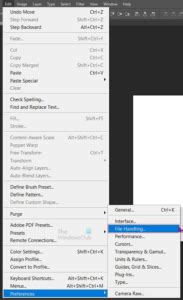
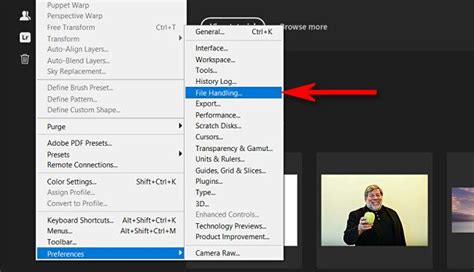
- Navigate to Edit > Preferences > File Handling.
- Within the "File Handling" menu, you will find an option to set the number of recent file list entries.
- By default, this might be set to 25 files. You can increase this number to, for example, 100 files, making it easier to find older documents that you've recently worked on.
Preventing Files from Appearing in the Recent List:
If your goal is to prevent files from appearing in the recent list altogether, you can achieve this by setting the number of recent file list entries to 0. This effectively disables the tracking of recent files within Photoshop.
How to Delete Recent Files in Photoshop
By understanding and utilizing these various methods for managing your Photoshop recent files, you can streamline your workflow, maintain a clean workspace, and ensure your work remains private when necessary. Whether you need to quickly clear clutter, selectively remove entries, or customize the display for optimal efficiency, Photoshop provides the tools to tailor the recent files feature to your specific needs.