Migrating your digital workspace to a new computer can be a daunting task, especially when it involves specialized software like Adobe Lightroom Classic (LrC). Photographers invest considerable time and effort in curating and creating presets - custom settings that streamline editing workflows and define unique visual styles. Losing these valuable presets during a computer transition can lead to significant frustration and a considerable setback in productivity. This guide provides a comprehensive, step-by-step approach to ensure your Lightroom Classic presets are successfully transferred to your new machine, allowing you to pick up right where you left off.
Understanding Lightroom Presets and Their Storage
Lightroom presets are essentially saved configurations of various editing parameters within Lightroom Classic. They allow users to apply a consistent look or a specific set of adjustments to multiple images with a single click. These presets are stored in a format that is specific to Lightroom, often identified by the .lrtemplate extension for older presets or as XMP files for newer ones.
Crucially, user presets are stored separately from the Lightroom catalog itself. This distinction is a common point of confusion for users migrating their software. While your catalog file (often an .lrcat file) contains all your image metadata, organizational information, and editing history, your custom presets reside in a different location on your computer's file system. This separation means that simply copying your catalog file to a new computer will not automatically bring your user presets along.
Locating and Copying Your Presets from the Old Computer
The first critical step in transferring your presets is to identify where they are stored on your existing computer. Adobe Lightroom Classic offers a convenient way to access these locations directly through its preferences.
For Develop Presets
- Open Lightroom Classic on your old computer.
- Navigate to the Preferences menu. On a Mac, this is typically found under Lightroom Classic > Preferences. On Windows, it's under Edit > Preferences.
- In the Preferences window, select the Presets tab.
- You will find an option that says "Show Lightroom Develop Presets." Click this button.
- This action will open a Finder window (on Mac) or an Explorer window (on Windows) directly to the folder where your Lightroom Develop presets are stored. This folder usually contains subfolders for different preset groups, including your custom "User Presets."
- Select and copy the entire "Lightroom" folder that is highlighted or opened by this command. This folder contains not only your Develop presets but often other user-defined settings as well.
- To facilitate the transfer, paste this copied "Lightroom" folder onto a portable storage device, such as a USB drive, or save it to your external SSD that you are using for your Lightroom catalog.
For Local Adjustment Presets (Brush Presets)
If you also use custom brush presets (local adjustment presets), these are stored in a separate location.
- Within the same Preferences window on your old computer (Lightroom Classic > Preferences or Edit > Preferences), navigate to the Presets tab.
- Look for an option related to Local Adjustment Presets or similar wording. Clicking the relevant button will open another system folder.
- This folder typically contains a subfolder named "Local Adjustment Presets."
- Select and copy all the files within this "Local Adjustment Presets" folder.
- Paste these files into a separate folder on your USB drive or within a designated folder on your cloud service for safekeeping and transfer.
Transferring and Importing Presets to the New Computer
Once you have successfully copied your presets from your old machine, the next phase involves transferring them to your new computer and integrating them into your Lightroom Classic installation.
Importing Develop and Other User Presets
- Connect your USB drive or external SSD containing the copied "Lightroom" folder to your new MacBook Pro (or other new computer).
- Open Lightroom Classic on your new computer.
- Again, navigate to the Preferences menu (Lightroom Classic > Preferences on Mac, or Edit > Preferences on Windows).
- Select the Presets tab.
- Click the "Show Lightroom Develop Presets" button. This will open the designated presets folder on your new machine.
- Now, you need to paste the "Lightroom" folder (the one you copied from your old computer) into this location. If prompted to merge or replace existing folders, proceed with caution, ensuring you are not overwriting newer or essential system files unless you are certain. In most cases, you will be adding your custom user preset folders to the existing structure.
- After pasting the folder, restart Lightroom Classic. Your user presets, including those in the Develop module and potentially Export presets, should now appear in their respective panels.
Importing Local Adjustment Presets
- On your new computer, open Lightroom Classic and go to Preferences (Lightroom Classic > Preferences or Edit > Preferences).
- Navigate to the Presets tab.
- Locate and click the button to access the folder for Local Adjustment Presets.
- Paste the files you copied from your old computer's "Local Adjustment Presets" folder into this directory on your new machine.
- Restart Lightroom Classic for these brush presets to become available.
How To Import Lightroom Mobile Presets In 4 Easy Steps
Alternative Import Method: Using the Import Presets Feature
Lightroom Classic also offers a direct import function for presets, which can be particularly useful if you have downloaded presets in a .zip file or as individual .lrtemplate or XMP files.
- Open Lightroom Classic on your new computer.
- Navigate to the Develop module.
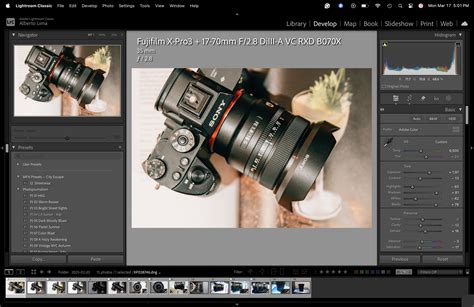
- In the Presets panel on the left-hand side, click the plus (+) icon at the upper-right corner of the panel.
- From the drop-down menu, select "Import Presets."
- An import dialog box will appear. Navigate to and select the preset files (e.g.,
.lrtemplateor XMP files) or a.zipfile containing your presets that you have transferred to your new computer. - Click "Import."
Alternatively, you can right-click on a desired preset group within the Presets panel and select "Import Presets" from the context menu.
It's important to note that you cannot export built-in Lightroom Classic presets or preset groups. The methods described above are for migrating your own custom-created or third-party presets.
Troubleshooting Common Preset Transfer Issues
While the process is generally straightforward, some users may encounter issues. Understanding these common problems can help resolve them quickly.
Presets Not Showing After Import
- Incomplete Transfer: Ensure that you have copied and pasted all the necessary files and folders from your old computer. Sometimes, a partial copy can lead to missing presets.
- Catalog-Specific Presets: If you work with multiple Lightroom catalogs, presets can sometimes appear to be missing when working with a particular catalog. This can occur if the "Store presets with this catalog" option is selected in Lightroom's preferences. This setting embeds presets within that specific catalog, meaning they won't be globally available unless also stored in the default preset location. To avoid this confusion, it's generally recommended to keep presets stored in the default location unless you have a specific reason to embed them.
- Compatibility Issues: Some presets might not display correctly or function as expected if they contain settings that are not compatible with the current version of Lightroom Classic or with the specific photo you are editing. For instance, certain local adjustment settings might not apply universally.
- XMP Preset Compatibility: If you are using older versions of Lightroom Classic (prior to version 8.2), you may not be able to import XMP presets. Ensure your Lightroom Classic is updated to a recent version to support XMP files.
- JPEG Profile Association: If you are experiencing issues with presets not working correctly with JPEG files, ensure that the preset has a JPEG profile associated with it. This is less common with standard Develop presets but can be a factor.
Missing Default Adjustment Brush Presets
If you find that the default Adjustment brush presets are missing, this is typically a system-level issue or a corrupted installation. Reinstalling Lightroom Classic or restoring default settings might be necessary, though this is a less common scenario during a simple transfer.
Preserving Your Workflow: Beyond Presets
While presets are a significant part of a streamlined workflow, remember that other elements contribute to your efficiency in Lightroom Classic. Ensure you also consider transferring:
- Keyboard Shortcuts: Custom shortcuts can be exported and imported through the Edit menu in Lightroom Classic.
- Export Presets: These are crucial for batch exporting images with specific file settings. They are typically found within the "Export" section of the Presets panel and can often be managed alongside other user presets.
- Metadata Import/Export: If you use custom develop or export metadata presets, ensure these are also backed up and transferred.
By following these detailed steps, you can confidently migrate your valuable Lightroom Classic presets to your new computer, ensuring continuity in your editing workflow and preserving the unique aesthetic you've cultivated. The process, while requiring attention to detail, is manageable and ensures that your digital darkroom remains as powerful and personalized as before.