The world of wedding photography is a unique blend of artistry, storytelling, and meticulous business management. As a professional, you capture ephemeral, irreplaceable moments, transforming them into enduring memories for your clients. However, the journey doesn't end with the final dance. Post-production, particularly the editing of thousands of wedding images, is a monumental undertaking that demands both technical proficiency and countless hours at the computer. This is where Adobe Lightroom and the strategic use of presets, especially in conjunction with emerging AI technologies, become indispensable tools for streamlining your workflow and elevating your final output.
The Power of Presets in Wedding Photography Workflows
At its core, a Lightroom preset is a saved collection of editing parameters - a digital recipe for a specific look. These settings are stored in small files, typically with a .XMP extension for modern compatibility with Lightroom and Adobe Camera Raw, though older .lrtemplate formats also exist. For hobbyists, presets offer a playful avenue for stylistic exploration. For professional wedding photographers, however, they are a business necessity, crucial for building a consistent, recognizable brand and achieving drastic workflow efficiencies.
Clients often choose a photographer because they connect with their unique style, and presets are the primary vehicle for creating and maintaining that signature aesthetic. The sheer volume of images from a wedding can make editing a daunting task, often taking 20, 30, or even 40 hours. By providing a strong starting point for every photo, a well-chosen preset can slash editing time by 75% or more, enabling faster delivery of galleries. This efficiency is not just about saving time; it's about enabling business scalability. If each wedding consumes a full week of editing, a photographer's client capacity is naturally limited. Efficient post-production, facilitated by presets, allows for a more robust and scalable business model.
Furthermore, presets serve as a creative springboard. They are not intended as a one-click, final solution but rather as a foundation upon which photographers can build. After applying a preset, minor, targeted adjustments-a subtle tweak to exposure or a slight white balance shift-can perfect the image. In essence, presets are about working smarter, not harder, optimizing the creative process.
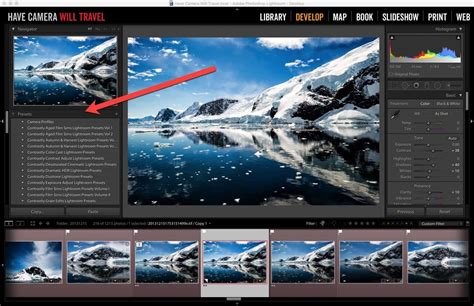
Navigating the Limitations of Traditional Presets
The long-held dream of a "one-click" editing solution has been a driving force behind preset development. While they deliver on speed, professional photographers quickly recognized their inherent limitations. A single, static preset struggles to adapt to the dynamic and unpredictable nature of a wedding day. Consider the scenario: a preset that looks stunning on a bright, outdoor portrait might yield suboptimal results when applied to a dimly lit reception or a ceremony under harsh midday sun. This is the "one-size-fits-all" problem.
A preset is a fixed set of instructions, unaware of the varying lighting conditions encountered throughout a wedding day - from the soft light of a bridal suite to the warm glow of candlelit receptions and the vibrant hues of DJ lighting. This lack of adaptability often leads to an "endless tweaking cycle." Photographers find themselves spending significant time re-adjusting photos after applying a preset, often having to drastically alter white balance, recover blown highlights, or lift crushed shadows. This extensive manual correction can undermine the goal of maintaining consistency across the entire gallery, turning what should be an efficiency tool into a chore.
The AI Revolution in Photo Editing: Adaptive and Personalized Workflows
Artificial intelligence is fundamentally changing the landscape of photo editing, moving beyond the static nature of traditional presets. AI editing doesn't aim to replace a photographer's creative vision but rather to augment it through intelligent automation. Unlike a preset that merely copies settings, an AI-powered editing engine analyzes the unique characteristics of each individual photo. It considers factors like available light, colors, subjects, ISO, and dozens of other data points to make informed editing decisions.
Imagine editing a photo taken in a dimly lit church. You'd intuitively increase exposure, adjust white balance to counteract warm lighting, and perhaps reduce noise from a high ISO. A traditional preset wouldn't possess this contextual understanding. However, an AI, trained on your editing style, can analyze the new photo and make similar intelligent decisions, performing this analysis for thousands of photos in mere minutes. This is the power of adaptive editing.
Exploring Leading Preset and AI Editing Solutions
The market for wedding photography editing tools is vast, offering everything from simple, one-click looks to sophisticated, AI-driven platforms. Choosing the right solution depends on matching the tool to your artistic style and business needs.
Traditional Preset Providers
Several established names offer high-quality, traditional presets, often focusing on film emulation or specific aesthetics:
VSCO: A well-known brand, VSCO offers presets designed to replicate the look of classic film stocks. They produce artistic results popular in lifestyle and wedding photography, though as static presets, they require significant manual adjustments for consistency across a full gallery.
Mastin Labs: This company specializes in hyper-accurate film emulation presets. Their strength lies in authentic film replication and a structured workflow. However, like VSCO, they are static and necessitate manual adjustments.
Noble Presets: Carving a niche in the fine art wedding photography market, Noble Presets are known for their bright, airy, and film-inspired aesthetic. They excel at a specific, popular look but perform best under abundant natural light, making them specialized and static.
Goodlight: Offering a range of presets focused on true-to-life color and a polished finish, Goodlight presets are versatile. However, they face the same adaptability challenge as other traditional presets.
The Imagen AI Workflow: Personalized AI Editing
At the forefront of the editing revolution is Imagen, a platform that transcends the concept of a traditional "preset" and offers a true AI-powered workflow. The core of Imagen's innovation lies in its Personal AI Profile. This is not a generic style but an AI-driven automation of your unique editing aesthetic.
How Imagen Works:
- You Teach the AI: You begin by uploading at least 3,000 of your previously edited photos directly from your Lightroom Classic catalog.
- Imagen Learns Your Style: The platform's neural network meticulously analyzes every adjustment you've made across these thousands of photos. It learns how you handle exposure, contrast, white balance, and color across diverse lighting conditions.
- Create Your Profile: From this analysis, Imagen constructs your unique Personal AI Profile.
- Edit in Minutes: You can then submit a new, unedited wedding gallery to Imagen. Your Personal AI Profile then edits the entire shoot, delivering a consistently styled gallery back to you in mere minutes.
- It Keeps Learning: The system continually improves. After making your final tweaks in Lightroom, you can re-upload the project to further refine your profile.
Imagen's Key Advantages:
- True, Unshakeable Consistency: Imagen's adaptive AI flawlessly handles an entire wedding day, delivering a perfectly consistent look from bridal suite tungsten light to golden hour portraits and dark reception lighting.
- Unmatched Speed and Efficiency: Photographers using Imagen report cutting their editing time by up to 96%, transforming a 20-hour task into under 30 minutes.
- Talent AI Profiles: For newer photographers developing their style, Imagen offers Talent AI Profiles, AI models developed with leading photographers like Fer Juaristi and Susan Stripling, providing immediate access to a professional, polished look.
- An All-in-One Platform: Imagen extends beyond editing, offering AI Culling to select the best shots and other AI tools for tasks like cropping and subject masking.
Imagen isn't merely another preset; it's a paradigm shift in post-production, offering a personalized, intelligent, and profoundly efficient editing solution.
The Practical Application: Importing, Organizing, and Basic Adjustments
Regardless of your chosen editing method, a streamlined workflow begins with efficient import and organization. When importing images from memory cards into Lightroom, you have the option to copy or move files to your preferred location. Leveraging Lightroom's powerful catalog system is crucial for creating a clear overview of your vast image library.
Before delving into complex adjustments or applying presets, focus on foundational edits. These include:
- Exposure: Adjusting the overall brightness of the image to ensure it's well-lit but not overexposed.
- White Balance: Correcting color casts to ensure colors appear natural, especially critical given the varied lighting conditions at weddings. Using the White Balance selector tool by clicking on a neutral gray area in the photo is a highly effective technique.
- Color Temperature: Fine-tuning the warmth or coolness of the image.
These essential corrections ensure a consistent look across your images and provide a solid starting point for further enhancements, whether you're manually editing or preparing images for AI processing.
Advanced Editing Techniques in Lightroom
Lightroom offers a robust suite of tools for refining your images:
- Color Tools: Precision adjustments to hue, saturation, and luminance can effortlessly enhance or alter colors, allowing for artistic expression and correction.
- Generative Remove (AI Tool): This powerful AI feature allows for the effortless elimination of unwanted distractions from your photos, such as stray objects or photobombers.
- Skin Tones: Achieving natural and flawless skin tones can be challenging. Lightroom's precision tools enable delicate balancing of color, exposure, and white balance to enhance complexions without appearing over-edited.
- Lens Blur Tool: This tool is a game-changer for photographers, allowing for the selective application of background blur to draw attention to your subject, mimicking the effect of a shallow depth of field.
- Black and White Photography: Discover the magic of monochrome. Lightroom's tools make it effortless to create stunning black and white versions of your images, offering a timeless and dramatic aesthetic.
- Local Adjustments: Brushes, gradients, and radial filters allow for targeted adjustments to specific areas of an image, enabling precise control over exposure, color, and other parameters.
- Tone Curve: A powerful tool for fine-tuning the tonal range of an image, offering granular control over highlights, shadows, and midtones.
- Split Toning: This feature allows you to add different color tints to the highlights and shadows, enabling creative color grading.
- Camera Calibration: Often overlooked, this panel can drastically affect the final look of your photos by adjusting how Lightroom interprets the color data from your camera.
- Lens Corrections: Enabling these corrections fixes distortions and vignetting caused by your specific lens, ensuring a more accurate representation of the scene.
Exporting and Client Delivery
The final stage of the editing process is exporting your images. Lightroom allows you to export edited photos in various formats and sizes to suit your needs, from high-resolution files for print to optimized web-friendly images. Selecting the best export settings for your project ensures your clients receive their photos in the most appropriate and high-quality formats.
Instant Previews with Lightroom Mobile
Lightroom Mobile empowers photographers to share stunning sneak peeks directly from their phones. This capability is invaluable for building client excitement and anticipation while the final collection is being perfected. Offering instant previews demonstrates professionalism and keeps clients engaged.
iPad Photography Workflow 2023 | iPad Air 4 + Lightroom CC + Anker 11-in-1 USB-C Hub
Choosing the Right Path: Presets vs. AI
The decision between traditional presets and AI-driven workflows hinges on several factors.
Defining Your Artistic Vision
Before even looking at presets, introspection is key. What aesthetic appeals to you? Do you gravitate towards a light and airy style, or do you admire the timeless quality of film? What story do you want your images to tell - romantic and dreamy, or bold and dramatic? Your chosen editing tool should enhance, not replace, your artistic vision.
Assessing Your Workflow Bottlenecks
Consider the practicalities of your current workflow. Are you predominantly shooting outdoors in soft, natural light, or do you frequently contend with mixed lighting conditions like dark churches and dimly lit reception venues? Is editing a significant bottleneck? Do you aspire to scale your business and shoot more weddings?
A traditional preset workflow typically involves applying a preset and then manually tweaking almost every image. An AI workflow, conversely, involves uploading photos, letting the AI perform the heavy lifting, and then spending a shorter period on final creative touches.
Testing and Trial
For traditional presets, downloading free samples or examining before-and-after examples across a wide variety of images (not just perfectly lit portraits) is advisable. For AI solutions like Imagen, the proof is in the free trial. Creating a Personal AI Profile using your own photos allows you to see firsthand how it handles your unique work.
The Future is Intelligent and Personalized
In the competitive world of wedding photography, your artistic vision sets you apart, but your efficiency and professionalism drive business success. For the modern wedding photographer, the future lies in an AI-powered workflow. A personalized solution like Imagen doesn't force you into a generic style; instead, it learns your style and acts as a tireless, perfectly consistent editing assistant. It liberates you from the most tedious and repetitive aspects of your job, gifting you back dozens of hours with every wedding. This is the future of photo editing: personal, intelligent, and designed to give you your life back.
Frequently Asked Questions
What is the difference between a Lightroom preset and an Imagen profile?A Lightroom preset is a static, fixed set of editing settings. An Imagen profile, particularly a Personal AI Profile, is a dynamic AI model trained on your unique editing style, adapting to each photo.
How many photos do I need to create an Imagen Personal AI Profile?You need a minimum of 3,000 of your previously edited photos from a Lightroom Classic catalog.
Can I use wedding presets on my mobile phone?Yes, modern .XMP presets can be synced to the Lightroom Mobile app, allowing for on-the-go editing.
Will using presets make my photos look like everyone else’s?This is a risk with popular, traditional preset packs. AI solutions like Imagen, by learning your personal style, mitigate this risk.
Are presets a one-time purchase?Traditional presets are typically a one-time purchase for a specific pack. Imagen operates on a pay-per-use model for editing.
Can presets fix a poorly exposed or out-of-focus photo?Presets can dramatically improve a photo’s exposure and color, but they cannot fix fundamental issues like missed focus or severe motion blur.
Do presets work on both RAW and JPEG files?Presets work on both, but they are generally designed to be used on RAW files for maximum editing flexibility.
How does Imagen’s AI handle different camera bodies and lenses?Imagen’s AI is robust and designed to handle photos from a wide variety of cameras and lenses.
Can I still tweak the edits after Imagen has processed them?Absolutely. Imagen is designed to provide a highly accurate starting point, and you always have full creative control to make final tweaks in Lightroom.
What are Imagen’s Talent AI Profiles?Talent AI Profiles are AI editing models created in collaboration with leading photographers. They allow you to apply a master photographer's adaptive, AI-powered style to your own work.
Is AI photo editing difficult to learn?Not at all. Platforms like Imagen are designed to be incredibly user-friendly and integrate directly into your existing Lightroom workflow.
Is Imagen a replacement for Lightroom?No, Imagen is a desktop app that works with Adobe Lightroom Classic, as well as Lightroom, Photoshop, and Bridge, enhancing your existing workflow.
Do I need an internet connection to use Imagen?Yes, you need an internet connection to upload your photos to Imagen for culling and editing, as the AI processing happens in the cloud.
What’s the difference between a Talent AI Profile and buying a photographer’s presets?A preset is a static file that applies the same settings to every photo. A Talent AI Profile from Imagen is a dynamic AI model that has learned that photographer’s style and adapts it.
Can I use Imagen for other types of photography besides weddings?Of course! While popular for weddings due to high image volumes, it works wonderfully for portraits, family sessions, events, real estate, and more.
How is the Lite Personal AI Profile different from the main Personal AI Profile?The Lite profile is created using a single preset and a questionnaire, making it very fast to set up. It primarily learns preferences for exposure and white balance.
Does Imagen work with JPEG files?Yes, Imagen can edit both RAW and JPEG files.
How does Imagen’s AI culling know which photos are the “best”?Imagen’s AI culling mimics the human selection process, analyzing technical aspects like focus and exposure, along with features like face recognition and closed-eye detection, to identify keepers and group similar photos.