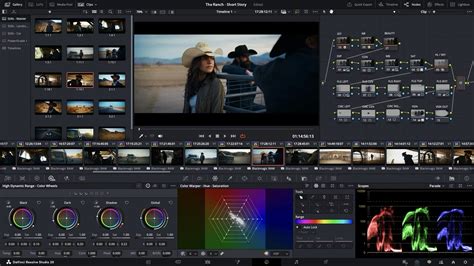
DaVinci Resolve has evolved from a specialized color grading application into a comprehensive post-production powerhouse, rivaling industry giants like Adobe Premiere Pro and Apple Final Cut Pro. Its elegant, modern interface is designed to be both accessible to newcomers and potent for seasoned professionals. This all-in-one solution integrates editing, color correction, visual effects, motion graphics, and audio post-production, allowing users to maintain camera-original quality throughout their workflow without the need to switch between multiple applications. This streamlined approach fosters faster work and higher quality results, effectively providing a complete post-production studio within a single application.
The free version of DaVinci Resolve is remarkably feature-rich, offering capabilities that surpass many paid software alternatives. It allows users to edit and finish projects at frame rates up to 60 frames per second (fps) in resolutions as high as Ultra HD (3840 x 2160). This robust free offering includes extensive color grading tools, such as luma, HSL, and 3D keyers, a color warper, HDR tools, video collage, and elastic wave audio retiming. Furthermore, it supports collaboration, enabling multiple users to work on the same project simultaneously.
As users gain experience and their project demands grow, transitioning to DaVinci Resolve Studio becomes a natural progression. DaVinci Resolve Studio unlocks a new tier of performance and features, supporting frame rates up to 120fps at a massive 32K resolution. It also leverages multiple GPUs for real-time playback of professional 10-bit formats and provides accelerated H.264 and H.265 hardware decoding and encoding. The Studio version introduces a full suite of immersive audio tools, including DaVinci Neural Engine AI for voice isolation, music remixing, and dialogue separation. It also encompasses Dolby Vision and HDR10+ grading and rendering, alongside over 40 additional Resolve FX, such as AI UltraNR noise reduction, SuperScale for high-quality image uprezzing, and advanced de-interlacing.
Beyond these core enhancements, DaVinci Resolve Studio offers crucial workflow integrations, including remote scripting API support and rendering and encoder plug-in capabilities. It significantly boosts system GPU performance, providing access to some of the most sophisticated noise reduction tools available. A notable feature is the lens correction tool, which analyzes clips to correct for spherical lens distortion and other aberrations. The HDR scopes in DaVinci Resolve Studio are specifically designed to measure and provide detailed information about ST.2084 and HLG images. For those working with stereoscopic content, DaVinci Resolve Studio provides a complete set of tools for editing and grading 3D projects. Remote monitoring capabilities allow clients to view high-quality, real-time feeds on computers, iPads, or iPhones.
A key distinction lies in DaVinci Resolve Studio's advanced color transformation scripts. Unlike simpler LUTs (Look-Up Tables), these scripts are GPU-accelerated code that directly manipulate images using complex mathematical functions. The Studio version also offers robust support for scripting languages like Python and LUA, along with developer APIs that enable the integration of custom workflow solutions and encoding options. This extensibility extends to workflow integration plug-ins, facilitating connections with local and remote asset management and automation systems.
The extensive library of over 40 additional GPU and CPU accelerated Resolve FX in DaVinci Resolve Studio covers a wide array of creative needs. These include effects for generating lens flares and reflections, simulating analog damage, and sharpening images. For refinement and restoration, there are dedicated face and beauty tools for retouching, alongside image restoration tools for dirt removal, dust busting, and de-flickering. The Film Look Creator allows users to apply cinematic color looks, emulate film stocks, and add effects like halation, grain, and gate weave. For cleanup tasks, the Patch Replacer enables cloning and painting out unwanted elements, while the object removal plug-in can eliminate entire objects from a scene.
The DaVinci AI Neural Engine, a cornerstone of DaVinci Resolve Studio, employs state-of-the-art deep neural networks and machine learning to power exclusive features. This includes facial recognition for automatically populating bins based on individuals in shots, Super Scale for high-quality image uprezzing to create 4K and 8K images from HD sources, and Speed Warp retiming with advanced optical flow for smooth, crystal-clear speed changes. Additionally, it provides incredibly high-quality de-interlacing, Magic Mask for object isolation and tracking, Smart Reframe for automatic aspect ratio adjustments, object removal, and scene cut detection.
Understanding the Update Process
The ability to update software is fundamental for any video editor, ensuring access to new features, bug fixes, and performance enhancements. DaVinci Resolve simplifies this process, making it as quick and straightforward as possible. This guide details how to safely update DaVinci Resolve across macOS, Windows, and Linux operating systems, whether you are using the free version or DaVinci Resolve Studio.
There are numerous compelling reasons to update your video editing software. Often, it's to access newly released features, such as innovative effects or support for emerging video formats. At other times, updates are crucial for addressing bugs or resolving functionality issues that may have arisen in previous versions.
The Importance of Backups Before Updating
Before embarking on any software update, the paramount first step is to create a comprehensive backup. It is absolutely critical to back up your DaVinci Resolve projects to prevent any loss of hard work. This practice is especially vital when upgrading from one major version of DaVinci Resolve to another, for instance, from DaVinci Resolve 17 to DaVinci Resolve 18.
To initiate a backup, open DaVinci Resolve and navigate to File > Project Manager. The Project Manager typically opens by default upon launching the software and serves as the central hub for all your project libraries and Blackmagic Cloud data. By right-clicking on a specific project, you will find the option to back it up. You will then be prompted to select a folder where this backup data will be stored for easy importing and exporting.
Alternatively, you can export an entire database, which encompasses all your projects. To do this, select the desired database from the left-hand side of the Project Manager. Click the "Details" icon (a circle with an "i" inside) on the right. Then, click the "Back Up" button, choose a secure location for your backup, and click "Save."
Beyond project files, it's also good practice to back up custom LUTs. Navigate to your DaVinci Resolve LUTs folder and copy any custom or third-party LUTs you have added. This ensures that your unique color grading presets are preserved.
Performing the DaVinci Resolve Update
Once your backup is securely in place, you are ready to proceed with updating DaVinci Resolve. The software offers a built-in mechanism for checking and performing updates. From within DaVinci Resolve, click on "DaVinci Resolve" in the upper-left corner of the screen.
In the dropdown menu, select "Check for Updates," which is typically located beneath "Preferences" and "Keyboard Shortcuts." A pop-up window will appear, informing you whether your software is currently up-to-date. If an update is available, you will be presented with a prompt to initiate the update process. The download will commence automatically and will usually be directed to your system's downloads folder. Extracting the downloaded file will then install the DaVinci Resolve update.
It's important to note that DaVinci Resolve will often prompt you to upgrade your databases after an update. Databases contain all your Resolve information, so keeping them up-to-date is essential for compatibility with the newest software version. You can manage and restore databases from the Project Manager.
For a cleaner installation, it is often recommended to uninstall the previous version of DaVinci Resolve before downloading and installing the new one. While the installer typically handles the uninstallation of the old version, a manual uninstall can help prevent potential conflicts or lingering files.
Where to Find the Latest Updates
You can also obtain the latest updates directly from the Blackmagic Design website. Visit the Blackmagic Design Support Center and navigate to the "Latest Downloads" section. This area provides access to all necessary downloads for DaVinci Resolve, including release notes and a "What's New" section that offers a detailed breakdown of every new feature introduced in each version.
When considering newly released Beta versions of DaVinci Resolve, it's advisable to exercise caution. Early Beta versions leading up to a stable release may contain numerous unstable elements. If your primary working language is not English, it is recommended to run these unofficial version updates using the English interface, as DaVinci Resolve developers often conduct bug testing based on English language builds.
How To Update DaVinci Resolve EASY & FAST!
Understanding DaVinci Resolve Studio's Advanced Features
While the free version of DaVinci Resolve provides an exceptional foundation, DaVinci Resolve Studio unlocks a significantly expanded toolkit for professionals and serious hobbyists. The Studio version is not merely an incremental upgrade; it represents a leap in capability, particularly in areas demanding higher performance, advanced creative tools, and support for professional workflows.
Enhanced Performance and Format Support
DaVinci Resolve Studio dramatically enhances system performance, particularly through its robust GPU acceleration. It supports multiple GPUs, which are essential for real-time playback of demanding professional 10-bit formats. This is crucial for high-end productions where smooth, uninterrupted playback is paramount. Furthermore, the Studio version offers accelerated hardware decoding and encoding for H.264 and H.265 codecs, significantly speeding up import and export times for these widely used formats.
The Studio version elevates resolution and frame rate capabilities. While the free version supports up to 60fps at Ultra HD, DaVinci Resolve Studio pushes this to 120fps at a colossal 32K resolution. This is vital for high-frame-rate footage, slow-motion effects, and future-proofing content for emerging display technologies.
Professional workflows often involve specialized media formats. DaVinci Resolve Studio expands beyond the 8-bit formats supported by the free version to include most professional formats. This includes advanced AVCHD, AVC-Intra, and popular H.264 camera formats that utilize "all-I" intraframe encoding, as well as 10-bit encoding. This broad format support ensures compatibility with a vast array of professional camera systems.
Advanced Color Grading and HDR
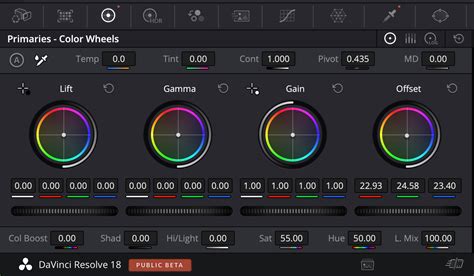
The color grading capabilities in DaVinci Resolve Studio are among the most sophisticated in the industry. It provides advanced tools for HDR workflows, including Dolby Vision and HDR10+ grading and rendering. The Dolby Vision support is particularly noteworthy, featuring a GPU-accelerated version of the Dolby Vision CMU (Content Mapping Unit) and comprehensive Dolby Vision grading controls. The HDR scopes in DaVinci Resolve Studio are capable of measuring and providing detailed information about ST.2084 and HLG images, essential for precise HDR mastering.
Immersive Audio and AI Tools
DaVinci Resolve Studio offers a complete suite of immersive audio tools, going beyond standard stereo and surround sound. It supports high-resolution 3D audio for spatial formats and allows for the import and export of the latest IAB (Immersive Audio Bitstream) and ADM (Audio Definition Model) files. Object-based formats like Dolby Atmos and MPEG-H are fully supported, utilizing panning automation to create dynamic, realistic aural experiences that adapt to different theater sizes. Ambisonics is also comprehensively supported, with resolutions up to 5th order. The Studio version includes Dolby Atmos master production import capabilities from immersive .damf, .wav, and .mxf files, with the ability to decompose them into original elements like sources, buses, and VCA groups. It also supports adding audio to video via IMF (Interoperable Master Format) containers, allowing for multiple simultaneous audio deliverables as IAB-MXF or .wav files.
The DaVinci Neural Engine, powered by advanced AI, is a significant differentiator for DaVinci Resolve Studio. This engine uses deep neural networks and machine learning to enhance numerous features. Beyond the previously mentioned AI voice isolation, music remixer, and dialogue separator, the Neural Engine powers capabilities like facial recognition for automatic media organization, Super Scale for high-quality uprezzing, and Speed Warp for advanced retiming. It also provides incredibly high-quality de-interlacing, Magic Mask for precise object isolation and tracking, Smart Reframe for intelligent aspect ratio adjustments, object removal, and scene cut detection. These AI-driven tools automate complex tasks, saving significant time and effort.
Expanded Visual Effects and Creative Tools
DaVinci Resolve Studio introduces over 40 additional GPU and CPU accelerated Resolve FX, expanding the creative possibilities. These include effects for adding realistic lens flares and reflections, simulating analog tape damage, and advanced sharpening. For image manipulation and restoration, there are specialized face and beauty tools for retouching, as well as image restoration tools for dirt removal, dust busting, and de-flickering. The Film Look Creator allows for the application of cinematic color grading, emulation of various film stocks, and the addition of film grain, halation, and gate weave. For cleanup tasks, the Patch Replacer facilitates cloning and painting out unwanted elements, while the object removal plug-in is designed to remove entire objects from a scene seamlessly.
The Studio version also includes advanced tools for specific workflows, such as lens correction for fixing distortion and aberrations, and comprehensive tools for editing and grading stereoscopic 3D projects. For filmmakers and broadcasters working with digital cinema, DaVinci Resolve Studio offers the ability to create SMPTE ST.2067 compliant Interoperable Master Format (IMF) files for tapeless delivery, using either Kakadu or Easy DCP. It also provides native support for unencrypted DCP files, simplifying the process of outputting and importing unencoded DCPs for playback testing and validation.
Workflow Integration and Hardware Control
DaVinci Resolve Studio is designed for seamless integration into professional post-production pipelines. It supports workflow integration plug-ins for connecting to local and remote asset management systems, automation systems, and more. The inclusion of remote scripting APIs, supporting both Python and LUA, allows developers to add custom workflow integrations and encoding options, further tailoring the software to specific production needs.
The DaVinci Resolve hardware lineâincluding the Editor Keyboard, Speed Editor, Replay Editor, and various control surfaces for editing, color grading, and audio mixingâis engineered to accelerate workflows. These dedicated hardware solutions provide tactile control over the software's functions, enabling faster and more intuitive operation than a mouse and keyboard alone.
The DaVinci Resolve Editor Keyboard, for instance, features a QWERTY layout with color-coded shortcut keycaps, designed for editors who spend extensive hours at the console. The DaVinci Speed Editor offers dedicated edit function keys and a high-quality jog shuttle, allowing for rapid navigation and precise editing. The DaVinci Resolve Color Panels, ranging from the portable Micro Panel to the comprehensive Advanced Panel, provide precise control over color grading parameters, enabling the creation of nuanced and cinematic looks. Similarly, the Fairlight hardware consoles are designed in collaboration with professional sound engineers to streamline audio post-production, offering intuitive, task-based controls that put essential mixing and mastering tools at the fingertips.
The Fairlight Desktop Console is a complete mixing console suitable for various environments, from home studios to professional suites. For dedicated audio facilities and scoring stages, multi-bay Fairlight consoles can be configured. The option to install Fairlight Studio Console components into custom desks further enhances flexibility.
Considerations for Updating and Beta Versions
While updates generally enhance stability and introduce new features, it's crucial to approach them with a degree of caution, especially when dealing with Beta versions. Newly released Beta versions of DaVinci Resolve may contain unstable factors and are not recommended for critical production work. If you choose to experiment with Beta versions, it is strongly advised to run them in the English interface, as bug testing is often prioritized for this language build.
Customized keyboard shortcuts are a common way editors optimize their workflow efficiency. However, without proper caution during an update, these custom presets can be lost. It is therefore advisable to back up your keyboard shortcut configurations before updating. This can often be done by exporting the settings from the Keyboard Shortcuts menu within DaVinci Resolve.
The use of specialized hardware controllers like TourBox can further enhance workflow efficiency and mitigate the complexities of remembering numerous keyboard shortcuts. Features like combo actions, TourMenu, and macro capabilities can theoretically cover every action within the software, while integrated features like HoverAdjust can provide a feel akin to professional grading consoles, expanding creative possibilities.
In situations where you might need to revert to a previous version of DaVinci Resolveâperhaps due to hardware incompatibility with the latest release or a need for specific features from an older versionâyou can often download historical versions from the Blackmagic Design support site. This is a valuable option for ensuring continuity and compatibility.
Updates for both the free version and DaVinci Resolve Studio are provided free of charge. In most scenarios, upgrading DaVinci Resolve will not negatively impact your ongoing projects. If you encounter any issues after an update, you can generate a diagnostic report by selecting "Create Diagnostic Log on Desktop" from the Help menu. This log can be invaluable for troubleshooting and reporting bugs to Blackmagic Design.
Ultimately, DaVinci Resolve is a dynamic software that constantly evolves. Understanding how to update and when to upgrade to DaVinci Resolve Studio ensures that you are always leveraging the latest advancements in post-production technology, empowering you to create content of the highest caliber. The platform is designed to inspire creativity, allowing users to focus on their craft, whether they are just starting or are seasoned Hollywood professionals.