Photoshop's Smart Objects are a powerful feature that allows for non-destructive editing, preserving original image data and enabling flexible transformations and filter applications. However, users sometimes encounter an error message: "Could not complete your request because the smart object is not directly editable." This message can be perplexing, especially for those new to Photoshop or accustomed to direct pixel manipulation. This article aims to demystify Smart Objects, explain why this error occurs, and provide comprehensive solutions to overcome it, catering to a wide range of user expertise.
What are Smart Objects in Photoshop?
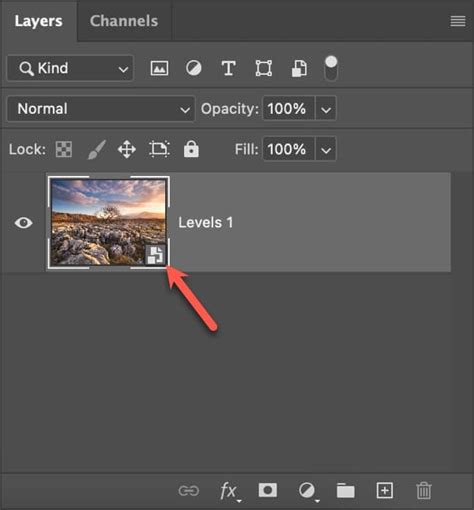
At its core, a Smart Object is a special type of layer in Photoshop that contains image data from a source. Unlike regular raster layers where pixel data is directly manipulated and can be permanently altered or lost, Smart Objects preserve the original content. This preservation allows for a truly non-destructive workflow. When you convert a normal layer to a Smart Object, the content of the original source layer is saved separately within the file. This means that no matter how many transformations or filters you apply to the Smart Object, the original source content remains unchanged and can be accessed and edited at any time.
Types of Smart Objects
Photoshop Smart Objects can be broadly categorized into two main types:
- Embedded Smart Objects: This is the most common type. An embedded Smart Object contains all the characteristics of a Smart Object and retains the data from the original file, but it is not externally linked. Once placed in Photoshop, you can change or even delete the original file without affecting your Photoshop document.
- Linked Smart Objects: In contrast to embedded Smart Objects, a linked Smart Object maintains a connection with its original source file. If you have a color image added as a linked Smart Object to your artwork and then open and modify the original file (e.g., change it to black and white), the linked Smart Object in your artwork will automatically update to reflect that change. This is particularly useful when working with multiple files that share common elements or when you need to update a single asset across various projects simultaneously.
Benefits of Using Smart Objects
The advantages of incorporating Smart Objects into your Photoshop workflow are numerous and contribute significantly to efficient and professional image editing:
Non-destructive Transformations: You can scale, rotate, skew, distort, apply perspective transformations, or warp a layer within a Smart Object without losing the original image data or quality. When you shrink a regular layer, pixel data that is no longer needed is discarded. With a Smart Object, these transformations are recorded and can be reverted or re-edited without degradation.
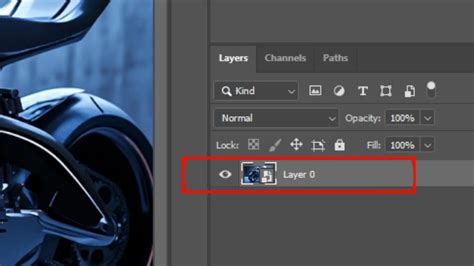
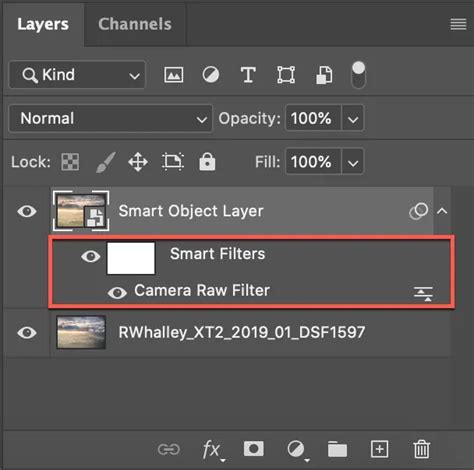
Smart Filters: Any filter applied to a Smart Object automatically becomes a "Smart Filter." This means the filter is non-destructive, and you can go back at any time to edit its settings, opacity, or blend mode. The Smart Filter appears indented under the Smart Object's name in the Layers panel, allowing for easy modification.
Handling Vector Data: Smart Objects can contain vector content, such as vector illustrations created in Adobe Illustrator. This allows you to import vector artwork into Photoshop without rasterizing it, preserving its scalability and sharp edges.
Image Averaging: This feature allows you to average the pixel data from multiple Smart Objects to create a composite image, often used for reducing noise or creating specific visual effects.
Automatic Updates for Linked Instances: When working with linked Smart Objects, editing the source file automatically updates all instances of that Smart Object across different Photoshop documents. This is a major time-saver for projects with recurring elements like logos or branding assets.
Placeholder Workflows: You can use low-resolution placeholder images as Smart Objects for mockups and designs. Later, you can easily replace these placeholders with the final, high-resolution versions without having to reapply any edits or transformations.
Why Can't I Edit a Smart Object Directly?
The error message "Could not complete your request because the smart object is not directly editable" arises because of the fundamental nature of Smart Objects. They are designed to protect the original pixel data. This protection inherently prevents direct pixel manipulation tools like the Brush Tool, Eraser Tool, Clone Stamp Tool, Dodge, Burn, or Smudge Tool from being applied directly to the Smart Object layer itself. Photoshop enforces this to maintain the integrity of the non-destructive workflow.
Smart Objects in Photoshop: Learn The Basics
Several specific conditions can trigger this error:
- The Image Layer Involved in the Selection is Locked: This is a common cause. If the Smart Object layer or a component within it is locked, you won't be able to perform edits that alter pixel data. The lock icon in the Layers panel indicates this status.
- The Layer Involved Contains Vector Data: While Smart Objects can contain vector data, attempting to use raster-based editing tools directly on a layer that primarily consists of vector information can lead to this error. The system recognizes that direct pixel manipulation is not appropriate for pure vector content within this context.
- Attempting Destructive Edits: The core reason is trying to perform operations that alter pixel data directly on the Smart Object layer. This includes actions like cutting, deleting selected parts, or painting directly onto the Smart Object itself.
How to Edit Smart Objects: Solutions and Workarounds
When you encounter the "Smart Object not directly editable" error, it means you need to take a step that either allows direct pixel editing or accesses the source content. Here are the primary methods to resolve this:
Method 1: Unlock the Image Layer
If the Smart Object layer is locked, the simplest solution is to unlock it.
- Open Photoshop and load the image file that is displaying the error message.
- Navigate to the Layers panel.
- Locate the Smart Object layer in question. If there is a lock icon on the right side of the layer name, click it to unlock the layer. If it's a partially locked layer, you might need to unlock specific aspects.
- Once the layer is unlocked, attempt the operation (cutting, deleting, etc.) again.
Method 2: Convert the Smart Object to a Normal Layer
If unlocking doesn't resolve the issue, or if you intend to make permanent, destructive edits, you can convert the Smart Object into a regular raster layer. This process is often referred to as "rasterizing" the layer.
Rasterize Layer Option:
- In the Layers panel, right-click on the Smart Object layer.
- From the context menu, select "Rasterize Layer".
- After rasterizing, the layer will behave like a standard pixel layer, and you should be able to edit its pixels directly.
Convert to Layers (for nested Smart Objects):If you have nested Smart Objects (Smart Objects within Smart Objects), you might need to "unpack" them. In newer versions of Photoshop (CC and later), you can often right-click a Smart Object layer in the Layers panel and select "Convert to Layers". This will expand the Smart Object into its constituent layers, which you can then edit individually.
Method 3: Edit Contents of the Smart Object
This method allows you to edit the original source content of the Smart Object non-destructively, essentially "going inside" the Smart Object to make changes.
- Open Photoshop and load your document.
- In the Layers panel, double-click on the thumbnail of the Smart Object layer. Alternatively, you can select the Smart Object layer and go to Layer > Smart Objects > Edit Contents, or navigate to the Properties panel and select Edit Contents.
- This action will open the Smart Object's contents in a new, separate tab or window. This new document will contain the original layers that make up the Smart Object.
- You can now use any Photoshop tool, including those that alter pixel data (like the Brush Tool or Eraser), on these layers within this separate document.
- Once you have finished making your edits, save the Smart Object's contents (File > Save) and close the tab. The changes will automatically update in your main Photoshop document where the Smart Object is placed.
It's important to note that while editing the contents, you are working with regular layers within that opened file. Thus, the edits made here are technically destructive to that specific source content, but because the Smart Object preserves the original data, you can always revert to an earlier state or re-edit the contents again.
Method 4: Using Scripts for Batch Operations
For users who frequently work with a large number of Smart Objects and need to "unsmart" them efficiently, especially to reduce file size or prepare for specific workflows, scripts can be invaluable.
Kamil Khadeyev's Script (Kam88): There are custom scripts available that can automate the process of expanding Smart Objects into their constituent layers. One such script, originally found on Kamil Khadeyev's blog (often referenced as Kam88), can be added to Photoshop's presets/scripts folder and used to expand Smart Objects. These scripts often attempt to maintain the original size and positioning of the Smart Object's contents.
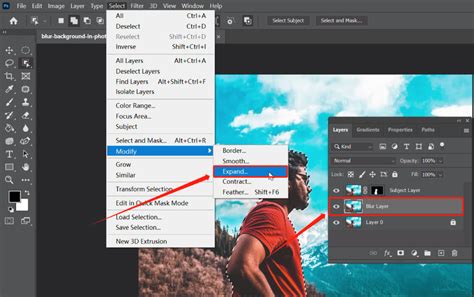
"Convert to Layers" in Latest Versions: As mentioned earlier, recent versions of Photoshop offer a built-in "Convert to Layers" option for Smart Objects, which simplifies this process.
Caveats of Scripting and Batch Conversion:
- File Size: While converting Smart Objects to layers might seem like it would reduce file size, it often doesn't, especially if the Smart Object was embedded. The embedded Smart Object essentially contains all its original data, and converting it to layers within the main document just unpacks that data. To truly reduce file size when dealing with embedded Smart Objects, consider converting them to linked Smart Objects. This involves saving each Smart Object out as its own file on your hard drive, typically in a dedicated "Links" folder for each master file. This way, Photoshop only references the external file, and the main PSD file remains smaller.
- Transformations: Scripts that expand Smart Objects might not always retain all transformations perfectly, such as skewing or perspective distortions. They generally try hard to keep the original size, but other transformations might need manual adjustment.
- Filter Reapplication: If filter effects were applied to the Smart Object, they will need to be reapplied to the expanded layers after conversion, as filters are tied to the Smart Object layer itself.
Addressing Specific Scenarios and Errors
"Could not complete your request because the smart object is not directly editable." - Common Causes Recap
To reiterate, this error most frequently occurs due to:
- Locked Layers: The Smart Object layer is locked, preventing any modifications.
- Vector Data: Attempting raster edits on a layer containing vector data within a Smart Object.
- Destructive Operations: Trying to use tools that permanently alter pixels directly on the Smart Object layer itself.
"Could not complete your request because of a program error."
This is a more general error that can stem from various issues, including:
- Corrupted Preferences: Photoshop's preference files can become corrupted. Resetting them (Preferences > General > Reset Preferences on Quit) can often help.
- File Extension Issues: Sometimes, Photoshop has trouble parsing files with unusual or incorrect extensions.
- Generator Plugin Problems: The Generator plugin, used for asset generation, can sometimes cause conflicts. Disabling it in Preferences > Plug-ins can be a solution.
- Locked Library Folders: Permissions issues with folders where Photoshop tries to save or access files.
"Could not complete your request because it is not a valid Photoshop document."
This error typically indicates a problem with the file itself:
- Incorrect File Extension: The file might be misnamed with a
.psdextension but is actually a different file type. - File Corruption: The PSD file itself may be damaged, making it unreadable by Photoshop.
"Could not complete your request because of a problem parsing the JPEG data."
This error usually occurs when importing images, particularly JPEGs, PNGs, or GIFs:
- File Header/Data Corruption: The image file's internal data might be corrupted in a way that Photoshop cannot interpret.
- Problematic Extensions: Similar to the "invalid document" error, an incorrect or non-standard file extension can sometimes cause parsing issues.
Solutions for Parsing Errors:
- Re-save the Image: Open the problematic image in another application (like Paint, or even your default photo viewer), and then save it again in the correct format (e.g., as a JPEG).
- Rotate and Save: Sometimes, simply rotating the image in your default viewer and saving it without making other changes can fix minor header issues.
- Screenshot: As a last resort, take a screenshot of the image and save the screenshot as a new file. This is a destructive method but can recover the visual content.
Conclusion
Smart Objects are a cornerstone of non-destructive editing in Photoshop, offering immense flexibility and control. While the "Smart Object not directly editable" error can be a hurdle, understanding the underlying principles of Smart Objectsâtheir purpose of preserving original dataâprovides the key to resolving it. By knowing when to unlock, rasterize, edit contents, or leverage scripts, users can navigate these challenges and harness the full power of Photoshop's intelligent layer system. The ability to perform transformations and apply filters without degrading image quality is a significant advantage, and mastering the interaction with Smart Objects is crucial for any serious Photoshop user.