Removing the background from an image on a Mac can be a crucial step for various creative projects, from creating professional-looking graphics to simply isolating a subject for use elsewhere. While dedicated professional software like Photoshop or Pixelmator Pro offers extensive control, macOS itself provides several built-in and accessible tools that can achieve satisfactory results, especially for simpler images. This guide explores these options, detailing their functionalities, strengths, and limitations, and also touches upon alternative free and paid solutions for more complex needs.
Leveraging Preview: The Instant Alpha and Lasso Tools
Preview, the default image viewer on macOS, offers surprisingly capable tools for basic image editing, including background removal. The primary methods involve the "Instant Alpha" tool and the "Lasso" selection tools.
The Instant Alpha Tool: For Solid Backgrounds
The "Instant Alpha" tool is designed to select and delete areas of similar color. It works best on images with a clear, solid background that contrasts well with the subject.
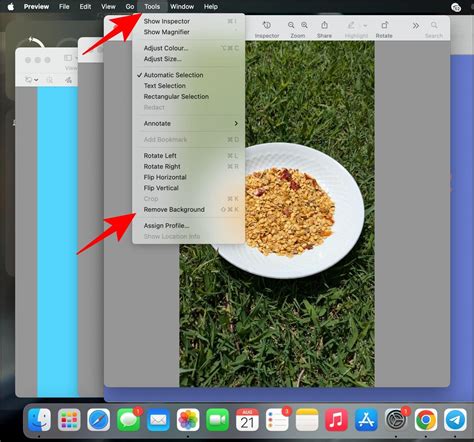
To use Instant Alpha, open your image in Preview and click the Markup Toolbar icon. From the Selection Tools menu, choose "Instant Alpha." Click and drag on the background area you wish to remove. As you drag, the tool will select more pixels of similar color. Continue dragging until the desired background area is highlighted. Once satisfied, press the "Delete" key.
It's important to note that if you are working with a JPEG image, Preview will prompt you to convert it to a PNG format to enable transparency. Click "Convert" to proceed. You may find that the Instant Alpha tool doesn't capture all the stray pixels, especially around intricate edges. In such cases, you can repeat the process, zooming in on the image using your trackpad or the zoom buttons to select and delete these remaining areas in smaller, more manageable sections.
The Lasso Tools: For More Precision (and Frustration)
When the Instant Alpha tool proves insufficient, Preview offers two lasso selection tools: "Lasso Selection" and "Smart Lasso." These tools require a more manual approach.
The "Lasso Selection" tool allows you to draw a freehand outline around the area you want to select. This can be painstaking, especially for complex shapes. You can zoom in closely to achieve better accuracy.
The "Smart Lasso" tool attempts to intelligently snap to the edges of your subject as you draw an outline. You trace close to the edge of the object you wish to keep, and the tool tries to create a selection along that boundary. While it can be an improvement over the freehand lasso, it often struggles with sharp corners or areas where the subject and background colors are similar.
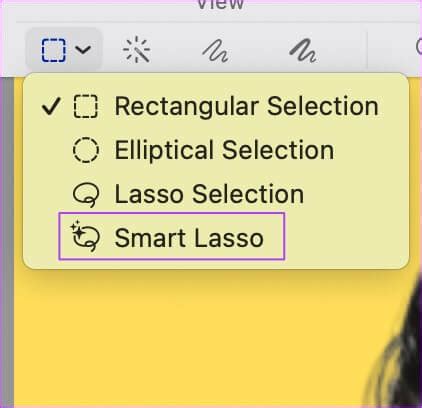
A key limitation of Preview's lasso tools is that you can typically only make one selection at a time. This means if you need to remove multiple disconnected background areas, you have to select and delete them sequentially. If you make a mistake, the "Undo" command (Edit > Undo or Command + Z) is your best friend. It's advisable to work in small sections with the lasso tools to make undoing errors easier.
The process often involves a combination of zooming in, carefully tracing with the Smart Lasso, and then using the regular Lasso tool to clean up any remaining errant pixels. While this can be tedious, it can eventually lead to a reasonably clean background removal.
Extracting and Compositing Subjects
Once you've successfully removed the background, you can copy the subject (Edit > Copy) and paste it into another image or document. This allows you to effectively change the background of an existing image by pasting the extracted subject onto a new background image and carefully aligning it. You can also make adjustments to the extracted subject, such as desaturating or altering its exposure, before compositing.
Remove the Background of an Image (Mac only) using PREVIEW
Quick Actions in Finder: A Streamlined Approach
For users of macOS Mojave and later, Finder offers a "Quick Actions" feature that can automatically remove backgrounds from images. This is a remarkably fast and convenient method, especially for batch processing multiple images.
To use Quick Actions, locate your image file(s) in Finder. Right-click (or Control-click) on the image and navigate to Quick Actions > Remove Background. The system will then process the image, lifting the subject and making the background transparent, saving it as a PNG file.
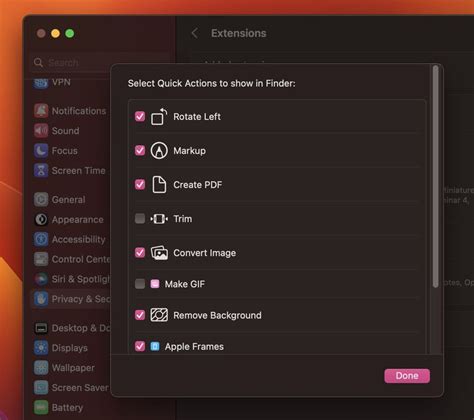
While this feature is efficient, it works best on images with a clear separation between the subject and background. It may struggle with complex backgrounds or when the subject's colors are too similar to the background, potentially leading to a loss of fine details.
Photos App on macOS Ventura and Later: Copy Subject
With the introduction of macOS Ventura, the Photos app gained a "Copy Subject" feature that allows for quick background removal and subject extraction.
Open an image in the Photos app. Press and hold on the part of the image you want to keep (the subject). A pop-up window will appear with "Copy" and "Share" options. Tapping "Copy" will place the extracted subject onto your clipboard, ready to be pasted into another application or image. This method is intuitive and leverages AI for subject detection.
Alternative Free and Lightweight Mac Tools
If Preview's tools don't meet your needs, several other free and lightweight options are available for Mac users.
Seashore: Open-Source and Cocoa-Based
Seashore is a free, open-source image editor built on top of GIMP's technology. It offers a user-friendly Cocoa interface and provides features beyond basic editing, including layers and alpha channels, which are essential for effective background removal. Its simplicity makes it a good step up from Preview without the steep learning curve of more professional software.
GIMP: The Free and Powerful Alternative
GIMP (GNU Image Manipulation Program) is a powerful, free, and open-source image editor that rivals professional software in its capabilities. However, it runs within the X11 environment, which you may need to download and install separately on your Mac. While GIMP offers extensive tools for precise background removal, its interface can be complex for beginners.
Online AI Background Removers: Convenience at Your Fingertips
For those who prefer not to install additional software or require very quick results, numerous online AI-powered tools can remove backgrounds with a single click.
One such tool is Remove.bg. It's highly effective for automatically detecting and removing backgrounds. While it offers a free download in "good quality," full-resolution exports typically require a paid subscription. Remove.bg also provides basic editing tools to refine the results by restoring or erasing parts of the background.
Another option is Erase.bg. Similar to Remove.bg, it automates background removal. While it may not offer the same level of editing refinement as Remove.bg, it can still produce excellent results for many images.

These online tools are convenient, but users should be mindful of privacy concerns when uploading personal images to third-party servers.
Paid Options for Professional Results
For users who frequently need to remove backgrounds with high precision and efficiency, paid applications offer more advanced features and a smoother workflow.
BackgroundEraser: An Affordable Dedicated Tool
BackgroundEraser, available on the App Store for a small fee, is a dedicated application designed specifically for removing image backgrounds. While it can be highly effective, some users find its interface to be a bit complex.
Super PhotoCut: Instant Background Removal
Super PhotoCut, also available on the App Store, is marketed for its ability to instantly remove backgrounds from photos within seconds. It aims to provide a super-fast and efficient solution for users who need to process images quickly.
Pixelmator Pro and Affinity Photo: Professional-Grade Solutions
As mentioned in the user's initial query, applications like Pixelmator Pro and Affinity Photo are professional-grade image editors that offer robust tools for background removal. These applications provide advanced selection tools, layer masks, and fine-tuning capabilities that allow for the most precise and nuanced results, albeit with a steeper learning curve and a higher cost.
Conclusion: Choosing the Right Tool for the Job
The best tool for removing backgrounds on a Mac ultimately depends on the complexity of the image, your technical proficiency, and your budget. For simple images with solid backgrounds, Preview's Instant Alpha tool can be surprisingly effective. For more intricate selections, the lasso tools in Preview, while requiring patience, can achieve decent results. Quick Actions in Finder offer a fast, automated solution for supported macOS versions. When these built-in tools fall short, free alternatives like Seashore and GIMP, or convenient online tools like Remove.bg, provide further options. For professional-level precision and speed, paid applications like BackgroundEraser, Super PhotoCut, Pixelmator Pro, or Affinity Photo are the way to go. By understanding the capabilities of each tool, you can effectively tackle background removal tasks on your Mac.
tags: #mac #preview #remove #background