The Eraser Tool in Adobe Photoshop is a fundamental feature that empowers users to refine and perfect their images by removing unwanted elements. Essentially, this powerful tool can make pixels transparent or match them to the image's background color, offering the flexibility to remove or modify parts of your photos without causing any visual distortions. For photographers and digital artists alike, mastering the Eraser Tool is crucial for creating professional-quality images and for ensuring their photographs always look their best. This guide will simplify the process, teaching you how to locate, understand, and effectively apply this essential utility.
Locating and Understanding the Eraser Tool
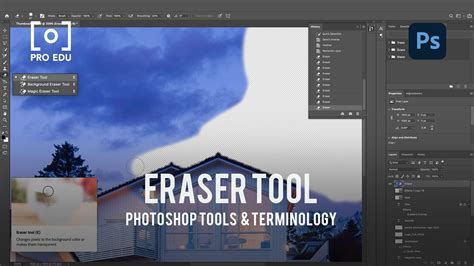
To begin using the Eraser Tool, you first need to open your Photoshop workspace. The Eraser Tool is located on the toolbar, typically represented by an icon resembling a traditional eraser. Once the Eraser Tool is selected, an options bar appears at the top of your workspace, providing access to its various settings and functionalities.
The shortcut for the Eraser tool in Photoshop is simply pressing the "E" key on your keyboard, a quick way to switch to this tool and improve your efficiency. Knowing shortcuts like this makes it easier to switch between tools, like the pencil tool and the Eraser Tool.
The Options Bar: Your Control Center
When using the Eraser tool in Photoshop, we'll first encounter the Options Bar. This features various settings like mode, brush size, and opacity. These settings allow us to customize the erasing effect to suit our specific needs.
- Mode: The ‘Mode’ dropdown menu lets you select the blending mode of the eraser. This determines how the eraser interacts with the pixels beneath it.
- Opacity: ‘Opacity’ controls the transparency of the eraser. A lower opacity will result in a more subtle erasing effect, allowing you to gradually remove pixels.
- Flow: The ‘Flow’ slider adjusts the speed at which color is applied as you move the eraser. This is akin to the pressure you would apply with a traditional eraser or drawing tool.
- Brush Type: Here, you can select the brush type and adjust its size. This is where you choose the shape and characteristics of the area being erased.
Eraser Brush Types: Precision and Style
Photoshop offers various modes when using the Eraser Tool, and switching between them enables us to achieve different effects. We can choose between Brush, Pencil, or Block types for our eraser and adjust settings accordingly.
- Brush Mode: This mode provides softer edges, allowing for a more blended erasing effect. The brush tool provides softer edges and allows you to adjust size, hardness, and opacity.
- Pencil Mode: The Pencil Eraser is similar to a pencil, creating hard-edged lines. Pencil mode gives us hard-edged results, mimicking a traditional pencil.
- Block Mode: The Block Eraser erases in a hard-edged square shape. Block mode, on the other hand, has a square shape instead of a circle.
Advanced Eraser Functionality: Beyond Basic Removal
While the standard Eraser Tool is highly capable, Photoshop offers specialized versions and advanced features to tackle more complex editing tasks.
Specialized Eraser Tools: Background and Magic Eraser
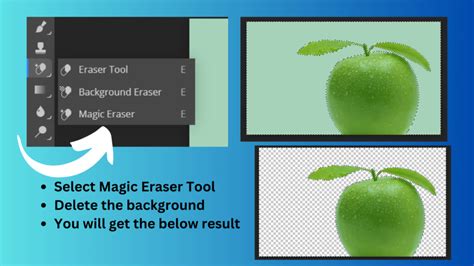
Adobe Photoshop offers various iterations of the Eraser tool, including the standard Eraser tool, the Background Eraser tool, and the Magic Eraser tool. Each type has its unique capabilities and uses, allowing users to work effectively on different aspects of their images.
- Background Eraser Tool: Unlike the standard Eraser, the Background Eraser detects the edges of an object and erases the color surrounding it, while maintaining the object's edge details. The Background Eraser tool is designed to remove background elements in an image while preserving the main subject. It detects the difference between the desired foreground and background colors, making it easier to erase without affecting the main subject.
- Magic Eraser Tool: This tool is similar to the Magic Wand selection tool, but instead of creating a selection, it erases the selected area automatically. The Magic Eraser tool works by automatically detecting and erasing areas of similar color in the image. This can be a time-saving alternative to the regular Eraser, particularly when working with large areas of similar colors. By modifying the Sampling and Limits settings, you can alter the precision of color selection in the image.
Understanding the differences between these three erasing tools allows us to make better decisions when choosing which one suits our editing needs.
Erasing to History and Layer Masks: Non-Destructive Editing
The Eraser Tool is considered a destructive tool. When erasing pixels, they are permanently removed rather than hidden, which might cause issues for future edits. To work around this, it's advisable to duplicate the background layer in the Layers Panel before erasing.
However, Photoshop provides methods for non-destructive erasing. One helpful feature in the Eraser Tool is the "Auto Erase" option, which replaces an erased area with the background color, set from our color swatch.
When working with multiple layers, using the option to Erase to History allows us to control the eraser's impact on the layer hierarchy. This feature can be especially helpful in case we need to revert back to a specific point in our editing process.
In addition, we can use Layer Masks instead of directly erasing pixels. To erase parts of an image without removing the background, we recommend using Layer Masks. Layer Masks allow you to hide parts of an image non-destructively, meaning the hidden portions can be revealed later by adjusting the mask. This is a more flexible approach that preserves the original pixel data.
Advanced Settings: Protecting Foreground Colors and Sampling
The Background Eraser tool offers an option to "Protect Foreground Color." Enabling this option will help in preserving your desired foreground colors from being erased, further enhancing its utility for isolating subjects.
When using the Magic Eraser tool, modifying the Sampling and Limits settings can significantly alter the precision of color selection in the image. This allows for finer control over which colors are targeted for erasure.
Workflow and Practice: Honing Your Skills
To erase parts of an image, we can simply select the Eraser Tool from the Toolbar and drag across the desired areas. The eraser will either make pixels transparent or match them to the image background color based on the settings we've chosen in the Options Bar.
Like any tool, mastering the Eraser Tool requires practice. As photographers, we often rely on Photoshop's eraser tool to refine and perfect our images. The eraser tool in Photoshop is quite versatile, allowing us to easily remove unwanted elements and clean up our photographs. Mastering the eraser tool in Photoshop is crucial for creating professional-quality images for our photography portfolio.
Eraser Tool & Background Eraser & Magic Eraser - Toolbar Explained [Photoshop for Beginners]
Keyboard Shortcuts for Efficiency
When working with the Eraser Tool in Photoshop, it's essential to be aware of the keyboard shortcuts that can improve our efficiency. Knowing shortcuts also makes it easier to switch between tools, like the pencil tool and the Eraser Tool.
Brush Settings for Optimized Workflow
The Eraser Tool features a variety of brush settings that we can use to optimize our workflow. For example, changing the opacity can be helpful when we want to erase part of an image subtly, while modifying the flow lets us control the erasing movement's speed.
The Eraser Tool in Digital Art
In digital drawing, the Eraser tool serves a similar purpose to a traditional eraser with pencil sketches. It allows artists to remove unwanted lines and details, helping refine their artwork and correct mistakes.
In conclusion, understanding and utilizing the eraser tool in Photoshop is an essential skill for anyone striving to produce top-notch digital work. By familiarizing ourselves with its various functions and applications, we can ensure our images always look their best. The versatility of the Eraser Tool, from its basic function to its advanced specialized versions and non-destructive workflows, makes it an indispensable asset in the digital artist's toolkit.