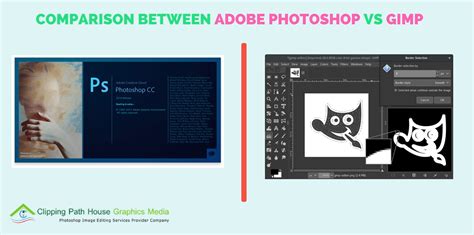
When comparing GIMP vs Photoshop, the differences between their accessibility and professional capability in digital image editing often come up. Photoshop, a product of Adobe, is a subscription-based powerhouse offering advanced features and a refined interface widely used by professionals in photography, graphic design, and digital arts. GNU Image Manipulation Program (GIMP) is a free, open-source image editing software. It provides a wide array of tools for photo retouching, image composition, and image authoring. Its open-source nature allows for extensive customisation and community-driven development. GIMP supports various file formats and operates on multiple platforms, including Windows, macOS, and Linux. Though less intuitive than commercial alternatives, its interface is highly customisable and has improved significantly in recent updates. A standout feature is the ability to create a Transparent Background in GIMP, which adds to its appeal. GIMP is popular among hobbyists and professionals seeking a no-cost image editing solution.
Adobe Photoshop is a leading software in digital imaging, widely used for photo editing, graphic design, and digital art. As a part of Adobe's Creative Cloud suite, it offers advanced tools for image manipulation, compositing, and retouching. Known for its powerful features like layer masks, blending modes, and filters, it caters to photography, design, and visual arts professionals.
Photoshop vs GIMP: A Complete Comparison
Understanding the Core Differences: Cost and Accessibility
The primary difference in the GIMP vs Photoshop debate often boils down to their fundamental accessibility and pricing models. GIMP is entirely free, making it an exceptionally attractive option for individuals and small businesses operating on a tight budget. Its open-source nature means there are no licensing fees, and it can be freely downloaded and used by anyone. This democratizes image editing, allowing hobbyists, students, and professionals alike to access powerful tools without a financial barrier.
In stark contrast, Adobe Photoshop operates on a subscription-based model. Users must pay a recurring fee, typically monthly or annually, to access the software and its continuous updates. While this provides a steady stream of revenue for Adobe to invest in development, it represents a significant ongoing expense for users. This cost factor is often a deciding point for many, especially when considering the sheer number of features that GIMP also offers, albeit with a different approach to implementation.
Feature Set and Professional Capability
When evaluating GIMP vs Photoshop for professional capability, several key distinctions emerge. Photoshop is renowned for its sophisticated selection tools, offering a level of precision and control that is often more suited for complex and highly detailed image editing tasks. Its integration with other Adobe Creative Cloud applications, such as Lightroom and Illustrator, creates a seamless workflow for professionals working within the Adobe ecosystem. Features like non-destructive editing through adjustment layers and smart objects are standard in Photoshop, allowing for greater flexibility and the ability to make changes at any stage of the editing process without permanently altering the original image data.
GIMP, while incredibly capable, often requires a different approach to achieve similar results. For instance, while GIMP has powerful retouching tools including the Heal tool, Clone tool, and Warp Transform tool that work effectively, it historically lacked the robust non-destructive editing features found in Photoshop, such as adjustment layers and smart objects. Although GIMP has made strides in this area and promises adjustment layers in future versions, this is a significant consideration for photographers and designers accustomed to Photoshop's workflow. The difference primarily lies in Photoshop's ability to handle a broader range of specialized and complex formats, making it a better choice for professional use. GIMP, while capable of standard formats, may fall short in more advanced scenarios.
Advanced Tools and Automation
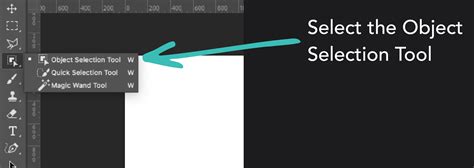
A significant differentiator lies in the sophistication and effectiveness of automated tools. Photoshop has integrated AI and Machine Learning, enabling more precise and varied automated adjustments. Tools like Content-Aware Fill and advanced selection algorithms powered by AI can dramatically speed up complex tasks, such as removing unwanted objects or seamlessly filling in backgrounds. Photoshop's AI-powered smart-selection tools, like the Object Selection tool and Quick Selection tool, are quite effective, often with a "Select Subject" button to quickly isolate prominent elements.
GIMP's automation capabilities, while valid for basic enhancements, are generally less advanced compared to Photoshop's comprehensive suite of automated tools. However, GIMP's Foreground Select Tool is a powerful option for isolating subjects. The significant difference lies in the sophistication and effectiveness of these tools. Photoshop provides more advanced, user-friendly, and automated options for healing and cloning, making it preferable for high-end retouching and professional work. GIMP, while serviceable for basic tasks, lacks the advanced capabilities and ease of use found in Photoshop.
Workflow and User Interface
The user interface of GIMP vs Photoshop presents another area of divergence. Photoshop's interface is generally considered more polished and intuitive, especially for newcomers. It has been refined over decades of professional use and offers a streamlined experience, with features like integrated tutorials on its home screen and readily available Adobe Stock templates to expedite project creation. The interface is simple in design but packed full of features.
GIMP's interface, while significantly improved in recent updates, can still present a steeper learning curve for those accustomed to commercial software. It is highly customizable, allowing users to arrange dialog boxes and create personalized workspaces, similar to Photoshop. However, some users find its layout less immediately intuitive. The key difference lies in the level of customisation and user-friendliness. Photoshop offers a more sophisticated, adaptable interface catering to professional needs, whereas GIMP's interface, while improved, still lacks the same level of polish and customisation.
File Format and Color Mode Support
When it comes to handling various file formats, Photoshop generally demonstrates superior capabilities, particularly with specialized professional formats. The primary difference lies in the native support and integration of RAW editing. Photoshop provides a more seamless and comprehensive RAW processing experience through its "Camera Raw" interface, while GIMP often requires additional steps and external tools like Darktable for extensive RAW photo editing, making it less efficient for users who heavily rely on RAW files.
Furthermore, Photoshop fully supports CMYK color modes, which are essential for professional printing workflows. GIMP, on the other hand, primarily operates in RGB color space. While it offers CMYK soft-proofing modes to preview print output, it does not natively support full CMYK color modes for editing. This can be a significant limitation for designers and printers who require precise CMYK color management. This means that all your images are edited in the RGB color space and thus may not properly display if you need to print your work. For some users, however, this is not enough as it still creates compatibility issues, especially if someone sends you a photo in CMYK mode and instructs you not to convert it to an RGB color space.
Photoshop vs GIMP: A Complete Comparison
Learning Resources and Community Support
The availability and quality of learning resources also play a role in the GIMP vs Photoshop decision. Photoshop benefits from a vast ecosystem of professional-grade learning materials, including structured courses, tutorials, books, and extensive online documentation provided by Adobe and a massive community of creators. This makes it easier for users to find guided instruction and troubleshoot issues. The difference in mastering this software lies in the availability and quality of learning resources. Photoshop offers more structured and professional learning aids, while GIMP users often rely on self-guided learning and community resources.
GIMP, being open-source, has a vibrant and active community that provides a wealth of free tutorials, forums, and support. While these resources are often excellent, they can be more fragmented and less structured than the professional learning aids available for Photoshop. Users often need to be more proactive in their learning and troubleshooting. However, for those who embrace the open-source ethos, the community-driven support can be incredibly rewarding, offering troubleshooting advice and a shared passion for the software.
Strengths and Weaknesses at a Glance
Adobe Photoshop:
Strengths:
- Professional-Grade Features: Advanced tools for manipulation, compositing, and retouching.
- AI and Automation: Sophisticated AI-powered features for selection, content-aware fill, and more.
- Non-Destructive Editing: Robust support for adjustment layers and smart objects.
- CMYK Support: Full support for professional printing workflows.
- Seamless Integration: Works harmoniously with other Adobe Creative Cloud applications.
- Polished Interface: Intuitive and refined user experience.
- Extensive Learning Resources: Abundance of professional tutorials and documentation.
- Industry Standard: Widely adopted by professionals, facilitating collaboration.
Weaknesses:
- Subscription Cost: Requires a recurring monthly or annual fee.
- Steeper Learning Curve: Can be overwhelming for absolute beginners due to its vast feature set.
- No Linux Support: Not natively compatible with Linux operating systems.
- Resource Intensive: Can demand significant computing power.
GNU Image Manipulation Program (GIMP):
Strengths:
- Free and Open-Source: No cost for access and usage.
- Cross-Platform Compatibility: Runs on Windows, macOS, and Linux.
- Highly Customizable: Adaptable interface and extensive plugin support.
- Strong Community Support: Active community providing free resources and assistance.
- Sufficient for Many Tasks: Offers a comprehensive set of tools for basic to intermediate editing.
- No Vendor Lock-in: Freedom from subscription models.
Weaknesses:
- Limited Non-Destructive Editing: Lacks robust native support for adjustment layers and smart objects.
- No Full CMYK Support: Primarily works in RGB, posing challenges for professional printing.
- Less Intuitive Interface: Can be less user-friendly for beginners compared to Photoshop.
- Inconsistent Development Pace: Release cycles can be longer due to volunteer development.
- RAW Editing Workflow: May require external tools for seamless RAW processing.
Which Software is Right for You?
Ultimately, the choice between GIMP and Photoshop hinges on individual needs and priorities.
For small businesses, casual photographers, influencers, and budget-conscious professionals, GIMP presents a fantastic, free alternative. Itâs an excellent starting point for beginners looking to explore photo editing without any financial commitment. If your workflow doesn't involve clients or agencies that mandate Photoshop, GIMP will likely suffice for your needs. Itâs a powerful solution with a solid foundation in photo editing.
On the other hand, professional photographers working for agencies that exclusively use Adobe products, or individuals who prioritize advanced capabilities and are willing to invest time and money into mastering a complex program, will find Photoshop to be the superior choice. It remains the industry standard for a reason, offering unparalleled features, integration, and a polished workflow that streamlines professional operations. If youâre not as budget-conscious and are willing to put in the hours to learn the ins and outs of a more complex program, then Photoshop is certainly for you. It is, after all, the best photo editing software money can buy (for now).
By understanding the distinct advantages and disadvantages of each, you can select the tool that best aligns with your creative aspirations, technical requirements, and financial considerations, confidently use these programs and elevate your photography to new heights.