Adobe InDesign is the industry standard for desktop publishing, enabling designers to create everything from intricate multi-page magazines to sleek brochures and impactful posters. At its core, an InDesign document, typically saved as an .indd file, is a meticulously organized binder containing all the elements that bring a design to life. This includes fonts, formatting instructions, color swatches, paragraph and character styles, master pages, and even complex vector paths and gradients. However, the efficiency and success of a design project often hinge on a deeper understanding of the various file formats InDesign utilizes and interacts with, particularly concerning image handling and document interchange.
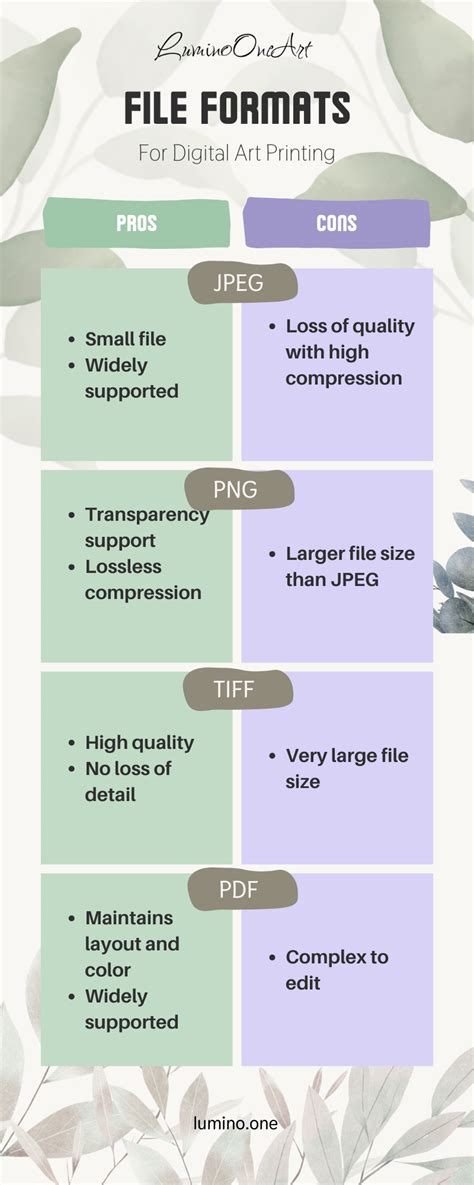
When it comes to integrating visuals into an InDesign project, designers frequently engage in discussions about the optimal image file formats. The common contenders are JPEG, PSD, TIFF, and EPS, each presenting a unique set of characteristics that influence file size, image quality, and overall workflow productivity. While the "if it ain't broke, why fix it" mentality can be a comfortable approach, evolving hardware, software, and printing processes necessitate a periodic re-evaluation of these choices to ensure adherence to commercial printing standards and to maintain peak productivity without unnecessarily bloating file sizes.
The Evolution of Image Formats in Design Workflows
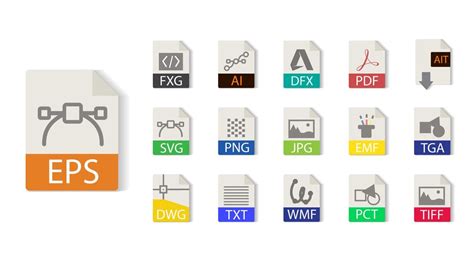
The landscape of image formats has changed dramatically over the decades. In the 1990s, the primary options for photo imaging were EPS (Encapsulated PostScript) and TIFF (Tagged Information File Format). Both were compatible with PostScript printers, but the optional Adobe PostScript Level II software was a significant investment compared to more affordable linear printers. Consequently, many designers opted for linear printers and worked with high-resolution TIFF images. This, however, came with a substantial productivity trade-off. On computers with limited processing power and RAM, using high-resolution TIFF files within applications like QuarkXPress could bring the system to a crawl. This often forced designers to break down large documents into smaller, more manageable sections or to employ workarounds. One such workaround involved placing low-resolution TIFF files for positioning within the layout, with the high-resolution images being supplied separately to the printers for swapping during the prepress stage. This method was not only cumbersome but also highly time-consuming.
The adoption of a PostScript printer offered benefits such as accurate color reproduction and improved productivity with larger, multi-page documents. The EPS format, unlike TIFF, featured a built-in low-resolution, 8-bit color preview image. This preview could be imported and positioned within QuarkXPress documents, significantly reducing the processing power and RAM required to handle the layout and thereby boosting productivity. The clever aspect of this process was that the high-resolution image data within the EPS file was only accessed when the artwork was sent to a PostScript-enabled printer. This was a crucial factor, especially when working on multi-page documents. EPS also proved to be a robust file format, enabling designers to build pages efficiently from cover to cover.
The Advent of PDF and its Impact on Print Production
Towards the end of the 1990s, the PDF (Portable Document Format) file format emerged, revolutionizing artwork preparation for commercial print. By distilling PostScript files, PDF encapsulated essential data, offered excellent compression rates for print, and could still deliver lossless images. As prepress RIPs (Raster Image Processors) increasingly processed PDF files, EPS-based images within PDF-generated artwork became a robust and reliable workflow. Embracing PDF allowed for a shift away from reprographics and prepress, enabling greater involvement in the design, production, and construction of multi-page publications that could be optimized for various output intents from a single InDesign file.
Evaluating JPEG and PSD for Print Production
While widely known, JPEG (Joint Photographic Experts Group) and PSD (Photoshop Document) formats, from a production standpoint, often fall short when used for print in InDesign. Similar to TIFF, they can bloat the size of InDesign documents, slowing down productivity, increasing the likelihood of program crashes, and potentially introducing inherent issues into the print output. Although modern computer processing power and RAM have significantly improved, bloated InDesign files still increase the risk of crashes as the program grapples with more embedded file information than is strictly necessary for the layout.
To illustrate the impact of different image formats on file size and workflow, an experiment was conducted. Four identical 8-page InDesign documents were created, each containing 20 CMYK images intended for full-color printing. The only variable was the file format of the embedded images: JPEG, PSD, TIFF, and EPS. To ensure a fair comparison, all InDesign files were saved using the "Save As" command to remove inherent history information.
For the experiment, JPEG images were saved with the quality set to '12 Maximum' to minimize image quality loss. TIFF files were saved with no compression, PSD files were saved in their native format, and EPS files were saved using Binary Code. The typical file size of one of the larger CMYK images in this experiment was noted as follows:
- JPEG: 16.5 MB
- PSD: 42.1 MB
- TIFF: 45.4 MB
- EPS: 57.5 MB
These source file sizes, while varied, do not tell the full story of their impact on the InDesign document.
The Productive Benefit of EPS in InDesign
The crucial productive benefit of EPS over other image file formats in InDesign lies not in the source file size, nor in the resulting PDF file size (which, in this experiment, remained under 5MB, well under a third of the InDesign file sizes), but in how it affects the InDesign working file itself. The low-resolution positional image offered by the EPS format creates a leaner InDesign file, allowing for faster productivity. This is particularly advantageous for longer, multi-paginated documents such as magazines and product catalogues. With EPS, designers can work with robust, lossless images that do not bloat InDesign files and slow down productivity, while still being able to deliver compressed, flawless, lossless files for commercial printing. This eliminates the historical necessity of breaking down larger documents into several working files simply to ensure the computer can handle the load.
Much like QuarkXPress did, InDesign only calls upon the high-resolution image data of an EPS file when it is required, such as during the export of a PDF or the printing process. Consider the potential size difference when producing a 132-page magazine or a 276-page product catalogue containing approximately 4500 images. InDesign files incorporating JPEG, PSD, and TIFF images showed a mean average increase of 350% in file size compared to the EPS-based InDesign version. This means a 132-page magazine file could increase from 83MB to around 300MB, and a lean 332MB catalogue file with 4500 images could potentially bloat to a staggering 1.2GB. Such large file sizes increase the risk of program crashes. While working with larger EPS source files may seem counterintuitive, they contribute to significantly leaner InDesign working files, leading to a more efficient, smarter, and faster workflow without the need to split documents across multiple smaller files.
Understanding Image Formats for Print Production
Ultimately, the choice of image format can come down to personal preference and project requirements. However, for large, multi-paginated documents intended for print, the use of JPEG is strongly discouraged. The "shock, horror" reaction from some designers stems from JPEG's damaging lossy compression, which causes irreversible image quality degradation. Furthermore, it can significantly bloat the InDesign file size, often by as much as 350%. Replicating image quality and definition in print is paramount, far more so than merely conserving hard drive space, as gigabytes are now relatively inexpensive.
TIFF and PSD are both considered lossless formats, offering good quality. However, PSD often takes precedence due to its ability to import native layered images directly into InDesign. Nevertheless, using PSD files will contribute to the bloating of your InDesign file, making it advisable to use them only when their layered capabilities are genuinely needed.
TIFF files are still utilized, but primarily for bitmap/line art and monochrome images. This format allows for recoloring once the image is positioned within the InDesign document.
For the vast majority of flattened images destined for print production, the lossless EPS format remains the most solid choice. While it may require more storage space for the source file, the low-resolution positional preview it provides is instrumental in keeping the InDesign working file lean. This, in turn, speeds up the entire workflow. As a sturdy format, EPS files are quick to work with, expedite the export process, and are exceptionally rare in encountering technical issues. The CMYK binary-coded EPS file continues to perform admirably today, just as it did at the beginning of many design careers. For flattened color images intended for production and commercial printing, EPS remains a preferred file format due to its robust nature and efficient handling within layout software.
Beyond Images: Exploring InDesign's Native File Formats and Exchange Options
While image formats are critical, understanding InDesign's native file structures and interchange formats is equally vital for a smooth design process. The .indd file is the primary format for active projects, containing all layout elements, styles, and settings. However, InDesign also supports other formats designed for specific purposes:
.indl(InDesign Libraries): These are invaluable for storing and reusing assets such as logos, color palettes, and text snippets across multiple projects..idml(InDesign Markup Language): This XML-based format is crucial for backward compatibility. It allows newer InDesign documents to be opened in older versions of the software, though some features might be lost in translation. The Adobe InDesign Markup Language Cookbook describes IDML as an interchange format for InDesign documents, representing objects and properties as XML elements and attributes. An IDML document can be a single file or a set of files packaged in a.zipfolder. It is designed for use across InDesign, InCopy, InDesign Server, and other Adobe applications. Users can add XML tags to an IDML file, which InDesign can convert into objects when the file is opened. This format supports multimedia content creation and editing, allowing InDesign documents to be created, opened, and edited by InDesign itself or third-party software like IDMarkz.
What is an IDML file?
David Dilling of Markzware explains that IDML, the InDesign Markup Language, is an XML-based format that enables backward compatibility with newer versions of Adobe InDesign. When exporting an InDesign file to IDML, it acts as a wrapper around the content, zipped up. It's important to note that IDML does not contain linked images but will include embedded images. Embedding images can significantly bloat both the InDesign file and the resulting IDML.
The utility of IDML extends beyond InDesign itself. It is now used by other DTP applications, such as QuarkXPress and Affinity Publisher, for importing InDesign content. However, direct import often requires a prior InDesign installation. Tools like Markzware's IDMarkz application offer a solution by allowing users to preview, export, and convert InDesign files to formats like IDML, PDF, and PNG without needing Adobe Creative Cloud. IDMarkz can preview InDesign files by simply dragging and dropping them onto its interface and can convert them to IDML, InDesign, Quark, or Affinity Publisher formats.
.indd(Adobe InDesign Document): The default and primary file format for InDesign projects. It stores all elements of a page layout, including fonts, formatting, page content, swatches, and styles. The INDD format effectively stores complex layout data, maintaining structure for multi-page layouts, master pages, text frames, images, vector paths, gradients, and color swatches. It also includes document settings, styles (paragraph, character, and object), and other detailed layout information. The INDD format has evolved significantly since its inception in 1999, with each version introducing new features, performance improvements, and better compatibility. A key feature is the ability to embed fonts and graphics, ensuring self-contained files and reducing potential issues with missing links or fonts during handoffs. INDD files also support interactive elements like hyperlinks, buttons, audio/video files, and interactive forms, as well as detailed prepress settings for color spaces, bleed, trapping, and printer marks..idtt(InDesign Template): Similar to.inddfiles, but when saved, they prompt the user to provide a new name, preventing accidental overwriting of the original template.
InDesign also offers robust export options, allowing users to save their work as PDFs for print or digital distribution, EPS for vector graphics, JPEGs or SWFs for web use, and even plain text or RTF files.
Navigating Challenges: Backward Compatibility, File Corruption, and Missing Fonts
Users of the InDesign format often encounter challenges. Backward compatibility is a significant concern; opening files created in newer versions of InDesign within older versions can be difficult and may require saving in a format like IDML, which can lead to the loss of some features and formatting.
File corruption is another common issue, which can occur due to software crashes, hardware failures, or power outages, potentially leading to the loss of extensive work.
Missing fonts are a frequent frustration. When an InDesign file is opened, the software checks for installed fonts. If a font used in the document is not present on the system, it can be time-consuming and problematic to locate and install the correct fonts, especially if they are not freely available.
Best Practices for Managing InDesign Files
To mitigate these challenges and ensure a smooth workflow, several best practices are recommended:
- Version Control: Implementing version control systems can prevent work loss due to corruption or accidental deletion.
- File Organization: Maintaining a clear and organized file structure reduces the chance of overwriting or deleting important files.
- Regular Backups: Creating regular backups of files on external drives or cloud storage services is crucial.
- Using Templates: Utilizing templates can save time and ensure consistency in designs.
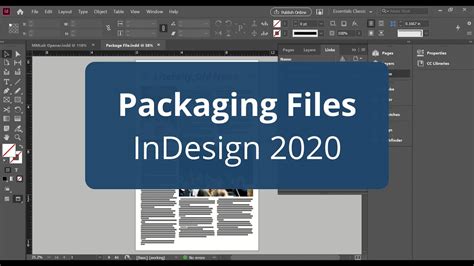
- Packaging Files: When handing off InDesign files to clients or team members, the "Package" feature is essential. This utility gathers all necessary elements, including the INDD file, linked graphics, fonts, and an IDML backup, into a single folder. This ensures that all components are present and correctly linked, preventing missing font or link errors. The packaging process creates a new folder, places all necessary materials inside, and can then be compressed for easy sharing.
When working with large INDD files, consider linking images instead of embedding them and using compressed graphics to reduce file size. For businesses dealing with large volumes of images or requiring automated image conversion, cloud-based solutions like Cloudinary offer a way to save time, improve efficiency, and ensure consistent output quality. Cloudinary allows users to upload images, apply transformations, and automate conversion processes, optimizing image quality through features like automatic quality selection (q_auto) and chroma subsampling.
By understanding the nuances of InDesign file formats, image handling, and employing robust file management practices, designers can significantly enhance their productivity, minimize errors, and ensure the successful delivery of high-quality print and digital projects.