Parent pages, formerly known as master pages, are a fundamental feature in Adobe InDesign that allows for efficient and consistent design across multiple pages of a document. They function as templates, enabling users to apply recurring elements like page numbers, headers, logos, and consistent layout structures to numerous pages simultaneously. Understanding and utilizing parent pages can significantly streamline the design workflow, especially for complex or lengthy documents.
The Core Concept: Templates for Your Pages
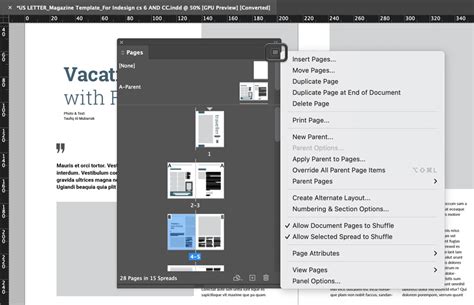
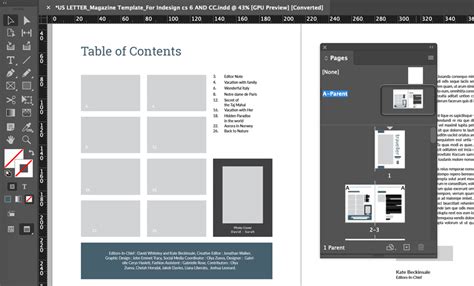
At its essence, a parent page acts as a blueprint for your document pages. Anything placed on a parent page will automatically appear on any document page to which that parent is applied. This is invaluable for elements that need to be uniform throughout a publication, ensuring consistency and saving considerable time. InDesign documents always include at least one parent page, typically labeled "A-Master" in older versions or simply "Parent" in newer documents. This can be accessed and edited through the "Pages" panel.
For documents set up as facing pages (meaning they have a left and a right-hand page), the parent page will also reflect this duality, presenting both a left and a right-hand parent page. This mirroring capability is crucial for maintaining proper layout in books, magazines, and other publications where spreads are common.
Structure and Functionality of Parent Pages
Applying Parent Pages
Applying a parent page to document pages is a straightforward process. In the Pages panel, you can drag a parent page icon directly onto a specific document page icon to apply it to a single page. To apply it to an entire spread, drag the parent page icon to the corner of the desired spread in the Pages panel. You can also apply a parent to multiple pages at once by selecting the desired document pages and then choosing the appropriate parent from the Pages panel menu. For instance, you could apply a parent to pages 5, 7-9, and 13-16.
When a parent page is applied to a document page, any items on that parent page will appear on the document page, typically surrounded by a dotted border. This border serves as a visual cue that these elements are controlled by the parent page and cannot be directly edited on the document page unless specifically overridden.
Creating and Managing Parent Pages
InDesign documents start with a default parent page, but you can create additional parent pages as needed. These new parent pages can be created from scratch or based on an existing parent page or even a document page. When creating a new parent page, you can specify its name (which can be up to four characters long), the spread on which it will be based, or choose "None" if you're starting from scratch. You can also define the number of pages within the parent spread, up to a maximum of ten.
The "Pages" panel is the central hub for managing all parent pages. You can create new parent pages, duplicate existing ones, or delete them from this panel. When creating a new parent page, you can choose to base it on an existing parent spread, which effectively creates a child parent. This hierarchical structure allows for complex design systems where a base parent might contain core elements, and child parents inherit these elements while adding their own unique features.
Unassigning Parent Pages
Should the need arise to remove the influence of a parent page from a document page, you can "unassign" it. This action removes the layout and items from the parent page, effectively reverting the document page to its default state or allowing you to apply a different parent. This is done through the Pages panel menu.
Advanced Parent Page Features
Multiple Parent Pages and Hierarchies
A single InDesign document can accommodate multiple parent pages, each with its own unique layout and elements. This allows for varied designs within the same document, such as different parent pages for chapter beginnings versus standard text pages. When you create a new parent page based on an existing one, the new parent becomes a "child parent" and inherits all the contents and settings of its "parent parent." This creates a hierarchy, where changes made to a parent are automatically propagated to its child parents and subsequently to any document pages that have those child parents applied.
Editing Parent Pages and Local Overrides
Changes made to a parent page are automatically reflected on all document pages that have that parent applied. This is the core power of parent pages. However, there are instances where you might need to make a slight modification to an element on a specific document page without altering the parent page itself. This is where "local overrides" come into play.
To modify an item on a document page that originates from a parent, you first need to detach it from the parent. This creates a local copy of the item on the document page. You can then edit this local copy, for example, changing its fill color or size, without affecting the original parent item. The Pages panel menu provides options to manage these overrides, including "Remove All Local Overrides" to revert the page back to its parent's settings. Be aware that detaching an item creates a local copy, and if you later reapply the parent, you might end up with duplicate objects on the page.
Controlling Stacking Order with Layers
Parent pages, like document pages, can utilize multiple layers. This feature is crucial for controlling the stacking order of objects. An object placed on a higher layer within a parent page will appear in front of objects on lower layers, both on the parent page itself and on any document pages it's applied to. If you want a parent item to appear in front of elements on the document page, assign it to a higher layer. Conversely, placing a parent item on a lower layer will ensure it appears behind document page content.
Dynamic Layout Adjustments
A powerful feature of parent pages is their ability to automatically adjust layout elements when column or margin settings are changed on the parent. If you modify these settings on a parent page, or apply a new parent with different column and margin configurations, InDesign can intelligently reflow and reposition objects on the associated document pages to accommodate the new layout. This is particularly useful when adapting a design for different print sizes or formats.
Automatic Page Numbering
Page numbers are a crucial element for navigation in most documents, especially longer ones. Parent pages are the ideal place to implement automatic page numbering. InDesign allows you to insert a special page number marker on a parent page. This marker will automatically update to display the correct page number for each document page to which the parent is applied.
InDesign Tutorial - Add PAGE NUMBERS to your documents
The advantage of using automatic page numbers on a parent page is that as you add, remove, or rearrange pages, the numbering updates seamlessly. When the automatic page number marker is on a parent page, it will display the parent page prefix (e.g., "A-1" for the first page of parent A). However, on the actual document page, it will display the correct document page number. To implement this, you create a text frame on the parent page, insert the page number marker, and ensure the frame is large enough to accommodate the longest possible page number and any accompanying text. You can also customize the page numbering style to use different formats (e.g., Roman numerals, letters).
Specific Use Cases and Applications
Headers and Footers
Headers and footers are classic examples of content best managed with parent pages. Placing a logo, company name, or document title in the header, and page numbers or chapter titles in the footer, ensures consistency across all pages. This not only saves time but also presents a professional and unified appearance.
Placeholders for Content
Parent pages can also serve as placeholders for content that will be added later. You can create empty text frames or graphic frames on a parent page, which will then appear on your document pages. This allows designers to establish the structure and layout of a page, with content creators or editors filling in the specific text or images later. These frames can be configured to accept specific types of content, ensuring that the final layout remains intact.
Consistent Branding Elements
For brand-conscious documents, logos and other branding elements are essential. Applying a logo to a parent page guarantees its consistent placement and size across all relevant pages, reinforcing brand identity. This is especially important for marketing materials, reports, and corporate publications.
Importing and Moving Parent Pages
Parent pages can be moved or copied between InDesign documents. To move or copy a parent page, open the Pages panel in the source document, select the parent page(s) you wish to move or copy, and then use the "Move To" menu in the Pages panel to select the destination document. You can choose to insert them before or after a specific page, or at the end of the document. When importing parent pages, InDesign will assign them the next available letter in the alphabet if the names conflict with existing parent pages.
Detaching and Overriding Specific Items
While the goal of parent pages is consistency, there are times when an item needs to be unique on a particular document page. This is achieved by "detaching" the item from its parent. To detach an item, select the parent item on the document page (it will have the dotted border), and then choose "Detach All Objects From Parent" from the Pages panel menu. This creates a local copy of the item on the document page, which can then be freely edited.
It's also possible to override specific parent items without detaching the entire set. For example, you might want to remove a page number from a specific page, or change the text in a header on a single page. You can achieve this by selecting the parent item on the document page and then using the Pages panel menu to manage overrides. Options like "Release from Parent" allow you to isolate individual items. If you wish to revert an overridden item back to its parent's state, you can select the item and choose "Reapply Parent Item" from the Pages panel menu.
Considerations for Effective Parent Page Usage
Page Size and Orientation Consistency
It is crucial that any parent page you apply to document pages has the same page size and orientation as those document pages. If there's a mismatch, applying the parent page could result in unexpected layout shifts or the parent page changing the size of the layout page, potentially disrupting your design.
Understanding the "A-Master" vs. "Parent" Nomenclature
As mentioned earlier, InDesign has evolved its terminology. Older versions referred to master pages, while newer versions use the term "parent pages." While the name has changed, the functionality remains the same. The default parent page is often labeled "A-Master" or simply "Parent," and it serves as the foundational template for your document.
Planning Your Parent Page Structure
Before diving into creating parent pages, it's beneficial to plan your structure. Consider what elements will be consistent across your document and which might need variations. This planning will help you create an efficient hierarchy of parent pages, minimizing redundancy and maximizing flexibility. For instance, you might have a base parent for common elements like logos and footers, and then create child parents for different sections that require unique headers or layouts.
The Importance of the Pages Panel
The Pages panel is indispensable for working with parent pages. It provides a visual overview of your document's structure, showing which parent page is applied to each document page. From this panel, you can create, manage, apply, and unassign parent pages, as well as handle local overrides. Mastering navigation and functionality within the Pages panel is key to effectively utilizing parent pages in InDesign.
By understanding and implementing these principles, designers can leverage the power of parent pages to create professional, consistent, and efficiently managed InDesign documents.