In the realm of graphic design, the ability to create and apply repeating patterns is a fundamental skill. While Adobe InDesign offers powerful tools for page layout and typography, its approach to pattern creation and application differs significantly from its sibling programs like Photoshop and Illustrator. Unlike those applications, InDesign does not feature built-in pattern swatches that can be directly applied to fill areas with a repeating motif. This distinction necessitates a more manual, yet highly customizable, approach to achieving patterned effects within your InDesign documents. This guide will walk you through various techniques for creating and utilizing patterns, from simple object arrays to more intricate repeatable elements, empowering you to add depth and visual interest to your layouts.
The Foundation: Building Blocks of a Pattern
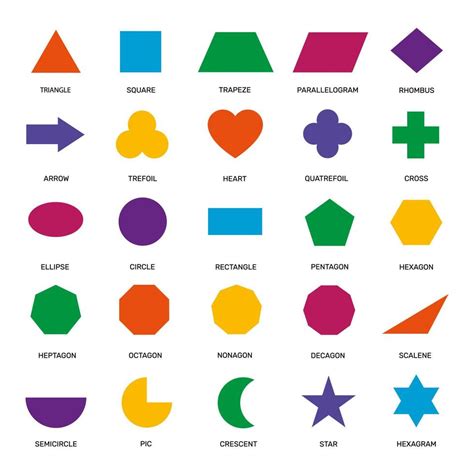
At its core, creating a pattern in InDesign involves arranging and manipulating individual objects to form a repeatable unit. The process often begins with the creation of a single object, which then serves as the basis for repetition. This initial object can be a simple geometric shape like a line, oval, rectangle, or polygon.
To begin, you can draw a line, oval, rectangle, or polygon. Without releasing the mouse, tap the up-arrow or right-arrow key on your keyboard a few times. As you do this, you’ll see a grid of objects begin to appear. Each tap of the up arrow creates a new row of objects, and each tap of the right arrow creates a new column of objects. This method provides a quick way to generate a foundational arrangement of identical elements.
Once you have your initial grid of objects, you can begin to refine their appearance. Apply a light color to the fill and/or stroke of each object. This initial coloring can influence how overlapping elements will interact later, particularly when using blend modes.
Dynamic Spacing and Visual Depth
A key technique for creating visually interesting patterns with overlapping elements involves manipulating the spacing between objects. After selecting all the objects in your grid, you can begin dragging a corner selection handle. Crucially, while dragging, add the space bar to your action. You must begin dragging the corner handle first and then hold down the space bar. Now, as you drag, the horizontal and vertical spacing between each object will change dynamically.
Because of the Multiply blend mode, where the objects overlap, you’ll get a darker colored region. This creates a sense of depth and visual texture. If you are using InDesign CC 2015.4 or later and you have a GPU-equipped computer, enabling Preferences > GPU Performance will be beneficial. With this option turned on, you will be able to see the overlapping objects as you drag the mouse during this live distribution process, allowing for immediate visual feedback and finer control.
This dynamic spacing technique allows for the creation of organic-looking patterns where the density and color intensity vary based on the degree of overlap. It’s a powerful way to move beyond rigid, uniform grids and introduce subtle variations that can make a pattern feel more sophisticated and less artificial.
The "Pattern Swatch" Concept in InDesign
While InDesign lacks true pattern swatches, you can effectively create a similar concept by grouping and copying elements. Once you’ve created a pattern arrangement that you like, you may want to "fill" an object with this pattern. You can achieve this by selecting all the objects that constitute your pattern and choosing Object > Group.
Next, choose Edit > Cut to cut the grouped pattern. Now, to use this as a repeatable element, you can "paste into" a container object, such as a rectangle. This means that the pattern you’ve just cut will be contained within the boundaries of the selected rectangle. The rectangle itself can have its own fill color applied, providing a background or a frame for your pattern.
This grouped and "pasted into" object now functions analogously to a pattern swatch. You can treat it as a single entity that represents your repeating design. You can also give this "swatch" object a fill if you like, but you can’t place a graphic within it in the same way you might with a standard InDesign frame. There’s only so much one frame can hold, and this method essentially treats the grouped pattern as the content of that frame.
Creating Repeatable Elements for Filling
To utilize your newly created "pattern swatch" effectively, you can employ the Step and Repeat feature. Select your "pattern swatch" object. Then, choose Edit > Step and Repeat. In the dialog box that appears, check the Preview option to see the effect of your settings in real-time. Click OK.
This command will create multiple copies of your selected "pattern swatch" object, arranged according to the offsets you define. By carefully setting the horizontal and vertical offsets, you can tile these pattern elements seamlessly to fill any desired space. For instance, if your "pattern swatch" is a 20mm x 20mm square, you would set the horizontal offset to 20mm and the vertical offset to 0mm to create a row of adjacent copies, or a vertical offset of 20mm and a horizontal offset of 0mm for a column. Combining these can fill a larger area.
Select all the resulting tiled rectangles. Good times. Now, certainly, you could dispense with the swatch idea and just use Step and Repeat to make a pattern of objects directly. However, I think having a "swatch" - that is, a grouped and contained pattern element - is less unwieldy than a bunch of free-range objects floating around. It’s easy to fill any space with them when they are treated as a single, repeatable unit.
Advanced Pattern Generation with Step and Repeat
The Step and Repeat command can be used more directly to construct complex patterns without necessarily creating a separate "swatch" first. Start with a square frame. This frame will serve as the initial element or bounding box for a part of your pattern.
Choose Object > Corner Options, Inverse Rounded. This will round the corners of your square frame in a specific way, which can be a unique element within a pattern. Then, choose Edit > Step and Repeat. Set the horizontal offset to the width of the square and the vertical offset to zero. Set the repeat count to taste, creating a row of these rounded-corner frames.
Next, select all the squares (or frames) you’ve just created. Choose Step and Repeat again. This time, set the vertical offset to the height of the squares and the horizontal offset to zero. Set the repeat count as needed. This second application of Step and Repeat will stack the rows you created, forming a grid of your rounded-corner frames.
If you want to apply an effect like Bevel and Emboss to this composite pattern, you first need to join the individual frames into a single object or a more cohesive group. You can’t directly apply certain effects to pattern swatches or to individual frames that are part of a complex tiled structure because the software might interpret them as separate entities. You can’t join pattern swatches because then you’d only have one frame and the pattern wouldn’t repeat. The idea here is to group or combine the elements that form your pattern unit before applying such effects.
After you get the hang of it, experiment! You’ll see that you don’t have to place pattern objects only at the corners of your "swatches" or within the initial grid. As long as you take care that the pieces align precisely, you can incorporate elements anywhere within your repeatable unit.
Precision Control and Workflow Enhancements
For highly precise adjustments, especially when dealing with intricate patterns or fine-tuning spacing, it’s often more effective to use the Control panel and your arrow keys instead of the mouse. The mouse can sometimes lead to slight inaccuracies due to hand tremors or screen resolution. By selecting an object or a group of objects and then using the arrow keys, you can nudge them in increments of 0.1 points, 1 point, or 10 points, depending on your nudge settings in InDesign's Preferences. This level of control is invaluable when ensuring that pattern elements align perfectly, creating seamless repetitions.
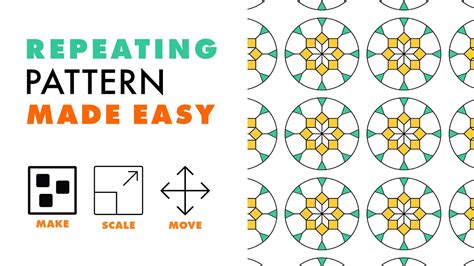
InDesign Tutorial - How to create repeating patterns
Considerations for Complex Patterns
While InDesign offers flexibility in pattern creation, it's important to be aware of the potential impact on your document's performance. A pattern object can seriously increase the complexity of your page. This is especially true if your pattern consists of numerous small objects, high-resolution images, or complex vector graphics. InDesign needs to render and manage each of these elements, which can lead to slower performance, larger file sizes, and longer export times.
When designing intricate patterns, consider simplifying the individual elements where possible. For photographic patterns, ensure that images are appropriately optimized for screen or print. For vector-based patterns, aim to reduce the number of anchor points and complex paths.
Furthermore, the concept of a "pattern object" in InDesign, whether it's a grouped set of objects or a single complex graphic, is fundamentally different from a true pattern fill in other design software. You can apply fills and strokes to frames containing your pattern elements, but you are essentially working with a collection of discrete objects that simulate a repeating pattern. This distinction is crucial for understanding InDesign's capabilities and limitations in this regard.
Beyond Geometric Grids: Incorporating Diverse Elements
The techniques described above provide a solid foundation for creating geometric and abstract patterns. However, the power of InDesign lies in its ability to incorporate a wide range of content into your designs. Your "pattern object" can be far more than just simple shapes. It can be a path, a photograph, an Illustrator graphic, or even a text frame containing live text.
For instance, you could create a pattern using custom brush strokes applied to paths. Or, you could use a photograph as the basis for a pattern by repeating it and applying blend modes or transparency effects. An Illustrator graphic, such as a logo or an icon, can be imported and then duplicated to form a pattern. Even a text frame with live text can be a component of a pattern, allowing for typographic repeating designs.
The key is to treat the chosen element as a building block. You then arrange, group, and repeat this block to create the desired pattern. Remember the warning: just be aware that a pattern can seriously increase the complexity of your page. This applies even more so when incorporating diverse and potentially resource-intensive elements.
Final Refinements and Creative Exploration
Once you have a pattern in place, whether it's a simple grid or a complex arrangement, you can further refine its appearance. Apply strokes and fills as you usually would to the individual elements or the grouped pattern object. Experiment with different blend modes (Multiply, Screen, Overlay, etc.) to see how they interact with overlapping objects and background colors. Adjust opacity and transparency settings to create subtle gradients or layered effects.
The beauty of working within InDesign, even without dedicated pattern swatches, is the immense control you have over each individual element. You can modify any part of the pattern at any time, as long as you can access the grouped or tiled objects. This makes iterative design and fine-tuning remarkably straightforward.
Don't be afraid to experiment with different starting shapes, spacing techniques, and content types. The ability to create unique, custom patterns is a significant advantage for designers looking to develop a distinct visual identity. Whether you're designing a book cover, a brochure, or a website layout, well-executed patterns can add a professional polish and enhance the overall aesthetic appeal of your work. The process, while requiring a different mindset than in other Adobe applications, ultimately offers a high degree of creative freedom and the ability to craft patterns perfectly tailored to your specific design needs.