Adding creative design elements to your slideshow presentations can make them more visually appealing. Curved text is one such element that’s both simple and eye-catching. Curved text in PowerPoint refers to text that’s been formatted to follow a curve instead of staying in a straight line. This can add a decorative touch to your slides and make them more visually interesting. The ability to bend text or enhance it with effects and settings is a powerful tool for any presenter seeking to elevate their visual communication.
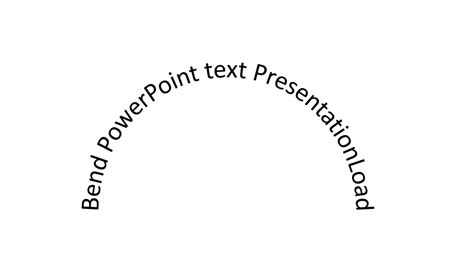
Understanding the Types of Text Curves
PowerPoint offers a variety of ways to curve text, each serving a different design purpose. These can be broadly categorized by the direction and form of the curvature.
Upward Curve
With upward-curved text, words or phrases rise from the baseline, reach a peak, and then come back down. This creates a gentle, convex arc, often used to add a subtle emphasis or a sense of ascent to a phrase.
Downward Curve
Text that curves downward starts from the baseline, dips down, and then comes back up. This creates a concave arc, which can be effective for framing elements or for creating a sense of grounding.
Circular Curve
Circular curved text starts from a point and goes around in a circle, ending back where it started. This is particularly useful for creating circular logos, highlighting cyclical processes, or framing an object with text. To create a circle from the text, it's often beneficial to deform the initially inserted text box into a square shape. This way, your inserted text will have enough space to form a complete circular arc.
Implementing Curved Text in PowerPoint: A Step-by-Step Guide
Achieving curved text in PowerPoint is an accessible technique, even for those new to advanced design features. The process primarily involves utilizing the WordArt feature or wrapping text around shapes.
Using WordArt for Text Transformation
- Insert Text: Open your PowerPoint presentation. Go to the Insert tab and select Text Box or WordArt from the Text section. Alternatively, you can insert a shape and then right-click the shape and select Add Text.
- Type Your Text: Enter the text you wish to curve into the text box or WordArt object. Tip: Ideally, format the text you are about to write here with centered alignment. To do this, highlight the text you have written, go back to the ‘Home‘ menu, and in the ‘Paragraph’ category, select centered formatting.
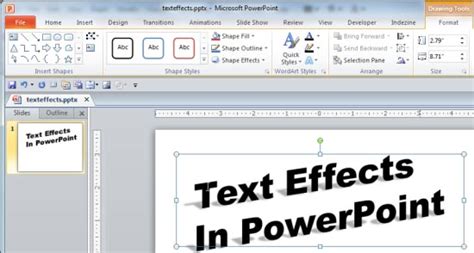
- Access Text Effects: Select the text box or WordArt on your PowerPoint slide. Go to the Format tab on the PowerPoint ribbon (or Shape Format tab if using WordArt).
- Navigate to Transform: Click on Text Effects in the WordArt Styles group. Hover over Transform to see the available options. The upper category, ‘Follow Path,’ is used to deform the text around a central point. Further down, you have a larger selection of other distortion effects to choose from.
- Choose a Curve Style: Pick an effect like “Arch” or “Circle” to curve your text. You will usually find over 20 predefined adjustments there that you can easily apply.
- Adjust the Curve: Once you have selected a curve style, you can often adjust the curve's intensity. On the edge of the text box, you will now see a yellow dot. This yellow dot allows you to edit the curve. During these text alterations, you can continue to edit, colorize, expand, or apply other formatting to the text.
- Finalize: Once you are satisfied with the curve, click OK.
Wrapping Text Around a Shape
PowerPoint enables you to wrap text around a shape using the WordArt feature, which can be particularly effective for creating more organic designs.
- Insert Shape and Text: Insert a shape onto your slide. Then, add a text box or use WordArt.
- Select and Format: Select the shape with the text. Go to the Format tab (or Shape Format tab if using a Mac).
- Apply Transform: Click on Text Effects. Hover over Transform and choose a curve style from the Follow Path section.
- Refine: As with WordArt, you can adjust the yellow control point to modify the curve's appearance.
Enhancing Visual Presentation with Curved Text
Curved text is more than just a decorative flourish; it's a strategic design tool that can significantly improve the clarity and impact of your presentations.
Connecting Images and Text
Curved text can help explain what an image is showing. For example, if there’s a picture of an arrow in a circle, adding text that follows the curve of the arrow or matches its circular motion can highlight the idea of something repeating in a cycle. This visual synergy ensures that the accompanying text directly reinforces the message conveyed by the image.
Improving Overall Slide Design
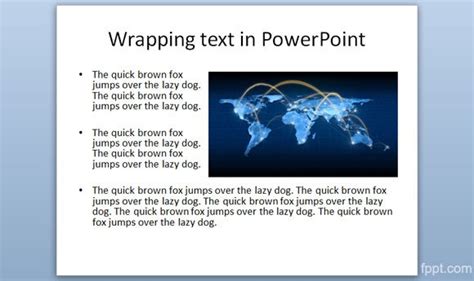
When a large image dominates a slide, adjusting the text layout to wrap around it ensures both the image and accompanying text remain visible and captivating. This prevents text from being obscured or appearing out of place, leading to a more cohesive and professional look.
Adding Flair to Subtitles and Titles
In PowerPoint presentations, subtitles are just as important as titles in other business documents. While titles are typically presented in a straight line, incorporating curved text to subtitles can give your slides a stylish touch. It can also be used effectively to emphasize a title or a specific phrase that you want to draw the viewer’s eyes to.
PowerPoint Tutorial: How to wrap Text around a Circle
Considerations and Potential Pitfalls
While curved text is effective, small mistakes can affect readability or design quality. Awareness of these potential issues can help you avoid them and achieve a polished final product.
Letter Compression and Distortion
Curved text compresses or stretches letters slightly. Extreme curves may distort letter spacing, making the text harder to read. It's important to find a balance where the curve is aesthetically pleasing without compromising legibility.
Font Compatibility
Decorative fonts combined with curves often appear cluttered. It's advisable to use simpler, more legible fonts when employing curved text effects, especially for body text.
Overlapping Elements
Curved text sometimes overlaps images or other elements on the slide. Careful placement and adjustment are necessary to ensure all components of your slide are clearly visible and interact harmoniously.
Screen Size Variations
Curved text may look different on smaller screens. It's important to test your presentation on various devices and screen sizes to ensure the curved text remains effective and readable across all platforms.
Mobile App Limitations
It's worth noting that the PowerPoint mobile app currently doesn’t support WordArt transform effects. If your audience will be viewing the presentation on mobile devices, you may need to reconsider using this feature or ensure the curved text is still understandable without the effect.
Advanced Techniques and Animation
Beyond basic curvature, PowerPoint offers further options for enhancing curved text.
Flipping and Rotating Curved Text
PowerPoint allows you to flip or rotate curved text to achieve upward, downward, or circular flow. This can be crucial for fine-tuning the orientation of your text to perfectly match your design. This usually happens if the text box size is too small, requiring expansion to allow for proper rotation.
3D Adjustments and Effects
For a more individualized approach without a template, you can edit the text using the ‘Shape Format’ function. A small menu with three icons will open in the right-hand editing window. Here, you can also make 3D adjustments to add depth to your presentation. Especially suitable for our curved text box is reflection. You can choose from several predefined settings and manually adjust the details of the effect. The same goes for the shadow effect. Here, you can also determine the direction or strength from a predefined template library.
Animation for Curved Text
To showcase the new text properly using animations, there are several options available. Highly recommended, as they work well with the circular shape of our text, are the ‘Grow/Shrink’ effects, which can make the text field expand like a ball and bounce onto the slide. Also, ‘Spin’ or ‘Turn’ effects are very suitable. Avoid effects like ‘Object Color’ as they don’t blend well with the text box.
When to Use Curved Text
Curving text in PowerPoint is useful if you're looking to create a circular logo, emphasize a title, or simply add some artistic elements. It’s a versatile tool that can be used for titles, subtitles, and even to connect with your audience by creating a more engaging and dynamic visual experience. When done correctly, a beautiful result will be produced, as these settings are adjusted to reflect personalized preferences. Creating engaging and professional PowerPoint presentations is no easy task, and curved text boxes can take your presentation to the next level.
Emphasizing Key Information
Adding in this effect can help draw the viewer’s eyes to specific phrases and words that need more emphasis or that you want to stand out. This is particularly effective for calls to action, important statistics, or key takeaways.
Creating Visual Interest
Curved text in PowerPoint can breathe life into an otherwise blank presentation. It adds a layer of sophistication and design that can keep your audience engaged and attentive.
Reinforcing Concepts
As mentioned, curved text can be used to visually represent concepts such as cycles, movement, or progression, making abstract ideas more tangible for the audience.
Customization and Future Possibilities
Microsoft regularly enhances its software by incorporating new features based on user input and technological advancements. If you have a suggestion for a new feature, such as more intricate text warping capabilities, you can submit it via PowerPoint's feedback feature. While PowerPoint does not have native capabilities for generating wave text or text that conforms to intricate shapes like a funnel or box, the existing transform options provide a solid foundation for creative text manipulation. With some practice, PowerPoint users can produce text boxes that curve and flow with the click of a button. If you encounter any issues with bending text in PowerPoint or have general PowerPoint questions, feel free to seek assistance from experienced professionals.