Inkscape, a powerful and free open-source vector graphics editor, is renowned for its capabilities across GNU/Linux, Windows, and macOS. While a dedicated, officially sanctioned Inkscape app for Android is not readily available in the conventional sense, this tutorial explores a technical pathway for experienced users to leverage Inkscape's robust features on their Android devices. This approach involves setting up a Linux environment within Android, specifically using Termux, proot, Arch Linux, and the XFCE desktop environment, alongside the Termux:X11 app. It's important to preface this by noting that this method is experimental, can be prone to frequent crashes, and is not for the faint of heart. The primary goal is to demonstrate how to access Inkscape's extensive toolset, even if the user experience on a mobile device might be less than ideal.
The Allure of Vector Graphics on Mobile
The Inkscape App, though not a native Android application, offers a rich and widely used feature set for artistic and technical illustrations. Its utility spans cartoons, clip art, logos, typography, diagramming, and flowcharts. The fundamental advantage of Inkscape lies in its use of vector graphics. Unlike raster graphics, which are tied to a fixed number of pixels, vector graphics enable sharp prints and rendering at unlimited resolutions. This makes Inkscape particularly valuable for professional design work where scalability and crispness are paramount. The Inkscape App uses the standard SVG (Scalable Vector Graphics) file format as its primary format, a widely supported standard that is compatible with many other applications, including web browsers. This native compatibility with SVG is a significant reason why users seek Inkscape, as it provides better control over the format compared to editors that rely on proprietary file types.
Core Inkscape Features: A Glimpse Under the Hood
Inkscape's comprehensive feature set empowers users to create and manipulate vector graphics with precision. These features can be broadly categorized into object creation and object manipulation, alongside detailed control over fills and strokes.
Object Creation and Manipulation
The Inkscape app supports a variety of tools for bringing designs to life. For drawing, users can utilize the pencil tool, pen tool, and calligraphy tool. When it comes to creating basic shapes, Inkscape offers rectangle, ellipse, star/polygon, and spiral tools. Text is a crucial element in many designs, and the Text tool in Inkscape provides extensive control. Furthermore, the application supports the embedding of Bitmaps, allowing for the integration of raster images within vector compositions. A unique feature is the Clone tool, which, along with its tools for making clone patterns and settings, allows for efficient replication of objects with linked properties.
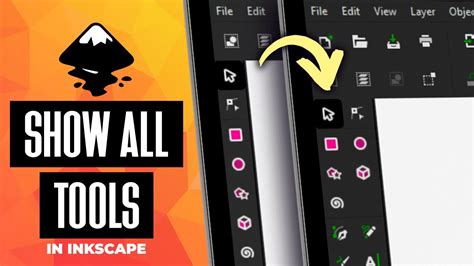
Once objects are created, Inkscape provides powerful manipulation capabilities. Transforms, including interactive adjustments and precise numeric value input, allow for scaling, rotating, and skewing. The Operation Z-order controls the layering of objects, determining which objects appear in front of or behind others. Grouping objects is essential for managing complex designs, allowing multiple elements to be treated as a single unit. The use of Layers further enhances organization, enabling designers to compartmentalize different aspects of their artwork. Finally, alignment and distribution commands ensure that objects are precisely positioned relative to each other and the canvas.
Fill and Stroke Control
The way objects are colored and outlined is fundamental to vector design. Inkscape offers a sophisticated Color picker tool, allowing for precise color selection. The Color picker tool itself enables sampling colors from anywhere within the canvas or even from external images. Copy/paste styles streamlines the process of applying consistent formatting across multiple objects. For gradients, Inkscape features a powerful gradient editor capable of creating complex multi-stop gradients, adding depth and dimension to designs. Designs can also incorporate pattern (bitmap/vector) fills, allowing for textured appearances. For outlines, Inkscape supports Dotted strokes, providing a variety of predefined dashed line patterns.
Inkscape Tutorial for Android: Navigating the Mobile Frontier
The "Inkscape Tutorial for Android" is presented as an educational guide aimed at users interested in understanding Inkscape, learning its vector design workflows, and exploring its graphic design techniques on Android devices. This guide emphasizes how Inkscape operates, how vector graphics are created within it, and how designers leverage its tools for SVG editing, logo design, illustration, and scalable graphics. For those seeking Inkscape for Android guidance, tutorial explanations, or vector design tips, this resource aims to provide clear, beginner-friendly information.
The tutorial content typically covers:
- Inkscape Overview: Understanding what Inkscape is, its common uses, and its popularity in the vector graphics community.
- Inkscape Vector Drawing Basics: Introducing fundamental concepts such as paths, nodes, strokes, fills, and shapes.
- SVG Editing with Inkscape: Explaining how Inkscape handles SVG files and scalable vector graphics.
- Layers & Object Management in Inkscape: Tips for organizing designs using Inkscape's layers and grouping tools.
- Inkscape Design Workflow: Step-by-step processes for creating clean and professional vector designs.
It's crucial to reiterate that "Inkscape Tutorial for Android" is an independent educational guide and not an official Inkscape application.
How to install Termux X11 and set up a Linux Environment on Android (Without Root)
Technical Installation: A Proot-Based Approach
For users determined to run Inkscape on their Android devices, the process typically involves a multi-step technical setup. This is where the "fun" and the "questionable usefulness" come into play.
Step 1: Preparing Termux
The journey begins with Termux, a powerful terminal emulator and Linux environment for Android. Within Termux, the initial step is to install packages necessary to run a Linux distribution. This often involves commands to update package lists and install essential utilities.
Step 2: Setting Up a Linux Environment with proot
proot is a user-space implementation of chroot, bind mount, and package management capabilities. It allows you to run a Linux distribution within Termux without needing root access on your Android device. The process involves downloading and installing the proot-distro package, which simplifies the installation of various Linux distributions.
Step 3: Installing Arch Linux and XFCE
In this specific tutorial's example, Arch Linux is chosen as the Linux distribution. Using proot, you would install Arch Linux within Termux. Once the base Arch Linux system is installed, the next step is to set up a desktop environment. XFCE is a lightweight and popular choice, known for its stability and relatively low resource consumption, making it a more viable option on mobile hardware. Commands within Termux would be used to install the XFCE desktop environment and its dependencies on the Arch Linux installation.
Step 4: Installing Termux:X11
To display the graphical desktop environment (XFCE in this case) on your Android device, the Termux:X11 app is required. This app acts as an X server for Android. You would download and install the termux-x11 nightly release from its official repository. This app will then be configured to connect to the X server provided by your proot-ed Linux environment.
Step 5: Installing Inkscape within the Linux Environment
Once the Arch Linux environment with XFCE is running and accessible via Termux:X11, you are essentially inside a Linux desktop on your phone. The final software installation step is to install Inkscape itself. This is done using Arch Linux's package manager, pacman. The command pacman -S inkscape would be executed within the Arch Linux terminal to download and install Inkscape.
At this point, you should be able to launch Inkscape from the XFCE application menu. The user experience might be constrained by screen size and touch input, but the full Inkscape application will be available.
Considerations for Mobile Inkscape Usage
The idea of using Inkscape on an Android tablet, especially with a stylus, is appealing for sketching and design work. The ability to start drawings on a mobile device and potentially have them seamlessly integrate with desktop workflows is a significant draw. However, several practicalities need to be considered.
Performance and Stability
As mentioned, the installation and operation of a full Linux desktop environment, including Inkscape, on an Android device can be resource-intensive. Frequent crashes are a real possibility, and performance may be sluggish, especially on older or less powerful devices. The "complete Linux" setup can take a heavy toll on battery life.
User Interface Adaptation
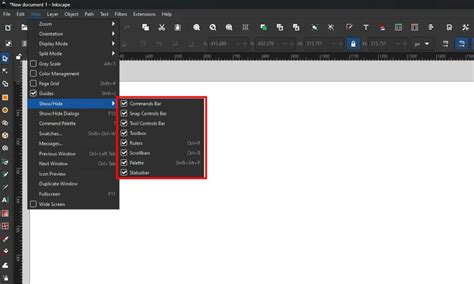
A key challenge for mobile Inkscape usage is the user interface. Inkscape, designed for desktop monitors, presents a multitude of buttons, menus, and toolbars. On a smaller touch screen, this can be overwhelming and difficult to navigate precisely. Developers might consider creating a simplified "mobile" version of the Inkscape window, perhaps hiding non-essential buttons and menu options, or even forcing the window to display out of bounds as a workaround for cleaner screen real estate. This would require significant development effort, which, given Inkscape's open-source nature and development pace, might not be a high priority.
Stylus Integration
For tasks like drawing and node manipulation, stylus input is almost essential. Devices like the Samsung Galaxy Note series, with their integrated styluses, offer a more promising platform for this kind of mobile Inkscape use. However, even with a stylus, precise control can be challenging compared to a mouse and a larger display.
SVG Cleanup for Optimal Performance and Compatibility
When preparing SVG files for use in other applications, particularly for integration into Android development projects, a cleanup process is often necessary. This ensures the SVG is lean, efficient, and free from unnecessary code that could cause issues or increase file size.
Standardizing Canvas and Paths
The goal is to obtain an .svg file that meets specific criteria:
- Standard Size: The canvas should have a defined, often small, standard size (e.g., 24x24 px for icons). This is best set via
File > Document Propertiesâ¦and adjusting the page size. Avoid usingEdit > Resize Page to Selectionas it can be less precise. - Paths and Fills Only: The file should ideally contain only paths and fills, with minimal or no strokes.
- Reasonable Number of Nodes: Paths should not have an excessive number of nodes, which can impact rendering performance.
- No Redundant UI-Related SVG Code: This includes unused fills, empty strokes, unnecessary translations, and other metadata.
Transforming Objects into Paths
Complex vector drawings often consist of groups and individual objects. To prepare them for export and cleanup, it's essential to convert these into paths.
- Object to Path: Select the objects and use
Path > Object to Path. - Merge Paths: For elements that represent a single surface, merge them using
Path > Union. Be cautious, as merging too many complex shapes can create overly convoluted paths. - Break Apart: If two surfaces have been combined into a single, complex path, use
Path > Break Apartto separate them. - Ungroup: It's generally advisable to ungroup all elements during this process to ensure each distinct part of the graphic is manageable.
Editing Nodes and Cleaning Up Attributes
Once objects are converted to paths, the nodes can be refined. Double-clicking an element reveals its nodes. Excess nodes can be deleted, with neighboring nodes adjusted manually for smooth curves. The Path > Simplify option offers automatic node reduction, though manual refinement is often best for maintaining design integrity.
The Selectors tab in Inkscape's XML Editor is invaluable for identifying and removing unnecessary attributes. For instance, stroke attributes that are not being used can be deleted. To remove stroke data in bulk, select all elements and then unset the stroke from the pop-up menu in the bottom right corner.
Utilizing the XML Editor and Optimized SVG Export
The XML Editor provides direct access to the SVG's markup code. Here, redundant elements and attributes can be removed. Pay close attention to transform properties, as simply deleting them can distort the image. Ungrouping elements or carefully adjusting positions with keyboard arrows can resolve this.
For upfront cleaning of SVG code, saving the file via File > Save as... as an Optimized SVG can be highly effective. The settings for optimized export allow for control over precision and other parameters.
Optimizing Precision for Android
Android Studio typically rounds SVG path data to 4 decimal points. However, for many icons and graphics, 1 to 3 decimal points are sufficient and can significantly reduce file size and complexity without introducing visual artifacts. The XML Editor in Inkscape allows you to trim the digits of a vector. You can specify the desired precision (e.g., N.NN for 2 decimal places) and apply it using the scissors icon.
While this can lead to warnings from IDEs about path complexity, it's a common practice. It's recommended to verify the visual output in the MARKUP tab of SVGOMG (an online SVG optimizer) to ensure the vector image remains free from rough edges or artifacts after precision adjustments. A clean icon should contain only paths (ideally one per surface) and have a defined size.
The Future of Inkscape on Mobile: Potential and Challenges
While running Inkscape on Android via Termux is a testament to the flexibility of open-source software and Linux environments, it highlights a gap in the mobile graphics editing landscape. The desire for a native, touch-friendly Inkscape app on Android is evident. Such an app would revolutionize mobile vector design, allowing artists and designers to create professional-grade artwork directly on their tablets and phones.
The challenges are significant, however. Developing a native mobile application requires adapting a complex desktop application to a different operating system, hardware architecture, and input paradigm. The Inkscape project, being community-driven, relies on volunteer efforts, and the development of a full-fledged Android app would be a monumental undertaking.
Despite these challenges, the exploration of running Inkscape on Android serves as a valuable exercise. It demonstrates the power of tools like Termux and proot, and it underscores the potential for advanced creative work on mobile devices. For experienced users willing to invest the time and effort, the Inkscape experience on Android, though unconventional, is achievable. The journey from installation to a functional Inkscape environment on a smartphone is a technical feat that opens up new possibilities for mobile creativity, even if it comes with its share of experimental quirks.