The advent of High Efficiency Video Coding (HEVC), also known as H.265, has revolutionized video compression, offering significantly better efficiency compared to its predecessor, H.264. This means higher quality video can be stored in smaller file sizes, or the same quality can be achieved at half the bitrate. This efficiency is particularly beneficial for shooting high-resolution content like 4K, as seen in devices ranging from smartphones like the iPhone 8 and later, to professional cameras like the Canon XF 705, and popular drones such as the DJI Phantom/Mavic series and GoPro HERO 8 Black. However, this technological leap has also introduced a new set of hurdles for video editors, especially when working with powerful post-production software like DaVinci Resolve. Users frequently encounter issues such as an inability to read HEVC files, persistent "Media Offline" errors, choppy playback, or audio drift, even when utilizing professional versions of the software.
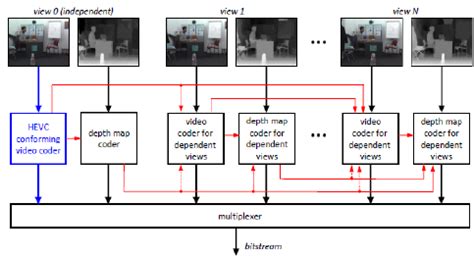
The core of the problem lies in the computational intensity required to decode HEVC files. Unlike less compressed formats, HEVC requires significant processing power from the system's CPU, and in some cases, the GPU, to decompress the video data into usable frames for editing. While DaVinci Resolve has made strides in improving HEVC handling, particularly in its Studio version, many users on laptops or less powerful systems find real-time editing of 4K HEVC footage to be a frustrating experience. The complexity of HEVC, especially when dealing with higher bit-depths or specific color spaces like DLOG-M, exacerbates these performance issues.
Understanding DaVinci Resolve's HEVC Support Limitations
DaVinci Resolve, with its deep roots in high-end color correction and finishing, was originally designed for uncompressed or lightly compressed media. While it has evolved to support a vast array of modern video formats, including MP4, AVI, QuickTime MOV, AVC, MXF, and DCP, its native handling of highly compressed codecs like H.265 (HEVC) can be problematic, especially in the free version.
The distinction between the free and Studio versions of DaVinci Resolve is critical when discussing HEVC support. The free version has more limited support, primarily for common 8-bit 4:2:0 HEVC files typically found in smartphone recordings. More advanced formats, such as 10-bit 4:2:2 HEVC, often encountered in professional and prosumer cameras, are frequently not supported or lead to significant performance degradation. This limitation is not always explicitly stated as a lack of codec support but often manifests as the "Media Offline" error message, which can be misleading as the file is present but unreadable by the software in its current state.
Furthermore, hardware acceleration plays a crucial role in smooth HEVC playback. DaVinci Resolve Studio, when paired with a compatible GPU, can leverage hardware decoding for H.264 and H.265 files. This offloads the demanding decoding process from the CPU to the GPU, leading to a much smoother editing experience. However, this hardware acceleration is generally not available in the free version of DaVinci Resolve on Windows or Linux, though it is enabled on macOS. This disparity is a significant reason why many professionals opt for the paid Studio version.
Even with hardware acceleration, working directly with HEVC codecs can sometimes lead to audio drift and synchronization issues over the duration of long clips. This is often attributed to the variable frame rate (VFR) nature of some recordings, where the frame rate fluctuates to save space. Professional editing software like DaVinci Resolve generally prefers constant frame rate (CFR) footage for optimal stability and predictable performance.
How To Easily Edit 10 Bit Videos In The FREE Version Of DaVinci Resolve (Fix Black Screen)
Free vs. Studio Version: A Tale of Two HEVC Experiences
The free version of DaVinci Resolve, while incredibly powerful for many tasks, has distinct limitations regarding HEVC (H.265) support. Users often report that files encoded with this codec, particularly those from more advanced cameras or drones, simply won't import or will appear as "Media Offline." This is a common sticking point for users who are just starting with professional editing or who are on a budget. The Studio version, on the other hand, offers enhanced HEVC decoding capabilities, including support for hardware acceleration on compatible GPUs, which dramatically improves playback performance. For those working with 10-bit 4:2:2 HEVC footage, or higher resolutions, upgrading to DaVinci Resolve Studio is often considered an essential step for a functional workflow.
Troubleshooting "Media Offline" and Playback Issues
When faced with the dreaded "Media Offline" error or choppy playback of HEVC files in DaVinci Resolve, several troubleshooting steps can be taken, ranging from simple checks to more involved solutions.
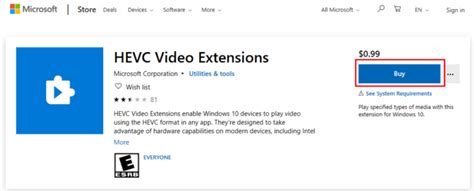
One of the most common causes for HEVC import failures, especially on Windows, is the lack of a native HEVC decoder. While Windows 10 and 11 do support HEVC, the necessary extensions are not always installed by default, particularly for files originating from consumer devices. Users can often resolve this by purchasing and installing the "HEVC Video Extensions" from the Microsoft Store. This simple addition can enable DaVinci Resolve (especially the free version) to recognize and decode HEVC files.
Another frequent culprit is the file extension itself. While the codec inside the file might be supported, an unusual or incorrect file extension can confuse the editing software. Ensuring that HEVC files are wrapped in common and compatible container formats like MP4 or MOV is important. Some users have reported success by simply changing the file extension, though this is a superficial fix and doesn't address underlying codec issues.
For users experiencing "Media Offline" errors even after ensuring codec support, the issue might be related to file integrity or how the files are linked within Resolve. Trying to play the HEVC file in a robust media player like VLC can help determine if the file itself is corrupted. If the file plays fine in VLC but not in Resolve, the problem is almost certainly with Resolve's interpretation of the file.
In some cases, even when the video plays, it might be accompanied by audio that is out of sync, or the video itself might exhibit "choppy or lagging 4K video playback." This is particularly true for VFR footage. DaVinci Resolve, like most professional NLEs, thrives on Constant Frame Rate (CFR) media. If your source footage is VFR, it's highly recommended to convert it to CFR before importing it into Resolve.
For those using the Studio version and still experiencing issues with specific frames showing "Media Offline" or playback glitches, disabling hardware acceleration for H.264/H.265 decoding in the Resolve preferences can sometimes help. This forces Resolve to use CPU-based decoding, which, while potentially slower, can sometimes be more stable for certain problematic files.
Finally, checking for unusual characters in filenames or clearing Resolve's cache and render files can sometimes resolve import or playback glitches. These are less common causes but are worth exploring if other solutions fail.
Transcoding: The Most Reliable Solution for HEVC Editing
Given the inherent complexities and limitations of editing HEVC files natively, transcoding them into an edit-friendly codec is widely regarded as the most robust and reliable solution for achieving smooth performance and stability in DaVinci Resolve. This approach is not only a practical workaround but is also officially recommended by DaVinci Resolve itself.
Transcoding involves converting your HEVC files into a less compressed, intermediate codec that DaVinci Resolve can process much more efficiently. The most popular and recommended intermediate codecs for DaVinci Resolve include Apple ProRes and Avid's DNxHD/DNxHR. These codecs are designed for post-production workflows, offering excellent image quality and significantly reducing the processing load on your system during editing, color grading, and rendering.
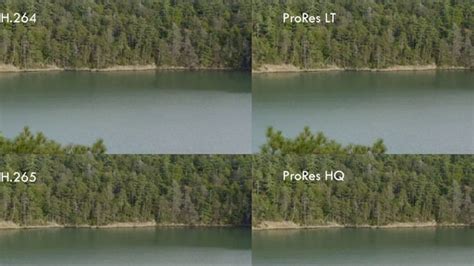
While transcoding results in larger file sizes compared to HEVC, this trade-off is well worth the performance gains. The compression is minimal, preserving virtually all of the original image quality, while the decoding process becomes far less demanding. This means smoother playback, fewer dropped frames, and a more responsive editing experience, especially when working with multiple streams of 4K footage or complex timelines.
Several software tools can assist with this transcoding process. For users seeking a straightforward solution, applications like EaseFab Video Converter, Handbrake, Shutter Encoder, Winxvideo AI, or Acrok Video Converter Ultimate offer presets optimized for DaVinci Resolve. These tools allow users to easily convert HEVC files to ProRes or DNxHD/DNxHR formats with just a few clicks. Some converters also offer the option to convert HEVC to H.264 MP4, which can be a viable alternative if ProRes or DNxHD are not desired or if storage space is a critical concern, though it may not offer the same level of editing performance as the intermediate codecs.
When choosing a transcoder, it's important to look for options that preserve the highest possible quality, especially if you are working with footage shot in specific color spaces like DLOG-M. Paid applications often offer more advanced features and better quality preservation, but there are also capable free and open-source options available. For instance, Shutter Encoder and Handbrake, which leverage the powerful FFmpeg library, are excellent free choices.
The Role of Optimized Media and Render Cache
DaVinci Resolve itself provides built-in tools to mitigate HEVC performance issues without necessarily requiring external transcoding. The "Generate Optimized Media" feature allows you to create proxy files (often in ProRes or DNxHR formats) directly within Resolve. These proxies are then used for editing, offering a smooth playback experience. Resolve intelligently links these proxies to your original camera files, and you can switch between camera media and optimized media as needed.
Similarly, the Render Cache feature can be configured to transcode sections of your timeline into more easily decodable formats. This can significantly improve playback performance, especially for complex sequences with effects or color grades. The settings for Optimized Media and Render Cache can be found in the Project Settings under the "General" panel, allowing users to choose the resolution and format of the generated files.
However, it's important to note that both Optimized Media and Render Cache consume additional storage space. You'll need to ensure that the scratch disk location specified for these files is on fast enough storage to support real-time playback. For many users, especially those with high-end systems, these built-in features can provide a satisfactory editing experience without the need for a separate transcoding step.
Beyond Codecs: Other Factors Affecting HEVC Import and Playback
While codec compatibility and processing power are the primary concerns when dealing with HEVC in DaVinci Resolve, other factors can also contribute to import and playback issues.
One often overlooked aspect is the file naming convention. Filenames containing special characters, emojis, or even unusual spacing can sometimes cause import failures in various software, including DaVinci Resolve. Ensuring that your HEVC files have simple, alphanumeric filenames can prevent unexpected import problems.
The operating system and its updates also play a role. As mentioned, Windows does not always include native HEVC codec support by default, necessitating manual installation of extensions. Keeping your operating system and graphics drivers up to date is also crucial, as these updates often include performance improvements and bug fixes that can affect video playback.
Audio compatibility can also be a contributing factor. While the video codec might be the main focus, issues with the audio stream within an HEVC file can lead to "Media Offline" errors or audio-video sync problems. DaVinci Resolve has specific requirements for audio formats, such as MP3 files needing to be in Constant Bitrate (CBR) mode. If your HEVC files contain audio in an unsupported format or bitrate mode, it could cause playback issues. Transcoding software can often address these audio concerns by converting the audio to a more compatible format.
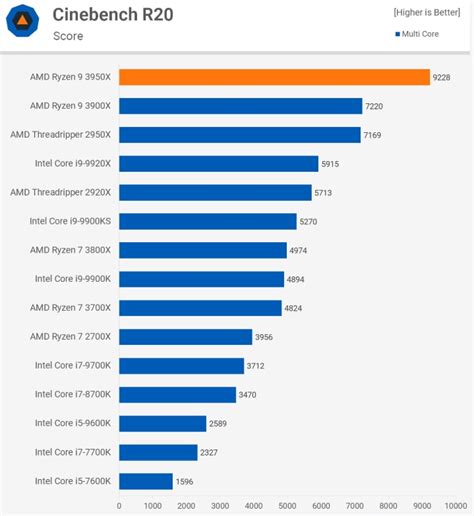
Finally, system resources beyond just the CPU and GPU are important. Insufficient RAM or slow storage solutions (like traditional hard drives for 4K footage) can create bottlenecks, leading to choppy playback even if the codec is handled correctly. For demanding workflows involving high-resolution HEVC footage, a system with ample RAM, fast SSD storage, and a powerful GPU is essential.
In conclusion, while HEVC/H.265 offers significant advantages in video compression, its integration into professional editing workflows like DaVinci Resolve can present challenges. Understanding the limitations of different Resolve versions, employing effective troubleshooting steps, and most importantly, leveraging transcoding to edit-friendly codecs, are key to successfully editing HEVC footage. By addressing these factors, editors can harness the efficiency of HEVC without compromising their creative workflow.