DaVinci Resolve offers a robust suite of tools for managing the intricate relationship between audio and video elements within your projects. Whether you're looking to precisely align separate audio recordings, detach audio for independent manipulation, or simply streamline your workflow, understanding how to link and unlink clips is fundamental. This guide delves into the core functionalities of separating and reconnecting audio from video in DaVinci Resolve, providing a comprehensive approach to audio-video synchronization and editing.
Importing and Preparing Your Media
Before you can begin manipulating audio and video, the first step is to import your media into DaVinci Resolve. This is achieved through the "Media Pool," a central hub for all your project assets. To import, simply open DaVinci Resolve and navigate to the Media Pool. You can then drag and drop your desired video files directly into this area. For immediate visual access and editing, it's highly recommended to also drag the imported video into the timeline. This action not only places the video on your editing canvas but also reveals its associated audio waveform.
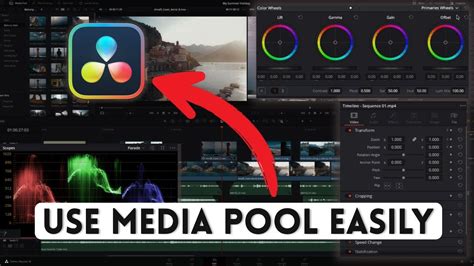
To gain a clearer view of the audio's characteristics, it's beneficial to slightly drag down the audio track column in the timeline. This action expands the waveform, making its peaks and troughs more discernible, which is crucial for precise editing and synchronization.
The Art of Unlinking: Separating Audio from Video
In DaVinci Resolve, video and audio clips are linked by default upon import. This linkage ensures that as you move, trim, or delete the video, the corresponding audio follows suit, maintaining synchronization. However, there are numerous scenarios where you'll need to break this connection. Separating audio from video is particularly useful when you intend to make specific adjustments to the audio track, apply distinct audio effects, or replace the original audio entirely.
To achieve this separation, right-click on the video clip within the timeline. From the contextual menu that appears, select the "Link Clips" option. This action will sever the connection between the video and its audio. Alternatively, a faster keyboard shortcut for unlinking clips is available: Ctrl + Alt + L.
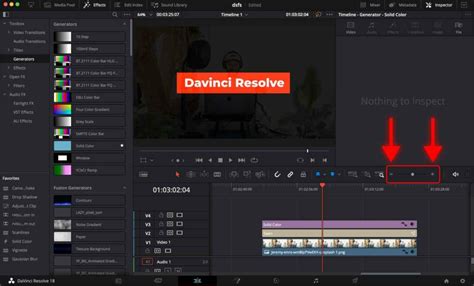
Once the clips are unlinked, a subtle but important visual cue occurs. If you click again in the gray area of the timeline and then specifically on the audio clip, you'll notice that only the audio clip becomes outlined in red. This highlights that the audio is now independently selected and can be manipulated without affecting the video.
Re-establishing the Bond: Reconnecting Audio and Video
The process of reconnecting audio and video clips in DaVinci Resolve is as straightforward as unlinking them. Should you need to re-establish the link, simply select either the video or the audio clip. Then, while holding down the Control key (or Command key on a Mac), click on the other clip to highlight both. Once both the video and audio clips are selected, right-click on either of them and choose "Link Clips" from the context menu. The clips will now be reconnected, behaving as a single unit once more.
This re-linking capability is not limited to original video and audio pairs. You can also link an image or a video clip with a separate audio track. The procedure remains the same: select both the image/video and the desired audio track simultaneously by holding down the Control key, then right-click and select "Link Clips."
The Advantages of Linked and Unlinked Clips
The ability to link and unlink clips in DaVinci Resolve offers significant workflow advantages. When clips are linked, they move and edit together, dramatically simplifying the process of managing synchronized media. This is invaluable for maintaining the integrity of your project's audio-visual coherence, especially in more complex productions involving multiple clips and sequences. You can quickly and efficiently adjust these linked elements as a unified whole.
Conversely, unlinking clips provides granular control. If clips are unlinked, you gain the freedom to edit the audio track independently without any impact on the original video. This is essential for situations where audio enhancement, replacement, or precise timing adjustments are required. For instance, you might want to fine-tune the audio's timing to perfectly match lip-sync without altering the video's duration. Re-linking after these independent edits ensures that the audio and video remain synchronized for the remainder of your project. This flexibility allows for more precise editing, particularly when dealing with intricate audio mixing and sound design.
Advanced Audio Synchronization Techniques
Beyond simply linking and unlinking, DaVinci Resolve offers powerful automated tools for synchronizing audio and video, particularly when dealing with multi-track recordings or audio captured on separate devices.
Auto Align Tracks: The Waveform Method
One of the most efficient methods for syncing audio with video in DaVinci Resolve is the "Auto Align Tracks" feature, often referred to as syncing based on waveform. This is particularly useful when you have recorded audio on external devices and need to match it to your video footage.
The process is remarkably simple:
- Import both your video and audio files into your project and place them on the timeline. Ensure they overlap sufficiently.
- Select all the tracks you wish to synchronize.
- Double-click on the selected tracks or right-click and navigate to the "Auto Align Tracks" option.
- Crucially, choose "Based on Waveform."
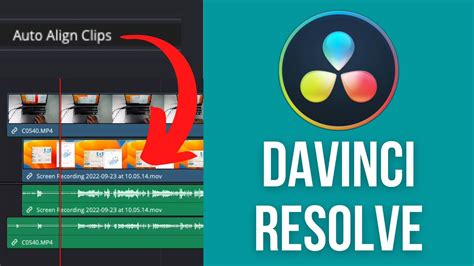
This feature analyzes the audio waveforms of the selected clips and automatically shifts them to align any matching sonic events. A common practice to aid this process is to create a distinct sound cue, such as a three-clap sound at the beginning of a recording. This prominent spike in the audio waveform provides a clear reference point for DaVinci Resolve to match against the video's visual cue. The beauty of this method is that DaVinci Resolve intelligently aligns the clips without shifting their original positions unnecessarily, preserving your timeline's layout. After using "Auto Align Tracks," it's always advisable to listen to the synchronized audio and video to confirm that lip-sync is accurate and that the overall result is polished.
Manual Synchronization with Sound Cues
While the auto-align feature is highly effective, manual synchronization using a clear sound cue remains a reliable and understandable method, especially for those new to audio editing. As mentioned, a clap at the beginning of a recording creates a sharp, visible spike in the audio waveform and a corresponding visual cue in the video. By zooming into the waveform and the video frame, you can manually align the peak of the audio spike with the exact frame where the clap occurs. This meticulous approach ensures pinpoint accuracy.
Exploring DaVinci Resolve's Fairlight Audio Workstation
DaVinci Resolve transcends its reputation as a professional video editing suite by offering an integrated, advanced Digital Audio Workstation (DAW) known as Fairlight. Unlike many other non-linear editors (NLEs) where audio capabilities are often an afterthought, Fairlight is a fully-fledged audio engineering environment built directly into Resolve. This allows for professional-level audio production and mixing without the need for external software.
Adding and Managing Audio Tracks
To begin working with audio in Fairlight, you first need to import your media into the Media Pool (Ctrl-I). Once imported, drag your audio files onto the timeline. To add new audio tracks, navigate to the Edit page, right-click on an existing track header, and select "Add New Track."
When adding tracks, consider the type of audio you'll be working with:
- Stereo or 5.1 Surround Sound: Ideal for ambient sound design, music, and sound effects where a wider soundstage is desired.
- Mono: Typically used for dialogue and vocals. Mono tracks ensure that a voice remains centered and clear in the mix, helping to avoid amplifying unwanted background noise that might be present in a stereo recording.
Adjusting Audio Levels
Controlling audio levels is fundamental to any audio mix. DaVinci Resolve provides several ways to adjust volume:
- Mixer Panel: Located in the bottom right of the screen, the mixer panel features channels corresponding to each track on your timeline. Each channel has a volume slider that allows you to increase or decrease the overall level of that track.
- Inspector Window: For fine-grained control over individual clips, select the clip on the timeline. The Inspector window (accessible via a tab at the top right of the screen) offers a volume control for that specific clip.
- Fairlight Editor Page: Accessing the audio mixer within the Fairlight editor page (via the music icon in the bottom toolbar) provides a more comprehensive set of audio editing tools, including advanced level controls.
Visualizing and Controlling Audio Gain
To gain a more detailed understanding of your audio waveforms and to gain more control, DaVinci Resolve offers several view options:
- Track Display Options: Located in the top-left of the Timeline toolbar, this button reveals options like "Full Waveform" and "Waveforms Borders" for enhanced visual representation.
- Zooming: You can zoom in and out of waveforms by holding down the Alt key and using your mouse scroll wheel. This allows for precise identification of audio events.
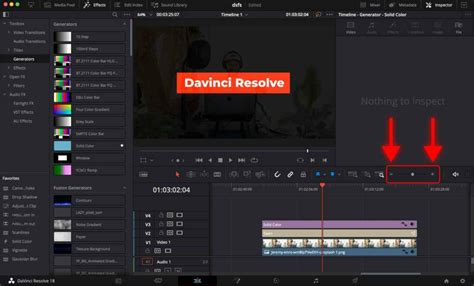
- Gain Line View: Enabling this view adds a changeable gain line directly to each audio clip. You can click and drag this line up or down to adjust the volume of that individual clip, offering a visual and interactive method for volume automation.
Advanced Audio Editing and Effects in Fairlight
Fairlight's capabilities extend far beyond basic level adjustments, offering a suite of professional audio processing tools.
Adding Audio Keyframes for Automation
Keyframes are essential for automating parameters over time, allowing for dynamic changes in volume, panning, and effects. To add keyframes for volume automation:
- Place the playhead on the timeline where you want the first keyframe to be.
- Select the audio clip and navigate to the Inspector panel.
- Click the keyframe button next to the volume control to add a keyframe at the playhead's current position.
- Move the playhead to where you want the automation to end, place another keyframe, and adjust the volume to the desired new value. DaVinci Resolve will then automatically create a smooth transition between these keyframes, gradually altering the volume over time.
Fading In and Out
Creating smooth transitions at the beginning and end of audio clips is crucial for a professional sound. DaVinci Resolve offers two primary methods for fades:
- Trim Menu: Position the playhead at the desired start or end point, select the audio clip, and use the "Trim" drop-down menu to select "Fade In to Playhead" or "Fade Out to Playhead." Keyboard shortcuts Alt-Shift-D (Fade In) and Alt-Shift-G (Fade Out) can also be used.
- Manual Markers: A more intuitive method involves clicking and dragging the white markers located at the top corners of an audio clip. Dragging these markers inward manually sets the duration of your fade in or fade out.
Crossfading Between Clips
To create a seamless transition between two adjacent audio clips, you can use crossfades.
- Ensure the two clips are placed directly next to each other on the timeline.
- Select the "Trim Edit Mode" cursor (shortcut T or by clicking the icon in the toolbar).
- Click on the breakpoint between the two clips to select it.
- From the Timeline drop-down menu, choose "Add Audio Only Transition" or use the shortcut Shift-T.
- A pop-up window will ask whether to "Trim Clips" or "Skip Clips." Selecting "Trim Clips" allows Resolve to automatically adjust the clips for the transition.
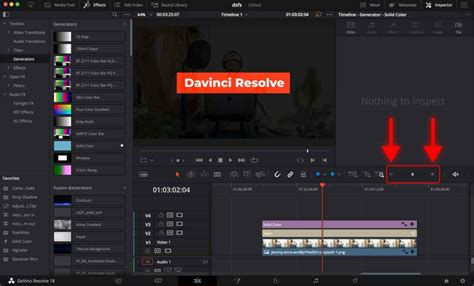
You can then adjust the length of the crossfade by clicking and dragging its borders inward. To change the default duration of crossfades, go to DaVinci Resolve > Preferences > Editing (under the User tab) and modify the "Standard transition duration" field.
Equalization (EQ)
The Equalizer (EQ) is a fundamental tool for shaping the tonal characteristics of your audio. To access the EQ in Fairlight:
- Navigate to the Fairlight editor page.
- Double-click the EQ graph within the mixer strip of the desired track.
- Ensure the EQ is enabled using the switch in the top-left corner.
You can then adjust various frequency bands to boost or cut specific frequencies. For instance, to remove low-end rumble, you can enable the low-cut filter (Band 1) and adjust its frequency knob.
Compression
Audio compression is used to reduce the dynamic range of an audio signal, making the loud parts quieter and the quiet parts louder, resulting in a more consistent and controlled sound. To access the compression controls:
- Double-click the Dynamics graph on the desired track's mixer strip.
The Dynamics panel provides controls like Threshold, Ratio, Attack, and Release, which dictate how the compressor affects the audio. Visual feedback is provided through a matrix that shows how the audio is being processed.
Spatializing Audio (Panning)
Spatialization refers to how audio is positioned within the stereo field (left to right) or its perceived distance. This is controlled via the Pan graph:
- Double-click the Pan graph on the mixer strip.
- A blue dot on the graph allows you to pan the audio from left to right.
- Green dots can be used to adjust the perceived distance of the audio.
- The "Spread" knob controls the width of the audio in the stereo field, allowing you to narrow or widen it.
External Effects and Plugins
DaVinci Resolve's flexibility is further enhanced by its support for third-party audio plugins. To enable Resolve to scan for your installed plugins:
- Go to DaVinci Resolve > Preferences.
- Navigate to the "Audio Plugins" section under the System tab.
- Add or remove file directories where your plugins are located. Resolve will then scan these locations and make your external effects available within the Fairlight audio processing chain.
Conclusion: Empowering Your Audio Workflow
Mastering the linkage and synchronization of audio and video clips in DaVinci Resolve is a cornerstone of professional video production. From the fundamental act of unlinking and relinking to leveraging advanced features like Auto Align Tracks and the comprehensive Fairlight audio workstation, Resolve provides the tools necessary to achieve pristine audio-video integration. Whether you're a beginner learning to separate audio for basic adjustments or an experienced editor performing complex sound design, DaVinci Resolve empowers you to create polished, professional results with efficiency and precision.