In the realm of digital photography, Adobe Lightroom and Adobe Photoshop stand as titans, each offering a distinct yet powerful suite of tools for image enhancement and manipulation. While both programs share a significant functional overlap, their core design principles and intended applications diverge, leading many photographers to ponder which tool is best suited for their specific needs. Understanding these differences is crucial for optimizing your workflow, saving time, and achieving cleaner, more professional results. This article will dissect the capabilities of Lightroom and Photoshop, highlighting their unique strengths, ideal use cases, and how they can be effectively integrated into a comprehensive photographic workflow.

Understanding Adobe Lightroom: The Photographer's Digital Darkroom
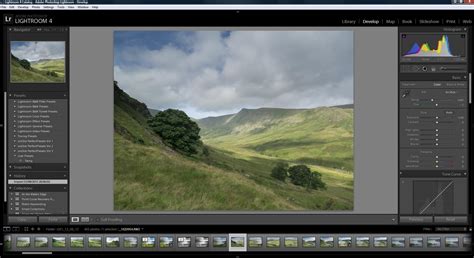
Adobe Lightroom, particularly Lightroom Classic, is fundamentally designed as a comprehensive solution for photographers to manage and process their image libraries. Its primary strength lies in its exceptional organizational capabilities, allowing users to import, categorize, and locate thousands of photos with remarkable efficiency. Think of Lightroom as your digital darkroom, a central hub where you can sort through your visual assets, identify your best shots, and prepare them for further refinement.
One of Lightroom's most significant features is its non-destructive editing approach. This means that any adjustments you make to a photograph-whether it's tweaking exposure, adjusting colors, sharpening details, or applying creative effects-are not permanently applied to the original file. Instead, these edits are recorded in a catalog, allowing you to revert to the original image at any time or modify your adjustments later without any loss of image quality. This flexibility is particularly advantageous when working with RAW files, which contain the most uncompressed and unprocessed image data, offering maximum latitude for editing.
Lightroom excels at handling large batches of photos, making it an indispensable tool for photographers who shoot extensively, such as wedding, event, or landscape photographers. The Develop module within Lightroom offers a robust set of tools for enhancing light and color, correcting perspective, sharpening images, and applying creative looks. Furthermore, Lightroom presets are a game-changer for efficiency, enabling users to apply a consistent set of edits to one or many images simultaneously, a process known as batch editing. You can create your own custom presets or explore a vast library of presets available through features like Discovery Interactive Edits, significantly speeding up your post-processing workflow.
Lightroom Classic is the desktop-based version, ideal for photographers who prefer to store their images locally on their computer or external hard drives. For those who prefer a cloud-centric workflow or need to access their library across multiple devices, Adobe also offers a cloud-based version of Lightroom, which synchronizes edits and photos across devices.
Key organizational features in Lightroom include:
- Cataloging System: A database that stores information about your photos, their location, and your editing instructions.
- Rating and Flagging: Tools to identify and sort your best shots.
- Albums and Collections: Flexible ways to group photos for specific projects or photoshoots.
- Metadata Tagging: The ability to add keywords and other descriptive information to aid in searching.
Diving Deep into Adobe Photoshop: The Master of Image Manipulation
While Lightroom focuses on managing and processing entire photo libraries, Adobe Photoshop ventures into the realm of intricate image manipulation, creation, and enhancement. Photoshop is the ultimate tool when pixel-level perfection is paramount, offering an unparalleled degree of control over every aspect of an image. It is the go-to software for photo retouchers, fine artists, compositing artists, graphic designers, and illustrators who require the most expansive editing capabilities.
Photoshop's power lies in its sophisticated toolset that allows for altering the look and content of a photo to a far greater degree than Lightroom. This includes advanced features like Content-Aware technology for seamlessly removing distracting objects, the ability to combine multiple photos into complex composites, and the creation of surreal or photorealistic images from disparate sources. Graphic designers can integrate images with text and vector graphics, while illustrators can reimagine photographs to create entirely new artistic expressions.
Like Lightroom, Photoshop also supports non-destructive workflows, primarily through its robust layer system and Smart Objects. Layers function like transparent sheets stacked on top of each other, allowing for individual adjustments and elements to be edited independently without affecting the underlying image. This enables a highly modular and flexible editing process, where you might have separate layers for color adjustments, a specific sky replacement, or the addition of text and graphics.
Photoshop also boasts industry-leading generative AI tools, allowing for advanced image creation and modification through text prompts. This opens up new frontiers in digital art and photo manipulation, enabling users to generate entirely new imagery or intelligently alter existing elements within a photo.
Key capabilities of Photoshop include:
- Pixel-Level Editing: Unmatched precision for fine-tuning individual pixels.
- Layers and Masks: Essential for complex compositing, selective adjustments, and non-destructive editing.
- Advanced Retouching Tools: Tools for retouching portraits, removing blemishes, and manipulating details.
- Compositing: Combining multiple images to create new scenes or narratives.
- Graphic Design Integration: Tools for adding text, vector shapes, and other design elements.
- Generative AI: Cutting-edge tools for image generation and manipulation.

The Synergy: Lightroom and Photoshop Working Together
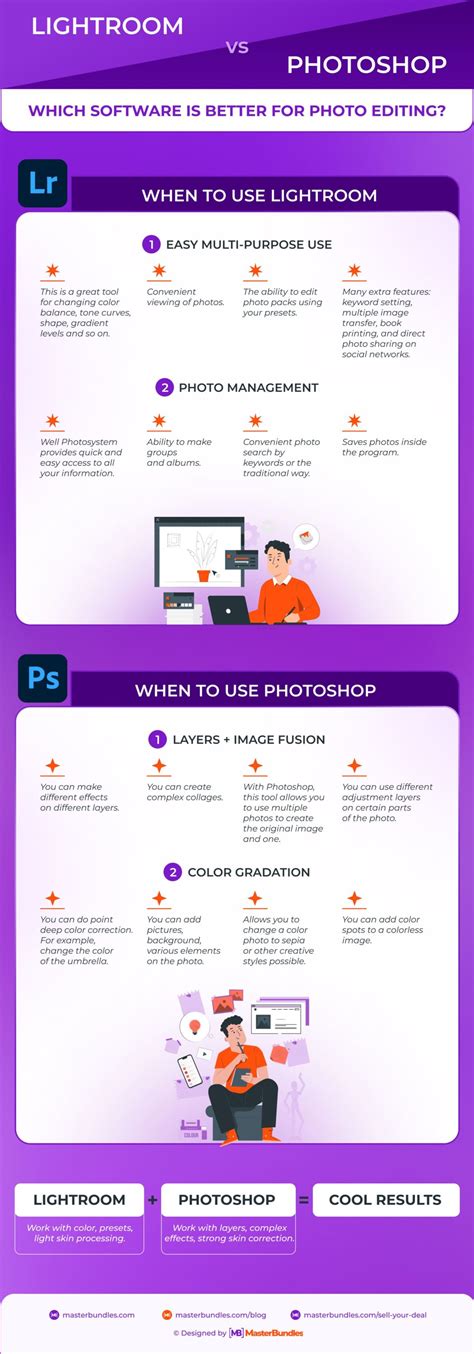
It's important to recognize that the choice between Lightroom and Photoshop is often not an "either-or" decision. In fact, these two powerful programs are designed to work seamlessly together, creating a potent ecosystem for photographers. Many professionals begin their workflow in Lightroom to organize and perform initial edits on a large number of photos. Once an image requires more in-depth manipulation or creative intervention, it can be easily sent from Lightroom directly into Photoshop.
This integrated workflow allows photographers to leverage the strengths of both applications. Lightroom handles the bulk processing, culling, and global adjustments, ensuring efficiency for large shoots. When a specific image demands pixel-level perfection, intricate retouching, or creative compositing, it can be transitioned to Photoshop. After the edits are completed in Photoshop, the resulting file can be saved back into the Lightroom catalog, maintaining a cohesive and organized project. This handoff ensures that your master files, contact sheets, and final exports remain organized and accessible.
Key Differences Summarized: Lightroom vs. Photoshop
To further clarify the distinctions, here's a breakdown of how Lightroom and Photoshop stack up in various aspects:
Core Functionality:
- Lightroom: Photo management, organization, and batch processing with robust global and local adjustments.
- Photoshop: Comprehensive image manipulation, pixel-level editing, compositing, graphic design, and digital art.
Editing Approach:
- Lightroom: Primarily non-destructive, catalog-based editing.
- Photoshop: Supports both destructive and non-destructive editing through layers and Smart Objects.
File Handling:
- Lightroom: Manages photos through a catalog, linking to files on your drive. Excels at organizing large libraries.
- Photoshop: Requires direct access to files. Organization is typically handled by external tools like Adobe Bridge, though it's less robust than Lightroom's catalog system.
Layers:
- Lightroom: Does not support layers.
- Photoshop: Advanced layer system is fundamental to its functionality.
Batch Editing:
- Lightroom: Highly efficient for applying the same edits to multiple images.
- Photoshop: Batch editing is possible through Actions, but it's generally more complex than Lightroom's streamlined approach.
RAW File Support:
- Lightroom: Designed to work seamlessly with RAW files.
- Photoshop: While Photoshop's Camera Raw filter can process RAW files, Lightroom is generally considered superior for RAW management and initial processing.
Learning Curve:
- Lightroom: Generally considered easier to learn, with an interface tailored for photographers.
- Photoshop: Has a steeper learning curve due to its vast array of tools and complex functionalities.
Which Tool Should You Choose?
The choice between Lightroom and Photoshop, or more accurately, how to integrate them, depends entirely on your creative goals and workflow.
Start with Lightroom if:
- You are a photographer who needs to manage and organize a large volume of images.
- Your primary editing needs involve global adjustments to exposure, color, contrast, and sharpening.
- You value efficiency and the ability to apply consistent edits across many photos.
- You are new to photo editing and prefer a more streamlined, photographer-centric interface.
Utilize Photoshop if:
- You need to perform intricate retouching, such as removing blemishes or altering facial features.
- You want to combine multiple images to create a composite or surreal scene.
- You need to add or remove specific objects from an image with precision.
- You are involved in graphic design, illustration, or creating complex digital art.
- You require pixel-level control for highly detailed manipulations.
The Best of Both Worlds: The Creative Cloud Photography Plan
For most serious photographers, the most practical and cost-effective solution is to embrace both Lightroom and Photoshop. Adobe offers the Creative Cloud Photography Plan, which includes both Lightroom Classic, the cloud-based Lightroom, and Photoshop, along with Adobe Bridge and Adobe Camera Raw. This plan provides access to the full spectrum of Adobe's photographic tools, allowing you to build a comprehensive workflow that leverages the strengths of each application.
By understanding the distinct roles each program plays, you can design a workflow that maximizes efficiency, enhances your creative output, and ultimately helps you achieve the stunning visual results you envision for your photographic projects. Whether you are making quick global adjustments to a thousand images in Lightroom or meticulously crafting a single masterpiece in Photoshop, these tools empower you to bring your photographic vision to life.