In the ever-evolving landscape of online communication, emojis have transitioned from a novel addition to an indispensable tool. They imbue our digital interactions with personality, convey nuanced emotions, and even paint short narratives or comedic scenes. As the digital world expands, so too does the desire for personalized expression. This guide delves into the art and science of creating your own emojis, transforming personal photos and unique ideas into shareable digital icons. We'll explore various methods, from user-friendly online generators to more advanced design software, empowering you to craft emojis that truly represent you or your community.
The Evolving World of Emojis: Trends and Significance
Emojis are more than just colorful icons; they are a rapidly evolving visual language. By 2026, we anticipate seeing a surge in new, combined emojis that reflect emerging trends and complex human emotions, further enriching our communication. Staying abreast of these trends can significantly enhance the quality and expressiveness of online chats. Consider the emerging popularity of icons like the "Melting Face," a symbol of exasperation or awkwardness, or "Heart Hands," a gesture of love and appreciation. The "Saluting Face" emoji conveys a sense of respect or acknowledgment. These visual cues play a crucial role in how we connect and understand each other in the digital realm.
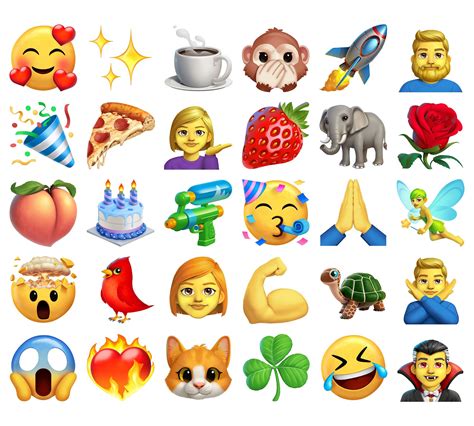
The impact of emojis extends to various online activities, including challenges and social media trends. In an "Emoji Challenge," individuals might use a sequence of emojis to visually narrate a day in their life or depict a humorous situation. This creative application highlights the power of emojis as storytelling devices.
Unleashing Your Creativity: Online Tools for Emoji Creation
The good news for aspiring emoji creators is that the process of making your own emoji online is both fun and accessible. A plethora of online tools are available, many of them offering free services to design and customize your personal emoji icons.
Solution 1: Canva Emoji Maker - From Photos to Emojis
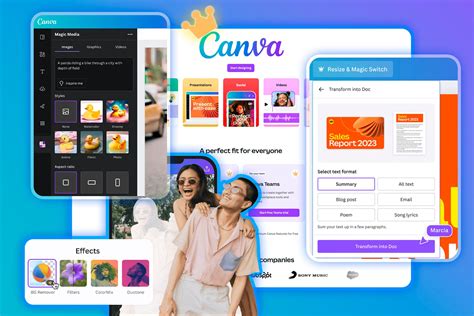
Canva's Emoji Maker stands out as a remarkably user-friendly tool, especially for those who wish to transform existing photos into unique emojis. The platform's intuitive interface allows users to easily upload their pictures and then adapt them into emoji-style graphics. This process typically involves selecting a photo, utilizing Canva's editing tools to isolate the desired elements, and then exporting the result in a suitable format. The versatility of Canva means you can adjust colors, add text, or even combine elements from different images to create a truly distinctive emoji.
Solution 2: Kapwing Emoji Generator - Swift and Seamless Customization
For those seeking to create custom emojis with speed and efficiency, the Kapwing Emoji Generator is an excellent choice. This online tool is designed for creating new emojis without significant delays. Users can upload an image or design element, and Kapwing's suite of tools allows for immediate manipulation. Key features include background removal, resizing to specific dimensions required by various platforms, and the ability to add text or other graphical elements. The process often involves uploading your source material, using the platform's editing features to refine it, and then saving and downloading the final emoji. Kapwing is particularly adept at handling transparent backgrounds, which are essential for creating emojis that blend seamlessly with chat interfaces.
Solution 3: Photoshop - The Powerhouse for Bespoke Emoji Design
For individuals with prior experience in graphic design, Adobe Photoshop offers unparalleled control and creative freedom. Unlike simpler online tools, Photoshop allows for the creation of unique emojis entirely from scratch. This approach is ideal for those who envision highly intricate or complex emoji designs that go beyond simple photo modifications. The process in Photoshop involves creating a new document, meticulously drawing or composing elements, utilizing layers for flexibility, and mastering tools like the pen tool for precise shapes and the brush tool for detailed rendering. While it has a steeper learning curve, Photoshop empowers users to achieve extraordinary results with their emoji-designing skills, offering advanced options for color manipulation, effects, and intricate detailing.
Solution 4: Mobile Emoji Maker Apps - Convenience on the Go
For users who prefer to create emojis directly on their mobile devices, dedicated Emoji Maker Apps provide a convenient solution. These applications are typically designed with touch interfaces in mind, making the creation process straightforward and accessible. They often feature libraries of pre-made elements, such as eyes, mouths, and accessories, that users can combine to build custom emojis. Many also allow for the import of personal photos, which can then be edited and transformed into emojis. This mobile-first approach is perfect for spontaneous creativity, allowing users to design and share emojis directly from their smartphones or tablets.
Solution 5: Imoji - Bridging Photos and Emojis on iOS and Android
Imoji is a popular and handy app available for both iOS and Android devices, specifically designed to facilitate the creation of emojis from personal photos. Whether you're using a spontaneous picture or a carefully selected photograph, Imoji provides the tools to turn it into a custom emoji. The app typically guides users through a simple process: selecting a photo, using editing tools to crop and isolate the desired part, and then saving the creation as a usable emoji. This seamless integration of personal imagery with emoji functionality makes Imoji a go-to for many seeking to add a personal touch to their digital conversations.
Beyond Static Emojis: Animated and Talking Avatars
The realm of digital expression is not limited to static images. For those looking to add an extra layer of dynamism and personality, creating animated emojis or even talking avatars is within reach.
Vidnoz AI Talking Photo: Bringing Images to Life
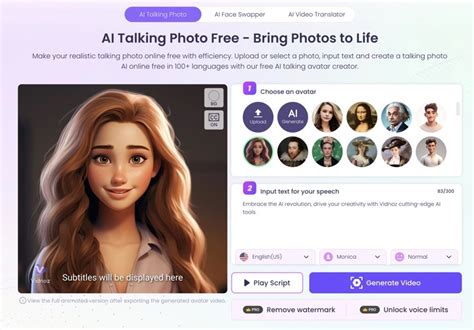
A particularly innovative tool in this space is Vidnoz AI Talking Photo. This free AI-powered service allows users to make any picture speak with AI-generated voices in mere minutes. The process is remarkably simple: upload a static image, select an AI voice, and the tool generates a video of the image speaking the chosen audio. This capability opens up a new dimension for custom emojis and avatars, enabling static images to convey messages with vocal accompaniment. This can be particularly engaging for personalized greetings, reactions, or even for creating unique chatbot avatars.
Integrating Custom Emojis into Your Digital Communities
The ability to create and use custom emojis significantly enhances the user experience on platforms like Discord and Twitch, fostering stronger community bonds and unique identities.
Discord: Personalizing Your Server's Identity
Custom emojis are a powerful tool for differentiating a Discord server and fostering a sense of belonging among its members. Discord's robust customization options allow server administrators to grant specific roles the privilege of managing emojis. This "Manage Emojis" toggle, found within the server's role settings, empowers designated members to upload and curate the server's unique emoji library.
How to Make an Emoji from Any Picture for Discord:
The process of converting any picture into a Discord emoji is straightforward, especially with tools like Kapwing. Discord emojis have specific technical requirements: they should ideally be square, with a maximum aspect ratio of 128x128 pixels, and the file size must not exceed 256KB. Kapwing's Discord emoji template is designed to automatically resize uploaded images or GIFs to the optimal 128x128 pixel format.
- Upload Your Image: Start by uploading your chosen photo, GIF, or even a short video clip (which can be converted to a GIF) into Kapwing's editor.
- Resize and Crop: Utilize Kapwing's "Custom Size" tool to ensure your image is set to 128x128 pixels.
- Transparency (Optional but Recommended): For a more authentic emoji look, use Kapwing's "Erase" tool, particularly the "Magic Wand," to remove unwanted backgrounds. This allows for transparent PNG exports.
- Add Text or Effects (Optional): Enhance your emoji by adding text overlays, adjusting fonts, sizes, and colors.
- Export and Download: Once satisfied, export the image as a PNG. Kapwing will process it to the correct specifications.
How to Add Your Emoji to a Discord Server:
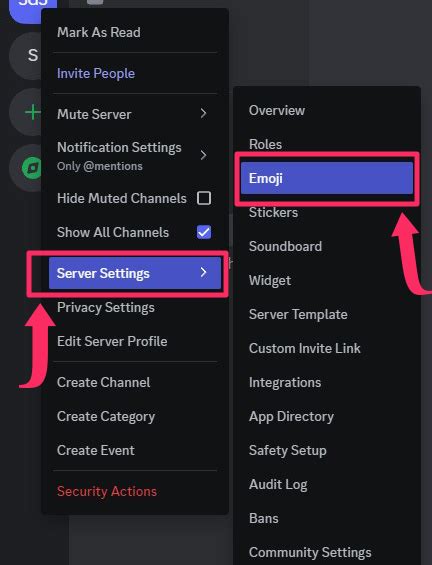
- Access Server Settings: Click the arrow next to your server's name and select "Server Settings." If this option is unavailable, your role does not have emoji management permissions.
- Navigate to Emoji Tab: In the server settings menu, locate and click on the "Emoji" tab.
- Upload Emoji: Click the prominent purple "Upload Emoji" button.
- Select and Confirm: Choose the emoji file you created from your device, and it will be added to your server's emoji list.
Twitch: Elevating Streamer-Viewer Interaction
For Twitch streamers, custom emotes are not just decorative; they are a vital component of community engagement and monetization. Emotes allow viewers to express themselves in unique ways, forging a deeper connection with the streamer and their channel. While designing these emotes can sometimes be a hurdle, tools like Kapwing streamline the process.
Creating Custom Twitch Emotes with Kapwing:
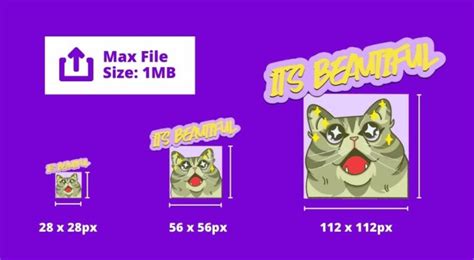
Twitch requires emotes to be in three specific sizes (28x28, 56x56, and 112x112 pixels), as PNG files, and under 25KB in size. Only Twitch Affiliates and Partners can upload custom emotes.
- Start with a Blank Canvas: Open Kapwing Studio and select "Start with a blank canvas." Set the "Output Size" to "Custom Size" and enter 28x28 pixels. Ensure the "Background Color" is set to transparent.
- Add Your Design: Upload an existing image or create a new design within Kapwing.
- Remove Background: Use Kapwing's "Erase" tool to remove the background, creating a clean PNG file. Imperfections are often negligible at these small sizes.
- Download Each Size: Export the emote in the 28x28 resolution. Then, reopen the project in Kapwing, resize the canvas to 56x56, export, and repeat for 112x112.
- Upload to Twitch: Navigate to your Twitch Creator Dashboard, go to "Preferences," and then select "Affiliate" or "Partner" to access the emote upload section.
Advanced Emoji Customization: Meme Emojis and Cursed Creations
The creativity with emojis extends to more unconventional forms, such as meme emojis, combined emojis, and "cursed" emojis. These often require more advanced image editing capabilities.
Crafting Meme Emojis and Emoji Mashups
Creating meme emojis or combining elements from different emojis to form new expressions requires an image editor that supports layering, transparency, and precise manipulation. Kapwing's online editor is well-suited for this.
- Select a Base Emoji: Start by choosing a primary emoji from Kapwing's extensive library or by uploading your own image.
- Incorporate Other Elements: Add parts from other emojis â eyes, mouths, hats, tears â by uploading them as separate images. Use the "Erase" tool to isolate specific components from these additional emojis.
- Assemble and Refine: Resize, reposition, and rotate these elements to create your desired mashup. Experiment with filters and adjustments to achieve specific aesthetics, such as a "deep-fried" meme look by maxing out brightness, contrast, and saturation.
- Download and Share: Once your creation is complete, export it as an image file and share it across platforms.
Other creative avenues include adding emojis to existing picture memes or incorporating them into video memes, further blurring the lines between static images and dynamic digital content. Even creating cursed emoji GIFs can be achieved by animating these unique creations, adding an extra layer of unsettling amusement.
Integrating Emojis into Subtitles and Workplace Communication
The utility of emojis extends beyond direct chat messages, finding applications in video content and professional communication platforms.
Auto Emoji Subtitles with Kapwing
Kapwing's AI-powered tools can now automatically integrate emojis into video subtitles. This feature enhances video engagement, particularly for audiences who prefer or require subtitles.
- Upload Video: Upload your video to Kapwing's editor.
- Auto-Generate Subtitles: Use the "Auto subtitles" feature to generate captions based on the video's audio.
- Auto-Generate Emoji Subtitles: Select the "Smart tools" option and click "Auto emojis." Kapwing's AI will analyze the text and insert relevant emojis.
- Customize and Export: Adjust subtitle styles, fonts, colors, and animations. You can also edit the text for accuracy. Finally, export your video with the emoji-laden subtitles permanently embedded.
This feature is particularly beneficial for Gen Z, who frequently watch videos with subtitles on mobile devices.
Slack: Enhancing Workplace Culture with Custom Emojis
In professional settings, custom emojis on platforms like Slack can significantly contribute to company culture, foster camaraderie, and inject humor into daily interactions. They serve as a visual shorthand for inside jokes, team member recognition, or specific sentiments not covered by standard emojis.
Creating Custom Slack Emojis:
The process is similar to creating emojis for other platforms, with a focus on Slack's recommended dimensions of 128x128 pixels.
- Choose an Image Editor: Use any image editor, such as Kapwing.
- Upload and Resize: Upload your image or GIF and set the canvas to 128x128 pixels.
- Edit and Refine: Remove backgrounds using tools like Kapwing's Magic Wand for transparency. Add text or other elements as desired.
- Export and Download: Save your creation as a PNG file.
Adding Custom Emojis to Slack:
- Open Emoji Library: In a Slack channel, click the smiley face icon in the message box.
- Add Emoji: Click "Add Emoji."
- Upload File and Name: Upload your custom emoji file and give it a descriptive name (e.g., ":youremojiname:") for easy searching and use.
By leveraging these tools and techniques, you can transform ordinary images and ideas into expressive digital assets, enriching your online communication and personalizing your digital footprint. Whether for casual chat, community building, or professional branding, the ability to create custom emojis offers a powerful avenue for self-expression in the digital age.