In today's dynamic digital landscape, the ability to manipulate video and image backgrounds with ease and speed is paramount for content creators, marketers, educators, and hobbyists alike. Kapwing, a versatile online editing suite, has emerged as a powerful solution, offering intuitive tools for background removal that democratize advanced editing techniques. This guide delves into Kapwing's green screen remover capabilities, exploring its functionalities for both images and videos, and highlighting how it empowers users to unlock new creative potential without requiring professional expertise or expensive equipment.
The Power of Instant Background Removal with Kapwing
Kapwing's core strength lies in its user-friendly interface and the speed at which it delivers professional-quality results. The platform is designed to cater to all experience levels, from absolute beginners to seasoned professionals.
For Images: One-Click Background Erasure
Kapwing's online Image Background Remover is engineered for efficiency. Users can upload their picture, click "Remove Background," and within seconds, achieve a clear, erased background. This feature is invaluable for content creators who need to quickly isolate subjects for various applications, such as product photos, advertisements, graphic designs, or compelling thumbnails. The process is remarkably simple: select "Erase" in the right-hand sidebar, then click "Remove Background" to activate the AI-powered automatic removal.
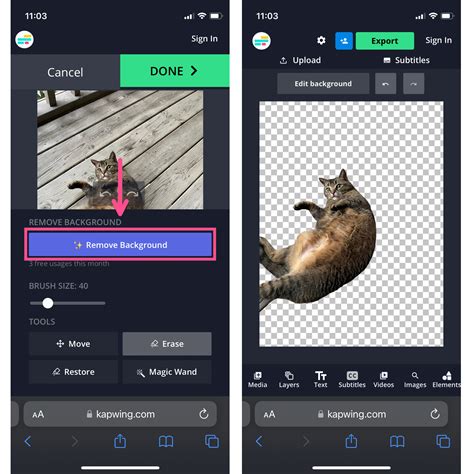
Should AI tools not be your preference, or if you require more granular control, Kapwing also provides a free manual eraser. This includes the "Magic Wand" tool and a free manual eraser brush. These tools allow users to delete the entire background or meticulously remove specific sections with precision, offering complete control over the editing process.
For Videos: Eliminating Backgrounds Without the Green Screen Hassle
Kapwing extends its background removal prowess to video editing, offering a significant advantage by eliminating the strict requirement for a green screen. The AI-powered Video Background Remover can instantly remove any video background in seconds, saving content creators from the time-consuming task of manual tracking. This means you can replace the backdrop with a solid color, an image, or even another video, fostering creative freedom. The tool is compatible with various video formats, including MP4, MOV, and WebM.
The process for video background removal is equally streamlined. Users upload their video, navigate to the "Effects" tab, and select "Remove Video Background." This AI-driven feature works seamlessly with any backdrop, not just green screens, making it an incredibly versatile tool. This capability allows users to save money on expensive equipment and avoid the logistical challenges of finding the perfect filming location, enabling content creation in any environment.
How to Remove the Background from a Video Without Green Screen Using Kapwing **FULL GUIDE** (2026)
Customization and Creative Control: Beyond Simple Removal
Kapwing's background removal tools are just the starting point for creative expression. The platform offers a comprehensive suite of editing features to customize your images and videos further.
Enhancing Visuals with Stock Assets and Custom Uploads
Kapwing provides access to an extensive library of stock images and videos that can be used as backdrops. Alternatively, users can upload their own content, offering unparalleled flexibility. Whether the goal is to enhance a photo's contrast, export a transparent PNG for online sharing, or simply add a bold block of color behind a logo, Kapwing's versatile editing suite has the tools to achieve it.
For those seeking unique scenery or visuals, Kapwing's AI Image and Video Generator tools can create custom elements that seamlessly complement new backgrounds, providing fresh inspiration for any project.
Maintaining Brand Consistency and Collaborative Workflows
Centralizing work on Kapwing's online platform facilitates effortless collaboration. Teams can edit in real-time while maintaining organization. The platform's Brand Kit allows access to custom palettes, fonts, and templates, ensuring visual consistency across all photo editing projects. This is particularly beneficial for businesses and marketing teams aiming to maintain a cohesive brand identity.
Understanding Kapwing's Tools: From Basics to Advanced Features
Kapwing's commitment to accessibility is evident in its design, catering to a wide range of users.
Step-by-Step Guide to Background Removal
For Images:
- Select "Erase" in the right-hand sidebar.
- Click "Remove Background" to utilize the AI-powered automatic background remover.
- Alternatively, use the "Magic Wand" tool or the "Erase" button for manual background removal.
- Click the green "Export Project" button to finalize and download your image.
For Videos:
- Upload your video to Kapwing.
- Navigate to the "Effects" tab.
- Select "Remove Background" (for AI-powered removal on any backdrop) or "Chroma Key" (for specific color removal, like green screens).
- If using Chroma Key, select the color to remove and adjust the threshold for precision.
- Choose a new background from the stock library or upload your own.
- Click "Export Project" to finalize and download your video.
Green Screen Formatting and Best Practices
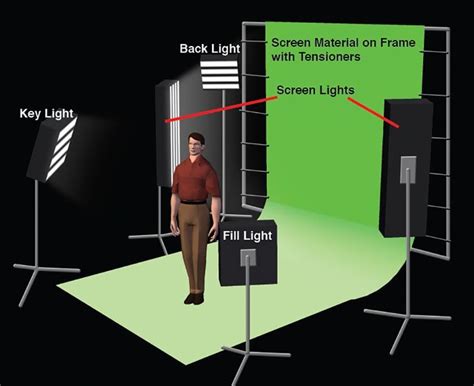
While Kapwing's tools are robust enough to handle various backgrounds, understanding optimal green screen formatting can enhance results. For effective green screen removal:
- Use Even Lighting: Ensure the green screen is lit uniformly to avoid shadows and highlights that can interfere with the removal process.
- Avoid Wrinkles or Patterns: A smooth, seamless green screen is crucial. Wrinkles and patterns can be misinterpreted by the software as part of the subject.
- Choose the Right Shade: A bright, consistent green (like #00FF00 or a similar hue) works best.
- Keep Subjects Separate: Ensure the subject is not wearing the same shade of green as the background to prevent parts of them from being removed.
- Position the Subject Correctly: Maintain adequate distance between the subject and the green screen to minimize "spill" (green light reflecting onto the subject).
Removing White Backgrounds
Removing a white background from an image is straightforward with Kapwing. Users can employ the automatic background remover under the "erase" function or use the manual eraser for more intricate areas. Saving the final image as a PNG file is essential to maintain transparency, as JPG format does not support transparent backgrounds.
Addressing Common Questions: Watermarks, File Formats, and Mobile Usage
- Is the Image Background Remover Free? Kapwing offers free access to its "Magic Wand" and manual "Eraser" tools. The AI-powered automatic "Background Removal" feature for images requires a Pro account.
- Is there a Watermark on Kapwing Exports? Free account exports will include a watermark. Upgrading to a Pro account removes this watermark.
- What File Formats Does Kapwing Support? Kapwing's editor supports popular image formats like GIF, JPG, PNG, and HEIC. For background removal, the final export will be in PNG to preserve transparency.
- How to Remove Backgrounds on Mobile? Kapwing is accessible on mobile devices. Users can upload their image or video, select "Edit image" or "Edit video," then navigate to the "Erase" or "Effects" tab to use the background removal tools.
Who Benefits from Kapwing's Background Removal Tools?
The versatility and ease of use of Kapwing's background removal tools make them invaluable across a wide spectrum of users and industries:
- Content Creators & YouTubers: Essential for creating professional-looking thumbnails, engaging video intros, and dynamic social media content.
- Social Media Managers: Repurpose posts across different platforms by starting with a transparent background and adding custom backdrops.
- Online Coaches & Educators: Craft polished visuals for tutorials, courses, and presentations, ensuring clarity and focus.
- E-commerce Businesses: Create clean product photos for online stores, highlighting products without distracting backgrounds.
- Graphic Designers: Quickly isolate elements for incorporation into larger designs or for creating transparent logos.
- PR & Marketing Teams: Enhance promotional materials and ad campaigns by removing clutter from product photos and creating visually appealing graphics.
- Influencers: Produce clean, dynamic visuals for brand collaborations, ensuring products or subjects are the focal point.
- Custom Merchandise Creators: Prepare images for printing on apparel, mugs, and posters, where clear backgrounds are critical.
- Gamers: Overlay gameplay footage with their own webcam feed seamlessly.
- Filmmakers: Provide a clean base for adding CGI, special effects, or new scenery.
Kapwing's Commitment to the Creator Community
Kapwing continually evolves, integrating advanced AI models to power its generative AI and one-click editing tools. The platform emphasizes a supportive ecosystem, offering resources, templates, and tutorials to help creators produce content faster and share it with confidence. Features like "Magic Subtitles," "Generative AI," "Collaborative Editing," and "Instant Transcripts" further enhance the user experience, making complex editing tasks accessible and efficient.
The testimonials from diverse users highlight Kapwing's impact: marketers find it intuitive, social media agencies rely on it daily for client work, and individuals with no prior editing experience can easily teach themselves through Kapwing's resources. This widespread adoption underscores Kapwing's success in simplifying video and image editing, allowing creators to focus more on storytelling and less on technical hurdles.
Kapwing's background removal tools, whether for images or videos, represent a significant leap forward in making advanced editing accessible. By combining AI-powered automation with user-friendly manual controls and a robust suite of creative features, Kapwing empowers individuals and teams to elevate their content, streamline their workflows, and bring their creative visions to life with unprecedented ease.