In the dynamic world of digital content, static visuals often fail to capture and retain audience attention. Videos that incorporate movement, animation, and dynamic changes are far more likely to engage viewers, making skills like keyframe animation and motion tracking invaluable for creators. Kapwing, an accessible online video editing platform, offers robust tools that demystify these powerful techniques, allowing users of all skill levels to add professional polish to their projects. This guide delves into the fundamentals of keyframing and motion tracking within Kapwing, illustrating how to leverage these features to create captivating video content.
Understanding Keyframes: The Building Blocks of Animation
Keyframes are fundamental to animation, serving as the markers that define the start or end points of a change within a video. These frames pinpoint specific moments where an element's appearance, position, or state transforms. For instance, the precise frame where a video object begins to rotate or a piece of text starts to fade in is considered a keyframe.
Keyframe animation, therefore, is the process of utilizing these defined points to animate video elements. By setting starting and ending positions or properties, creators can orchestrate movement and change. A classic example is an object smoothly scrolling from one side of the screen to the other; this entire action is orchestrated through keyframes. The strategic application of keyframing injects energy and dynamism into videos, ensuring that every component, from introductory sequences to scene transitions, feels swift, responsive, and refined. It's a powerful method for highlighting crucial footage, animating text overlays, or applying motion to visual elements, making videos both visually compelling and informative. In essence, keyframing is the antithesis of dull, static videos, transforming them into engaging narratives.
The Significance of Keyframing in Modern Content
In today's media landscape, particularly for marketing and social media, viewer engagement is paramount. Statistics suggest that incorporating new overlays, transitions, or motion effects every 10-15 seconds can significantly boost watch time-a critical metric for platforms like YouTube and other short-form video-dominated social media. Keyframing directly addresses this need by enabling editors to craft videos that actively hold a viewer's attention, thereby earning more engaged audiences.
Exploring Keyframe Interpolations: How Movement Happens
While keyframes mark specific points, the way an object or element moves between these points is determined by interpolation. Interpolations dictate the rate of change, influencing the smoothness and style of the animation. Understanding these interpolations is key to achieving desired visual effects. Kapwing, like most advanced editors, supports standard keyframe interpolations:
Linear Interpolation: Consistent Pace
Linear keyframes create a uniform movement between two points. The pace remains constant throughout the animation, with no acceleration or deceleration. This is the most basic form of keyframing, making it an excellent starting point for beginners. A subset of linear interpolation is continuous interpolation, which allows for seamless movement across multiple points without abrupt starts or stops.
Hold Keyframes: Static States
Hold keyframes maintain the value of an object or attribute at a specific state until the next keyframe is encountered. Effectively, the element remains unchanged during this period. This type of keyframe is often referred to as a "freeze frame" because it holds an element in place.
Ease Keyframes: Naturalistic Motion
Ease keyframes are what most people associate with "motion effects" because they introduce acceleration and deceleration, mimicking natural movement with weight. This adds a subtle flair that linear keyframes often lack. Common applications include:
- Ease In: The object starts with faster acceleration and gradually slows down as it approaches the ending keyframe.
- Ease Out: The object begins with slow acceleration, gradually speeding up as it nears the ending keyframe.
These "ease" functions make animations feel more organic and visually pleasing.
Practical Applications of Keyframing in Kapwing
The versatility of keyframing, even with basic interpolations, opens up a wide array of creative possibilities within Kapwing. Here are some common and impactful ways to utilize keyframes:
1. Dynamic Zooms for Emphasis
Slow Zooms: Ideal for building anticipation or leading into a reveal, slow zooms gradually enlarge a specific area of the frame.Fast Zooms: Used to inject energy and draw immediate attention to a particular detail, such as a piece of text or an important visual element.
Applying zooms typically involves setting two keyframes with different scale values and selecting an appropriate transition speed. Ease keyframes are particularly effective for achieving natural-looking zoom effects.
2. Seamless Transitions and Flow
Keyframing is instrumental in creating smooth transitions between different elements or scenes within a video. By carefully animating the position, scale, or opacity of elements as one scene ends and another begins, editors can produce a cohesive and professional final product that guides the viewer's eye effortlessly. This can involve fading elements in and out, sliding them across the screen, or scaling them to bridge visual gaps.
3. Injecting Movement and Energy
Beyond simple position changes, keyframes can animate almost any property of a video element. This includes:
- Position: Moving objects across the screen.
- Scale: Resizing elements for emphasis or to create depth.
- Rotation: Spinning objects for dynamic effect.
- Opacity: Fading elements in or out for subtle reveals or transitions.
Whether it's a subtle shake to emphasize a point or a dramatic zoom to highlight critical information, keyframing adds a layer of visual interest that keeps viewers engaged.
4. Animating Text for Impact
While auto-generated subtitles are crucial for accessibility and on-the-go viewing, animating text with keyframes offers a distinct advantage for drawing attention. Scroll-stopping informational text, stylish section titles, or animated call-to-actions can significantly enhance a video's personality and effectiveness. Kapwing's intuitive text tools, combined with keyframing, allow for precise control over text animation, ensuring it complements the video's narrative and aesthetic.
How to add titles and text animation to video with Kapwing
5. Moving Effects and Filters
Effects and filters applied to video footage don't have to remain static. Keyframing allows these visual treatments to move and evolve within the video. For example, a lighting effect could be keyframed to follow a moving subject, or a stylistic filter could animate its intensity over time, adding depth and sophistication to the visual presentation.
Motion Tracking: Pinning Elements to Moving Objects
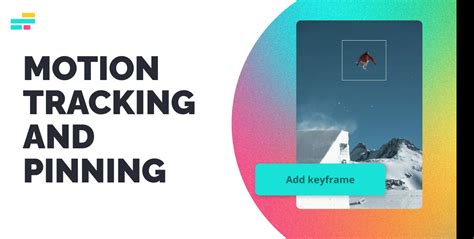
Motion tracking is a powerful technique that allows you to "pin" an element-such as text, a sticker, or an image-to a specific point within your video, even if that point is moving. This ensures the element remains consistently attached to its target throughout the scene, which is incredibly useful for various applications.
Core Concepts of Motion Tracking
Motion tracking works by analyzing the movement of pixels or distinct features within a video sequence frame by frame. This process, often powered by artificial intelligence (AI), enables software to identify and follow the trajectory of objects. Common techniques include:
- Point Tracking: Following the movement of a single, distinctive point.
- Feature Tracking: Tracking a collection of points or a pattern on an object.
- Optical Flow: Analyzing the motion of pixels across frames to determine movement patterns.
Practical Uses of Motion Tracking
Kapwing's motion tracking capabilities, often referred to as its "pinning" feature, are exceptionally user-friendly and provide immediate value:
- Labeling: Pinning text or labels to identify people, places, or objects as they move through the scene.
- Censoring/Blurring: Attaching a blur effect or a censor box to a face or a specific area to protect privacy.
- Highlighting: Keeping a spotlight or a visual indicator fixed on a moving subject.
- Adding Visuals: Sticking images or graphics to moving objects to create integrated visual effects.
How to Perform Motion Tracking (Pinning) in Kapwing
Kapwing simplifies motion tracking into a few straightforward steps, eliminating the need for complex software or frame-by-frame manual animation:
- Upload Your Video: Start by uploading the video you wish to edit into Kapwing Studio.
- Add the Element to Pin: Import the text, sticker, or image you want to attach to a moving object.
- Select the Pinning Tool: With the element selected, locate and activate the keyframing or "pinning" icon (often represented by a diamond or similar marker) in the right-hand sidebar.
- Draw the Motion Path: Click and drag the element on the canvas. As you move it to follow the target object, Kapwing records this path. You'll essentially be guiding the element along the object's trajectory.
- Export: Once the motion path is established, export your video. Kapwing allows you to download the file, share it directly to social media, or generate a shareable link.
This process allows creators to pin elements to moving objects in videos longer than typical social media limits (e.g., beyond 60 seconds, 3 minutes, or 10 minutes), making it suitable for vlogs, sports recordings, and longer-form content.
Kapwing: An Accessible Editor for All Creators
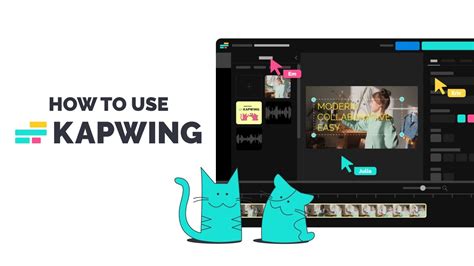
Kapwing distinguishes itself as an online video editor designed for accessibility and ease of use, catering to individuals with no prior video editing experience. Its cloud-based nature means no software downloads are required, and projects can be accessed from any device.
Key Features and Tools
Kapwing offers a comprehensive suite of tools, many powered by AI, to streamline the video creation process:
- Video Editor: Edit clips, combine tracks, and apply effects.
- Subtitler: Automatically generate and edit captions and subtitles.
- Speaker Focus: Auto-resizes videos to keep speakers centered.
- Audio Editor: Record, edit, and clean audio.
- Text to Speech: Converts text into realistic voiceovers.
- Repurpose Studio: Quickly create social-ready clips from longer videos.
- Resize Video: Adjust video dimensions for various platforms.
- Trim with Transcript: Edit videos by editing their text transcripts.
- Dubbing: Translate dialogue into multiple languages.
- Transcribe Video: Automatically convert video content into text.
- AI Tools: Including a Script Generator, B-Roll Generator, AI Video Editor, and more.
Getting Started with Kapwing
The process of starting a new project in Kapwing is straightforward:
- Visit Kapwing.com: Navigate to the Kapwing homepage and select "Start Editing."
- Choose a Starting Point: Opt for "Start with a blank canvas" or upload existing media. Free users should note file size limitations (typically 250 MB).
- Upload Content: Videos, images, or GIFs can be uploaded directly from your device, pasted via URL, or integrated from cloud storage like Google Drive. Drag-and-drop functionality is also supported.
- Utilize the Timeline: Once media is added, a timeline appears at the bottom of the screen. Here, clips can be arranged, trimmed, and layered. Kapwing's default "Snap" mode helps align elements, while the newer "Ripple" mode adjusts the timeline automatically when sections are deleted.
- Add Elements: Text, shapes, images, and audio can be added from the left-hand toolbar. These elements can be precisely positioned, resized, rotated, and timed using controls on the canvas and the right-hand panel.
- Export Your Video: When editing is complete, click the export button. Options include MP4, GIF, or image formats. You can then download the file, return to editing, or generate a shareable link for embedding.
Collaboration and Workflow
Kapwing fosters collaboration through team workspaces, allowing multiple users to comment in the editor and work on videos together. Features like Brand Kits ensure consistent visual identity across projects.
Conclusion: Empowering Creators with Dynamic Tools
Kapwing's commitment to making advanced video editing accessible is evident in its intuitive interface and powerful features like keyframing and motion tracking. These tools empower creators to move beyond static content, injecting life and dynamism into their videos. Whether you're looking to highlight key information with a strategic zoom, ensure text follows a moving object with motion tracking, or simply add a polished flow to your edits, Kapwing provides the means to achieve professional results without a steep learning curve or expensive software. By mastering these techniques within Kapwing, creators can significantly enhance audience engagement and elevate the overall quality of their video productions.