Precision is a cornerstone of effective photo editing, and in a powerful program like Adobe Photoshop, mastering navigation tools is paramount to achieving professional results. Whether you're meticulously retouching a portrait or analyzing intricate details, the ability to zoom in and out seamlessly is crucial. This guide delves into the various methods for navigating images within Photoshop, with a particular focus on leveraging keyboard shortcuts for enhanced efficiency and a smoother workflow. Understanding how to zoom, pan, and scroll your images like a pro will significantly elevate your editing experience.
When you first open an image in Photoshop, the software typically defaults to displaying the entire image on your screen. This initial zoom level is often indicated as a percentage, for example, 33.3%, in the document tab at the top of the workspace, and also displayed in the lower-left corner of the document window. While this provides an overview, it's often insufficient for detailed work. Fortunately, Photoshop offers a comprehensive suite of tools and commands, accessible through intuitive keyboard shortcuts, to precisely control your view.
The Power of Zoom: Shortcuts for Magnification
Navigating an image effectively begins with understanding how to zoom in and out. Photoshop provides several key keyboard shortcuts that allow for rapid magnification and de-magnification, significantly speeding up your workflow.
Basic Zoom In and Zoom Out
The most fundamental zoom shortcuts are designed for quick adjustments:
- Zoom In: Press and hold the
Ctrlkey (orCmdon a Mac) and then press the plus (+) key. Repeatedly pressing this combination will continue to zoom in on your image. - Zoom Out: Press and hold the
Ctrlkey (orCmdon a Mac) and then press the minus (-) key. Each press will zoom the image out.
As you use these shortcuts, observe the zoom level displayed in the document tab or the lower-left corner of the document window. You'll notice that Photoshop often jumps to specific preset zoom levels, such as 50%, 66.7%, and 100%. These preset values are not arbitrary; they represent zoom levels that offer the most accurate representation of your image's pixels.
Understanding Accurate Zoom Levels (100%)
It's vital to understand the significance of viewing your image at 100%. At this zoom level, each pixel in your image is displayed by a single pixel on your screen. This is the only way to see a truly accurate representation of your image with all its inherent detail. When you view an image at a zoom level less than 100%, you are not seeing all the pixels; Photoshop is interpolating to fill the screen. For instance, an image zoomed to an odd value like 51.25% might appear softer, particularly in fine details like eyelashes, compared to the same image zoomed to a preset 50%. Achieving this precise 100% view can be done by navigating to the View menu and selecting 100%.
Zoom Tool Shortcuts
While the Ctrl + +/- shortcuts are excellent for incremental zooming, Photoshop also offers the dedicated Zoom Tool for more targeted magnification.
- Temporary Zoom In: To temporarily activate the Zoom In tool, press and hold
Ctrl + spacebar(orCmd + spacebaron a Mac). While these keys are held down, you can click on the area of the image you wish to magnify. - Temporary Zoom Out: To temporarily activate the Zoom Out tool, press and hold
Ctrl + Alt + spacebar(orCmd + Option + spacebaron a Mac). Again, clicking on the image while these keys are held will zoom out.
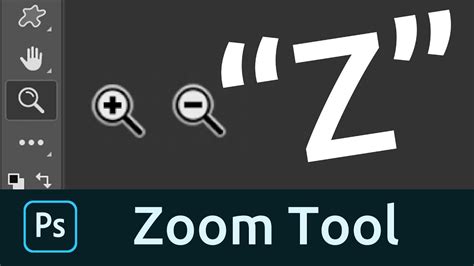
When using the Zoom Tool directly from the toolbar (identified by a magnifying glass icon, often accessed by pressing the Z key), you can click on an area to zoom in. To zoom out with the Zoom Tool active, hold down the Alt key (or Option on a Mac) and click.
Advanced Zoom Features: Scrubby Zoom and Continuous Zoom
Photoshop offers more dynamic zoom functionalities for even greater control:
- Scrubby Zoom: This feature, often enabled by default, allows for intuitive zooming by clicking and dragging. With the Zoom Tool active, simply click on an area and drag to the right to zoom in, or drag to the left to zoom out. The key to Scrubby Zoom is to start dragging immediately after clicking. If you delay, Photoshop might interpret your action as Continuous Zoom.
- Continuous Zoom: If Scrubby Zoom is not your preference, or if you wish to use Continuous Zoom, you can achieve this by clicking on an area with the Zoom Tool and holding the mouse button down. After a brief pause, Photoshop will begin zooming in continuously until you release the mouse button.
How to Zoom In & Zoom Out in Photoshop | Quick Tips
Zooming Beyond 100% and the Pixel Grid
Photoshop allows you to zoom in to extreme levels, up to 12800% in recent versions. However, it's important to note that zooming beyond 100% does not reveal any new detail; it simply enlarges the existing pixels. As you zoom in very closely, you may eventually see an outline around the pixels, known as the Pixel Grid. This grid is purely for visual reference and will not be visible in your saved or printed images. You can toggle the Pixel Grid on or off via the View > Show > Pixel Grid menu option.
Mouse Scroll Wheel Zoom
For users with a mouse featuring a scroll wheel, zooming can be accomplished without even selecting the Zoom Tool. Simply hover your cursor over the area where you want to zoom and use the scroll wheel. Holding down the Shift key while scrolling can help limit the zoom values to the aforementioned preset percentages, ensuring a more accurate view.
Panning and Scrolling: Navigating When Zoomed In
When you're zoomed in close to an image, you'll invariably need to move around the canvas to inspect different areas. This action is known as panning or scrolling.
The Hand Tool for Panning
The Hand Tool, typically located in the toolbar directly above the Zoom Tool (or accessed by pressing the H key), is your primary tool for panning.
- Basic Panning: With the Hand Tool selected, click and hold on the image and drag to move the canvas around.
- Flick Panning: A more dynamic feature is Flick Panning. If enabled in Photoshop's preferences (
Edit > Preferenceson Windows,Photoshop > Preferenceson Mac), you can "throw" the image by dragging and releasing the mouse button. The image will continue to move in that direction until it gradually stops. You can also stop it manually by clicking again. - Temporary Hand Tool Access: A highly efficient method for panning is to temporarily access the Hand Tool by pressing and holding the
spacebar. While the spacebar is held down, you can pan the image. Releasing the spacebar will return you to your previously active tool.
Mouse Scroll Wheel for Panning
Similar to zooming, the mouse scroll wheel can also be used for panning when you're zoomed in. You can scroll up, down, left, or right using the scroll wheel, and this functionality works with any active tool, not just the Hand Tool.
Bird's Eye View
Another useful navigation feature is the Bird's Eye View. By pressing and holding the H key, you can click and hold on your image. Photoshop will temporarily zoom out so the entire image fits on screen, displaying a rectangle that indicates the area you will next zoom into when you release the mouse button.
Fit on Screen Command
To quickly return to a view where the entire image fits within your screen, you can use the View > Fit on Screen command. A handy shortcut for this is to double-click the Hand Tool icon in the toolbar.
Enhancing Workflow with Zoom Features
Beyond the fundamental zoom and pan operations, Photoshop offers features designed to streamline your workflow and improve overall productivity.
Zoom Tool Options Bar
When the Zoom Tool is selected, the Options bar at the top of the Photoshop interface provides additional controls. You can choose between "Zoom In" and "Zoom Out" directly from here. The tool also respects the preset zoom values, ensuring you can quickly jump to accurate magnifications.
Resizing Windows and Matching Zoom
- Resize Windows to Fit: This feature automatically adjusts the window size to fit the canvas after zooming, maintaining a consistent viewing area.
- Zoom All Windows: For users working with multiple open images, the "Zoom All Windows" feature allows you to magnify or reduce all open image windows simultaneously, ensuring a uniform view across your entire project. To synchronize zoom levels across multiple documents, ensure all desired images are open, then navigate to the
Windowmenu, underArrange, and selectMatch Zoom.
Keyboard Shortcuts Recap for Efficiency
To truly master navigation in Photoshop, memorizing key shortcuts is essential:
- Zoom In:
Ctrl + +(Windows) /Cmd + +(Mac) - Zoom Out:
Ctrl + -(Windows) /Cmd + -(Mac) - Fit on Screen:
Ctrl + 0(Windows) /Cmd + 0(Mac) - 100% Zoom:
Ctrl + 1(Windows) /Cmd + 1(Mac) - Temporary Zoom In Tool:
Ctrl + spacebar(Windows) /Cmd + spacebar(Mac) - Temporary Zoom Out Tool:
Ctrl + Alt + spacebar(Windows) /Cmd + Option + spacebar(Mac) - Temporary Hand Tool:
Spacebar(hold)
By integrating these keyboard shortcuts and understanding the various zoom and navigation techniques, you can significantly enhance your efficiency and precision when working with images in Adobe Photoshop. This mastery allows you to focus on the creative aspects of editing, confident in your ability to move swiftly and accurately through your projects.