Navigating the digital canvas can sometimes feel like a dance, especially when you want to rotate your artwork for that perfect angle. In Krita, rotating the canvas is not just a simple task; it’s an essential part of creating fluid and dynamic art. Krita, by far one of the most widely used open-source painting programs around, offers artists an affordable set of art tools to get the job done. This tutorial will explore various methods for rotating both selections and the entire canvas, catering to different artistic needs and workflows.
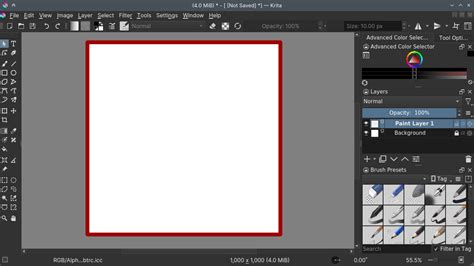
Rotating Selections for Precision Editing
When using any of the Selection Tools in Krita, you can transform the selection in many ways. You can move it, resize it, or rotate it. This method is particularly useful for making precise adjustments to specific parts of your artwork without affecting the entire layer. For instance, you can use this method to rotate a specific area or duplicate a selection and then turn it to mirror the area. This technique is applicable to any layer, allowing you to selectively rotate objects.
Activating and Manipulating Selections
First, you need to activate one of the selection tools. This depends on what you want to select on the canvas. You can choose a set shape selection tool, such as the Rectangular, Elliptical, or Polygonal Selection Tool. Once you have activated the selection tool you need, you can create the selection on the canvas. The method to create the selection will differ slightly depending on which tool you choose. Ensure you are happy with the selection. Remember, everything inside the selection will rotate, and it will be moved from the background.
Applying the Transform Tool to Selections
When your selection is in place, right-click or Control + click inside the selection, then go to Transform > Transform Tool. Activating the Transform Tool changes the selection into a transform box. This may seem like the selection has gone, but it hasn’t. When you see the transform box icon, you can click and drag up to rotate the selection anti-clockwise or drag down to turn the selection clockwise. Your selection has been rotated.
Deselecting After Transformation
Once you are satisfied with the rotated selection, you can deselect it by pressing Shift + Control + A on Windows or Shift + Command + A on Mac. This action removes the transform box and returns your canvas to its normal state, with the transformed selection now a permanent part of your artwork.
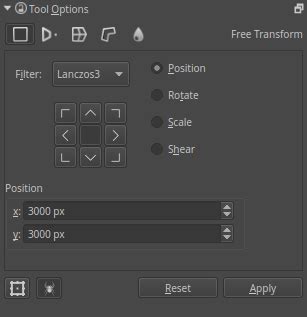
Rotating the Entire Canvas for a New Perspective
Navigating the digital canvas can sometimes feel like a dance, especially when you want to rotate your artwork for that perfect angle. In Krita, rotating the canvas is not just a simple task; it’s an essential part of creating fluid and dynamic art. This feature allows you to change your viewing angle without altering the image data itself, which is crucial for comfortable drawing and painting.
Quick Canvas Rotations with Keyboard Shortcuts
To start with, if you're looking for quick adjustments, keyboard shortcuts are your best friends. You can easily rotate the canvas by 15 degrees at a time using the keys '4' (to rotate left, anti-clockwise) and '6' (to rotate right, clockwise). These incremental rotations are perfect for making minor adjustments to your working angle as you sketch or paint.
Resetting the Canvas Rotation
If you've made some rotations but wish to reset everything back to its original position? Simply press '5', and voilà! This shortcut instantly returns your canvas to its default, unrotated state, which is incredibly useful if you get lost or simply want to see your work from the original perspective.
Mirroring and Zooming Controls
For those who might find themselves needing different views frequently-like mirroring or zooming-the same intuitive controls apply here as well. Press ‘M’ for horizontal mirroring, which flips your canvas horizontally. This is an excellent tool for checking the symmetry of your artwork. Use the '+' and '-' keys (or scroll on your mouse wheel) for zooming in and out respectively, allowing you to focus on details or get a broader view of your composition.
Canvas - zooming, rotating and panning the canvas in Krita
Customizing Your Workspace
Krita also offers customization options that allow users to tailor their workspace according to personal preferences. This way, whether you're flipping between angles or adjusting scale mid-stroke, you'll have all necessary tools at hand without disrupting your artistic rhythm. You can assign custom shortcuts for canvas rotation and other frequently used functions through Krita’s settings.
Rotating an Entire Image in Krita
Rotating an image in Krita is pretty straightforward, and there are multiple ways to achieve this. This method permanently alters the image data, so it's generally used when you're finalizing an image or preparing it for a specific output.
Opening or Creating a New Document
First, you’ll need to launch the Krita canvas and then open the image you want to rotate. To do this, go to the File menu on the main toolbar and select Open to launch an already existing file. Alternatively, if you’re working on a new project from scratch, select New. In the Create new document window that appears, customize your canvas based on your preferences.
Using the Image Rotate Function
Once your image or canvas is open, navigate to the Image menu on the main toolbar, select Rotate, and then click on Rotate Image. This will display the Rotate Image window with various rotation options provided.
Defining Rotation Orientation and Angle
You’ll need to define the rotation orientation, that is, the direction in which you want to rotate the image. Next, select the rotation angle. The predefined options available are 90, 180, and 270 degrees. You could also use the custom option to define an angle between 0 and 360 degrees that doesn't fall into any of the three aforementioned categories. Click OK once you input the desired angle.
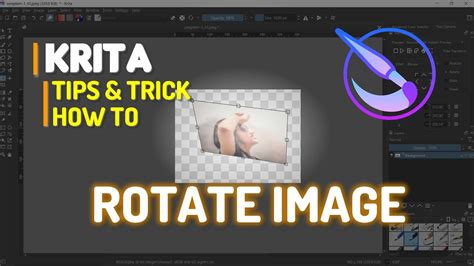
Interactive Image Rotation
For a more hands-on approach to rotating the entire image, you can press and hold the Shift + Space keys. While holding these keys, click and drag the image to rotate it in whichever direction you want. This method provides a fluid and intuitive way to achieve precise angles. Additionally, as mentioned for canvas rotation, the '4' and '6' keys also rotate the canvas in 15-degree increments counter-clockwise and clockwise, respectively, which can be applied to the image itself in some contexts.
Saving Your Rotated Image
Once you’re satisfied with the transformations, go to the File menu on the main toolbar and select Save As. Use the existing file name to overwrite the previous version of the image or change the name entirely to save both the original and new versions of the files. Also, specify the format you want to save the file in.
There you have it - a comprehensive guide on how to rotate in Krita, empowering you to manipulate your canvas and images with precision and ease.