DaVinci Resolve, a powerhouse in video editing, incorporates the robust Fusion page for sophisticated visual effects and motion graphics. However, like any complex software, it can present technical challenges, with "Fusion composition" render errors being a common point of frustration for editors. These errors can halt your workflow, leaving you uncertain about how to proceed. This guide aims to demystify these issues, providing a structured approach to troubleshooting and resolving "Fusion composition" render failures within DaVinci Resolve.
Understanding Fusion Composition in DaVinci Resolve
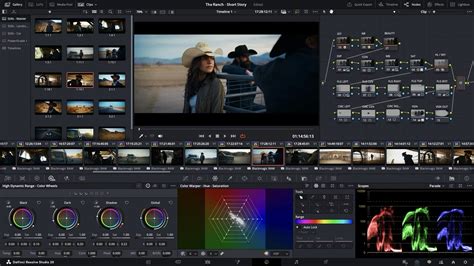
Fusion Composition in DaVinci Resolve is a feature that offers a comprehensive set of tools for creating intricate visual effects and motion graphics directly within the software. It employs a node-based interface, a paradigm where each node represents a specific operation, such as color correction, masking, or compositing. This node-based workflow is a key differentiator of Fusion, providing a high degree of flexibility and granular control over visual effects and motion graphics. The fundamental building blocks of this system are the "nodes," each performing a distinct function.
The Fusion page within DaVinci Resolve is an advanced compositing toolset. It boasts a comprehensive 3D workspace equipped with over 250 specialized tools. These tools cater to a wide array of tasks, including advanced compositing, vector painting, keying (often referred to as chroma keying or green screen removal), rotoscoping (the process of creating masks frame by frame), sophisticated text animation, motion tracking, video stabilization, and particle system generation. This extensive array of capabilities makes Fusion an ideal environment for visual effects artists, digital compositors, and motion graphics designers.
To begin working with Fusion, you first need to add a Fusion composition to your timeline. This is typically done by selecting a clip on the timeline and then navigating to the "Fusion" tab, usually located at the bottom of the DaVinci Resolve interface. Upon entering the Fusion page, you will find a workspace where nodes can be added, arranged, and connected. Each node corresponds to a different effect or operation. By strategically connecting these nodes in various sequences, users can achieve highly complex and customized visual results. The default node, often a placeholder, can be replaced by a more elaborate node tree that visually represents the layered structure of your composition. These nodes serve to delineate different elements of the design and guide the replacement of any demo content with your own custom images and video assets.
Common Causes of Fusion Composition Render Failures
Several factors can contribute to Fusion Composition malfunctioning and leading to render errors. A primary culprit is often inadequate hardware capabilities. DaVinci Resolve, and particularly its demanding Fusion module, requires a high-performance Graphics Processing Unit (GPU) to process complex visual computations efficiently. Insufficient GPU power or memory can lead to rendering bottlenecks and outright failures.
Software-related issues can also be a significant cause. It is crucial to ensure that you are running the latest version of DaVinci Resolve. Older versions may contain unresolved bugs or have compatibility issues with your operating system or other software components. Similarly, verifying that your operating system is compatible with the version of DaVinci Resolve you are using is essential.
If these initial checks do not resolve the issue, the problem might stem from specific project settings or the file formats you are working with. Certain codec combinations or project configurations can sometimes clash with Fusion's rendering pipeline.
Essential Troubleshooting Steps for Fusion Composition Errors
When faced with a "Fusion Composition on the current frame or clip could not be processed successfully" error, a systematic approach to troubleshooting is key.
1. Update Your System and Software:
- GPU Drivers: Outdated or incompatible GPU drivers are a frequent source of rendering errors in GPU-intensive applications like DaVinci Resolve. Always ensure your graphics card drivers are updated to the latest stable version. Visit the manufacturer's website (NVIDIA, AMD, or Intel) to download the most recent drivers for your specific GPU model.
- DaVinci Resolve: Similarly, keeping DaVinci Resolve updated to its latest version is paramount. Software updates often include bug fixes, performance enhancements, and improved compatibility, which can directly address rendering issues.
2. Verify Hardware and System Requirements:
DaVinci Resolve, especially when utilizing Fusion, is resource-intensive. It requires a relatively current GPU and sufficient system memory. For High Definition (HD) content, a minimum of 4GB of GPU memory is generally recommended, while 4K or higher resolutions demand significantly more. Ensure your system meets or exceeds the minimum hardware requirements specified by Blackmagic Design for your version of DaVinci Resolve.
3. Address Project and Render Settings:
- Render Settings: DaVinci Resolve offers a wide array of render settings that can impact performance. Experimenting with different render presets or adjusting specific parameters, such as the codec or bit depth, might alleviate rendering problems.
- Stop Renders on Error: A critical setting to adjust when encountering persistent Fusion errors is found within DaVinci Resolve's preferences. Navigate to "DaVinci Resolve" > "Preferences" (or "Settings" on some systems). Under the "User" tab, locate and uncheck the option that says "Stop renders when a frame or clip cannot be processed." This setting, when enabled, halts the entire render process upon encountering the first error. By disabling it, you allow the render to continue, and you can then identify the specific frame or section where the failure occurred. After this adjustment, re-render the project and carefully monitor the point where the render previously failed. This allows you to isolate the problematic section.
- Frame Rate Adjustments: Sometimes, inconsistencies in frame rates can cause issues. If you suspect this might be the case, you can adjust the frame rate of a clip. Right-click on your clip in the timeline and select "Clip Attributes" from the dropdown menu. Here, you can modify the clip's frame rate to match your project's settings or vice-versa.
4. Optimize Fusion Composition Performance:
Improving the performance of Fusion compositions can preemptively solve render issues.
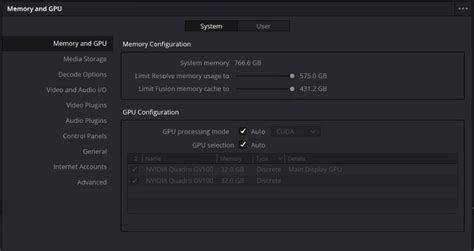
- Enable GPU Processing: Ensure that GPU processing is correctly enabled within DaVinci Resolve. Go to "DaVinci Resolve" > "Preferences" > "Memory and GPU" and select the appropriate GPU from the dropdown menu.
- Reduce Playback Resolution: In the Fusion page, lowering the playback resolution can significantly reduce the processing load, making it easier to work with complex compositions and identify potential issues before rendering.
- Proxy Media or Optimized Media: Utilizing proxy media or optimized media can dramatically enhance playback smoothness and reduce strain on your system during complex editing and compositing tasks. This is especially beneficial when working with high-resolution footage or intricate Fusion effects.
5. Manage Plugins and Project Integrity:
- Disable Unnecessary Plugins: Third-party plugins can be invaluable assets for Fusion, but compatibility issues can arise, leading to errors. If you have recently installed any new plugins, try disabling them one by one to see if the Fusion render error is resolved. If the issue disappears after disabling a specific plugin, re-enable them individually to pinpoint the problematic one.
- Verify Project File Integrity: Corrupted project files can manifest in various unpredictable ways, including Fusion render errors. If you suspect your project file might be compromised, try importing the project into a new, empty DaVinci Resolve project to see if that resolves the issue.
6. Working with Fusion Composition Files:
- Creating and Importing .comp Files: For complex or reusable Fusion effects, you can save them as standalone Fusion Composition files. To save a Fusion composition, navigate to "File" > "Export" and select "Fusion Composition." This will save your current Fusion setup as a .comp file. This file can then be imported into other DaVinci Resolve projects. To import, right-click within the Media Pool and select "Import Media," then choose your .comp file. Once imported, it will appear in the Media Pool and can be dragged onto the timeline.
- Modifying Fusion Compositions: When you drag a Fusion composition file or create a new one and select it on the timeline, clicking the "Fusion" tab opens the Fusion page. Here, you'll see the node tree representing the composition. You can then replace demo elements with your own media and adjust parameters as needed.
Fusion Tricks Everyone Needs to Know!
7. Extending Fusion Compositions:
To extend the duration of a Fusion composition clip on the timeline:
- Direct Manipulation: Select the Fusion composition clip on the Edit page timeline. Drag the edge of the clip to your desired length.
- Change Clip Duration: Alternatively, right-click the Fusion composition clip in the timeline, select "Change Clip Duration," and input the new desired duration.
By systematically working through these troubleshooting steps, users can effectively diagnose and resolve most "Fusion composition" render failures in DaVinci Resolve, ensuring a smoother and more productive post-production workflow. The boundless creativity and genre-defying nature of Fusion composition reflect a world where musical and visual boundaries are increasingly blurred, allowing for unprecedented levels of innovation and expression. Mastering its intricacies unlocks the potential for creating truly sophisticated visual effects and motion graphics.
tags: #davinci #resolve #render #failed #fusion #composition