The world of digital photography management has evolved significantly, with Adobe offering two primary Lightroom solutions: Lightroom Classic and the Lightroom Ecosystem (formerly Lightroom CC, often referred to as Lightroom Cloud). For many, the allure of mobile editing and seamless web sharing offered by the Lightroom Ecosystem is compelling. However, the robust feature set and established workflows of Lightroom Classic, particularly for photographers with extensive libraries, can make a complete transition daunting. Fortunately, a hybrid approach, combining the strengths of both, is not only possible but can offer a powerful solution for managing your photographic assets. This article explores how to effectively integrate Lightroom Classic with the Lightroom Cloud Ecosystem, highlighting what you need to know before syncing, the limitations to be aware of, and how to make this powerful combination work for your workflow.
Understanding the Lightroom Landscape: Classic vs. Cloud
Before diving into the integration, it's crucial to understand the fundamental differences between the two Lightroom versions.
Lightroom Classic is the traditional, desktop-centric application that has been the industry standard for years. It runs on Windows and macOS, storing your photos in folders on your local hard drives. You are in complete control of file management, organization, and backups. This version is ideal for photographers with vast libraries (terabytes of images) and offers a deep, extensive feature set. While its power is a significant benefit for advanced users, the learning curve can be steep for newcomers. Despite the rise of cloud-based solutions, Lightroom Classic continues to be developed and improved.
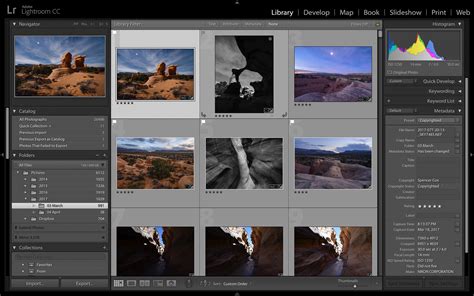
The Lightroom Ecosystem, on the other hand, is a family of applications designed for modern, multi-device workflows. It includes Lightroom Desktop (for Windows and macOS), Lightroom Mobile (for iOS, iPadOS, and Android), and Lightroom Web (accessed via a web browser). The core philosophy here is cloud-centricity, meaning your photos are primarily stored in the Lightroom Cloud, making them accessible across all your devices. While you can maintain local cached copies for offline use, a reasonably fast internet connection and sufficient bandwidth are essential for initial uploads. The Lightroom Ecosystem offers a simpler interface, with many advanced sliders hidden by default, making it less intimidating for new photographers. Its Adobe Sensei AI powers intelligent search capabilities, reducing the reliance on manual keyword tagging. Since the October 2023 release, Lightroom Desktop has also offered a "Local mode," a file browser with editing tools, though it's not a replacement for Classic and some features are cloud-dependent.
The fundamental conceptual difference lies in their approach to photo management. Lightroom Classic is designed to catalog photos stored locally on your hard drive with extensive user control, whereas the Lightroom Ecosystem is built to manage your photos primarily in the cloud.
Syncing Lightroom Classic with the Cloud Ecosystem: The Best of Both Worlds?
The question of whether to move from Lightroom Classic to the Lightroom Cloud Ecosystem often arises for those seeking mobile editing and web sharing capabilities. While the Lightroom Ecosystem might not yet possess all the features users need, and cloud storage can be a concern for those with massive libraries or slow internet connections, a hybrid approach offers a viable solution. You can maintain Lightroom Classic as your primary photo archive while syncing selected photos to and from the Lightroom cloud. This allows you to access and edit images on your mobile devices, offering the best of both worlds. However, it's crucial to be aware of the limitations inherent in this integration.
Key Limitations to Consider Before Syncing
When enabling sync between Lightroom Classic and the Lightroom Cloud Ecosystem, several limitations need careful consideration to avoid frustration and potential data issues.
Lightroom Classic is a Hoarder: When you enable sync, Lightroom Classic will download anything it finds in the cloud to your local hard drive. Even if you delete a photo from the Lightroom cloud, it will remain in Lightroom Classic. Similarly, deleting an album in the Lightroom cloud will simply result in the collection becoming unsynced in Lightroom Classic. Lightroom Classic asserts control over your photos.
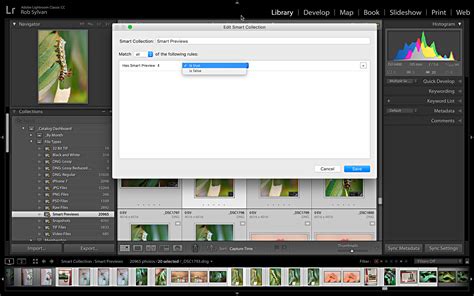
Only Smart Previews Upload: A critical point to understand is that Lightroom Classic only syncs 2560px smart previews to the cloud. This means it is not a cloud backup for your original files. For users with a slow internet connection or limited cloud storage (e.g., 20GB), uploading only smart previews can be an advantage, as they do not count towards your cloud storage quota.
Single Catalog Limitation: Lightroom Classic can only sync a single catalog at a time. If you manage your photos across multiple catalogs, you will need to consolidate them into a single catalog before enabling sync. This requires careful planning to decide which catalog will serve as your primary archive.
Selective Sync Can Lead to Missed Photos: Lightroom Classic only syncs photos that you specifically choose to sync. It's easy to overlook uploading certain images, such as those created through "Edit in Photoshop" or HDR/Panorama merges. This can be either beneficial or detrimental, depending on whether you want all your edited images accessible across devices.
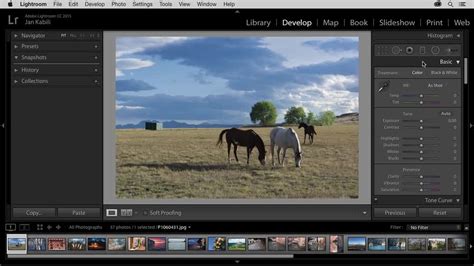
Features Have Different Names and Groupings: The terminology and organization of features can differ between Lightroom Classic and the Lightroom Ecosystem. For instance, "Collections" in Lightroom Classic become "Albums" in the Lightroom Ecosystem. However, "Album Folders" in the Lightroom Ecosystem do not translate to "Collection Sets" in Classic. Additionally, some editing features are grouped differently; for example, White Balance sliders are in the Basic panel in Lightroom Classic but within the Color panel in the Lightroom Ecosystem apps.
Incomplete Feature and Data Sync: Lightroom Classic possesses numerous features not available in the Lightroom Ecosystem apps, which naturally means these features cannot sync. More importantly, even features that exist in both, such as collections/albums, keywords, and people tagging, are not entirely compatible in their syncing behavior. Keywords, for instance, do not sync from Classic to the cloud, meaning hours spent meticulously adding them on an iPad will not reflect back in Classic.
Syncing Workflow and Status Indicators
To sync Lightroom Classic photos with Adobe Photoshop Lightroom apps, the photographs must reside within synced collections or the "All Synced Photographs" collection. Photos within a synced Collection are automatically accessible in Lightroom on your desktop, mobile, and web.
The Cloud icon, typically located at the top right, is your primary indicator of the current sync status. Different icons represent various sync states, such as syncing in progress, errors, or completion. To view detailed sync status on the web, select the Cloud icon, then navigate to the gear icon to open Lightroom Sync Preferences. Holding the Alt (Windows) or Option (Mac) key may reveal additional tabs. It is advisable to check for an "All Sync Errors" collection within your catalog, as Lightroom Classic will migrate sync data to a new architecture, and the migration time depends on the number of images to be synced.
When you sync images from Lightroom Classic, only smart previews are uploaded. To sync images edited with the Lightroom desktop app, you need to enable sync in Lightroom Classic. You can also migrate your images from Lightroom Classic to Lightroom desktop. Adding a single photo or a group of photos to the "All Synced Photographs" collection will sync them without needing to add them to any specific collection.
Managing Synced Data and Storage
If you enable sync in Lightroom Classic, your desktop may run out of space because Lightroom Classic downloads original images from the cloud. Be mindful of unintentionally using up online storage when syncing with services like Microsoft OneDrive or Apple iCloud Drive.
The MobileDownloads.lrdata file contains all your synced and downloaded images from the cloud. It is not recommended to move or delete this file. Lightroom Classic will not download images that have already been downloaded, and those will be marked as unavailable. You can customize the location for Lightroom's synced images through the Preferences menu (Edit > Preferences > Lightroom Sync on Windows or Lightroom Classic > Preferences > Lightroom Sync on macOS). All your synced images are available for 30 days before they are deleted from the cloud.
When you install a newer version of Lightroom, especially a major version update, the app will prompt you to upgrade the catalog to work with the latest version. This is a normal process, generally catering to database-related changes that support new features and performance improvements.
Practical Considerations and Workflow Adjustments
The decision to integrate Lightroom Classic with the cloud ecosystem often stems from a desire for greater flexibility and accessibility.
Mobile Editing and Workflow Integration
For photographers who value the ability to edit on the go, the sync feature is invaluable. You can access and edit smart previews on your mobile devices, and those edits will sync back to Lightroom Classic. This is particularly useful for culling and making initial adjustments while traveling or away from your primary workstation.
Edit RAW Photos ON THE GO! | Lightroom CC Mobile Tutorial
However, it's important to remember that these are smart previews, not your originals. If you need to perform more intensive edits or export a final, high-resolution image, you'll still need access to your original files within Lightroom Classic.
Keywords and Metadata Sync: A Major Hurdle
A significant limitation for many users is the absence of keyword synchronization. Keywords added in the Lightroom Ecosystem apps do not sync back to Lightroom Classic. This means that if you rely heavily on a robust keyword structure for organizing and searching your library, you'll need to maintain this organization exclusively within Lightroom Classic. Spending time adding keywords on a mobile device will not benefit your Classic catalog. This is often cited as a "deal-breaker" for users who depend on hierarchical keywords.
"Edit In" Workflows and Plugins
The "Edit in" functionality is another area where differences arise. While Lightroom Classic offers seamless integration with Photoshop and other external editors, the Lightroom Ecosystem's "Edit in" options are more limited. Typically, it's primarily an "Edit in Photoshop" function, and for other applications, you might need to export as a TIFF. For users who rely on specific plugins or round-tripping to applications like Photoshop as smart objects, this can be a significant workflow disruption. Some plugins, like Negative Lab Pro, only work as Lightroom Classic plugins, further complicating this for users of the cloud version.
User Interface and Feature Parity
Over time, Adobe has worked to bring feature parity between the two platforms, especially concerning editing and masking functions. However, subtle differences remain. For example, the history panel in Lightroom Classic is more robust than the "Auto Versions" in Lightroom, and there's no direct equivalent to "Snapshots" in the cloud version, though "Versions" offer some similar functionality. Features like multi-monitor support, specific GPS coordinate input, and virtual copies are also generally more advanced or present in Classic.
Storage and Backup Considerations
While the cloud offers accessibility, it's not a replacement for a comprehensive backup strategy. Lightroom Classic, by managing local files, gives you direct control over your storage. When syncing, it's crucial to understand that only smart previews are uploaded to the cloud. Your original files remain on your local drives. If your primary concern is backing up your original RAW files, relying solely on the Lightroom Ecosystem's sync feature without a robust local backup plan is ill-advised. Users with large libraries may find cloud storage prohibitively expensive compared to local solutions like external hard drives or Network Attached Storage (NAS) devices.
Deciding Which Lightroom Version is Right for You
The choice between Lightroom Classic and the Lightroom Ecosystem, or how to integrate them, depends heavily on your individual needs and workflow.
New Photographers with Mobile-First Approach: If your primary camera is your smartphone, you have fast internet, and you're new to photography, the Lightroom Ecosystem is likely a great starting point due to its simpler interface and multi-device accessibility.
Professional Photographers with Large Libraries: Wedding, portrait, or commercial photographers shooting thousands of photos weekly often find Lightroom Classic more economical and controllable due to local storage costs. However, the "Local mode" of Lightroom Desktop could be an alternative for those who want to use Lightroom's editing tools without full cataloging.
Long-Time, Advanced Users: Photographers who have been using Lightroom since its inception and are deeply integrated into its feature set will likely find Lightroom Classic to be the more powerful and familiar option, at least for now.
Hobbyists with Limited Technical Confidence: If you find computers challenging, the Lightroom Ecosystem's automated cloud management and simpler interface can be a safer bet, reducing the risk of data loss due to complex file management.
Users with Slow Internet or Limited Bandwidth: Syncing the entire Lightroom Ecosystem can be a painful experience with slow internet. Lightroom Classic's local storage approach bypasses this issue for your primary archive.
Busy Individuals with Multiple Devices: If you frequently switch between desktops, laptops, and mobile devices, the seamless availability of your photos across all platforms via the Lightroom Ecosystem is a significant advantage.
Frequent Local Printer Users: If you heavily utilize Lightroom's Print module for local printing, Lightroom Classic offers more comprehensive and direct control over this process.
Weighing Your Priorities
For those with less clear-cut situations, consider these questions:
- Internet Speed and Cost: Do you have fast, unmetered internet, at least at home?
- Device Usage: Do you primarily work on a single computer, or do you need to move between multiple desktops, laptops, and mobile devices?
- Library Size: Do you have an unmanageably large photo library, or can you be more ruthless with deletions? Is cloud storage economically viable for your entire collection?
- Essential Features: What features are non-negotiable for your workflow? Classic offers more organizational tools and traditional output options (print, book, slideshow), while the Ecosystem excels in multi-device workflows and web sharing.
It's also important not to get solely bogged down by features. Consider whether you actually need every tool. If easy multi-device access is paramount, you might find you miss fewer features than anticipated.
The Future of Lightroom: Convergence or Coexistence?
The existence of two distinct Lightroom applications raises questions about Adobe's long-term strategy. While some speculate that Lightroom Classic might eventually be phased out or merged into a single, comprehensive application, Adobe has continued to develop both. The recent introduction of Lightroom Desktop's "Local mode" suggests an effort to bridge some gaps.
For now, the ability to sync Lightroom Classic with the cloud ecosystem provides a powerful solution for photographers seeking flexibility without sacrificing the robust features of their established desktop workflow. By understanding the limitations and implementing thoughtful strategies, you can effectively leverage both platforms to manage your photographic journey.
Subscription Plans and Access
Previously, users had to choose which Lightroom version to purchase. However, from January 15, 2025, Adobe's plans will include access to both versions of Lightroom. The "Lightroom 1TB" plan provides access to Lightroom Desktop (on Windows & Mac, activated on up to 5 desktop/laptop computers), Lightroom Classic (activated on 2 computers), and 1TB of cloud storage. The "Photography 1TB" plan includes all of this plus Photoshop. This unified approach simplifies the decision-making process, allowing users to select the plan that best suits their storage and software needs while retaining the choice of primary Lightroom application.