In the digital age, the desire to transform everyday photos into fantastical creations has never been greater. For those seeking an easy, artistic escape from reality, the Picsart app offers a gateway to a world of creative editing. This tutorial delves into the popular and engaging style of cartooning and anime-inspired filters, empowering users to turn their images into captivating works of art. Whether you're aiming for a quick cartoon effect or a more nuanced anime aesthetic, Picsart provides the tools to achieve these looks, making it accessible to everyone, from beginners to seasoned digital artists.
Picsart stands as a powerful photo and video editing platform and a vibrant creative community. Recognized as a top 20 most downloaded app globally, it boasts over 150 million monthly active users. Its suite of AI-powered tools empowers creators of all skill levels to design, edit, draw, and share content seamlessly, anywhere. The platform has curated one of the world's most extensive open-source collections, featuring a vast array of photos, stickers, backgrounds, and templates. These versatile tools cater to both personal and professional design needs, serving consumers, marketers, content creators, and businesses alike. Picsart's influence is further amplified by its collaborations with major artists and brands, including BLACKPINK, Taylor Swift, Lizzo, Ariana Grande, Warner Bros. Entertainment, iHeartMedia, and Condé Nast.
The Appeal of Cartoon and Anime Transformations
Why would you want to cartoon a photo? The reasons are as diverse as the editing possibilities themselves. For marketers, cartoon effects on images can be a powerful tool to enhance company or brand presence, with a cartoon logo making a company appear more fun and approachable. Even in professional fields like real estate, photo-to-cartoon effects can add a unique flair to landscape images of properties for sale, making them more eye-catching. For individuals, a caricature drawing can be a playful way to update a byline image, offering a more engaging and memorable alternative to standard press photos. The beauty of Picsart lies in its accessibility; you don’t need to be a trained artist or possess specialized software to achieve these striking transformations. Picsart allows you to cartoon yourself online for free, or transform any photo into a cartoon using the app or its web editor.
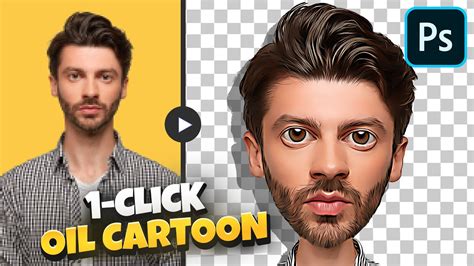
Achieving a Cartoon Aesthetic with Picsart
Picsart offers a variety of methods to achieve a cartoon effect, catering to different aesthetic preferences. These range from simple one-touch filters to more involved manual drawing techniques.
One-Click Cartoon Filters
For those seeking a swift and effortless cartoon transformation, Picsart's one-click effects are ideal. These are often found within the "Magic" or "Sketch" filter categories.
- Accessing Effects: Open your chosen photo in the Picsart editor and tap on the "Effects" option in the toolbar.
- Exploring Magic Filters: Select "Magic" to browse a wide array of one-click cartoon filters. Many of these effects are designed to instantly cartoonify your image. For a smooth, animated aesthetic, try filters like "Soul," "Pow," "Animation," or "Neo Pop." These are excellent for creating a dynamic, illustrative look.
- Utilizing Sketch Filters: Alternatively, scroll across the toolbar and tap on "Sketch." This section offers distinct cartoon styles. "Cartoon1" provides a smooth, soft cartoon aesthetic, particularly effective for portraits and selfies. For a slightly more textured or gritty appearance, "Cartoon2" is a suitable choice. Both are free, user-friendly, and can transform portraits into professionally-looking cartoons in mere seconds.
Manual Drawing and Retouching for Cartoon Effects
For a more hands-on approach, Picsart's drawing and retouching tools allow for greater control and customization.
Caricature Style with Retouch: To achieve a caricature effect, where facial features are exaggerated, the "Retouch" tool is invaluable.
- Begin by opening the Picsart app and tapping the "+" icon at the bottom of the screen.
- Select "Retouch" and then choose the "Face Tool."
- Utilize the "Face," "Nose," "Lips," "Eyes," and "Eyebrow" tools to modify facial features.
- The "Reshape" tool is particularly useful for mimicking caricature proportions, allowing you to exaggerate or shrink other parts of the image-think of creating a dramatic difference in scale, like a large dog next to a tiny car. This mimics the characteristic facial feature discrepancies found in caricatures.
- After adjusting the facial features, you can further enhance the cartoon look by applying a sketch filter, as described above. Scroll along the bottom icon menu, tap on "Effects," then select "Sketch" and apply either "Cartoon1" or "Cartoon2."
Hand-Drawn Effect with the Draw Tool: For a more authentic hand-drawn cartoon aesthetic, the "Draw" tool can be employed to color in your image, mimicking traditional coloring techniques.
Adding Cartoon Elements with Stickers
Another creative way to incorporate a cartoon effect is by adding thematic elements rather than transforming the entire image. This method adds a multidimensional layer to your photos, sometimes evoking a pop art feel.
- Accessing Stickers: Open your photo in the Picsart editor and tap on the "Sticker" icon.
- Searching for Cartoon Elements: Search for cartoon-themed items. For instance, typing "cartoon flower" will bring up a variety of floral graphics.
- Placement and Adjustment: Use a two-finger pinch gesture to resize stickers as needed. The "Eraser Tool" is available if you wish to remove any unwanted parts of the sticker.
- Applying and Finalizing: Once satisfied with the placement and appearance of the stickers, tap "Apply" in the top right corner.
Crafting an Anime Aesthetic in Picsart
Taking your cartoonification skills a step further, Picsart allows you to transform pictures into anime-style drawings. This involves manipulating facial features and applying specific color filters to achieve that distinct anime look and feel.
- Initiating the Edit: Open the Picsart app and tap the "+" icon.
- Face Tool for Anime Features: Click on "Retouch" and choose the "Face Tool." This is where you'll sculpt the classic anime facial characteristics.
- Eyes: Make your eyes appear cartoonishly large using the "Eyes" tool.
- Nose and Lips: Shrink down features like the nose and lips to achieve a more delicate, stylized look.
- Additional Features: Consider adding freckles or other subtle features using the relevant tools to enhance the anime aesthetic.
- Hair Color: The "Hair Color" tool can be used to experiment with vibrant or stylized hair colors often seen in anime.
- Adding Thematic Stickers: Tap on "Stickers" on the bottom toolbar. Search for relevant anime-themed stickers, such as "tattoo," and place them on your image. Use a two-finger pinch to resize the tattoo art to fit your desired position.
- Applying Color Filters: Tap on "Effects" on the bottom toolbar and select the "Colors" category.
- Soft Anime Feel: A pink filter can impart a soft, dreamy anime feel. "Color 4" is often recommended for this, but explore other options to find the perfect shade.
- Darker Anime Effect: For a more intense or darker anime aesthetic, try filters like "GRNG."
How to draw cartoon portrait | Picsart Tutorial
Beyond Selfies: Commercial and Artistic Applications
The ability to cartoonify images extends far beyond personal use. Businesses can leverage these effects for branding and marketing. A cartoon logo can significantly enhance a brand's perceived personality, making it seem more approachable and memorable. In fields where visual presentation is key, such as real estate, transforming landscape images with a cartoon effect can make listings stand out. For content creators and columnists, a stylized caricature can create a more engaging and recognizable byline image, helping them to capture attention in a crowded media landscape.
The process of transforming pictures into cartoons or anime-style art with Picsart is designed to be intuitive and accessible. The platform's extensive library of effects, stickers, and editing tools, combined with its user-friendly interface, democratizes creative expression. Whether you're aiming for a whimsical cartoon character, a striking caricature, or a captivating anime portrait, Picsart provides a comprehensive toolkit to bring your artistic visions to life, making photo editing an enjoyable and rewarding experience for everyone.