Lightroom offers a powerful and intuitive suite of tools for photographers to manage, edit, and, crucially, share their work. Whether you're a professional looking to deliver client galleries, a hobbyist wanting to share memories with friends and family, or a collaborative artist seeking to work with others, understanding Lightroom's sharing capabilities is essential. This guide delves into the various methods for sharing photos and albums across different Lightroom versions, empowering you to present your photographic vision to the world and engage with your audience.
The Power of Shared Albums: Beyond Simple Viewing
Sharing photos in Lightroom extends far beyond simply sending a collection of files. It transforms your images into interactive web galleries, offering viewers a dynamic and engaging experience. You can allow your audience to view photos in a grid or detail view, or even present them as a captivating slideshow. The level of interaction you permit is entirely up to you. You can control whether your viewers can like or comment on photos, providing valuable feedback and insight into which images resonate most. For those who wish to preserve a copy, the option to download JPEGs of individual photos or the entire collection can be enabled.
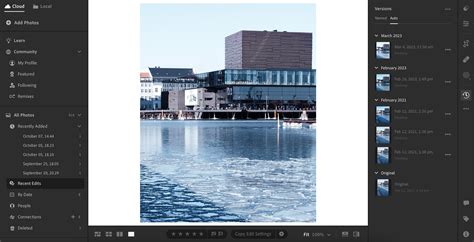
One of the most exciting features is the ability to invite others to contribute to your shared albums. This is particularly useful for group events like family vacations, where everyone can upload their own photos, creating a comprehensive collection from multiple perspectives. Furthermore, for those who also have a Lightroom subscription, you can grant them permission to edit your photos directly within the shared album. This collaborative editing feature allows multiple individuals to work on the same image, and you can track all the various edits made in the Auto tab of the Versions panel. This level of interactivity and collaboration makes Lightroom sharing a versatile tool for a wide range of photographic endeavors.
Sharing from the Lightroom Cloud Ecosystem: A Unified Approach
The process of sharing a web gallery is remarkably consistent across the various applications within the Lightroom cloud ecosystem, including Lightroom desktop, mobile, and the web interface. This uniformity ensures a seamless experience regardless of the device you're using.
On the desktop application, sharing begins by selecting an album in the Albums panel. You can then either right-click on the album and choose "Share & Invite," or simply click the Share icon located in the top right corner of the Grid view.
For mobile users, the process is equally straightforward. In the Library view, select the album you wish to share, tap the "…" menu, and then choose "Share & Invite." Alternatively, from the Grid view, you can tap the Share icon, also found in the top right corner.
The web interface mirrors this ease of use. Once you've selected an album, click or tap the Share icon in the top right corner to initiate the sharing process.

The "Share & Invite" dialog box, which appears regardless of the device, is where you manage your sharing settings. By default, albums are set to "Invite Only," meaning recipients will need to sign in to view the gallery. However, if you intend to share the gallery link publicly, perhaps on social media or via email, you can click or tap the "Get shareable link" button. Rest assured, even when using a shareable link, only individuals who possess the link will be able to view the gallery. Additional gallery preferences and settings will be covered in more detail later, allowing for fine-tuned control over your shared content.
Collaborative Editing and Contribution: Empowering Your Viewers
Lightroom's collaborative features allow you to extend editing and contribution privileges to those you invite. When you set an album to allow editing and contribution, the invitee gains the ability to add their own photos to the shared album and to make edits to existing images. This is a powerful tool for group projects or when you want to gather a comprehensive collection of images from multiple sources.
The collaborative editing functionality is particularly noteworthy. Multiple people can work on a single photo, and you can easily track the evolution of the image through the various edits recorded in the Auto tab of the Versions panel. This provides a clear history of changes and allows for easy rollback if needed.
To enable these collaborative features, you typically select an existing album or create a new one. You can also select multiple photos that are not yet part of an album. When setting up the share, the "Link Access" field is, by default, set to "Invite only." You can then choose to copy the link and share it with your intended collaborators.
When an invitee has "Can Edit and Contribute" permissions, they can add photos to the shared album and make photo edits. The "Invite" section within the sharing dialog allows you to view access requests from individuals who wish to join your shared album.
Further customization options within the sharing settings include:
- Title: You can choose to display or hide the album name. By default, the existing album name is shown.
- Author: This field displays the name of the person who generated the shareable link.
- Theme: Here, you can select the desired arrangement or layout for the photos within your shared gallery.
- Allow access requests: This setting, selected by default, permits people to request access to your shared photos if they don't have the direct link or invitation.
- Show location data: Enabling this option allows viewers to see the geographical location information associated with the shared photos.
- Allow comments and likes: This feature, selected by default, enables your viewers to leave comments and "like" their favorite photos, fostering interaction and feedback.
To modify the share settings for a group album, you would typically navigate to the left panel and select the relevant album. Within the "Shared to Web" panel, you can expand the "Photos" folder to see a list of your shared albums. If the owner of a group album has granted you contribution access, you will have the ability to add photos to it. The "Add Photo(s)" dialog box offers options to include metadata such as keywords, star and flag ratings, and GPS coordinates when adding your contributions.
Exporting Your Masterpieces: Preserving and Distributing Your Work
While sharing live galleries is a primary function, Lightroom also provides robust options for exporting your edited photos. This allows you to create physical copies, share files outside of the Lightroom ecosystem, or prepare images for specific platforms. You can export your work in a variety of formats, including JPG, AVIF, JPEG XL, DNG, TIF, or even as the original file. The export destination can be a folder on your computer, an external drive, or a network drive.
The "Share" menu within Lightroom offers preset options for quick exports, such as "JPG (Small)," "JPG (Large)," "Original," or "Previous Settings." These presets streamline the export process for common use cases.
The Best Instagram Export Settings for Adobe Lightroom 2026
For more granular control, you can access "Custom Settings" by pressing Shift+E. This opens the export dialog, where you can fine-tune various parameters. A quick export with previously used settings can be initiated by pressing Command+E (macOS) or Control+E (Windows), or by navigating to File > Export with Previous.
Within the custom export settings, you have several key options:
- Image Sizing: The "Small" option limits the longest dimension of saved JPEG photos to 2048 pixels. The "Custom" option allows you to specify the pixel value for both the long and short edges of the photo, giving you precise control over dimensions.
- Watermarking: You can choose to include a text or graphic watermark to protect your work or brand your images. Clicking the "Settings" icon opens a customization panel for watermarks, where you can select fonts, adjust size, opacity, rotation, and anchor points. You can also upload a PNG or JPG file to be used as a watermark.
- Color Space: The choice of color space depends on the intended output. For web use, sRGB is generally recommended, while Adobe RGB or ProPhoto RGB might be preferred for print or further editing.
Once you've configured your export settings, clicking "Export Photo" will initiate the process. The number of selected photos to be exported is clearly displayed on the "Export" button in the upper-right corner, providing a visual confirmation of your selection.
Starting with Lightroom desktop version 3.2, you can also export photos that have been contributed by others in shared albums, further integrating collaborative workflows into your export process. Moreover, from version 4.3 onwards, you can empower invitees to add and edit photos directly within your shared albums, enhancing collaborative possibilities.
Lightroom Classic: A Separate Sharing Workflow
It's important to note that while the Lightroom cloud ecosystem offers a unified sharing experience, Lightroom Classic employs a distinct process for sharing web galleries. This difference is significant enough that it warrants a separate discussion, which will be covered in a subsequent post. For those primarily using Lightroom Classic, understanding its specific sharing mechanisms is crucial for effectively distributing your work. However, the core principles of creating engaging online galleries and controlling viewer access remain consistent across all Lightroom platforms.
Advanced Sharing Options: Beyond Basic Galleries
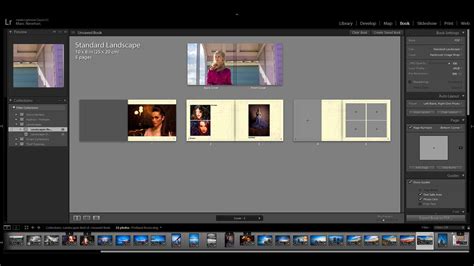
Lightroom also facilitates sharing your creative work beyond simple web galleries by allowing you to publish directly to services like Adobe Portfolio, Blurb, and WHCC. This opens up avenues for creating professional portfolios, self-publishing books, or preparing images for specific printing services.
Removing photos from a shared album or public set is also a straightforward process. Open the grid view of the desired collection, then right-click (Windows) or Control-click (Mac) over the selection of photos you wish to remove and choose "Remove Photo" from the context menu.
Lightroom's commitment to user control and creative freedom is evident in its comprehensive sharing and exporting features. Whether you're collaborating with friends on a vacation album or delivering final images to a client, Lightroom provides the tools to make the process efficient, interactive, and professional. The ability to fine-tune permissions, enable collaboration, and export in various formats ensures that your photographic journey can be shared and preserved exactly as you envision it.