Lightroom offers a powerful, all-in-one solution for photographers, seamlessly integrating robust editing tools with comprehensive photo storage and organization capabilities. Gone are the days of juggling multiple applications; Lightroom consolidates your workflow, allowing you to import, sort, organize, and edit your entire photo library in one centralized location. This integrated approach is a significant reason for its widespread appeal among both amateur and professional photographers.
The Importance of an Organized Library
A clean and correctly imported library is the bedrock of an efficient editing workflow. Before diving into the advanced features, it's crucial to ensure your initial import and organization processes are sound. This foundational step will pay dividends as your library grows, making it significantly easier to locate and manage your images. The true power of Lightroom lies not just in its editing prowess, but in its ability to store, sort, and organize all your photos in one place. This means you don't need to rely on separate tools like Bridge for organization and Photoshop for editing; Lightroom provides a holistic environment.
Streamlining Your Workflow with Favorites and Labels
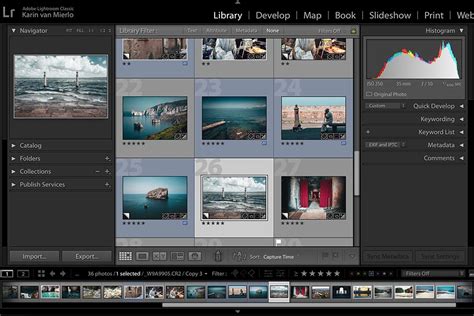
Once a batch of photos has been imported into Lightroom, the next logical step is to sift through them and identify your favorites for further editing. This process can be tailored to specific needs, whether you want to filter photos from a particular location, an event, or even images featuring a specific individual. Lightroom makes this task remarkably simple through its suite of labeling and sorting tools, including color labels, star ratings, and flags. Many users, like the author of this guide, prefer to flag photos they intend to edit, creating a clear and actionable to-do list within their library.
The Library module in Lightroom provides versatile viewing options. By navigating to View > Sort, you can choose how your photos are displayed, with options to sort by Rating, Flagged status, or Label Color. This flexibility allows you to customize your workspace to match your current organizational strategy.
Flagging Photos: The "Pick" System
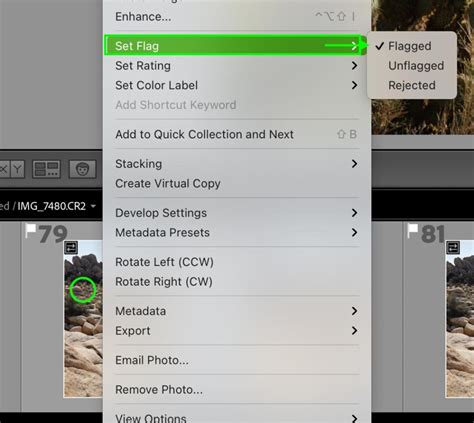
One of the most straightforward methods for marking photos is the flagging system. Within Lightroom, you can quickly assign a "Pick" flag to images you wish to keep or edit further.
How to Flag Photos in Lightroom
While browsing through your photos, a simple keyboard shortcut can streamline this process. Pressing the letter P will instantly flag a selected photo as a "Pick." This visual cue immediately distinguishes your chosen images from the rest.
Conversely, if you encounter a photo that you intend to delete eventually, Lightroom offers a "Reject" flag. Pressing the letter X assigns this flag, marking the photo for removal. This system provides a clear distinction between photos to keep and those to discard, simplifying the culling process.
Star Ratings: Quantifying Your Preferences
Beyond simple flags, Lightroom allows you to assign star ratings to your photos, providing a more nuanced way to categorize your images based on their quality or importance.
How to Star (Rate) Photos in Lightroom
Assigning star ratings is incredibly intuitive. Simply press the number keys from 1 to 5 to set the desired star rating for a selected photo. For instance, pressing 5 will assign a five-star rating. If you wish to remove a rating or reset it, pressing the 0 key will revert the photo's rating to zero. This numerical system allows for a granular assessment of your images, enabling you to prioritize your editing efforts on your highest-rated shots.
Color Labels: Visual Grouping and Categorization
Color labels offer another layer of visual organization, allowing you to group photos based on custom criteria or to-do lists.
How to Set Color Labels in Lightroom
Color labels are assigned using number keys starting from 6. Pressing 6 assigns a Red label, 7 assigns Yellow, 8 assigns Green, 9 assigns Blue, and so on. These color-coded labels can be incredibly helpful for creating distinct groupings within your library. For example, you might use red to signify photos that absolutely must be kept, yellow for those you plan to print, green for images ready for export, or blue for photos requiring further attention.
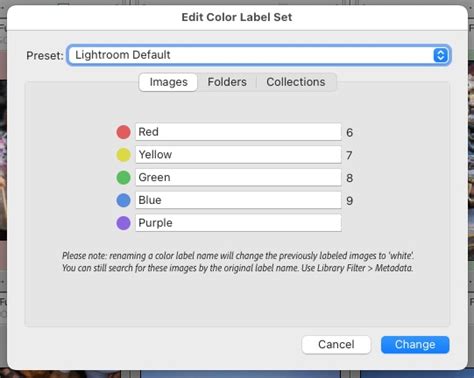
The screenshot below illustrates how you can view your photos sorted by color label, providing a visual overview of your categorized library.
The flexibility extends to applying these labels to multiple photos simultaneously. By selecting several images in your Library module and navigating to Photo > Set Flag, Set Rating, or Set Color-Label, you can assign your chosen favorites and organizational markers in a single operation.
Managing Rejected Photos
The process of rejecting unwanted photos is not just about marking them; Lightroom provides options for their ultimate disposal. After flagging photos for rejection using the X key, you can manage them through the menu. Navigating to Photo and then selecting the option at the bottom of the drop-down menu related to deleted rejected photos gives you a choice: "Delete from Disk" permanently removes them from your computer, or "Remove from Lightroom Catalogue" simply removes them from Lightroom's database without deleting the original files. This dual approach ensures you have control over how your unwanted images are handled.
STOP WASTING TIME: CULL Photos 10X Faster with Lightroom AI!
Advanced Organization Strategies in Lightroom
Beyond flags, ratings, and color labels, Lightroom offers a rich ecosystem of tools for managing your photo library. You can organize your images using albums, stacks, keywords, and metadata.
Albums and Smart Albums
Lightroom allows you to create traditional albums, which are collections of photos you manually add. You can also leverage Smart Albums, a powerful feature that dynamically updates based on predefined criteria. This means that as you add new photos that meet the Smart Album's rules (e.g., all photos taken in a specific month, or all photos with a five-star rating), they are automatically included.
To create a new album or folder, navigate to the Albums panel in the left pane, click the + icon, and select Create Album, Create Smart Album, or Create Folder.
Stacks and Grouping
For managing bursts of photos or similar images, Lightroom offers the ability to group them into stacks. Right-clicking on a selection of photos and choosing Group Into Stack consolidates them into a single thumbnail, which you can then expand to view individual images. This is particularly useful for managing sequences from a single shot or multiple takes of the same scene.
Keywords and Metadata
Keywords are essential for detailed searching and organization. By assigning relevant keywords to your photos, you make them searchable by subject matter, location, event, or any other descriptor. You can access keyword management by selecting View > Keywords. Metadata, such as camera settings, date, time, and location, is automatically embedded in your photos and can also be used for sorting and filtering.
Searching Your Library
Lightroom's search functionality is incredibly robust. You can search your entire photo library by selecting "All Photos" in the "My Photos" panel on the left and then utilizing the search bar at the top of the workspace. You can enter terms like "water" or "food" to find photos containing those elements, even if you haven't manually added keywords.
Furthermore, Lightroom provides faceted search options, allowing you to filter your library based on various criteria, including:
- Ratings: Choose a star rating to view photos rated higher than or equal to the specified rating.
- Flags: Filter by Picked, Rejected, or Unflagged photos.
- Color Labels: Select specific color labels to narrow down your view.
- Metadata: Filter by camera model, lens, ISO, aperture, and more.
By clicking one or more filters in the filter bar, you can view responsive photos. It's important to click Reset in the filter bar before starting a new search, as filters can accumulate and affect subsequent searches.
Editing Date and Time
Lightroom also provides tools to adjust the capture time of your photos, which can be crucial for maintaining chronological order, especially if your camera's clock was not set correctly.
Changing Capture Time
If you have selected a single photo, the "Edit Date & Time" dialog allows you to change its current date and time to a desired value. For a group of selected photos, the "Shift Date Range" dialog enables you to adjust the date and time for the entire selection. The new date and time you specify will be applied to the photo with the most recent capture date within that group.
Full-Screen Mode for Focused Viewing
To immerse yourself in your photos and panels, Lightroom offers a full-screen mode. Pressing the F key will hide all panels, maximizing your photo's display. To exit full-screen mode, simply press F or the Esc key. This mode is ideal for critical review and focused editing.
Leveraging Lightroom CC's AI Search
Lightroom CC enhances the search experience by incorporating artificial intelligence. It can help you find photos based on their content, even if you haven't manually added keywords. By entering descriptive terms into the search box, such as "mountains" or "beach," Lightroom's AI can identify relevant images within your library.
Adding Flags in Filmstrip View
When viewing photos in the Filmstrip at the bottom of the screen, you can easily add flags. To add a positive "Pick" flag, click the Pick Flag icon in the toolbar or press Z on your keyboard. To add a negative "Reject" flag, click the Reject Flag icon or press X. Star ratings can also be added directly in this view.
The Power of Combined Tools
The true strength of Lightroom's organizational system lies in the ability to combine these various tools. You can filter your library to show only five-star rated photos that also have a "Pick" flag and are assigned a specific color label. This multi-faceted approach allows for incredibly precise selection and management of your photographic assets, ensuring that the photos you want to edit, share, or archive are always easily accessible. The speed at which you can narrow down your collection using these simple labeling tools is a testament to Lightroom's user-centric design.