Adobe Photoshop Elements is a powerful yet accessible image editing software designed for hobbyists and amateur photographers. It offers a robust set of features, many of which are derived from its professional counterpart, Adobe Photoshop, but with a simplified interface and workflow. This makes it an excellent choice for those who need to create, edit, organize, and share their digital images effectively without the steep learning curve associated with professional-grade software. Whether you are a complete beginner or looking to upgrade from an older version, understanding Photoshop Elements can significantly enhance your digital photography workflow.
Getting Started with Photoshop Elements
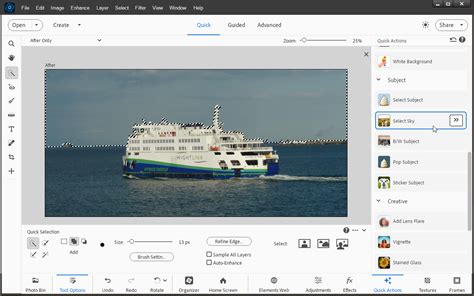
For newcomers to Photoshop Elements, it is crucial to first familiarize yourself with the program's main workspaces. These include distinct areas like eLive, Media, People, Places, and Events, each designed to facilitate different aspects of photo management and editing. Understanding how to navigate these workspaces is the initial step towards effectively organizing, editing, creating, and sharing your photos.
A key component of Photoshop Elements is its Organiser. This tool is central to managing your image library. Learning to use the Elements Organiser will enable you to view, organize, search, and tag your photographs with ease. Furthermore, understanding the workspace layout, different view options, and methods for quickly finding specific photos is essential for an efficient workflow.
Adobe Photoshop Elements 2026 Organizer EXPLAINED in 11 Minutes! EASY Beginner Tutorial
Sorting and Organizing Your Image Collection
Effective organization is the cornerstone of digital asset management. Philip Andrews, a member of the Elements team, provides insights into how to sort, manage, and quickly find photos within your collection. This process often involves utilizing tags, keywords, and categorizations that align with your personal preferences or project needs. By mastering these organizational techniques, you can save considerable time when searching for specific images, enabling you to focus more on the creative editing process.
Core Image Editing Techniques in Photoshop Elements
Once your images are well-organized, the focus shifts to enhancement and manipulation. Photoshop Elements provides a wide array of tools and features to transform your photographs.
Cleaning Up Your Photos
Often, the perfect shot is marred by unwanted elements. Photoshop Elements offers powerful tools to address these imperfections. In more recent versions, features like Content-Aware Fill allow you to seamlessly remove unwanted parts of a photo. This technology intelligently replaces the selected area with content sampled from elsewhere in the image, making it appear as though the object was never there.
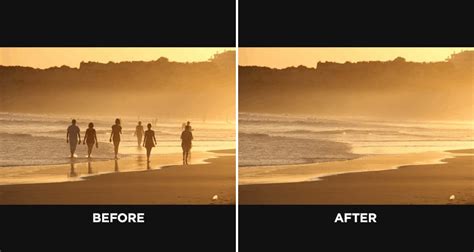
When making selections for removal or modification, precision is key. Intricately shaped objects can be particularly challenging to select accurately. Photoshop Elements provides tools such as the Refine Selection Brush, which allows you to modify existing selections, ensuring that you achieve the best possible results, even around complex edges and details.
The intuitive Scene Cleaner tool, introduced in Photoshop Elements 7, offers further capabilities for tidying up your images. This tool allows you to easily add or remove objects from your scene, giving you greater control over the final composition.
Enhancing Image Quality
Beyond removing distractions, Photoshop Elements excels at improving the overall quality of your images. Many photographs can be significantly improved by adjusting brightness and contrast. If an image is overexposed, losing detail in the highlights, or underexposed, with lost detail in the shadows, or if the contrast is poor, these settings can be corrected. Learning how to adjust brightness, contrast, and levels is fundamental to achieving well-balanced and visually appealing photographs.
Sharpening is another crucial technique for bringing out detail and clarity in your images. Overly soft photos can be revived with careful application of sharpening tools, ensuring that fine details are crisp and well-defined.
Retouching andlemish Removal
Photoshop Elements is also adept at retouching portraits and removing minor imperfections. Tools such as the airbrush and skin smoothing functions can be used to create a more polished look. These techniques, when applied subtly, can enhance portraits without making them look unnatural. Learning to work with layers is also beneficial in retouching, as it allows for non-destructive editing, meaning you can make changes and adjustments without permanently altering the original image data. This also applies to fixing common issues like red-eye, which can be efficiently corrected using dedicated tools.
Adobe Photoshop Elements 2026 Organizer EXPLAINED in 11 Minutes! EASY Beginner Tutorial
Advanced Editing and Special Effects
Photoshop Elements goes beyond basic corrections, offering a range of creative tools for special effects and artistic transformations.
Creating Artistic Effects
For those looking to add an artistic flair to their images, Photoshop Elements provides various options. The Pop Art edit function, available in versions 9 and above, allows you to easily transform your photos into vibrant, graphic artworks reminiscent of pop art.
Guided Edit mode is a particularly useful feature for creating eye-catching special effects. This mode offers step-by-step instructions for a wide range of edits, from basic photo enhancements to more complex visual effects. Whether you are looking to create a dramatic mood or a playful artistic style, Guided Edits can simplify the process.
Sophisticated blur effects, such as tilt-shift and lens blur, can also be easily achieved. These techniques can transform ordinary scenes into miniature-looking landscapes or create a selective focus effect that draws attention to the subject.
Mastering Selection and Composition
Perfecting selections is a recurring theme in advanced image editing. The ability to accurately select complex objects is crucial for many advanced techniques, including compositing and special effects. By mastering tools like the Refine Selection Brush, you can ensure that your selections are precise, leading to more professional-looking results.
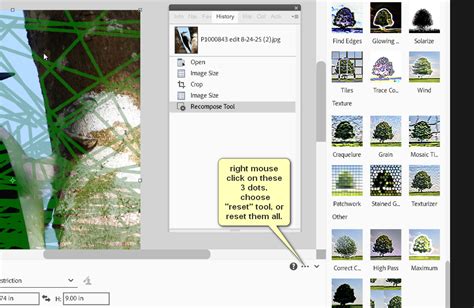
Recomposing photos can also significantly improve their aesthetic appeal. If a photo's composition is almost perfect but slightly off, Elements offers tools to make adjustments. The Recompose tool, for instance, allows you to shift elements within the image while preserving important subjects, helping you to create a more balanced and visually pleasing arrangement.
Protecting Your Work and Creative Exploration
As you create and edit images, protecting your intellectual property is important. Photoshop Elements can assist with this through the creation of custom watermark brushes. A watermark brush allows you to apply a copyright notice or logo to your images with a single click, helping to deter unauthorized use.
For those interested in more stylized outputs, filters like the Pen and Ink filter can be particularly intriguing. This filter cleverly transforms a photograph into a drawing or cartoon-like image, offering a unique artistic treatment.
Learning Resources and Continued Development
Adobe Photoshop Elements Techniques offers a newsletter and website that provides free sample image-editing video tutorials in their Learning Center. These resources are designed to demonstrate the simplicity of creating great-looking photos using Photoshop Elements. They aim to "Unlock the secrets of this amazing program and learn to edit your digital photos the easy way." The tutorials cover everything from basic color correction and sharpening to creating popular photographic special effects, all presented in a step-by-step format.
Adobe Photoshop Elements 2026 Organizer EXPLAINED in 11 Minutes! EASY Beginner Tutorial
For a comprehensive learning experience, video training tutorials are available. For instance, a Photoshop Elements 8 Tutorial Video, led by certified Adobe Instructor/Expert Neil Oliver, provides an in-depth walkthrough of the software's features. This tutorial covers photo management using Adobe Bridge, importing, exporting, and organizing images, as well as advanced editing capabilities. Topics such as using layers, retouching, and fixing red-eye are explored using high-resolution photographs. Tips and tricks are integrated throughout, making it valuable even for experienced Elements users. By the end of such a tutorial, users are expected to be fully versed in the operation of Adobe Photoshop Elements 8 For Mac, with the added benefit of included project files to follow along.
Similarly, an Adobe Photoshop Elements 9 Tutorial Video, taught by expert Adobe author Jerron Smith, covers both Windows and Macintosh versions. This tutorial starts with the basics of the interface and moves into comprehensive image organizing techniques, including storing, sorting, and searching through collections. It then delves into enhancement through color correction, levels, contrast, and sharpening, before exploring image manipulation with layers, text, and painting. The training aims to equip users to import, organize, find, enhance, and share their images effectively. The author's working files are also provided for hands-on learning.
Mastering Photoshop Elements Made Easy offers an extensive learning package with 196 video lessons and over 8 hours of instruction, ranging from introductory to advanced levels. This media-rich learning experience allows users to watch and learn as an expert instructor demonstrates each function step-by-step. The course is designed to be adaptable to individual learning needs, drawing from years of classroom training experience.
The availability of online subscriptions offers significant flexibility and value. With online training, courses can be accessed anytime, anywhere with an internet connection, including all new releases and updates. A subscription typically grants access to all available courses for a single low price, often with no contracts and the ability to cancel at any time. This model provides a cost-effective way to gain proficiency in Photoshop Elements, enabling users to achieve much of what is possible with the full version of Photoshop CC at a fraction of the cost. These tutorials often cover versions from 7 upwards, guiding users from basic tools to advanced effects.
For those seeking to understand the fundamental differences and similarities, it's worth noting that Photoshop Elements contains many of the features of the professional version, Adobe Photoshop, but with fewer and simpler options. This makes it an ideal choice for creatives who do not require the extensive and often complex features of the full Photoshop suite.
Specific Tutorial Examples
- Getting to Grips with the Basics: A video tutorial by Jan Kabili of Lynda.com is recommended for beginners. It explains the main workspaces (eLive, Media, People, Places, and Events) and guides users through organizing, editing, creating, and sharing photos.
- Taking Control of Your Photos: A guide that takes users on a tour of the Elements Organiser, demonstrating how to view, organize, search, and tag photographs. It also covers the workspace, layout, views, and quick photo finding.
- Sorting and Organizing Images: A video-based tutorial by Elements team member Philip Andrews focuses on efficient methods for sorting, managing, and finding photos.
- Losing Unwanted Photo Elements: For Elements 13, a tutorial shows how to remove unwanted parts of a photo using Content-Aware Fill.
- Ensuring Perfect Selections: A tutorial demonstrating how to modify existing selections using the Refine Selection Brush for intricate objects.
- Recomposing Photos: A tutorial for Elements 13 that utilizes the Recompose tool to adjust the composition of photos, moving elements while keeping important subjects intact.
- Cleaning Up Your Scene: A video-based tutorial on using the Scene Cleaner tool (introduced in Photoshop Elements 7) to add or remove objects.
- Fixing Image Exposure and Lighting: A guide on correcting brightness, contrast, and exposure issues in images.
- Airbrushing and Removing Blemishes: A 10-minute tutorial covering user interface, airbrushing, skin smoothing, layers, and blemish removal.
- Creating Pop Art: A video tutorial for Photoshop Elements 9 and above on creating pop art effects using the dedicated function.
- Using Guided Photo Edits: A video tutorial for versions 10 and above that walks through the fundamentals of working in Guided Edit mode for special effects.
- Creating Sophisticated Blur Effects: A tutorial explaining how to create tilt-shift and lens blur effects.
- Creating a Copyright Watermark Brush: A 20-minute tutorial on how to create a one-click watermark for protecting images.
- Mastering the Pen and Ink Filter: A tutorial on using the Pen and Ink filter to give photos a drawn or cartoon look.
These resources highlight the breadth of learning opportunities available for mastering Adobe Photoshop Elements, catering to a wide range of skill levels and creative aspirations.