The ability to make text "pop" is a fundamental skill in graphic design, and often, the secret ingredient is a crisp, clean outline. For users of the popular image editing software Paint.NET, achieving this effect is both accessible and versatile. Think of an outline as a distinct border that separates your text from the background, enhancing readability and visual impact. This guide will walk you through various methods for adding outlines to your text within Paint.NET, from simple duplication techniques to leveraging powerful community plugins.
The Duplicate Layer Method: A Foundation for Outlines
One of the most straightforward and commonly used methods to add an outline to your text in Paint.NET involves duplicating your existing text layer. This approach is intuitive and requires no external tools, making it an excellent starting point for beginners.
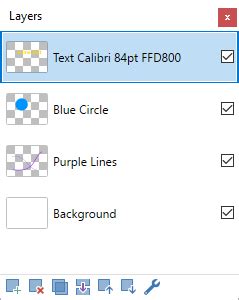
The process begins with typing out your text as you normally would within Paint.NET. Once your text is in place, navigate to the Layers window. This window, typically found on the right-hand side of the Paint.NET interface, displays all the layers in your project. With your text layer selected, you will then duplicate it. This action creates an identical copy of your text layer, stacked directly on top of the original. You will now have two identical text layers, one precisely superimposed over the other.
The magic happens when you work with the bottom layer of these two duplicates. With this bottom layer still selected, the next crucial step is to apply a 'Flood Fill' or 'Color Fill' effect. This is the stage where you define the color of your outline. It is essential to choose a color that provides a pleasing contrast with both your main text color and the background of your image. A well-chosen outline color will make your text stand out without clashing with other design elements.
Following the color fill, the bottom layer needs to be slightly expanded. Paint.NET offers a robust 'Effects' menu, which contains a variety of tools that can be creatively employed for this purpose. Within this menu, you will often find options categorized under 'Distort' or 'Blur'. A widely adopted technique for creating the outline effect is to apply a subtle 'Dilate' or 'Erode' effect to this bottom layer. Alternatively, a very gentle 'Gaussian Blur' can also be used. The objective of these effects is to push the fill color outwards by just a pixel or two. This controlled expansion creates the defined border that will surround your original, un-altered text on the top layer, effectively forming the outline.
The beauty of this method lies in its simplicity and the direct control it offers over the outline's color. It's a foundational technique that allows for quick and effective text enhancement, suitable for a wide range of projects, from simple text overlays to more complex graphic designs.
Harnessing the Power of Plugins: The Outline Object Approach
While the duplicate layer method is effective, Paint.NET's true power is amplified by its vibrant community of plugin developers. For those seeking more precise control over their text outlines, or for users who frequently incorporate outlines into their designs, exploring community-developed plugins is highly recommended. Among these, the 'Outline Object' plugin stands out as a particularly valuable tool.
Plugins like 'Outline Object' are designed to provide users with direct, granular control over various aspects of the outline. Instead of relying on the indirect expansion of a duplicated layer, these plugins offer dedicated settings for outline color, width, and even style. This means you can specify precisely how thick you want your outline to be, choose from a broader palette of colors with greater ease, and in some cases, even select different outline styles, such as dashed or dotted lines, depending on the plugin's capabilities.
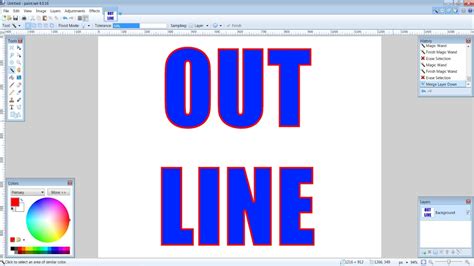
Installing and using these plugins is generally a straightforward process. Once downloaded, they are typically placed in a designated Paint.NET plugin folder, and then become accessible through the software's 'Effects' menu, often appearing as a new category or within an existing one. The interface of an 'Outline Object' plugin will usually present sliders, color pickers, and input fields that allow for real-time adjustments. This interactive approach makes it easy to experiment and fine-tune the outline until it perfectly matches your design aesthetic.
The availability of such plugins transforms text outlining from a multi-step process into a single, targeted effect. This can significantly speed up workflow, especially for designers working on projects with numerous text elements requiring outlines. Furthermore, the ability to save custom outline settings within some plugins can further streamline the design process.
Understanding Paint.NET's Design Philosophy
It's important to remember that Paint.NET, despite its extensive capabilities and the wealth of plugins available, is built upon a core philosophy of simplicity and efficiency. Its user interface is often lauded for being both powerful and approachable, drawing comparisons to more complex software like Adobe Photoshop but offering a significantly gentler learning curve. This design ethos means that even advanced techniques, such as adding detailed text outlines, are made as intuitive as possible.
The layered approach, the accessible 'Effects' menu, and the seamless integration of community plugins all contribute to an environment where users can achieve professional-quality results without being overwhelmed. The software is designed to empower users to focus on their creative vision, rather than getting bogged down in technical complexities.
Elevating Your Visuals with Text Outlines
Whether you are a seasoned graphic designer or a casual user looking to enhance your images, the ability to add a text outline in Paint.NET is a valuable skill. It can dramatically elevate the visual appeal and readability of your text. Consider the impact of a well-defined outline on:
- Catchy Titles: Making the main title of a blog post or article instantly noticeable.
- Social Media Graphics: Ensuring text is legible even when viewed on small screens or against busy backgrounds.
- Logos and Branding: Creating a professional and polished look for brand elements.
- Personal Projects: Adding a unique flair to invitations, posters, or digital artwork.
The key to mastering text outlines in Paint.NET lies in experimentation. Don't hesitate to play around with different outline colors, varying the thickness and style of the outline, and adjusting the order of your layers. Sometimes, the most effective results come from combining different techniques or using effects in unexpected ways.
Paint.net Turorial: How To Outline Text In Paint.net
For instance, you might discover that a subtle drop shadow applied before an outline creates a unique depth effect. Or perhaps layering multiple outlines of slightly different colors can produce a sophisticated, multi-tonal border. The breadth of effects available within Paint.NET, combined with the extensibility offered by plugins, provides an almost limitless canvas for creative exploration.
Ultimately, adding a text outline is not just about making text visible; it's about giving it presence, definition, and a professional finish that can significantly impact the overall success of your visual communication. By understanding the fundamental techniques and exploring the advanced options available, Paint.NET users can confidently add this impactful design element to their repertoire.