The color grading process, due to the necessity of working with the highest possible video bitrate, often with raw codecs, stands as one of the most performance-demanding tasks in the post-production workflow. To meet these stringent requirements, every component of a user's setup must be meticulously optimized, encompassing network and client settings, as well as application configurations. This article delves into the intricacies of achieving optimal DaVinci Resolve performance on MacBook Pro machines, with a particular focus on leveraging the power of Apple Silicon and understanding the nuances of system and network optimization.
The Evolution of DaVinci Resolve on Apple Silicon
The introduction of Apple's M-series chips has significantly reshaped the landscape of video editing performance, and DaVinci Resolve has been at the forefront of this transformation. Updates such as Resolve 17.4 have brought substantial improvements, including a threefold increase in the decoding speed of 12K Blackmagic RAW files and a 1.5 times faster rendering of H.265 files. Furthermore, the integration of ProMotion 120Hz display support enhances the user interface and playback experience, offering smoother visual feedback.
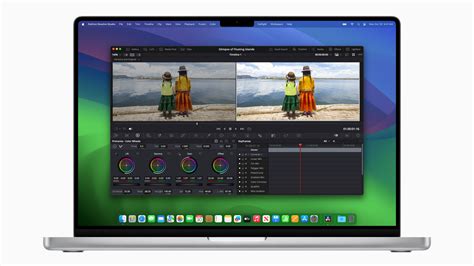
The advancements in Neural Engine performance on M1 Pro and M1 Max chips have translated into up to four times faster facial recognition, object detection, and smart reframing. DaVinci Resolve 17.4 also introduced Dropbox Replay integration, allowing users to upload their videos directly from the studio version to Dropbox Replay. Expanded support for automatic color management simplifies project setup, while the inclusion of ACES 1.3 enables editors to achieve more accurate displays of wide gamut images.
The universal app support for Macs running Apple M1 processors, introduced in DaVinci Resolve and DaVinci Resolve Studio 17.1 updates, marked a pivotal moment. This optimization means that for codecs like H.265, both M1 CPUs and recent Intel CPUs can experience performance gains. While early tests focused on H.264, subsequent updates have continued to refine these optimizations.
System Memory and GPU Considerations
DaVinci Resolve 18 necessitates a minimum of 8 GB of system memory to run on macOS, with 16 GB being the requirement when utilizing Fusion. While this is the baseline to get the application operational, it is strongly recommended to increase memory allocation for DaVinci Resolve to 32 GB or above for optimal performance. The precise amount of RAM required is contingent upon an individual's specific workflow. Users can adjust memory limits within the application by navigating to Preferences > Memory and GPU > System.
When considering hardware, particularly for users evaluating upgrades or new systems, the importance of GPU cores cannot be overstated. In the context of DaVinci Resolve, more GPU cores directly translate to faster rendering speeds. While Mac Minis offer a more compact and budget-friendly option, Mac Studios, with their higher GPU core counts (e.g., 30 GPU cores in an M2 Max versus 16 in an M4 Pro), often exhibit superior performance in GPU-intensive tasks. While RAM is crucial, testing has indicated that DaVinci Resolve does not necessarily demand more RAM than what is available on configurations like the Mac Mini, even when handling demanding multicam sequences. The focus for performance gains in Resolve often leans towards maximizing GPU capabilities.
Network Optimization for Shared Storage
Working with high-bitrate footage, especially from raw codecs, necessitates a robust network infrastructure when utilizing shared storage. Optimizing network settings can yield significant improvements in overall Resolve performance.
Jumbo Frames
A key optimization involves enabling "jumbo frames" across your network infrastructure, provided all components support it. Jumbo frames allow each network packet to carry more data, leading to increased throughput and better Resolve performance. On macOS, this can be configured by accessing System Preferences > Network, selecting the relevant network interface, clicking "Advanced…", navigating to the "Hardware" tab, setting "Configure:" to "Manually," and then setting the MTU to "Custom" with a value of "9000."

SMB Protocol Tuning
With the release of macOS 10.12 Sierra, Apple enhanced network share security through SMB2 and SMB3 protocols, which include packet signing and optional encryption. While beneficial for external security, these features are often unnecessary on internal networks and can negatively impact connection performance. Disabling them in nsmb.conf is generally recommended for improved speed. For users of specific storage solutions like ELEMENTS, this step may not be required.
For those using ATTO network cards, the ATTO 360 application offers a suite of tuning profiles designed to optimize card settings for various scenarios, including high throughput and low latency. Activating the SMB tuning profile within ATTO 360 and restarting the Mac Studio afterwards can lead to enhanced Resolve performance over SMB connections.
Direct I/O and Cache Settings
Within DaVinci Resolve, users can explore playback settings by navigating to Preferences > User > Playback Settings. Enabling "Hide UI overlays" and "Minimize interface updates during playback" can help dedicate more resources to playback.
The "Direct I/O" feature, which allows DaVinci Resolve to write directly to the drive using kernel buffers and bypass the normal storage cache in RAM, theoretically unlocks the full performance potential of a drive on Linux OS. However, it's important to note that enabling Direct I/O can often decrease performance in most practical scenarios.
Benchmarking and Real-World Performance
Understanding how DaVinci Resolve performs under various conditions is crucial for making informed hardware and software decisions. Real-world tests provide valuable insights beyond theoretical benchmarks.
M1 Max MacBook Pro Performance
A 14" M1 Max MacBook Pro with a ten-core CPU, 64 GB RAM, and a 24-core GPU, utilizing footage from external NVMe SSDs (like the Samsung T7), has demonstrated robust performance. Testing with DaVinci Resolve 17.4.1 and Final Cut Pro 10.6, both optimized for M1 Max hardware, revealed interesting comparisons.
In a transcoding test involving 10 minutes and 12 seconds of 8K 10-bit 4:2:2 H.265 footage from a Canon R5, DaVinci Resolve completed the task in 4 minutes and 34 seconds, with Final Cut Pro closely following at 4 minutes and 36 seconds. When transcoding to 8K ProRes 4:2:2, both applications took approximately 35 seconds.
A ProRes export test, using ProRes proxies to export to a ProRes deliverable, showed a significant difference: Final Cut Pro finished in 2 minutes and 30 seconds, while Resolve took 4 minutes and 58 seconds. This suggests that Final Cut Pro might offer faster export performance when dealing with extensive titles, clip scaling, and a need for rapid finalization. However, for workflows without extensive downscaling or title overlays, the performance can be comparable.
When using hardware acceleration for exports, the GPU is heavily utilized, with the CPU showing minimal load. One user reported a render time of 2 minutes and 36 seconds with hardware acceleration on, regardless of whether the machine was on battery power or plugged in.
MacBook NEO for FILMMAKERS - Can DaVinci Resolve work with 8GB of RAM - Tests and Buying Advice
M-Series Mac Mini vs. Other Macs
Comparisons between different M-series Macs highlight the impact of core counts and system architecture. A 2024 M4 Pro Mac Mini, for instance, offers significant power at a competitive price point. While it excels in many areas, it doesn't always win every performance benchmark. In tests comparing the M4 Pro Mac Mini to a 2018 Intel Mac Mini, an M1 Pro MacBook Pro, and an M2 Max Mac Studio running DaVinci Resolve 19.1, it's evident that any M-series Mac vastly outperforms Intel-based systems.
GeekBench tests often show the M4 Pro winning in combined CPU speed. However, for GPU performance, core counts become critical; a Mac Studio with an M2 Max and 30 GPU cores will outperform an M4 Pro with 16 GPU cores in GPU-bound tasks.
Specific Workflow Tests
A specific test scenario involved a project in UHD at 24 FPS, using a UHD 4:2:0 (or 4:2:2) H.264 source clip (high or HQ, 24 FPS). The only applied effect was Superscale 2x enhanced (default settings), with no grading, LUTs, or VFX. The export was a UHD H.265 clip limited to 12,000 kbps bitrate (or automatic) at 24 fps. Results varied: a Mac mini with an M4 (10-core CPU, 10-core GPU, 16GB RAM) achieved 0.5 - 1.0 FPS. This type of testing is valuable for users considering hardware upgrades to optimize their Resolve experience.
In multicam editing, DaVinci Resolve demonstrates efficient memory management. Even with 30 streams of 4K video, RAM usage remained around 7.4 GB. While Resolve typically drops a frame during multicam playback initiation, a green "GPU overload" light indicates normal playback, while red signifies an inability to process the streams. Multicam editing generally benefits from ample RAM, with 24 GB often being sufficient, even for demanding scenarios.
Playback Monitoring and Frame Dropping
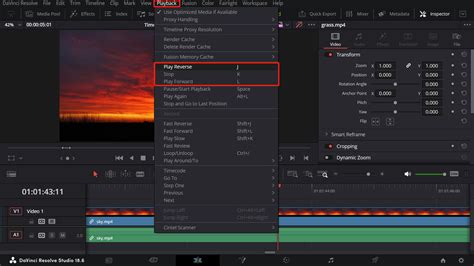
To accurately assess playback performance, DaVinci Resolve offers visual cues. A green dot displayed above the video in the source or timeline monitor signifies real-time playback. For a more granular understanding, enabling "Show all video frames" in the playback window's three-dot menu ensures that every single frame is displayed sequentially, even if it means playback occurs slower than real-time, with audio playback potentially compromised. DaVinci Resolve can also be configured to stop playback if a frame is dropped, indicating a potential performance bottleneck. If playback issues persist despite all optimizations, checking the transmission speed between the client and shared storage using tools like iperf is recommended. Iperf measures transmission speed between network nodes using only RAM and network interfaces, providing a clear indication of network throughput.
Conclusion
Achieving optimal DaVinci Resolve performance on a MacBook Pro, especially when dealing with demanding color grading and high-resolution footage, is a multifaceted endeavor. It requires a holistic approach that encompasses leveraging the power of Apple Silicon's M-series chips, meticulously optimizing system resources like RAM and GPU, and fine-tuning network configurations for shared storage. Through understanding and implementing these optimizations, users can unlock the full potential of their hardware and achieve smoother, more efficient post-production workflows.