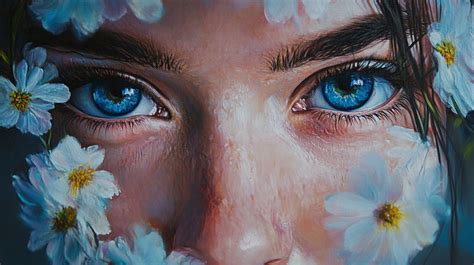
Digital photography offers an unparalleled ability to capture moments with remarkable clarity and intricate detail. However, the journey from a raw photograph to a finished masterpiece often involves the transformative power of post-processing. Among the myriad of creative avenues available, applying oil painting effects in Photoshop stands out as a particularly engaging and artistically rewarding technique. Photoshop actions, essentially pre-recorded sequences of editing steps, provide a streamlined and efficient method to imbue your digital images with the rich, textured aesthetic of traditional oil paintings. These actions can dramatically alter the visual narrative of a photograph, turning the ordinary into the extraordinary with just a few clicks.
Understanding the Appeal of Oil Painting Effects
The allure of oil painting lies in its inherent characteristics, which digital tools can expertly emulate. One of the most defining features of traditional oil paintings is their palpable texture. The visible brushstrokes imbue the artwork with a sense of depth, adding a dynamic and engaging quality that draws the viewer in. Photoshop actions designed to replicate oil painting effects achieve this by layering various textures onto your photographs, mimicking the physicality of paint applied with a brush.
Furthermore, oil paintings are celebrated for their opulent and vibrant color palettes, often enhanced by dramatic lighting that creates striking contrasts and focal points. Many oil painting Photoshop actions incorporate steps that amplify saturation and contrast, bestowing images with that same vivid, captivating quality. This ability to enhance color and light is crucial in transforming a flat digital image into something with the dimensionality and richness of a canvas.
Beyond technical replication, applying an oil painting effect bestows a unique, artistic signature upon your photographs. This distinctive style can make your work stand out, whether you are developing pieces for a gallery exhibition, refining images for commercial clients, or simply exploring your creative potential. The distinctive look achieved through these actions offers a powerful way to communicate a specific artistic vision.
The practical advantage of using Photoshop actions for this effect cannot be overstated. Manually recreating the nuances of an oil painting-the subtle blending, the textured strokes, the specific lighting-can be an incredibly time-consuming endeavor, demanding a significant level of skill and artistic expertise. Photoshop actions automate this complex process, democratizing the creation of sophisticated artistic styles. This accessibility means that individuals without extensive traditional art training can achieve professional-looking results with remarkable ease, making advanced artistic transformations available to a much wider audience.
Exploring the "Impressive Oil Painting Photoshop Actions Bundle" by Artixty
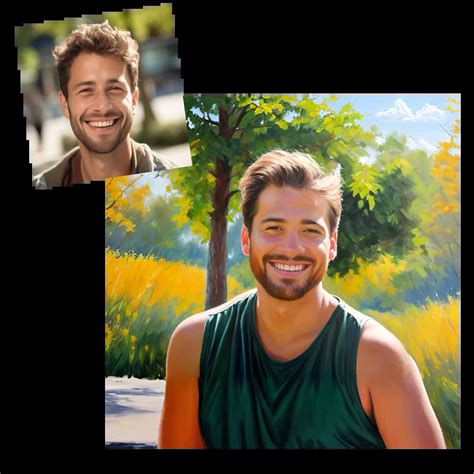
For those keen on achieving visually compelling oil painting effects within Photoshop, specialized toolkits offer a significant advantage. The "Impressive Oil Painting Photoshop Actions Bundle," developed by Artixty, is one such comprehensive collection. This bundle is designed to equip users with a suite of tools that facilitate the creation of high-quality oil painting aesthetics in a remarkably short timeframe. The bundle encompasses 50 distinct Photoshop actions, each capable of being applied to any image to generate a diverse array of oil painting styles. These effects can be broadly categorized into several artistic interpretations, including cartoon painting, vector painting, retro painting, and comic painting effects, providing a broad spectrum of creative possibilities.
The tutorial material associated with this bundle is specifically crafted to ensure users gain a thorough understanding of each action's potential. This educational component is invaluable, particularly for those new to the concept of Photoshop actions or seeking to deepen their knowledge of digital art techniques. Beyond dedicated bundles, a wealth of oil painting tutorials can be found on platforms like YouTube. These resources cater not only to beginners but also to experienced users looking to expand their repertoire of Photoshop oil painting techniques.
How to Utilize Photoshop Oil Painting Actions
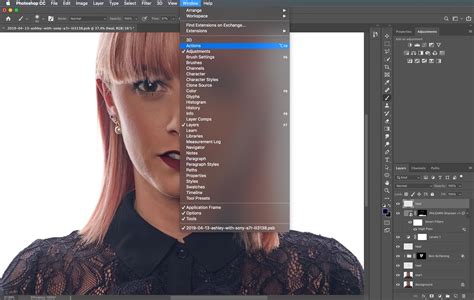
Getting started with a bundle like the Artixty Impressive Oil Painting Photoshop Actions Bundle is a straightforward process, designed for user-friendliness. The initial step involves downloading and subsequently installing the Action Bundle into your Photoshop software. Once the installation is complete, applying the desired effect becomes as simple as navigating to the Actions panel, selecting the specific action you wish to utilize, and clicking the "Play" button. Photoshop then executes the pre-recorded sequence of commands, which includes a variety of adjustments and filter applications. These steps work in concert to systematically transform your selected image, culminating in a visually rich oil painting effect.
Let's Fix Oil Paint Filter Grayed Out & Inactive in Photoshop | Working 💯
The beauty of these actions lies in their ability to automate complex editing sequences. Instead of manually adjusting numerous settings, filters, and layer styles, a single click initiates a cascade of effects. This not only saves considerable time but also ensures a consistent and predictable outcome, which is particularly beneficial when working on multiple images that require a similar artistic treatment.
Advanced Techniques and Customization
While Photoshop actions offer a powerful one-click solution, they also provide ample room for creative refinement and personalization. To achieve the most compelling results, consider incorporating several advanced tips and tricks:
Working with Brush Styles and Settings
The Photoshop Actions Bundle, as highlighted in its accompanying tutorials, often includes a variety of brush styles that are easily customizable. This customization is key to tailoring the effect to your specific image and artistic vision. You can readily adjust parameters such as brush size, opacity, and flow. Modifying the brush size can alter the boldness and scale of the painted strokes, from fine, delicate lines to broad, expressive sweeps. Opacity controls the transparency of the brush effect, allowing for subtle layering or strong, opaque applications. Adjusting the flow influences the rate at which paint is applied, impacting the density and build-up of color, much like a real brush. Experimenting with these settings allows you to fine-tune the texture and appearance of the painted strokes, ensuring they complement the subject matter of your photograph.
Fine-Tuning Color and Saturation
The effectiveness of an oil painting effect is deeply tied to its color rendition and saturation levels. Depending on the original image, you may need to make adjustments to achieve your desired aesthetic. For instance, an image with muted colors might benefit from increased saturation to emulate the vibrancy often seen in oil paintings. Conversely, an image with already intense colors might require a more subtle approach to avoid an overly artificial look. The ability to adjust color and saturation levels post-action application provides a crucial layer of control. This allows you to strike the correct balance, ensuring the colors not only look appealing but also serve the overall mood and narrative of the artwork. Continuous experimentation with different levels is encouraged to discover the optimal combination for each unique photograph.
Leveraging Layer Masks for Precision
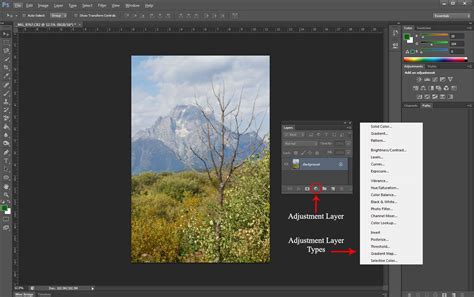
Layer masks are an indispensable tool for achieving nuanced and targeted effects. If you find that the oil painting effect could be enhanced in specific areas of your image, layer masks offer a precise method to achieve this. For example, you might want the oil painting effect to be more pronounced on the background elements while retaining finer detail in a portrait's facial features. By using a layer mask, you can selectively reveal or conceal the effect applied by the action. This is particularly effective when working on intricate details such as facial features, hands, or small objects, where preserving clarity is paramount. A layer mask allows you to blend the artistic transformation seamlessly with the original image data, creating a more integrated and believable final artwork.
The Native Oil Paint Filter in Photoshop
Beyond third-party actions, Adobe Photoshop itself offers a powerful built-in tool for creating oil painting effects: the Oil Paint filter. This filter is designed to transform a photograph into an image that possesses the visual characteristics of a classic oil painting. To access it, navigate to Filter > Stylize > Oil Paint.
The Oil Paint filter provides several key controls. One notable parameter is the "Angle," which adjusts the incidence angle of the light that illuminates the simulated brushstrokes, rather than directly controlling the brushstroke itself. This subtle control can significantly impact the perceived texture and depth of the painted effect.
Significant enhancements have been made to the Oil Paint filter in recent Photoshop versions. With the release of Photoshop 23.2, the filter was re-engineered to capitalize more effectively on the native GPU (Graphics Processing Unit) resources available on both macOS and Windows operating systems. This optimization results in substantially faster performance, a benefit that becomes particularly apparent when working with larger, more complex files. The improved processing power means that users can see the effects of their adjustments in near real-time, leading to a more fluid and interactive editing experience.
If you find that the Oil Paint filter is disabled or unresponsive, it's essential to check your system's compatibility. The filter requires your computer to support OpenCL v1.1 or higher. For users operating on Mac OS X 10.11 and later, particularly those with AMD graphics processors, Photoshop can leverage Apple's Metal graphics acceleration framework. This integration further boosts the performance of the Oil Paint filter, ensuring a smoother workflow.
Creating Your Own "Instant Photo to Oil Painting" Action
For those who prefer a more hands-on approach or wish to develop a highly personalized workflow, creating a custom Photoshop action can be an incredibly rewarding endeavor. This process involves recording a series of editing steps that, once complete, can be applied to any photograph with a single click.
To begin, open the photograph you intend to transform into an oil painting. Access the Actions panel in Photoshop. Here, you will create a new action by clicking the "Create new action" button. You can name this action something descriptive, such as "Instant Photo To Oil Painting," and assign a keyboard shortcut for quick access. For example, Shift+Ctrl+F12 (or Shift+Command+F12 on a Mac) is a convenient combination.
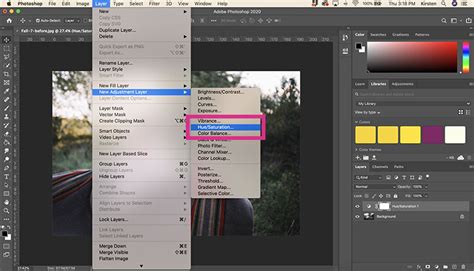
The first step in creating a rich oil painting look often involves enhancing the image's colors. Increase the saturation using a Hue/Saturation adjustment layer. Access this by going to Image > Adjustments > Hue/Saturation (or using the shortcut Ctrl+U on Windows / Command+U on Mac). Drag the "Saturation" slider to the right, perhaps to around 40-50%, to make the colors appear more intense, almost as if you've slightly overdone it - this often leads to a more painterly feel.
Next, you will utilize Photoshop's powerful Filter Gallery to stack multiple filter effects. While the Filter Gallery can be accessed directly from the Filter menu, applying the first filter will automatically launch it. Begin with the "Glass" filter, found under Filter > Distort > Glass. Adjust the settings: set "Distortion" to 3, "Smoothness" to 3, choose "Canvas" from the "Texture" dropdown, and set "Scaling" to 79%. The Filter Gallery is akin to a layers palette for filters, allowing you to combine multiple effects.
With the Glass filter applied, add more effects. For the second effect, select "Brush Strokes" under Filter > Stylize. Set "Brush Size" to 4, "Sharpness" to 1, and choose "Simple" from the "Brush Type" dropdown.
For the third effect, choose "Strokes" under Filter > Stylize. Adjust "Direction Balance" to 46, "Stroke Length" to 3, and "Sharpness" to 1.
The fourth and final filter effect can be found under Filter > Texture > Canvas. Set "Scaling" to 65% and "Relief" to 2. After applying these four filters, click "OK" to merge them into your image.
Now, you need to desaturate this newly filtered layer to create a black and white base for further effects. Use the shortcut Shift+Ctrl+U (Win) / Shift+Command+U (Mac) for a quick desaturation. Change the blend mode of this desaturated layer from "Normal" to "Overlay" in the Layers palette. This blend mode allows the underlying color information to show through while incorporating the texture and details of the overlay layer.
Finally, apply one last filter: "Lens Correction" under Filter > Lens Correction. In the "Custom" tab, adjust the "Vignette" settings. Set the "Amount" slider all the way to the right (500%) and adjust the "Midpoint" to control the extent of the darkening. You may also adjust the "Angle" and "Height" for subtle variations.
Once all steps are completed, stop recording the action. You now have a custom action that can transform any photo into an oil painting with your chosen settings. Remember that the processing time for actions can vary depending on your computer's power and the complexity of the steps involved.
Exploring Diverse Oil Painting Action Styles
The realm of Photoshop oil painting actions is vast, offering a multitude of styles to suit different artistic preferences. Beyond the general "oil painting" effect, numerous specialized actions exist, each designed to emulate specific painting techniques and aesthetics:
- Hard Oil Painting: This type of action is geared towards creating digital artworks with a strong, defined oil paint effect. It's often designed for graphic designers and photographers seeking impactful, creative visuals.
- Smart Painting Effect: These plug-ins aim to convert photos into realistic paintings, often maintaining a layered structure that allows for significant creative control after the initial application. The process is typically non-destructive, preserving the original image layer.
- Realistic Painting Photoshop Action: As the name suggests, these actions focus on achieving a highly realistic painted look without requiring the user to possess traditional painting skills. They are excellent time-savers for client work, gifts, or personal projects.
- Aquarelle Watercolor Action: While not strictly oil painting, this type of action transforms photos into realistic watercolor paintings, often including pre-made color options and effects for added versatility.
- Vector Art Actions: These actions are designed to convert photos into vector-style art, characterized by clean lines and flat color areas, achieved with just a few clicks after brushing over the subject.
- Impressionistic Artistic Photoshop Action: This category aims to transform photos into professional, modern artworks with an impressionistic style, often incorporating oil and knife painting techniques for a highly detailed and versatile result.
- Vexel Art/Cartoon Effect Actions: Similar to vector art actions, these transform photos into a cartoonish or vexel art style, typically involving brushing over the subject and playing the action.
- Impressionist Painting Effect Actions: These actions create an impressionist painting effect in a single click, often offering multiple brush options, detail settings, and color variations.
- Cartoonize Actions: These actions are specifically designed to give images a cartoonish appearance, often with an oil paint aesthetic.
- Acrylic Action: This action emulates the look of acrylic paint, complete with realistic paint drops, splashes, and streaks.
When selecting an oil painting action, whether from a bundle or as a standalone download, consider the specific style you wish to achieve and the type of photographs you typically work with. Many actions are available for free, while others are premium paid options offering more advanced features or unique aesthetics.
The Transformative Power of Digital Artistry
In conclusion, transforming photographs with oil painting effects in Photoshop opens up a new dimension of creativity and artistic expression. By introducing depth, texture, and rich color palettes reminiscent of traditional oil paintings, these digital tools empower users to elevate ordinary photos into striking pieces of digital art. The ease of use, significant time savings, and the vast array of creative possibilities make these actions an invaluable resource for photographers, graphic designers, and digital artists of all skill levels. Whether employing specialized bundles, leveraging Photoshop's native filters, or creating custom actions, the journey to digital artistry is more accessible and exciting than ever before.