The .psd file extension is synonymous with Adobe Photoshop, a powerful and versatile program that has become an industry standard for graphic design, photography, and web development. These files are cherished by professionals for their ability to store layered images, offering unparalleled flexibility in editing and manipulation. Each layer can house text, graphics, or images, allowing designers to tweak elements individually. Photographers utilize PSDs to meticulously enhance and refine their images, modifying colors, removing flaws, and applying sophisticated filters. For web developers, the PSD format is invaluable for slicing layouts into smaller, optimized images. Furthermore, PSD files can contain smart objects, crucial for maintaining high-quality resolutions when resizing logos, icons, and banners without any loss of detail. In advertising, these files are the backbone for designing eye-catching posters, flyers, and digital advertisements. They also serve as excellent repositories for working drafts, preserving the iterative process of design.
However, the proprietary nature of Photoshop and its subscription-based model can present a barrier for individuals who only need to access or make minor edits to PSD files occasionally. This is particularly true for students working on school projects, or for those who require a quick alteration to a design element without the commitment of a full subscription. In such scenarios, the need to open a PSD file without Photoshop becomes paramount. Fortunately, a variety of tools and methods exist to circumvent this necessity, offering accessible solutions for viewing and even editing these complex layered images.
Understanding the PSD File Format: More Than Just a Flat Image
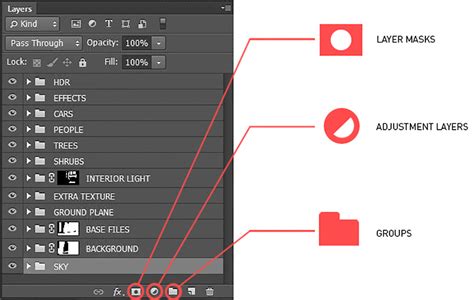
At its core, a PSD (Photoshop Document) file is the native format for Adobe Photoshop. What sets it apart from common image formats like JPG or PNG is its inherent support for layers. Unlike a flattened image where all elements are merged into a single layer, a PSD file preserves each individual component - text, shapes, effects, and images - as separate, editable layers. This layered structure is the key to Photoshop's power, enabling users to:
- Edit individual elements: Change text, adjust colors of a specific shape, or modify the opacity of an effect without impacting other parts of the image.
- Maintain design integrity: Preserve the original design intent and allow for future revisions or adjustments with ease.
- Create complex compositions: Build intricate designs by stacking and blending multiple elements.
- Store working drafts: Keep versions of a design in progress, allowing for easy rollbacks or the exploration of different creative directions.
This inherent edibility and the ability to store multiple layers make PSD files indispensable for graphic designers crafting complex visuals, photographers refining their shots, and web developers preparing assets for online use.
Bridging the Gap: Opening PSD Files on Windows
For Windows users, accessing PSD files without Photoshop often involves leveraging third-party software. While Windows does not natively support the direct opening and full editing of PSD files within its default applications, several robust alternatives can fulfill this need.
IrfanView: This free and lightweight image viewer is a strong contender for simply viewing PSD files. It is not overly complicated and is suitable even for beginners. IrfanView's primary purpose is to open and convert images, and while it supports a wide array of formats, its capabilities with PSDs are primarily for viewing flattened versions. You can render Photoshop files that have been previously flattened, but editing or saving PSD images directly without converting them might be limited. However, its speed and minimal resource usage make it an excellent choice for a quick look at a PSD.
GIMP (GNU Image Manipulation Program): Often hailed as the most powerful free and open-source alternative to Photoshop, GIMP offers robust built-in support for the PSD format. This means you don't need to install any additional plugins to open and work with PSD files. GIMP can process every layer of a complex image, making it a significant advantage over simpler viewers. It is available for Windows, macOS, and Linux, providing a consistent experience across different operating systems.
Paint.NET: Building upon the simplicity of Microsoft Paint, Paint.NET offers a more versatile platform for image editing. While its native support for PSDs is limited, its functionality can be significantly enhanced with the help of third-party plugins specifically designed to handle the PSD format. These plugins can unlock the ability to edit individual layers, bringing it closer to Photoshop's capabilities. However, users should be aware that running numerous plugins might occasionally lead to application instability.
XnView MP: This highly inclusive software is a powerhouse when it comes to format support, handling over 500 different file types for audio, video, and images. XnView MP also excels in exporting to more than 70 formats, making it an ideal tool for converting PSD files into more universally compatible formats. It offers a multi-platform version supported on Windows, Mac, and Linux, with different installation settings to suit varying disk space and add-on preferences.
Google Drive: While not a dedicated image editor, Google Drive offers a surprisingly convenient way to preview PSD files. Simply uploading a PSD file to your Google Drive allows for its preview within the cloud-based service, even without specific PSD-handling software installed. This is particularly useful for quick checks, sharing files with others, or accessing them from different devices.
Unlocking PSDs on macOS: Built-in Convenience and Beyond
macOS users often find themselves with a slightly more streamlined experience when it comes to opening PSD files, as the operating system includes built-in applications capable of handling them to a certain extent.
Preview and Quick Look: macOS comes with native applications, Preview and Quick Look, that can open Photoshop pictures. This means that often, simply selecting a PSD file and hitting the spacebar (for Quick Look) or right-clicking and choosing "Open With" > "Preview" will allow you to view the image. While these tools are primarily for viewing, Preview also offers the functionality to export the PSD into different formats, providing a basic conversion capability without needing external software.
GIMP and XnView MP: As mentioned for Windows users, GIMP and XnView MP are also fully compatible with macOS, offering more advanced viewing and editing capabilities for PSD files.
Mobile Access: Opening PSDs on the Go
The need to access PSD files doesn't always confine itself to a desktop or laptop. For iPhone users, the situation is a bit different from macOS, as there isn't a standard built-in application that fully supports the PSD format. However, several applications can be downloaded to bridge this gap.
The Image Converter Apps: The Apple App Store hosts numerous "Image Converter" applications. Many of these are capable of importing PSD files and converting them into more common formats like JPG or PNG, allowing for viewing and basic editing within other compatible mobile apps.
Adobe Photoshop Mix for iOS: While not a full Photoshop experience, Adobe's own Photoshop Mix offers a mobile solution for working with layered images. It can import PSD files, allowing for some level of editing and manipulation on the go, and can also export in various formats.
Photopea (Online Editor): For any mobile user with internet access, Photopea (discussed further below) is an incredibly powerful online editor that functions perfectly within a mobile browser, offering a full-fledged Photoshop-like experience without any installation.

Online Solutions: Browser-Based PSD Access and Editing
For those who prefer not to install any additional software on their computers, or for users who need a quick, on-demand solution, online editors offer a compelling alternative.
Photopea Online Editor: This is arguably one of the most impressive web-based tools for handling PSD files. Photopea is an online application that closely mimics Photoshop's interface and functionality. It can open, edit, and convert PSD files without any loss of quality. Crucially, it supports layers, masks, and effects directly from Photoshop. This makes it an ideal solution for users who only deal with PSD files infrequently and just need to open them, or for those who require minor quick changes. When saving, you can choose to export the image in a different format, effectively eliminating the need to ever deal with PSDs again if desired. Photopea is accessible from any device with an internet browser.
How to EDIT a PSD FILE in Photopea (Step by Step)
Figpea: Another web-based tool, Figpea, provides a "PSD Compatible Rendering" option within its rendering menu. This feature allows for control over how layers are displayed by utilizing the pre-composite image data embedded within the PSD file. Figpea serves as a potent alternative for developers implementing designs, stakeholders reviewing artwork, or anyone needing to quickly inspect a PSD file without installing Photoshop.
Google Drive: As previously mentioned, Google Drive's ability to preview PSD files makes it a simple yet effective online solution for viewing these documents.
Beyond Viewing: Editing PSDs Without Photoshop
While viewing PSD files is often the primary concern, some users may need to make edits. The tools mentioned above offer varying degrees of editing capability:
- GIMP: Offers the most comprehensive editing suite among the free, installable options, allowing for significant manipulation of layers and effects.
- Photopea: Provides a near-Photoshop experience in the browser, enabling detailed editing, layer management, and effect application.
- Paint.NET (with plugins): Can offer decent editing capabilities for individual layers once the appropriate plugins are installed.
- Preview (macOS): Limited editing, primarily focused on basic adjustments and format conversion.
- IrfanView: Primarily a viewer, with very limited editing features for PSDs.
Considerations for Sharing and Workflow
When working with PSD files, especially in a collaborative environment, sharing and workflow efficiency are key.
Tiiny Host: For seamless sharing of PSD files, Tiiny Host is presented as a valuable option. This service allows users to upload their files in a few simple steps, and the hosted files can be accessed and viewed anytime via a shareable link, irrespective of the device used. This eliminates the need for recipients to have specialized software installed.
PSD Codec for Windows Explorer: For Windows users who prefer to see PSD thumbnails directly within File Explorer, installing a "PSD codec" utility is the best way to achieve this. This enables previews for PSDs and a range of other formats directly in the file browser, streamlining the process of locating specific files.
Avoiding Common Misconceptions
It's important to clarify some common misunderstandings regarding PSD files and their accessibility:
- "PSD files can only be opened by Photoshop": This is false. While Photoshop is the native editor, numerous alternative tools, both free and paid, can open and often edit PSDs.
- "All PSD files are the same": PSD files can vary greatly in complexity. Some may contain only a few layers, while others can have hundreds, with intricate layer masks, smart objects, and various blending modes. The performance of alternative software can sometimes depend on the complexity of the PSD.
- "Free tools offer no editing capabilities": This is also untrue. Tools like GIMP and Photopea offer extensive editing features that rival, and in some cases, even surpass, certain aspects of Photoshop.
The Takeaway: Empowering Your Workflow
In conclusion, the ability to open and interact with PSD files without a Photoshop subscription is not only possible but also remarkably accessible. Whether you need to simply view a design, make minor adjustments, or undertake more complex editing, a diverse range of free software, online editors, and even built-in operating system features are available. These tools empower users to manage their graphic design assets efficiently, save money on subscriptions, and maintain flexibility in their creative workflows. For everyday use, formats like JPG or PNG might suffice, but when the power of layers and editable elements is required, the world of PSDs is readily navigable, even without the full Adobe suite.