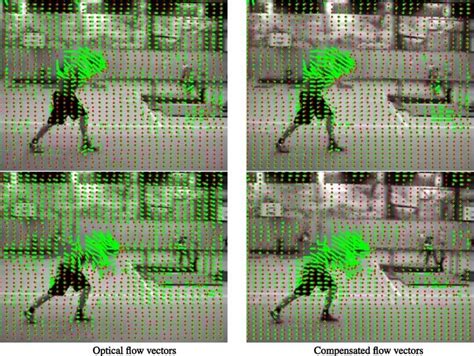
Slow motion effects have become an essential part of modern filmmaking, used to add suspense and creative touches to action sequences, dreamy scenes, character introductions, music videos, and commercials. One of the most iconic examples is the Spartan VS Persian battle in Zack Snyder's 300, which was made even more epic with slow-motion effects that highlighted its main characters. Typically, the process of creating slow motion involves lowering the frame rate of a video clip below its original rate, causing it to play back at a slower speed. However, with modern cameras and mobile phones capable of shooting at high frame rates of 60, 100, 120, or even 240 FPS, filmmakers have more flexibility to experiment with slow-motion effects. But what if you've shot something at a lower frame rate? Can you still create a slow-motion video with it? In today's article, you'll learn how to apply slow motion in DaVinci Resolve 18 to video clips shot at lower frame rates using optical flow to achieve smooth and realistic slow-motion sequences. Let’s dive in!
Understanding the Challenge of Low Frame Rate Slow Motion
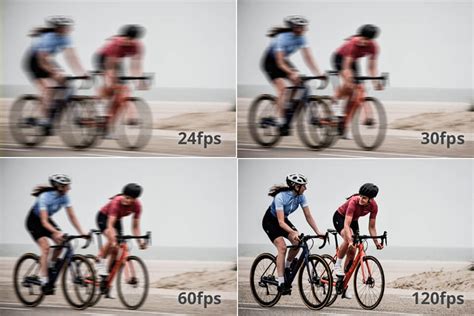
The reason why it's recommended to shoot at a high frame rate is because it's easier to create a slow-motion effect this way. You just need to set the clip's playback rate lower. But if you slow down a video with a lower frame rate, it won't have enough frames to create that smooth slow-motion effect, and instead, DaVinci Resolve will hold and repeat the frames. The result will look weird and choppy. This is where frame interpolation comes into play, and specifically, DaVinci Resolve's powerful optical flow technology.
What is Optical Flow in DaVinci Resolve?
DaVinci Resolve's optical flow uses frame interpolation to fill in the missing frames by creating new ones in between. It analyzes all pixels in the video clip and estimates how they move from frame to frame. Then, it generates new frames using that information and calculations. With optical flow, you can achieve a fantastic and smooth slow-motion effect without sacrificing quality. However, you won't need to use optical flow when you shoot with a higher frame rate than the playback frame rate unless it adds artifacts, ghosting, and other issues. But with high frame rate footage, you will usually avoid these problems.
Method 1: Slow Motion with DaVinci Resolve's Built-in Optical Flow
A few methods exist to add slow motion in DaVinci Resolve 18 with the frame interpolation method. For this tutorial, you'll learn how to add slow motion with DaVinci Resolve's Optic Flow for video clips that need to add missing frames.
Step 1: Import Your Video Clip
Start a new DaVinci Resolve project and import your video footage from File > Import > Media. Ensure your footage is readily accessible within the media pool.
Step 2: Access Retime Controls
To slow down the video, you need to display the Retime controls. Right-click the clip in the timeline and select 'Retime Controls' from the dropdown menu. Alternatively, you can press CTRL+R (Windows) or Command+R (Mac) to enable the Retime controls.
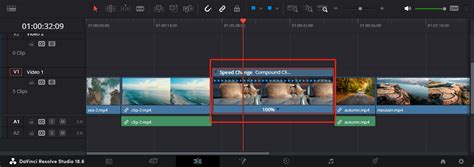
Upon enabling Retime Controls, you will see a "Speed Change" bar appear on top of the clip, along with a percentage number displayed beneath it. This percentage signifies the current playback speed of the video clip. You can adjust the clip's speed by dragging the ends of the speed change bar, making it shorter or longer. As you manipulate these controls, the percentage will dynamically update to reflect the new speed.
To access more granular speed settings, click the small arrow located next to the '100%' indicator. This action will reveal a menu where you can precisely specify the desired speed in 'Change Speed' and the exact percentage by which you want to increase or decrease the playback rate.
Step 3: Adding Speed Points for Dynamic Ramping
If you desire a clip to commence at its original speed and then transition into slow motion at a specific point, you can strategically place speed points. Position the playhead at the exact frame where you wish the slow-motion effect to begin. Then, click the arrow next to the '100%' to open the clip's contextual menu. From this menu, select 'Add Speed Point.' Repeat this process at the frame where you want the slow-motion effect to conclude.
You will observe that the clip is now visually segmented by each speed point you have created. Each of these sections possesses its own independent retime controls, allowing you to adjust the speed of that specific segment. This enables you to create sophisticated speed ramps, such as starting a video at full speed and gradually decelerating to half speed in the middle of the clip.
Step 4: Enabling Optical Flow for Smoothness
At this stage, your video might appear jittery because DaVinci Resolve is not yet utilizing optical flow. To enable this advanced frame interpolation, open the Inspector panel and navigate to the 'Video' tab. Scroll down to find the 'Retime and Scaling' section and click on it to reveal the frame interpolation settings.
Within the Retime Process dropdown menu, select 'Optical Flow.' For Motion Estimation, choose 'Speed Warp.' It's important to note that when using Speed Warp, you won't be able to see the new playback speed in real-time due to the computational demands. However, you can render the section to preview the final result.
The effectiveness of Optical Flow is highly dependent on the nature of your footage. It may introduce artifacts and warps, particularly in scenes with excessive motion or when objects frequently obstruct the view. Experimentation is key to finding the optimal settings for your specific clips.
Smooth Slow Motion Secrets with Optical Flow in DaVinci Resolve 19
Method 2: Advanced Slow Motion with Boris FX Continuum's BCC Optical Flow
Our second method involves leveraging the power of third-party plug-ins from Boris FX Continuum. BCC Optical Flow is an integral part of the Continuum suite but can also be acquired as a standalone Continuum Unit. This plug-in integrates seamlessly with both DaVinci Resolve Studio and the standard version of the software, offering a robust alternative for achieving high-quality slow motion.
Step 1: Project Setup
Begin by importing your video footage into DaVinci Resolve. Then, drag and drop the desired video clip onto your timeline. For enhanced control and access to more options, it is recommended to perform these steps on the Edit page.
Step 2: Applying BCC Optical Flow
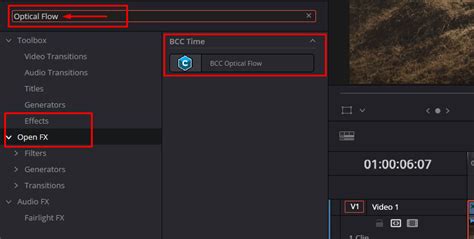
Open the effects library within DaVinci Resolve. In the search bar, type "Optical Flow." You will find the BCC Optical Flow effect located under Open FX > Filters > BCC_OFX > BCC Time. Drag this effect onto your video clip on the timeline.
Step 3: Fine-Tuning BCC Optical Flow Settings
The primary control for adjusting the speed of your clip is the 'Velocity' slider. Decreasing this slider below 100% will gradually slow down the video playback. Conversely, increasing it above 100% will accelerate the playback speed. Crucially, you can keyframe the 'Velocity' parameter, allowing you to introduce dynamic speed variations and create complex speed ramps within a single clip.
Another critical setting is 'Input Frame Rate.' For optimal results and to prevent jitters or artifacts, you must set this parameter to match the original frame rate of your source clip. This information can be found in the clip attributes within the media pool. It is important to distinguish the input frame rate from the timeline frame rate, which is configured in your project settings.
If you notice any artifacts or undesirable distortions in your footage, you can adjust the 'Optical Flow Resolution' parameter. Experiment with 'Optical Flow Resolution,' 'Blending modes,' 'Optical Flow Mix,' and 'Motion Estimation' settings until your footage achieves the desired smoothness. Remember that the optimal settings will vary depending on the specific content of your video.
Step 4: Rendering for Preview and Export
Working with advanced optical flow processing can be computationally intensive, often pushing your computer's resources to their limits, even on high-end systems. Consequently, you may not be able to preview the optical flow effect in real-time. To accurately assess the slow-motion effect and ensure it meets your expectations, it is essential to render the video section or the entire timeline. This rendering process will allow you to see the final output and make any necessary adjustments before exporting your project.
Adjusting Audio in Slow Motion Sequences
When applying slow motion to a video clip, the accompanying audio often requires separate attention, as it can become distorted or unnatural when slowed down. To manage audio independently, it is advisable to unlink the video and audio clips before applying any optical flow processing. Unlinking allows you to manipulate the audio track without affecting the video, and vice versa.
If your clips display a chain icon, it signifies that they are linked. To unlink them, right-click on the clip and select 'Link Clips' to deselect the option. Once unlinked, you can change the clip speed, edit the audio, or even replace it entirely with a different audio clip to better suit the slowed-down visuals.
In DaVinci Resolve, audio editing is primarily handled on the Fairlight page, identifiable by the musical note icon. Here, you have access to a wide array of audio effects, including support for VST plug-ins. To ensure your audio sounds as good as your visuals, always strive for high-quality source audio. If your original audio contains unwanted background noise or imperfections, consider using third-party plug-ins like CrumplePop, which specialize in cleaning and enhancing audio quality, effectively removing distracting background sounds.
Factors Influencing Optical Flow Results
Achieving excellent results with optical flow in DaVinci Resolve largely depends on the quality and nature of the video footage you are working with. Generally, video clips that exhibit less motion and were recorded with a steady camera tend to yield superior slow-motion effects. Conversely, complex shots characterized by excessive motion, rapid changes in lighting, and significant camera movement can present greater challenges for optical flow algorithms, potentially leading to more noticeable artifacts.
To maximize the quality of your slow-motion sequences, it is crucial to experiment with the various parameters available within both DaVinci Resolve's native optical flow and third-party plug-ins. Finding the optimal settings for each individual video footage is often an iterative process. Many advanced plug-ins, such as BCC Optical Flow, offer the ability to save your custom settings as presets. This feature is invaluable, allowing you to quickly recall and reuse your optimized configurations for similar footage in future projects, significantly streamlining your workflow.