Paint.NET, a popular image editing application for Windows, offers a streamlined and accessible approach to digital artistry. While it excels in many areas, a notable limitation historically has been its native inability to process files in the widely adopted Photoshop .PSD format. This gap has been effectively bridged by a crucial filetype plugin, enabling seamless integration between Paint.NET and the industry-standard Photoshop ecosystem. This plugin allows users to both load and save .PSD files, facilitating a fluid exchange of work between Paint.NET and other graphics software, a capability particularly valuable given that Paint.NET preserves layers exclusively for its default .PDN format, flattening other file types upon saving.
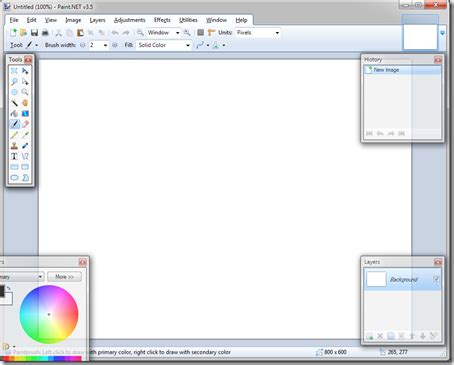
Installing the PSD Plugin: A Straightforward Process
The Paint.NET PSD plugin is typically distributed as a single DLL file. To integrate it into your Paint.NET workflow, this file needs to be placed within the filetypes folder of your Paint.NET installation directory. For users who have installed Paint.NET in its default location, newer versions of the Windows operating system might prompt for confirmation when moving files into program folders. This is a standard security measure to prevent unauthorized changes. Once the DLL file is successfully placed, the Paint.NET application will automatically recognize the plugin the next time it is launched.
It is paramount to ensure that all instances of Paint.NET are closed before proceeding with the installation of the DLL file. This ensures that the application does not encounter any conflicts while updating its file handling capabilities. After restarting the application, the plugin should be active, allowing you to manage .PSD files directly within Paint.NET.
Establishing File Associations: Making PSDs Work for You
While the plugin itself enables Paint.NET to read and write .PSD files, the operating system's default file associations might not automatically link .PSD files to Paint.NET. To establish this connection, users need to manually create the association. This is a straightforward process: right-click on any .PSD file on your computer, navigate to the "Open With" option in the context menu, and then select "Choose another program." From the list of available applications, select Paint.NET. This action ensures that double-clicking a .PSD file will now open it directly in Paint.NET, streamlining your workflow.
Leveraging PSD Capabilities within Paint.NET
The PSD plugin significantly enhances Paint.NET's utility by allowing it to interact with a format that is a de facto standard in the graphics industry. This means users can now open layered Photoshop documents, providing access to the individual elements and compositions created in Photoshop. Furthermore, the ability to save in .PSD format allows users to export their work from Paint.NET in a way that preserves layer information, which can then be further edited or refined in Photoshop or other compatible software. This interoperability is crucial for collaborative projects and for artists who utilize a combination of different editing tools.
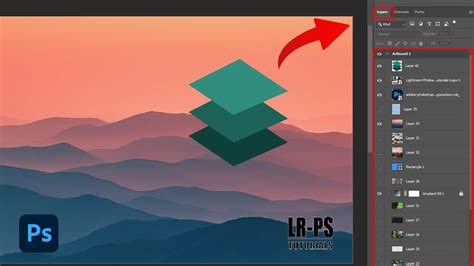
When working with .PSD files in Paint.NET, users can take advantage of several image manipulation features. This includes the ability to edit RGB channels, adjust color depth, and, most importantly, work with image layers. While Paint.NET is a powerful tool, it's important to acknowledge that it is ultimately a less complex application than Adobe Photoshop. Consequently, certain advanced features found in Photoshop may not translate directly or be fully supported when working with .PSD files in Paint.NET.
Understanding Limitations and Potential Issues
The developer of the PSD plugin has noted that users may occasionally encounter situations where a .PSD file does not load or save properly. This is often attributed to the inherent differences in complexity between Paint.NET and Photoshop. Photoshop, with its extensive feature set, can incorporate advanced functionalities and specific layer types that Paint.NET, by design, may not be equipped to fully interpret or replicate.
For instance, certain vector features, complex layer effects, or specific color profiles that are native to Photoshop might not be rendered accurately or could be flattened during the save process in Paint.NET. The plugin strives to provide the best possible compatibility, but these inherent limitations mean that a perfect, lossless translation for every single .PSD file might not always be achievable. Users should be aware of these potential discrepancies, especially when dealing with highly intricate Photoshop documents.
Paint.net tutorial -- How to open Photoshop files -- PSD Plugin
The Role of User Feedback in Plugin Development
The continuous improvement of the Paint.NET PSD plugin is significantly driven by user feedback. The developer actively incorporates suggestions and reports of issues from the user community to refine the plugin's functionality and address bugs. This collaborative approach ensures that the plugin evolves to meet the practical needs of its users, making it an increasingly robust solution for bridging the gap between Paint.NET and Photoshop. Users who find the plugin beneficial and wish to support its ongoing development are encouraged to consider making monetary contributions via PayPal. Such contributions directly aid in the maintenance and enhancement of this valuable tool.
Ensuring Optimal Plugin Performance
To ensure that the PSD plugin functions as intended, it is crucial to have the latest version of Paint.NET installed on your system. Plugin compatibility can sometimes be dependent on the underlying version of the host application. Furthermore, it's important to note that the Windows Store version of Paint.NET utilizes different plugin directories compared to the traditional desktop installation. Users of the Windows Store version will need to ensure they are placing the PSD plugin DLL file in the correct, application-specific folder to have it recognized. This detail is vital for a smooth and uninterrupted experience when working with Photoshop files.
The ability to exchange work between Paint.NET and other programs using the .PSD format is a significant advantage. It allows artists to leverage Paint.NET for quick edits, adjustments, or initial compositions, and then seamlessly transition to Photoshop for more advanced manipulations or vice versa. This flexibility empowers users to choose the right tool for the right task without being constrained by file format limitations. The PSD plugin, therefore, acts as an essential bridge, enhancing the overall versatility and utility of Paint.NET for a broader range of creative professionals and hobbyists alike.