ibisPaint X has emerged as a powerhouse in the digital art community, offering a robust suite of tools for artists of all levels. At the heart of any digital painting application lies its brush engine, and ibisPaint excels in providing a diverse range of brush types, alongside extensive customization options that empower users to sculpt their unique artistic voice. This exploration delves into the nuanced world of ibisPaint's brush functionalities, from pre-set types to the intricate art of custom brush creation and the settings that govern them.
The Spectrum of ibisPaint Brushes
ibisPaint X offers a vast array of brush types, catering to a multitude of artistic styles and techniques. These can broadly be categorized into pre-set brushes, imported brushes, and custom-created brushes.
Pre-set Brushes: A Foundation for Creativity
The application comes equipped with a comprehensive library of pre-set brushes, designed to mimic traditional art tools and digital effects. These serve as an excellent starting point for beginners and a reliable tool for experienced artists. Among these, several types stand out for their unique applications.
Opal Pens: These brushes are particularly adept at adding ethereal effects and blending colors. One variation is set to an "overlay" mode, which can create luminous and translucent layers, while another functions without this specific blending mode. They are most effective when used with lighter colors and can be a little tricky to master, offering an experience akin to using a rainbow brush. The subtle interplay of color and light they produce can elevate an artwork, adding a touch of magic.
Cloud Pen: This brush is excellent for introducing texture into a piece or for calligraphy. While the user may not personally engage in calligraphy, the potential for this brush in that domain is significant. Its soft, diffused edges are ideal for creating atmospheric backgrounds or adding a painterly feel to linework.
Rose (Watercolor): As the name suggests, this is a brush specifically configured to emulate the look of watercolor roses. It's perfect for artists looking to incorporate floral elements into a watercolor-style painting without the complexities of simulating the medium from scratch. The organic, slightly unpredictable nature of watercolor is captured effectively.
Charcoal Dirt: This brush is designed for adding texture, though it may not be as frequently used by all artists. It can provide a gritty, earthy feel, suitable for sketches, distressed textures, or adding depth to monochromatic pieces.
Texture Flat Brush (Real): This brush is a versatile tool for adding texture and also serves as a coloring instrument. Its flat, broad stroke can cover areas efficiently while imparting a distinct textural quality, making it useful for both filling in large areas and adding subtle surface details.
Custom Brushes: Unleashing Individual Expression
The true power of ibisPaint X lies in its ability to allow users to create and import their own brushes. This opens up a universe of possibilities, enabling artists to develop tools perfectly tailored to their specific needs and aesthetic.
Creating Brush Patterns: Users can create their own brush patterns from scratch. This process begins by selecting "Brush Pattern" from the "Create New" option in "My Gallery." In "Edit Pattern" mode, artists can draw their desired design on a dedicated canvas. This pattern can then be tested in "Test Drawing" mode, where brush settings like fade and shape can be fine-tuned. Once finalized, the brush pattern is automatically uploaded to the server and becomes available for use in the Brush Window, ready to be applied to regular canvases.
Importing and Sharing Brushes: The user-provided information highlights the sharing of custom brushes. It's crucial to note the user's explicit request: "Do NOT repost anywhere without my permission or claim as your own. Reblogs are welcome." This underscores the importance of respecting intellectual property and crediting creators when using shared brushes.
Deep Dive into Brush Settings and Customization
ibisPaint X provides an extensive array of settings that allow for profound customization of brush behavior, affecting everything from how a brush interacts with the canvas to how it responds to stylus input.
Brush Tool Settings: Precision and Control
Within the Brush tool settings, artists can fine-tune numerous parameters to achieve their desired outcome.
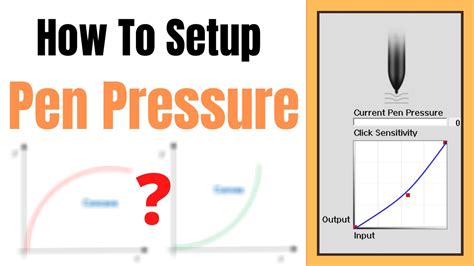
Pressure Sensitivity: This is a cornerstone of digital art, allowing brushes to respond to varying levels of stylus pressure.
- Use Pressure Sensitivity: Enabling this feature allows for nuanced control over brush thickness and opacity based on how hard the stylus is pressed. If this option is grayed out, it may indicate that the device or stylus does not support pressure sensitivity.
- Weak Sensitivity: This slider allows users to decrease the overall impact of pressure sensitivity. Moving the slider left reduces pressure sensitivity, while moving it right increases it.
- Graph Adjustment: A visual graph allows for detailed fine-tuning of pressure sensitivity. The curve dictates how pressure translates to line thickness and opacity. Raising the curve makes lines thicker and more opaque, while lowering it results in thinner, less opaque lines. Users can add or delete control points on the graph for even more granular adjustments.
- Touch Offset: For users experiencing slight inaccuracies between stylus or finger input and the resulting line, the Touch Offset function can adjust the positioning. This is particularly useful for stylus users.
- Supported Stylus & Selection: ibisPaint supports a range of digital styluses, many of which are compatible with pressure sensitivity. Users can view a list of compatible styluses and connect their chosen device through the settings.
- Stylus Settings: Once connected, specific settings for the digital stylus can be adjusted, though not all styluses offer this feature.
- Palm Rejection: This essential feature, particularly useful when using styluses like Wacom's, allows artists to rest their palm on the screen while drawing without interfering with the canvas. However, it also makes the surface unresponsive to fingers for actions like zooming. Assigning Palm Rejection to a stylus button can enhance workflow.
- Hovering Marks: The option to "Show Thickness Mark while Hovering" and "Show Cross Mark while Hovering" can be enabled. These display visual cues on the screen indicating the brush thickness and the precise position of the stylus tip when hovering, aiding in accuracy.
Brush Behavior:
- Brush Thickness Depends on Canvas: When enabled, brush thickness scales with the canvas size, ensuring consistent visual weight regardless of the artwork's resolution. When disabled, the brush thickness remains constant.
- Texture Memory Size: This setting allows users to manage the memory allocated for creating artwork. Adjusting this can impact performance and stability. Increasing it may improve performance but could lead to instability, while decreasing it can enhance stability at the cost of potential performance degradation.
- Reset Basic/Custom Brush Parameters: Options are available to reset all brush parameters to their default values, both for basic and custom brushes.
Stylus Button Customization
Many digital styluses feature one or two programmable buttons. ibisPaint allows users to assign specific functions to these buttons, such as "Undo" or switching between the brush and eraser tools, streamlining the creative process.
User Interface and Workflow Settings
Beyond brush-specific settings, ibisPaint offers a wealth of options to customize the user interface and overall workflow.
- Undo/Redo Gestures: Two-finger tap for undo and three-finger tap for redo can be enabled, offering quick and intuitive ways to correct mistakes.
- Quick Eyedropper: This feature allows users to quickly select colors by holding down on the canvas while using the brush tool. The activation time can be customized, and users can disable it if it's unintentionally triggered.
- Canvas Rotation: The ability to rotate the canvas with two fingers is a standard feature that aids in achieving comfortable drawing angles.
- Reference Window: This window can be toggled on or off to display reference images while working.
- Window Color: Users can select a color theme for the application's interface.
- Interpolation on Zoom In: This setting determines how the canvas appears when enlarged. "On" results in a blurred image, while "Off" leads to a pixelated appearance.
- Tool Select Position & Columns: Users can customize the position and number of columns for the tool selection window, optimizing it for their screen size and preferences.
- Show Label in Tool Selection: Tool names can be displayed or hidden in the tool selection window.
- Sound Effects: Sound effects for actions like undo and redo can be enabled or disabled.
- Layer Row Height: The height of layer rows in both the standard and floating layer windows can be adjusted.
- Layer Window Thumbnail: Users can choose to display the entire layer content or only the drawn portions in layer thumbnails.
- Background Color: The canvas background color can be customized. This is a Prime feature on iOS/Android and a Pro feature on Windows.
- Watermark on Videos: The ibisPaint watermark displayed on playback videos can be disabled.
- Cloud Synchronization: Settings for cloud synchronization, including automatic syncing over mobile networks and preventing the device from sleeping during sync, are available. Storage capacity can also be increased via Prime Membership.
- Remove Ads & Prime Membership: Options to remove ads and access Prime Membership benefits are provided.
- Save Settings: Users can choose to save settings for tools like the Bucket, Stabilizer, Selection Area, Filter Parameters, and Adjustment Layer Parameters, preventing them from reverting to defaults when returning to "My Gallery."
- Texture Memory Size: This setting allows users to manually adjust the memory used for creating artwork, impacting performance and stability.
- Reset Options: Comprehensive reset options are available for various parameters, including basic and custom brush parameters, color palettes, filter parameters, adjustment layer parameters, and stylus settings.
- Font Management: Downloaded fonts can be uninstalled to save storage space.
- Remove All References & Delete Brush Pattern Images: Options to clear loaded reference images and delete stored brush pattern images are available.
Brush Customization Series | Episode 4: Type, Dynamic, Settings | Beginner's Course for IbisPaint X
Advanced Features and Workflow Enhancements
ibisPaint X continually evolves with new features designed to enhance the digital art workflow.
Vector Tools Enhancements:
- Vector Eraser: The Vector Eraser now includes an "Up to Intersection" mode, allowing for precise line segment removal. Users can also choose line end shapes like "Fade" or "Round."
- Whole Line Deletion: The "Whole Line" option in the Vector Eraser allows for the complete deletion of a line by dragging across it.
- Handle Modes: Vector layers offer three handle modes: "Smooth," "Normal," and "Angular," providing precise control over curve manipulation.
- Brush Shape Simplification: This feature reduces the number of vertices in brush and curve shapes while preserving their form, leading to cleaner vector data. The "Strength" and "Angle Threshold" sliders offer control over simplification.
New Filter and AI Capabilities:
- Watercolor Filter: Added to the "AI" filter category, this filter allows for adjustable saturation.
- AI Disturbance Adjustment: For AI training, the intensity of noise can be adjusted to prevent misinterpretation of original illustration styles.
- Background Removal: This "Filter (AI)" feature allows users to specify objects for cutout and offers a mode to select backgrounds, with an option to hide the mask for preview.
- Retro Game Filter: Found under "Filter (Artistic)," this filter allows adjustments to Level, Dot Size, and Saturation.
- Spin Blur: A "Spin Blur" filter has been added for creating radial blur effects.
- History Category in Filters: A "History" category displays recently used filters, enabling quick reapplication.
- High-Resolution Image Output: Artwork can be saved and shared as high-resolution images, double the canvas size, with a partition bar to compare original and enhanced sizes.
- Adjustment Layers: ibisPaint now supports Adjustment Layers, offering 21 types of filters that can be toggled on/off, adjusted after application, and managed like layers. Hue, Saturation, and Lightness are examples of available adjustments.
Workflow and Organization:
- Artworks Folder: "My Gallery" now supports folders, allowing for better organization of artworks.
- Floating Layer Window: This feature keeps the Layer window persistently visible within the working area, with adjustable size.
- Layer Selection for Drawings: When using the eyedropper tool, the name of the layer containing the drawing at the touched position is displayed, and tapping it sets that layer as the active one. This is compatible with keyboard shortcuts.
- Material Search: The Material Tool now includes a search function, significantly speeding up the process of finding desired materials from a vast collection.
- Brush Search: A search feature in the Brush window allows users to quickly locate specific brushes by name.
- Color History: The Color Palette now displays a history of recently used colors, up to 100, for easy selection.
- Canvas Color Modes: When creating new manga manuscripts, users can choose between "Color," "Gray Scale," and "Black & White" modes, optimizing for different types of artwork.
- Manga Manuscript Function: This feature simplifies the creation of manga-compliant canvases with customizable sizes, guide colors, and frame settings. It allows for easy switching between displaying and hiding inner and trimming frames.
- Grid Display: Gridlines can be displayed on the canvas, aiding in precise alignment and pixel art creation.
- Selection Area Expansion: The ability to expand or contract selection areas is useful for precise image extraction and avoiding fringing.
- Transform Tool Enhancements: Zooming and rotating layers with one finger using the Transform tool has been simplified.
Input and Interaction:
- Keyboard Shortcuts: Extensive keyboard shortcuts have been added for iPhone, iPad, Android, and Windows PCs, enhancing efficiency for users with connected keyboards. This includes shortcuts for changing brush size and switching between brush and eraser tools.
- Stylus Support: ibisPaint supports hovering marks for Apple Pencils and other styluses. It also supports the barrel roll function of Apple Pencil Pro, allowing brush patterns to rotate with the stylus.
- Squeeze Gesture: Support for the squeeze gesture on Apple Pencil Pro adds another layer of input interaction.
- Numeric Keypad: When inputting numerical values, a dedicated numeric keypad with functions like Backspace, Decimal Point, and +/- toggles is available.
Animation and Content Creation:
- Animation Function: ibisPaint now includes an Animation Function, allowing users to create animations by adding frames and drawing on each.
- Prime Membership: Prime Membership offers benefits such as increased cloud storage, access to prime materials, and prime fonts, now available on the Windows version as well.
The continuous introduction of new features and refinement of existing ones solidifies ibisPaint X's position as a leading digital art application, empowering artists with an unparalleled level of control and creative freedom over their brushwork and overall artistic process.