Adobe Lightroom's AI-powered masking tools have revolutionized photo editing, offering unprecedented control and efficiency. These intelligent selections, such as "Select Sky" or "Select Subject," allow users to isolate specific areas of an image for targeted adjustments. However, users occasionally encounter a prompt to "Update AI Settings" after applying masks, particularly when engaging in further edits like healing or cloning. This message, while often benign, can be a source of frustration, interrupting the editing workflow. Understanding the underlying reasons for this prompt and exploring potential solutions can help users regain a seamless editing experience.
The Mechanics Behind the "Update AI Settings" Prompt
The core of the "Update AI Settings" message lies in the dynamic interplay between AI-generated masks and subsequent pixel-level modifications. When an AI mask is created, Lightroom identifies and defines a specific area based on its understanding of the image content. For instance, a "Select Sky" mask meticulously outlines the sky portion of a photograph. If a user then proceeds to perform a healing or cloning edit within this masked area, they are, in essence, altering the pixels that Lightroom's AI initially interpreted as "sky."
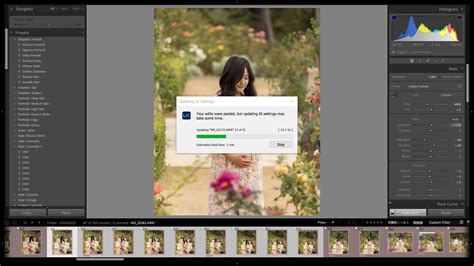
This alteration can create a discrepancy. The healing brush or clone stamp might remove an object, like a stray bird or a distracting power line, from the sky. From a human perspective, this is a desired adjustment. However, from the AI's perspective, the area where the object was removed is no longer purely "sky" as it was initially defined. This is where the "Update AI Settings" prompt comes into play. Lightroom is essentially alerting the user that the original AI mask may no longer perfectly represent the modified area. It's a request for the software to re-evaluate and recalculate the mask based on the new pixel data.
The prompt is particularly relevant when healing edits are performed after an AI-based mask has been applied. Imagine selecting the sky and darkening it, only to then use the healing brush to remove a construction crane. The cloning action has altered the pixels that Lightroom's AI initially identified as sky. The underlying problem is that the cloning has changed what one - or AI - would define as sky. This can lead to the edited area looking odd, sometimes subtly, other times immediately, prompting the user to waste time trying different cloning techniques.
The Role of Mask Recalculation
The need for mask recalculation becomes clearer when considering specific scenarios. As one user pointed out, "if you perform a healing action and there is a sky mask, then that mask will need to be recalculated." The reasoning is straightforward: if an object is removed from the sky, the mask will have a gap where that object was. Without recalculation, a "ghost" of the removed object might become visible, especially if the mask isn't updated to close that gap. Lightroom, however, does not differentiate whether the removal occurred within the masked sky area or in a region not covered by the sky mask. The prompt is triggered by any pixel modification within a masked region.
This behavior can be observed on the desktop version of Lightroom, where the message might appear on "every other shot it seems." While the mask itself might remain functional, and clicking "Update" might not visibly change anything, the persistent message can be "rather annoying." This issue has been reported to occur regularly, even after software updates. Interestingly, this behavior is often not replicated on the mobile version, such as the iPhone app, suggesting potential differences in how the desktop and mobile applications handle AI mask recalculations.
Workflow Adjustments for a Smoother Experience
For users experiencing this persistent "Update AI Settings" prompt, adjusting their editing workflow can significantly mitigate the issue. The consensus among experienced users suggests a proactive approach: performing pixel-level edits, such as healing or cloning, before applying AI-based masks. This strategy ensures that the AI mask is generated on the final pixel data, thus avoiding the need for recalculation.
One user shared their realization: "it seems best to perform any healing before applying a mask." This simple shift in process can prevent the discrepancy that triggers the update prompt. By healing out distractions or making local adjustments first, the subsequent AI mask will be based on the completed image, leading to a more stable and predictable editing experience.
Batch Editing and AI Mask Issues
A related challenge that has surfaced concerns batch editing with AI masks. Users have expressed frustration when the ability to copy and paste settings, including AI masks, to multiple images seems to have diminished. Previously, it was possible to edit one picture with masks and then copy those settings to subsequent photos. However, some users report that "Now for some reason it's not possible," and that the "update AI settings" prompt appears on every photo after the mask has been copied, even if the mask was initially created on a single image.
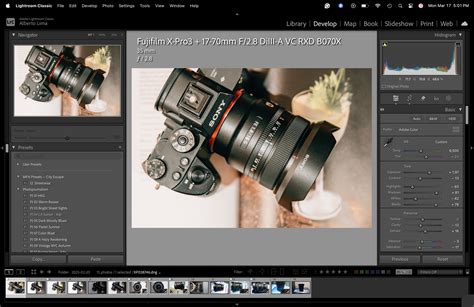
This inability to seamlessly copy AI mask settings can be a significant impediment to efficiency, especially for photographers working with large batches of images. Various "hacks" from forums have been attempted with limited success, leading to a plea for solutions: "I can't copy and paste settings of masks (only does one picture at a time even if I've selected more). I've tried different hacks from these forums. NOTHING!"
Potential Solutions and Workarounds
When faced with persistent AI mask issues, including the inability to batch copy settings, several workarounds have been explored by the Lightroom community. One significant solution that has proven effective for some users involves managing Lightroom catalogs.
One user reported that "This problem was solved for me when I opened a new catalog." While acknowledging that this might not be the "best solution or the easiest," the desperation to resolve the issue led them to this step. Creating a new catalog can sometimes reset underlying data conflicts or corruption that might be interfering with AI mask functionality and batch processing. It's a more drastic measure, but for some, it has been the key to unlocking a functional editing workflow.
Another aspect to consider is the location of the Lightroom catalog. While not explicitly detailed in the user's query, the prompt "did you move the LR catalogue back to its original home off desktop?" suggests that catalog location and file management can sometimes play a role in software performance and feature reliability. Ensuring the catalog is stored in an optimal location, not on an external drive that might be disconnected or slow, can contribute to smoother operation.
It's also worth noting that software updates themselves can sometimes introduce or resolve issues. The user's mention that they "updated LR and am having the same issue. None of my masks work at all, not even I created on one photo" indicates that updates are not always a guaranteed fix and can, in some instances, exacerbate existing problems or introduce new ones. This highlights the importance of community forums and shared experiences in troubleshooting complex software behaviors.
Understanding the AI's Perspective on Image Integrity
Delving deeper into the "why" behind the "Update AI Settings" prompt reveals a fundamental aspect of AI's role in image editing. AI, by its nature, relies on patterns and definitions. When an AI mask is created, it's based on a learned understanding of what constitutes, for example, a "sky." This definition is derived from analyzing vast datasets of images.
When a user then performs a healing edit, they are essentially introducing an anomaly into that defined pattern. If a dust spot is cloned out of the sky, the AI's original definition of "sky" in that specific pixel area is now altered. It's akin to asking a mathematician to re-evaluate an equation after you've erased a crucial variable. The AI needs to re-process the information to maintain the integrity of its selection.
LIGHTROOM MASKING TRICKS AND HACKS that took me forever to learn.
The "ghost" effect mentioned by users is a visual representation of this discrepancy. The AI mask, if not updated, might still be attempting to apply adjustments to an area that no longer fits its original definition. By prompting an update, Lightroom ensures that the mask accurately reflects the current state of the image pixels, preventing unintended visual artifacts.
The Evolution of AI in Lightroom
The introduction of AI-powered masks like "Select Sky," "Select Subject," "Select People," and "Select Background" has been a significant leap forward for Adobe Lightroom. These tools leverage machine learning algorithms to automate complex selection processes that previously required laborious manual masking with tools like the pen tool or quick selection. This technology allows for more precise and nuanced edits, such as selectively adjusting the color temperature of the sky or enhancing the details of a subject's face without affecting the rest of the image.
The "Update AI Settings" prompt, while sometimes inconvenient, is a testament to the ongoing development and refinement of these AI capabilities. It signifies a system that is not static but rather adaptive, striving to maintain accuracy as the image undergoes modifications. As AI technology continues to evolve, we can anticipate even more sophisticated masking tools and potentially more intuitive ways of managing these AI-driven adjustments within Lightroom. The goal is always to empower photographers with tools that enhance their creative vision while streamlining their workflow.