The inability of Adobe Photoshop to recognize pen pressure can be a frustrating roadblock for digital artists, illustrators, and designers. This issue can halt creative workflows, especially for those who rely heavily on the nuanced control that pressure sensitivity offers. While seemingly straightforward, the problem can stem from a variety of sources, ranging from specific Photoshop settings to underlying driver configurations and operating system interactions. This article aims to systematically address the common causes and provide a comprehensive guide to troubleshooting Photoshop pen pressure malfunctions.
Understanding the Core Components of Pen Pressure in Photoshop
Before delving into troubleshooting, it's crucial to understand the interplay between your graphics tablet, its drivers, the operating system, and Photoshop itself.
Graphics Tablet and Drivers
Your graphics tablet, such as a Huion Kamvas 22, is the hardware that detects the pressure applied by your stylus. The tablet's drivers are the software that translates these physical inputs into digital signals that your computer and applications can understand. These drivers are essential for features like pen pressure, tilt sensitivity, and button mapping. Ensuring these drivers are up-to-date is a fundamental step in troubleshooting.
Windows Ink
Windows Ink is a Microsoft platform that provides a standardized way for applications to interact with pen and touch input devices. Many drawing and painting applications, including Photoshop, leverage Windows Ink to interpret pen pressure and other stylus data. The status of Windows Ink, whether enabled or disabled, can significantly impact pen pressure functionality.
Photoshop's Brush Settings
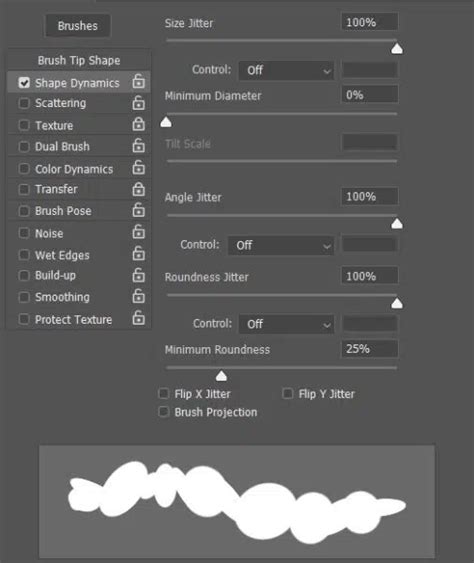
Within Photoshop, the brush engine is where pen pressure is ultimately applied to modify brush characteristics like size, opacity, flow, and more. Specific settings within the "Brush Settings" panel, particularly under "Shape Dynamics," are critical for enabling and controlling pen pressure.
Initial Troubleshooting Steps: The Basics
Often, the simplest solutions resolve complex issues. Before diving into more intricate fixes, it's advisable to perform these fundamental troubleshooting steps.
Restarting Devices and Applications
A common first step for many technical problems is to restart. This includes:
- Restarting your computer: A full system reboot can clear temporary glitches in the operating system and background processes that might be interfering with Photoshop or your tablet drivers.
- Restarting Photoshop: Closing Photoshop completely and reopening it can resolve temporary software conflicts or corrupted session data.
- Checking USB Connection: If you're using a drawing tablet that connects via USB, try unplugging the tablet's USB cable and reinserting it. Sometimes, a loose connection can disrupt communication. If possible, try a different USB port on your computer to rule out a faulty port.
Verifying Tablet Functionality Outside Photoshop
A crucial diagnostic step is to confirm that your tablet and stylus are functioning correctly outside of Photoshop.
- Wacom/Huion Properties: Most tablet manufacturers provide a dedicated control panel or properties application (e.g., Wacom Tablet Properties, Huion Driver Settings). Open this application and test your pen. It should clearly recognize pen pressure. If the tablet's own software does not register pressure, the issue is likely with the tablet hardware, stylus, or its core driver installation, rather than Photoshop.
- Other Applications: Test your pen pressure in a variety of other applications. This is a critical diagnostic step. If pen pressure works in applications like Adobe Illustrator, Krita, Corel Painter, Affinity Designer, Autodesk Sketchbook, or even basic handwriting apps, it strongly suggests that the problem is specific to Photoshop's configuration or interaction with your system, rather than a general tablet or driver issue. The user's experience, where pressure sensitivity stopped working with all versions of Photoshop but worked in Illustrator, Animator, Fresco, Affinity, Krita, Corel Painter, and handwriting apps, is a significant clue pointing towards an Adobe-specific problem.
Addressing Photoshop-Specific Settings
If your tablet's pressure sensitivity is confirmed to be working in other applications, the focus shifts to Photoshop's internal settings and configuration files.
The "Shape Dynamics" Setting
The "Shape Dynamics" section within Photoshop's Brush Settings is a primary control for pen pressure.
- Accessing Brush Settings: Press the F5 key on your keyboard to open the Brush Settings panel.
- Enabling Pen Pressure: Navigate to "Shape Dynamics" within the Brush Settings panel. Ensure that the checkbox for "Shape Dynamics" itself is checked. Then, look for the "Size Jitter" control. Under the "Control" dropdown menu for Size Jitter, select "Pen Pressure." This tells Photoshop to vary the brush size based on how hard you press the stylus.
- The "!" Icon: You may have noticed a small triangle with an exclamation mark ("!") inside it next to the "Pen Pressure" option within "Shape Dynamics." This icon can appear randomly and indicates a potential issue with how Photoshop is receiving or interpreting the pressure data. As the user noted, the triangle appearing and reappearing randomly, and its presence or absence not affecting the functionality, suggests a more complex or intermittent communication problem rather than a simple misconfiguration of this specific setting. However, ensuring "Pen Pressure" is selected as the control for Size Jitter is still a prerequisite.
The PSUserConfig File
For advanced troubleshooting, a configuration file named PSUserConfig.txt can be used to override certain Photoshop behaviors, including how it handles pen input.
- Purpose of PSUserConfig: This text file allows users to add specific commands that can influence Photoshop's performance and features.
- Location: The
PSUserConfig.txtfile needs to be placed in a specific folder within Photoshop's settings directory. The exact location can vary slightly depending on your Photoshop version and operating system, but it's typically found in:- Windows:
C:\Users\[Your Username]\AppData\Roaming\Adobe\Adobe Photoshop [Version Number]\[Version Number]\Adobe Photoshop [Version Number] Settings\ - macOS:
~/Library/Preferences/Adobe Photoshop [Version Number] Settings/ - Note: The
AppDatafolder on Windows is hidden by default. You may need to enable "Show hidden files, folders, and drives" in your File Explorer options.
- Windows:
- The "Use WinTab" Setting: A common entry in
PSUserConfig.txtfor troubleshooting pen pressure issues isUseWinTab. By default, Photoshop might try to use its own internal tablet input system. Sometimes, forcing Photoshop to use the Wintab API (which is often what your tablet driver uses) can resolve pressure sensitivity problems. To do this, you would create or edit thePSUserConfig.txtfile and add the following line:UseWinTabSave the file and restart Photoshop. - Testing with and without PSUserConfig: The user mentioned trying "Turning on windows ink, with and without the PSUserConfig text file." This is a good strategy. If placing the
PSUserConfig.txtfile with theUseWinTabcommand (or similar relevant commands for your specific issue) resolves the problem, it strongly indicates that Photoshop was not correctly defaulting to or interacting with the Wintab API. If it doesn't resolve the issue, or if it causes other problems, you might consider removing the file or experimenting with different commands.
Windows Ink Settings
Windows Ink is a critical component for many pen-enabled applications.
- Enabling Windows Ink: In your graphics tablet's driver settings, there is usually an option to enable or disable Windows Ink. The user has tried "Turning on windows ink, with and without the PSUserConfig text file." For many users, pen pressure in Photoshop requires Windows Ink to be enabled. If pen pressure isn't working, ensure Windows Ink is enabled in your tablet's driver settings.
- The Role of Windows Ink: When Windows Ink is enabled, it provides a standardized API that Photoshop can use to receive pressure and tilt data. If Windows Ink is disabled, Photoshop might be unable to access this information correctly, leading to a lack of pressure sensitivity.
- Potential Conflicts: In rare cases, having Windows Ink enabled can sometimes cause conflicts with certain older applications or specific driver versions. However, for modern Photoshop versions and most current tablet drivers, enabling Windows Ink is generally the recommended setting for optimal pen pressure performance.
Odyssey | How to configure your Graphic Tablet | Ink - Wintab or Native? | Tutorial
Advanced Troubleshooting: Driver and System File Integrity
When the basic and Photoshop-specific settings don't yield results, the issue might lie deeper within the tablet driver installation or system files.
The Wintab File and Driver Integrity
The user's observation that "When you canât click or draw or have no pen pressure in Sai or old Photoshop, the issues are usually caused by the Wintab file" is a key insight. Wintab (Windows Ink Tablet API) is the underlying technology that enables communication between graphics tablets and applications. Issues with this file or its integration can cause widespread problems.
- Checking Wintab32 Version: The user provided a specific troubleshooting guide for Huion driver version 15.6.3.132. This involves checking the Wintab32 version within the driver's "Software Diagnosis" tool.
- Step 1: Software Diagnosis: Open the Huion driver settings, find "Software Diagnosis," and check the Wintab32 version.
- Expected Version: If the version is not 9.00.00.01, it suggests a problem with the Wintab file.
- Repairing Wintab and WinInk: If the Wintab32 version is incorrect, the driver offers repair options.
- Step 2 (Implied): The user's steps skip directly to Step 3 after checking the version. It's implied that if the version is incorrect, a repair process is initiated.
- Step 3: Repairing: Click âRepairâ to repair Wintab32. If "Not Running" is shown beside WinInk, click âRepairâ to repair WinInk. Crucially, if "Running" is shown beside WinInk, do NOT click "Repair" for WinInk. This specific instruction highlights a potential sensitivity in the WinInk service.
- Step 4: Test: Open the drawing software again to see if it works normally.
- Eliminating Wintab as a Cause: If these repair steps resolve the issue, the Wintab file was indeed the culprit. If the problem persists, the Wintab file is likely not the cause, and you can eliminate it as a factor.
Driver Reinstallation and Updates
A corrupted or outdated tablet driver can be a source of many problems.
- Updating Drivers: Ensure you have the latest driver for your specific Huion Kamvas 22 model from the official Huion website. Outdated drivers may not be compatible with the latest versions of Photoshop or Windows.
- Clean Installation: Sometimes, simply updating isn't enough. A "clean installation" can resolve persistent issues. This involves:
- Uninstalling the current driver: Go to your system's "Apps & features" (or "Add or Remove Programs") and uninstall the Huion tablet driver.
- Restart your computer.
- Download the latest driver: Get the newest driver directly from the Huion website.
- Run the installer: Install the new driver. It's often recommended to run the installer as an administrator.
- Restart your computer again.
- Test: After restarting, open Photoshop and test your pen pressure.
Nvidia Driver Updates
While less directly related to pen pressure, outdated graphics card drivers can sometimes cause unexpected graphical glitches or system instability that might indirectly affect application performance. The user mentioned their "Nvidia driver is also up to date," which is good practice. If it weren't, updating it would be a recommended step.
Addressing Potential Adobe-Specific Bugs
Given that the issue affected all versions of Photoshop, including a newly installed 2024 version, and worked in other applications, an Adobe-specific bug or a conflict introduced by a recent Photoshop update is a strong possibility.
Photoshop Updates and Rollbacks
- Check for Photoshop Updates: Ensure you are running the absolute latest version of Photoshop 2024. Adobe frequently releases patches to address bugs.
- Consider Previous Versions (if applicable): If you have the Creative Cloud app, you can sometimes install older versions of Photoshop. If the issue started with a specific update, rolling back to a previous stable version might be a temporary workaround until Adobe releases a fix. However, the user has already uninstalled all older versions and reinstalled 2024, which simplifies this.
Adobe Support and Forums
If you've exhausted all other troubleshooting steps and suspect an Adobe-specific bug, consulting Adobe's official support channels and community forums is highly recommended. Other users may have encountered the same issue, and Adobe staff often provide solutions or acknowledge known bugs there.
Summary of Troubleshooting Steps
To recap, here is a structured approach to resolving Photoshop pen pressure issues:
Verify Tablet Functionality:
- Check pen pressure in the tablet's own driver software.
- Test pen pressure in other applications (Illustrator, Krita, etc.). If it works elsewhere, the problem is likely Photoshop-specific.
Basic Restart Procedures:
- Restart your computer.
- Restart Photoshop.
- Check and reseat the tablet's USB connection. Try a different USB port.
Photoshop Brush Settings:
- Open Brush Settings (F5).
- Go to "Shape Dynamics."
- Ensure "Pen Pressure" is selected as the control for "Size Jitter."
Windows Ink Configuration:
- In your tablet's driver settings, ensure "Windows Ink" is enabled.
PSUserConfig.txt File:
- Create or edit
PSUserConfig.txtin the Photoshop Settings folder. - Add the
UseWinTabcommand to force Photoshop to use the Wintab API. - Restart Photoshop and test.
- Create or edit
Tablet Driver Integrity (Huion Specific Example):
- Use the "Software Diagnosis" tool in the Huion driver.
- Check the Wintab32 version. If incorrect, use the "Repair" function for Wintab32 and WinInk (following specific instructions regarding WinInk's running status).
Driver Reinstallation:
- Uninstall the current tablet driver.
- Restart your computer.
- Download and install the latest driver from the manufacturer's website.
- Restart your computer again.
Graphics Driver:
- Ensure your Nvidia (or other GPU) drivers are up to date.
Investigate Adobe-Specific Issues:
- Ensure Photoshop is fully updated.
- If the problem started after an update, consider if rolling back to a previous version is feasible.
- Consult Adobe's official support and community forums for known issues.
By systematically working through these steps, users can identify and resolve the underlying cause of their Photoshop pen pressure problems, restoring their creative workflow.