CorelDRAW is a powerful vector graphics editor widely utilized by illustrators and graphic designers for its robust features and extensive file format support. Understanding how to open and import various file types, particularly CorelDRAW's native CDR format, is crucial for seamless workflow and effective project management. This guide aims to demystify the process of accessing CorelDRAW files, whether you're working with existing CDR documents, importing other vector or raster formats, or encountering challenges with older versions or alternative software.
Understanding CorelDRAW Files and Their Properties
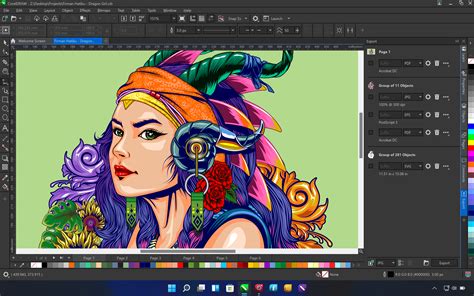
CorelDRAW's native file format is CDR. These files are proprietary to CorelDRAW, CorelDESIGNER, and CorelCAD, meaning they cannot be opened directly by most other graphic design applications without specific conversion or import procedures. CDR files are vector-based, which is a significant advantage. Vector graphics are composed of mathematical equations that define points, lines, and curves. This inherent mathematical nature allows them to be scaled to any size - from a small icon to a billboard - without any loss of quality or pixelation. This is in contrast to raster images (like JPEGs or PNGs), which are made up of a fixed number of pixels and will appear blurry or jagged when significantly enlarged.
The terms "lossy" and "lossless" refer to how a file format reacts to being compressed and uncompressed. Lossless compression reduces file size without discarding any data, ensuring that the original quality is perfectly preserved upon decompression. Lossy compression, on the other hand, achieves smaller file sizes by discarding some data, which can lead to a slight degradation in quality, though often imperceptible to the human eye. For vector formats like EPS and CDR, which are designed for scalability and precision, lossless methods are paramount. An EPS (Encapsulated PostScript) file, for instance, is a classic vector format that is great for large-scale marketing and print materials, and files saved in this format can typically be scaled to large sizes without losing quality.
When working with older files, a common issue arises from version incompatibility. It is important to point out that if the file version you want to open is newer than the version of CorelDRAW you are using, you will not be able to open the file. CorelDRAW files are not backwards compatible. This means a newer version of CorelDRAW can usually open files created in older versions, but the reverse is not true. As a workaround for this, you can open the file in the same version that it was created in or a newer version, and then simply save the CDR as an older version using the "Save As" command. This process ensures that older software can still interpret and display the file correctly.
Opening CDR Files: Direct Methods and Workarounds
There are a couple of primary ways to open a CDR file, depending on whether CorelDRAW is already running. If CorelDRAW is not running, simply double-clicking on the CDR file in your file explorer will launch CorelDRAW and then automatically open the selected file. This is the most straightforward method for accessing a specific document.
If CorelDRAW is already running, and you have not worked on the file recently, you can open it via the application's menu. Navigate to File > Open and then browse to the location of your CDR file and select it. However, if you have a file that you have recently been working on, there's an even quicker method. Launch CorelDRAW and look at the Welcome Screen. In the "Get Started" tab, you will see thumbnails for up to 15 of the most recent files that you have worked on. From there, it is simply a matter of double-clicking the thumbnail of the file you wish to access.
For users who do not have CorelDRAW installed, opening a CDR file becomes more challenging. As mentioned, CDR files are proprietary. While there are a couple of viewers available on the market, their capabilities are often limited, and they may not offer full editing functionality or accurate rendering of complex designs. In such scenarios, if you are trying to amend an old CorelDRAW file created years ago (for example, back in 2011) and no longer have the software, you might encounter difficulties. Trying a free trial version of CorelDRAW might seem like a solution, but these trials often have restrictions, and they may not allow the opening of older files, sometimes presenting a box asking for the specific application to use, indicating a compatibility issue.
An alternative approach when direct CDR opening isn't feasible is to try and access a different format that might have been exported from the original CorelDRAW file. For instance, if you had created a PDF file from your CorelDRAW project at the time, you might be able to open that PDF and then cut and paste the data into a new file using another application, such as Microsoft Publisher. This is a workaround that allows you to salvage content, though it won't preserve the original vector properties for direct editing within a vector program.
Importing and Exporting: Expanding File Compatibility
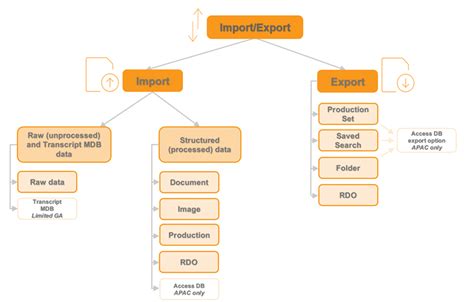
CorelDRAW Graphics Suite is designed to open or import a wide range of file formats, offering significant flexibility. This capability is essential for designers who work with assets from various sources or need to share their work in different formats.
Importing Files into CorelDRAW
While you can open CDR files directly, you can also import other file types into an existing CorelDRAW document. This is particularly useful if you have graphics created in different software or need to incorporate raster images into your vector design. To import a file, you would typically go to File > Import. This action will bring up a file browser, allowing you to navigate to and select the file you wish to import. CorelDRAW supports a vast array of formats, including common raster formats like JPEG, PNG, TIFF, and GIF, as well as other vector formats like AI (Adobe Illustrator), EPS, SVG, and PDF.
When importing multiple files at once, you can select the required files by holding down the SHIFT key or CTRL key while browsing. This allows for efficient batch importing of assets.
Exporting Files from CorelDRAW
Conversely, you may need to convert a CDR file to another format for use in different applications or for specific output requirements. This is accomplished by either exporting the file or using the "Save As" command with a different format selected.
If you are using the "Save As" command, you will notice that you can select a different file format from the "Save As type" dropdown menu. This dropdown primarily lists vector formats. However, if you wish to save the file as a raster format (like JPEG, PNG, or GIF), then the "Export" command should be used. The "Export" command provides a more comprehensive list of supported file formats, encompassing both raster and vector options. For example, when exporting to PNG, you can access a dialog box where you can set specific parameters for the output file, such as resolution, color mode, and transparency.
Handling Specific File Formats: EPS, AI, PDF, and Beyond
While CDR is CorelDRAW's native format, understanding how to work with other common vector and graphic file types is equally important.
Encapsulated PostScript (EPS) Files
If you want to open an EPS file, you will generally need to use specialized vector design software like CorelDRAW, Adobe Illustrator, or compatible alternatives. As noted, EPS files are a robust format for vector graphics, allowing for scalability without quality loss, making them ideal for large-scale marketing and print materials. Usually, files saved in EPS format cannot be modified directly without importing them into a suitable editor.
Adobe Illustrator (AI) Files
CorelDRAW can import AI files, but it's important to be aware of potential compatibility nuances, as AI is Adobe's proprietary format. When you export from CorelDRAW to a format that can be opened in Adobe Illustrator, you would typically choose AI, EPS, or PDF.
Portable Document Format (PDF) Files
PDF files are versatile and can contain both vector and raster elements. CorelDRAW can both import and export PDF files. If you have a PDF that was originally created from a CorelDRAW file, opening it in CorelDRAW will allow you to work with its vector components if they were preserved during the PDF creation process.
Cross-Platform Compatibility and Software Interoperability
A common question regarding CorelDRAW files is their compatibility across different operating systems. Fortunately, CorelDRAW is available for both Windows and macOS. Yes, a file created on a Windows version of CorelDRAW can be opened on a Mac, and a file created on the Mac version of CorelDRAW can be opened on a Windows version of CorelDRAW. This cross-platform compatibility ensures that designers can collaborate regardless of their preferred operating system.
However, direct interoperability with other major design software like Adobe Illustrator and Photoshop requires specific steps. You cannot open a CDR file directly in Adobe Illustrator. To transfer a design from CorelDRAW to Illustrator, you would need to export the file from CorelDRAW as an AI, EPS, or PDF and then import that exported file into Illustrator. Similarly, you cannot open a CDR file directly in Adobe Photoshop. For Photoshop, you would need to export the file from CorelDRAW as an AI, EPS, PSD, or PDF and then import that into Photoshop. These export options allow you to bridge the gap between different software ecosystems.
How to Export High Quality Design in CorelDraw | 2024
Troubleshooting Common Opening and Installation Issues
While CorelDRAW offers extensive file handling capabilities, users may occasionally encounter issues. One such problem might be related to outdated software or browser versions. For instance, an outdated browser could be a reason for certain web-based functionalities or installers to fail.
A more specific installation issue, as reported by some users, involves third-party software like Inkscape (a free and open-source vector graphics editor). Attempts to install Inkscape from the Microsoft Store have sometimes resulted in an error message stating "Something happened at our end" even after the installation process appears to reach 100%. This can be frustrating, especially when trying to find a free alternative to open legacy files. Repeated attempts at installation often end with the same message.
If such installation failures occur, troubleshooting steps might include:
- Checking System Requirements: Ensure your operating system and hardware meet the software's minimum requirements.
- Clearing Cache and Temporary Files: Sometimes, corrupted temporary files can interfere with installations.
- Running as Administrator: Try running the installer with administrative privileges.
- Disabling Antivirus Temporarily: Occasionally, overzealous antivirus software can block legitimate installations. Remember to re-enable it afterward.
- Seeking Official Support: Consult the software's official documentation or support forums for known issues and solutions.
For users facing the challenge of needing to edit a CorelDRAW file from 2011 without access to the original software, and encountering issues with trials or alternative installations, the PDF export/import method mentioned earlier can be a viable fallback. It allows for content recovery, even if direct vector editing isn't possible.
Ultimately, CorelDRAW's robust design and file management features, combined with an understanding of its import/export capabilities and potential cross-platform considerations, empower users to work efficiently with a wide array of graphic assets. Whether you're opening a native CDR file, importing an EPS for print, or exporting a PNG for the web, mastering these processes is key to a productive design workflow.