VSCO, a platform celebrated for fostering creative expression, offers a robust suite of tools for photographers to refine their images and manage their digital presence. While the app is renowned for its powerful editing capabilities, understanding how to effectively utilize its features, including the nuances of undoing edits and managing published content, is crucial for any VSCO user. This guide delves into the practical aspects of image manipulation within VSCO, from meticulous adjustments to the broader scope of content organization and deletion, ensuring users have complete control over their creative output.
The Art of Undoing and Resetting in VSCO Editing
The edit view within VSCO provides essential functionalities to refine your images precisely. Among these are the Undo and Reset options, accessible through the pull-up tab, which are invaluable for creative control and error correction. Stepping back by pressing undo is extremely useful for retracing your steps when applying multiple tools and presets. The Reset option within VSCO Cam is also a very useful tool in case you’d like to re-edit an image from its original state.
To illustrate these functionalities, let's consider a step-by-step process of editing an image, then using the undo button to retrace steps, and finally employing the reset button to return the image to its original, unprocessed status. This will also demonstrate how to re-edit the same image a second time, allowing for a comparison of two different edits of the same picture.
We will begin by addressing an image that is a little dark. The first adjustment involves increasing the exposure to +2. After this adjustment, it is important to press the checkmark to save the change.
Subsequently, the image appears a little flat. To rectify this, the contrast is adjusted to +2. Similar to the previous step, pressing the check mark on the bottom right is necessary to save this adjustment. It is a good practice to remember that many of the presets available in VSCO also adjust the contrast of the image. In this particular workflow, the subsequent step of manually adding contrast might prove to be unnecessary due to the inherent effect of the chosen preset on the image.
The next step involves applying the P8 Preset. This preset is known for imparting wonderful yellow and orange tones to an image. However, upon applying it, it becomes evident that the image now possesses too much contrast. The detail in the darker areas is completely lost, and the lighter areas are excessively blown out. This undesirable outcome occurred because too much contrast was applied prior to applying the preset.
Recognizing that it would be beneficial to take a couple of steps back, the user should press the arrow button at the bottom to reveal the pull-up tab. Pressing the Undo button once will effectively remove the preset that was just applied to the image.
Following the removal of the preset, pressing the undo button once more will take off the contrast adjustment that was applied in the second step.
Now that the contrast adjustment has been cleared from the photo, the user is left with the original adjustment of Exposure +2 still applied to the image. At this juncture, selecting the presets button on the left allows for the application of the P8 Preset once more.
With only the Exposure +2 adjustment and the P8 Preset applied, the image exhibits a more subtle and warmer quality compared to when the extra contrast was applied. Being content with this particular edit, the image can then be saved to the Library.
After saving the image with the P8 Preset applied, the next logical step is to export the image to the camera roll. Once this is completed, the user should select the image again and bring it back into the edit view.
Upon saving the image to the camera roll and then bringing the same image back into edit view, the user should select the Reset button, typically located on the right side of the pull-up menu. This action is performed to reset the image to its original state, allowing for the application of a different preset and a comparison of two distinct versions of the same image.
Now that the image is reset to its original, unprocessed state, a different preset can be applied. The user should press the preset button, usually found on the left side of the editing interface.
In this comparative example, the F2 Preset is applied. After saving the image to the Library, it will now display a faded and blue look. The F2 Preset also has the characteristic of lightening the image slightly, which means that adjusting the exposure beforehand was not necessary.

To facilitate a direct comparison, the original P8 edit that was exported earlier should be imported. By retrieving the other image from the camera roll, the user will be able to view and compare the two distinct edits: one with the P8 Preset and the other with the F2 Preset.
Within the camera roll, the user should select the first edit of the image that was saved earlier. Pressing the checkmark in the bottom right corner will bring the image back into the VSCO Cam Library.
Now that both versions of the same image reside in the Library, pressing the large view option, typically located in the upper right corner, will allow the user to view both images side by side. This visual comparison enables an appreciation for the subtle and significant differences that various presets and editing choices can impart on a photograph.
Understanding VSCO Blogs and Content Management
VSCO Blogs represent a significant feature for VSCO Pro Members, offering a platform to share in-depth stories, showcase creative processes, and present photo essays directly within the VSCO ecosystem. These blogs are accessible on the web or via the iOS app, providing a versatile space for expression. Users can leverage their photography blogs to publish photo essays, detail their editing workflow, share outtakes from recent photoshoots, or offer insights into their creative journey.
The management of these blogs is designed to be user-friendly. Draft blogs will appear at the top of the Blog tab for easy access, and importantly, they are only visible to the creator until published. Published blogs are chronologically sorted, with the most recent appearing at the top and the oldest at the bottom, for both the creator's view and any visitor to their profile.
Crucially, users are able to delete any of their blogs. This can be achieved by selecting the three-dot menu when viewing the specific blog and then choosing the "Delete" option. Alternatively, a blog can be deleted directly within the editor view by selecting the trashcan icon located in the upper-right-hand corner of the screen.
Frequently Asked Questions about VSCO Blogs and Content
What happened to VSCO Journals?Any VSCO Journal that was previously published will now be displayed as a VSCO Blog. Users have the flexibility to edit these former journals just as they would any new blog. Furthermore, even if a user is not a Pro Member, they can now delete these legacy journals from their profile.
Can I bulk upload images to my blog?At present, bulk uploading of images to a VSCO Blog is not supported. Images must be uploaded individually as .jpg or .png files, with a maximum file size of 5MB per image.
How many blogs can I create?VSCO Pro Members have no limit on the number of blogs they can create, save as drafts, or publish.
Can I schedule a blog to be published at a later time?Currently, blogs are published immediately upon clicking the publish button, and there is no functionality to schedule a blog for future publication. However, users do have the ability to create a blog as a draft and then publish it themselves at a more opportune time.
I tried to take a photo on iOS to add to my VSCO Blog, but it failed to upload. Why?The VSCO development team is actively working on resolving an issue related to photo uploads on iOS for VSCO Blogs.
VSCO: A Platform for Creative Expression and Professional Growth
VSCO is fundamentally a platform where expression is paramount. It offers a comprehensive suite of creative photo and video editing tools, serves as a source of inspiration, and provides a dedicated space for users to be authentic. By sharing photos and videos with the hashtag #VSCO, users increase their chances of being curated by the VSCO team.
For those looking to elevate their photography, VSCO offers access to a library of free presets, with the option to import and edit RAW photos. The editing tools available include features like Contrast and Saturation, designed to make photos stand out, as well as Grain and Fade, which can be used to add texture and emulate analog film effects. Users can also adjust or experiment with their photo perspectives using Crop and Skew tools. A particularly useful feature is the ability to save and recreate favorite edits using "Recipes."
Membership with VSCO unlocks access to the complete preset library, which boasts over 200+ presets. This includes the ability to recreate vintage film looks from iconic brands like Kodak, Fuji, and Agfa through the "Film X" feature. Advanced photo editing tools such as HSL (Hue, Saturation, Luminance) and Split Tone are also available for more nuanced control.
Beyond still photography, VSCO extends its editing capabilities to video. Users can transform their videos on mobile using the same premium VSCO presets and advanced editing tools available for photos. This includes adjusting white balance and experimenting with color control using HSL. The platform also enables users to tell video stories and create moving collages by layering videos, images, and shapes. This allows for the celebration of moments, the illustration of moods, or experimentation with existing photos and videos within the user's Studio. The "Discover" section provides a curated space to explore inspiring photos, videos, and editorial content, fostering connection within the community. Users can also find and connect with friends already on VSCO.
VSCO Membership and Account Management
A VSCO membership can be initiated with a free 7-day trial. Following the trial period, users are charged an annual subscription fee. The VSCO membership automatically renews unless the auto-renew option is turned off at least 24 hours before the end of the current subscription period. Membership management, including turning off auto-renew, can be done through the app's Settings > iTunes Account & App Store > Apple ID > Subscriptions.
VSCO is compatible with a range of Apple devices, requiring iOS 15.0 or later for iPhone, iPad, and iPod touch. It also supports iPadOS 15.0 or later and tvOS 10.0 or later for Apple TV. For the newest generation of devices, visionOS 1.0 or later is required for Apple Vision. The app is available in English and 15 other languages, including Dutch, French, German, Indonesian, Italian, Japanese, Korean, Malay, Portuguese, Russian, Simplified Chinese, Spanish, Thai, Traditional Chinese, and Turkish. The age rating for the app is 13+, with content restrictions managed by the developer through in-app controls. These controls may include age assurance and management of infrequent occurrences of cartoon or fantasy violence, realistic violence, profanity or crude humor, mature or suggestive themes, horror/fear themes, and alcohol, tobacco, drug use or references, or guns or other weapons. The app also contains advertising, messaging and chat features, user-generated content, and in-app purchases.
The pricing structure for VSCO offers various options: Yearly Plus at €34.99, Monthly Plus at €7.99, alongside various themed packs like "The Aesthetic Series," "Hypebeast / HB," "We the Creators," "Krochet Kids intl.," "Distortia Pack," and "Isle of Dogs," "Nike Sportswear / Tech Pack," often available at no additional cost or as part of specific promotions.
The provider of the app is Visual Supply Company, which has identified itself as a trader for this app and confirmed its compliance with European Union law. Their address is listed as 548 Market St. Ste.
Content Control and Privacy on VSCO
VSCO operates as a community-driven platform, dedicated to equipping photographers with the necessary tools, community engagement, and professional exposure to foster creative and professional growth. The platform's core philosophy is to empower users to "make it," and to that end, content posted to a VSCO profile is publicly visible. VSCO's approach to privacy and safety is specifically tailored to the needs of its creators, emphasizing creator control over their content across the entire VSCO experience.
VSCO Studio
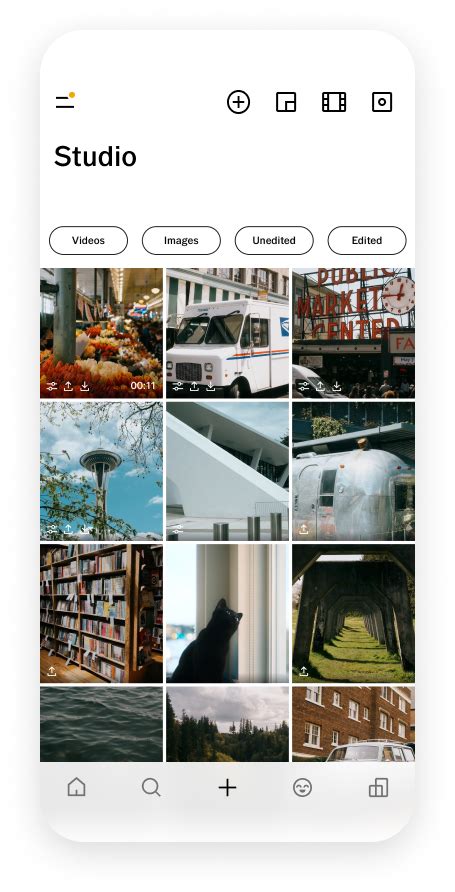
All imported and edited media are stored within the user's VSCO Studio, which remains entirely separate from their VSCO Profile. Media residing in the Studio is completely private unless explicitly chosen to be published to VSCO. This privacy extends across the Studio on mobile, web, and the desktop application.
Profile Content Management
Blocking: Users can block creators from interacting with them anywhere on VSCO, or by navigating directly to the creator's profile. A blocked creator is unable to follow the user, send messages, join any Spaces created by the user, view content on the user's profile, or interact with the user's content in any capacity on the platform. Furthermore, any previously favorited images and republishes from a blocked creator will be removed from the user's account.
Discussions: The design of Discussions on VSCO grants creators full control over their interactions. Creators have the option to enable or disable Discussions on each post according to their preference. They can engage in conversations in a manner that feels appropriate to them. Creators also possess the ability to delete or report inappropriate Discussions, or to block creators who are engaging in such behavior.
VSCO Spaces
Public Spaces: VSCO Spaces are accessible to Plus and Pro members. When set to public, these Spaces can be viewed by any other creator on VSCO. Any creator can collaborate within a Space if their request to join is accepted by the owner. Space owners have the authority to moderate who can contribute to their Space and to remove content they deem undesirable. Both contributors and viewers have the ability to report any content that may violate VSCO's Community Guidelines.
Private Spaces: VSCO Spaces can be configured as private, invite-only groups. These Private Spaces are not searchable on VSCO and can only be accessed via a shared link. While VSCO does not currently offer private profiles, private Spaces serve as an excellent method for collecting content in a private environment. Similar to public Spaces, Private Space owners can moderate contributions and remove unwanted content. Contributors and viewers retain the ability to report any content that violates the Community Guidelines.
Client Spaces (Reimagined as VSCO Galleries): Client Spaces have been rebranded as VSCO Galleries. Existing Client Spaces remain accessible through their original unique links.
VSCO Blogs and Professional Opportunities
Blogs: VSCO Blogs are available to Pro members and provide a distinct avenue for sharing untold stories, offering behind-the-scenes glimpses, and detailing creative processes through a combination of text, photos, and embedded videos. They are particularly well-suited for photo essays, collaborative projects, and the construction of narratives, thereby facilitating deeper connections within the VSCO community and enhancing professional exposure. Blogs can be created and edited on the desktop at vsco.co and are viewable within the VSCO feed, both online and within the app. Once published, Pro members have the ability to edit, download, and delete their Blogs.
VSCO Hub: This feature is available for Work. For Pro Members, marking oneself as available for "Professional Work" on their profile will surface their content to vetted brands and businesses on VSCO Hub, creating opportunities for paid work. If a user decides they no longer wish to be discoverable on Hub, they can simply un-tag their availability for "Professional Work" on their profile. The option to opt back in is always available.
VSCO Galleries
Galleries: VSCO Galleries is a dedicated application designed to assist photographers in organizing, presenting, and professionally delivering their work. VSCO Pro members benefit from unlimited storage and password protection for private photo gallery delivery. VSCO creators without a membership can still create and share galleries, albeit with a 10GB storage limit. VSCO Galleries also accommodate external collaborators if enabled. By adding collaborators, users can collect photos from various sources, such as wedding guests, second photographers, and behind-the-scenes crews, all through a QR code or a shared link. Collaborators are not required to download the VSCO Galleries App or create a VSCO account to contribute their photos to a gallery. They can also view and download images within the gallery.
The Importance of Content Autonomy and User Rights
VSCO, a widely appreciated photo-sharing application, is valued for the creative freedom it offers. However, this freedom should logically extend to the ability for users to remove content they no longer wish to share. In 2021, VSCO removed the "journals" feature from their app version but notably failed to implement the same removal on their web version. This discrepancy has resulted in a situation where users are unable to delete their own pictures from the web - a fundamental right that is standard on virtually all other social media platforms.
This lack of comprehensive control over personal content fosters an environment that can feel insecure and inequitable for thousands of users who have expressed their concerns across the internet since this change was implemented. The inability to manage one's own digital footprint transcends mere inconvenience; it represents a potential infringement upon user rights and privacy. There is a strong call for VSCO to reinstate the ability to remove journals from the web version, thereby ensuring that user autonomy is respected across all facets of their platform.
VSCO Sites: Building Your Online Portfolio
VSCO Sites empowers users to create a standalone portfolio website in mere seconds. This feature serves as a dynamic way to showcase creative work online through a curated presentation of photos, Galleries, and Blogs. Available with a VSCO Pro Membership, VSCO Sites offers a customizable space to share a portfolio in a format that authentically reflects the user's individual style and voice. Whether a creator is just beginning their journey or has years of experience, VSCO Sites provides a dedicated platform to share their inspirations.
The process of generating a VSCO Site involves several key steps, including customization, managing the About page, and organizing the Selects and Galleries pages. The About page is designed to display essential information, drawing from details already linked to the user's VSCO profile. Users can add, remove, or adjust this information, and upon saving, their site will automatically refresh with the latest updates. An image can also be added to the About page to further enhance the narrative about the creator and their craft.
Managing the Selects Page involves the process of deleting images, while the Galleries Page allows for the addition and deletion of galleries. Similarly, the Blogs Page facilitates the addition and deletion of blogs. The publication and sharing of a VSCO Site are straightforward. Users can publish their site to make it live, unpublish it if needed, and share it through various channels.
Naming a VSCO Site is a critical step, as the site name becomes the user's personal web address, determining how others will find and experience their creative work. Whether it's a personal name, a brand name, or something unique to their style, the chosen name should feel authentic and be easy to remember. Tips for naming a site often include considerations for clarity, memorability, and brand consistency.
VSCO Sites FAQs
Can I create a site without a Pro Membership?Free and Plus Members can explore the Site builder and preview their potential VSCO Site. However, to publish the site and make it live, a VSCO Pro Membership is required.
I’ve customized my VSCO Site, will I lose my changes if I un-publish it?No. Any updates made on the About page will remain on the site and will not alter the user's VSCO profile.
How do I update the site name in the top left corner?The site name is derived from the first and last name listed in the account settings. This can be updated at any time within the app or at vsco.co.
Can I use a custom domain name?While custom domains are not yet directly available through VSCO Sites, users can redirect an existing custom domain to their VSCO Site through their current domain provider’s DNS settings. VSCO is continuously working on feature improvements, so checking back for future updates is recommended.
Will my VSCO Site show up on Google or other search engines?Once published, a VSCO Site is discoverable by search engines.