Phase One, a name synonymous with high-end photographic hardware, has consistently pushed the boundaries of professional image editing software with its flagship product, Capture One. Historically, the company has followed a predictable cadence, unveiling significant new versions of Capture One in the final quarter of each year. The year 2016 proved no exception, with the tenth iteration of this professional image editing software making its debut. The primary developmental thrust for Capture One Pro 10 was a profound enhancement of the user experience, aiming to render the software faster, more effective, and more intuitive than ever before. To realize this ambitious objective, Phase One engineers undertook a significant undertaking, rewriting core functionalities of the software.
Revolutionizing Workflow: Speed and Usability
The enhancements in Capture One Pro 10 were meticulously designed to streamline the photographer's workflow. Panning, zooming, and seamlessly switching between images, irrespective of the current zoom level, were not merely improved but rendered instantaneous. This dramatic increase in responsiveness significantly reduces the time spent waiting for the software to catch up, allowing photographers to focus on the creative process rather than technical impediments. The speed increase, even in beta versions tested prior to the final release, was described as astonishing, with Capture One Pro 10 playing in a demonstrably different league compared to competitors, even those known for handling large files.
Precision Sharpening and Creative Control
Among the most impactful new features introduced in Capture One Pro 10 is a sophisticated three-step sharpening process. This innovative approach is engineered to deliver the highest possible image quality while eradicating any guesswork from the workflow. A key component of this is the remarkably easy correction of diffraction, achievable with the simple press of a single button. Beyond this automated correction, the software retains its well-regarded "Sharpening" tool, now enhanced with a new blending algorithm and the introduction of a dedicated Halo Suppression slider. This allows for unparalleled creative sharpness, giving users precise control over the final look of their images without introducing unwanted artifacts.
Enhanced Proofing and Tethered Shooting
Complementing the advanced sharpening tools, Capture One Pro 10 also boasts improvements to its On-Screen Proofing capabilities. While previously users could already proof colors by selecting an ICC profile, the new iteration allows for an even more accurate representation of the final output. Users can now visualize precisely how their edited file will appear on the intended final media, based on the specific output recipe they intend to use. This offers a critical layer of confidence for photographers preparing images for print or specific digital displays.
For still life photographers, a significant advancement comes in the form of an integrated focusing tool within the tethered module. This feature empowers photographers to adjust camera focus remotely, without the need to physically touch the camera. This eliminates the risk of inadvertently altering the image framing and negates the requirement for any external accessories, simplifying studio setups and improving precision.
Expanded File Support and Hardware Integration
Capture One Pro 10 also addressed a growing need for robust support of various RAW file formats. The improved support for sRAW and mRAW files, particularly those produced by Nikon and Canon cameras, now includes automatic masking capabilities. This intelligent feature, which automatically generates masks based on image content, is also now available for files produced by X-trans sensors, further enhancing the software's versatility.
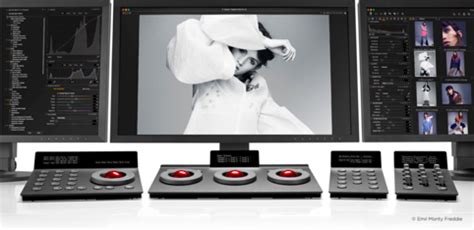
A noteworthy technological integration in Capture One Pro 10 is the support for Tangent panels. These specialized control surfaces, manufactured by Tangent, are designed for creative professionals, offering tactile control over various software parameters. While perhaps not widely known outside of specialized creative circles, their incorporation into Capture One signifies a commitment to providing a comprehensive and adaptable editing environment for a diverse range of users.
Pricing and Upgrade Paths
Capture One Pro 10 was made available for both Mac and Windows operating systems. For existing users, a compelling upgrade path was established. Those who purchased a Capture One Pro 9 license after November 1, 2016, were eligible for a complimentary upgrade. Owners of older Capture One Pro 8 or 9 licenses could upgrade for a nominal fee of $99 USD. New customers had the option to purchase a full license for $299 USD. Furthermore, a subscription model was offered at $15 USD per month, granting subscribers free access to the new release.
The Evolution Continues: Capture One 20
The evolution of Capture One did not cease with version 10. Subsequent releases continued to refine the user experience and introduce powerful new features. Capture One 20, for instance, marked a significant milestone, with Phase One deciding to align version numbers with release years, thus skipping intermediate versions to directly jump to 20 for the 2020 release. This version was hailed as a noticeable improvement over its predecessor, v12, with a clear emphasis on enhancing usability and refining existing tools.
Streamlined Interface and Workspace Management
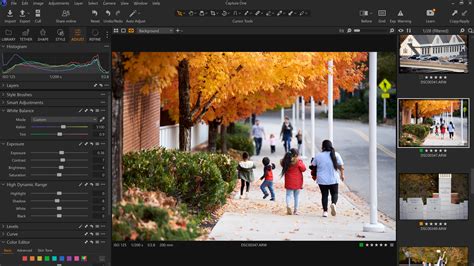
Capture One 20 introduced several user-centric changes. The default setting for the top toolbar now included text labels beneath the main icons, a move designed to assist new users and those transitioning from other software in feeling comfortable from day one. This text can be easily toggled off, and the layout remains fully customizable. A particularly significant change for experienced users was the introduction of scrollable areas within the workspace panels. Each side panel now features a "pinned" area at the top for frequently used tools and a "scrollable" area below for less frequently accessed tools. This addresses the challenge of managing extensive toolsets, especially on smaller displays, by allowing all tools to be viewed without constant collapsing and expanding. For users who rely on scroll wheels for slider adjustments, preferences could be set to prioritize tool scrolling or slider adjustment.
Advanced Color Editing and Dynamic Range
The Color Editor in Capture One 20 underwent a substantial transformation. Moving away from the traditional color wheel interface, it now features a row of swatches. The "picker" tool received important usability improvements, allowing users to select and hold a color directly on the image and then adjust its attributes by simply dragging the mouse up, down, left, or right. This eliminates the need to switch back and forth between the image and the panel, greatly speeding up the color correction process. Users could also customize the behavior of these tools to better suit their individual workflows.
The High Dynamic Range (HDR) panel also saw significant evolution. While previous versions focused on shadow and highlight recovery, Capture One 20's panel starts at zero and allows for both recovery and enhancement of shadows, highlights, whites, and blacks. The new "White" and "Black" sliders specifically target the extreme ends of the tonal range, offering precise control over the brightest and darkest pixels. This new approach, while initially requiring adjustment for users accustomed to traditional recovery methods, provides a more logical and natural way to manage the full dynamic range of a single RAW file.
Capture One Tool Introduction | High Dynamic Range
Workflow Enhancements: Crop, Noise Reduction, and More
Further workflow refinements were evident in Capture One 20. The Crop tool now allows users to press the [ENTER] key to apply a crop and immediately switch to the Pan tool, streamlining the process. More intuitive handles and keyboard shortcuts, such as [SHIFT] for maintaining aspect ratio and [ALT] for cropping from the center, further enhance efficiency.
Improvements were also made to Noise Reduction, with the tool becoming more intelligent and delivering more consistent results, even when a cursor accidentally falls on a noisy pixel, which could previously disrupt white balance. The Copy/Apply Adjustments tool became more "layer-aware," allowing for greater flexibility in selecting specific elements and layers to apply to other images. Capture One also demonstrated improved handling of images with different aspect ratios and dimensions, accurately copying masks like luma-gradients even between differently cropped images.
Other notable enhancements in Capture One 20 included cleaner and more detailed browser previews with 50% higher resolution, enhanced DNG integration and color profiling for a wider range of cameras, drones, and smartphone images. For studio and high-volume shooters, a new "Select Next When" function automatically advances to the next image once it has been rated or tagged, expediting culling and selection processes.
User Interface Tweaks: Viewer Background Color
A seemingly minor, yet highly appreciated, tweak in Capture One 20 was the ability to change the viewer background color directly by right-clicking on the viewer background itself, rather than navigating through preferences. This small usability improvement was particularly welcomed by those who proof for print or work on dark screens, offering a quick and easy way to adjust the viewing environment.
Performance Considerations and GPU Acceleration
The performance of Capture One, particularly its utilization of GPU acceleration, has been a subject of considerable discussion and testing. While Capture One generally takes advantage of a system's graphics card, with even the image export process being GPU-accelerated, the setup for this acceleration can be a notably slow process, sometimes taking minutes rather than seconds. This process consumes a small portion of the CPU. There have been instances where GPU acceleration has become broken, requiring troubleshooting beyond simple reinstallation of the application or graphics driver.
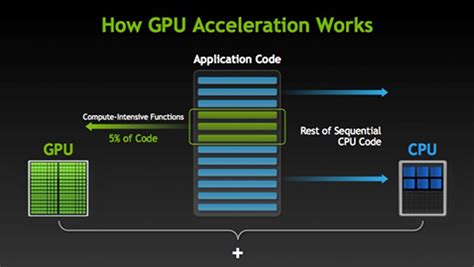
The performance in certain areas of Capture One has been observed to be unpredictable. This behavior has been replicated across multiple machines, leading to the conclusion that Capture One might not always utilize the CPU as efficiently as possible for all tasks, or it may dedicate excessive CPU resources for the amount of work being performed. For example, the Luma Range feature, when actively used, has been associated with this behavior.
Another performance oddity noted is that multiple GPUs can sometimes slow down the overall image export process. In specific testing scenarios, using two high-end GPUs resulted in a slower export than using a single GPU, even when SLI was effectively disabled and each GPU was allowed to operate independently. This suggests that the software's multi-GPU implementation may not always be optimal.
Capture One can also leverage system memory significantly. In tests involving copying adjustments across a large batch of images, memory usage could reach substantial levels, potentially exhausting available RAM and leading to application crashes, particularly on systems with 32GB of memory. This indicates that the application could potentially be more efficient in releasing memory when it is no longer actively needed, though similar behavior has been observed in other demanding applications like Photoshop.
Benchmarking Capture One often involves exporting batches of images, as this process typically yields the highest GPU utilization. Applying multiple adjustment layers across a large collection also engages the GPU, but exporting generally shows a higher average GPU usage. Despite the potential for high GPU engagement, testing has revealed that the GPU is not always utilized to its full capacity, depending on the specific task and user definition of "great" utilization. Compared to video encoding tasks, where GPUs often peak around 60% average usage and reach 100% during rendering, Capture One's GPU usage can be more varied.
The way Capture One scales with hardware is a positive aspect for many users. It's possible to achieve good performance without necessarily investing in the absolute highest-end graphics cards. This makes the software more accessible to a broader range of professionals.
Competitive Landscape and Differentiators
Capture One exists within a competitive landscape dominated by Adobe Lightroom. While Lightroom is likely the most popular RAW photo editor, its advantage is partly due to the ubiquity of Photoshop. Capture One differentiates itself through its more aggressive utilization of GPU acceleration, not just for editing but also for processes like image export. Phase One also distinguishes itself by being a hardware manufacturer, offering integrated solutions that include both high-end cameras and sophisticated software. This vertical integration allows for a deep understanding of how hardware and software can best work together.
The debate around Capture One's focus has also emerged. Some photographers have expressed a perception that the software, while catering to portrait photographers with specialized tools like an AI-powered retouch tool, has sometimes overlooked the specific needs of landscape photographers. Areas such as advanced sky masking tools and improved masking tool copying for exposure-bracketed images have been identified as potential areas for future development. The inclusion of support for a wider range of camera manufacturers, such as Hasselblad, has also been a point of discussion, with the potential to broaden Capture One's appeal.
Despite these discussions, Capture One remains a powerful and highly regarded professional image editing solution. Its commitment to color science, non-destructive editing, and continuous innovation ensures its place as a top-tier choice for photographers seeking precision, control, and an optimized workflow. The software's ability to handle a vast array of camera formats and deliver exceptional image quality, coupled with its evolving user interface and feature set, continues to solidify its position as a critical tool in the modern digital photography workflow.