Many iPhone users are curious about what applications are running in the background and how to manage them. This concern often stems from a desire to optimize battery life, conserve data, or simply ensure the device is running as efficiently as possible. While the perception might be that numerous apps are actively consuming resources, the reality of how iOS manages background processes is more nuanced and designed to be largely hands-off for the user.
The Nature of Background App Activity on iPhones
iPhones, unlike some other mobile operating systems, are engineered to be highly efficient with background processes. The default behavior for most applications is to enter a "suspended" state once you navigate away from them. This means they are not actively running in the traditional sense and consume minimal to no system resources. The operating system, iOS, is designed to manage these suspended apps, freeing up memory and power as needed.
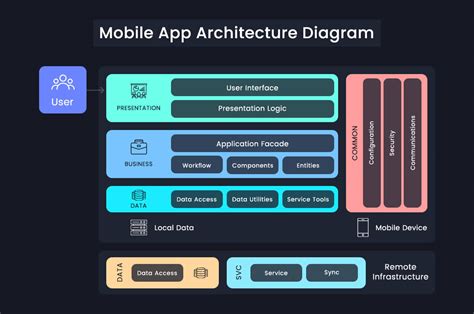
There are, however, specific exceptions to this rule. Certain types of apps are permitted to perform limited activities in the background, but this is typically mediated by iOS and often requires explicit user permission or is tied to ongoing user-initiated tasks. These exceptions generally include:
- Media Playback: Apps playing music, podcasts, or videos will continue to run in the background to allow for uninterrupted playback. You are usually aware of these because you can hear them.
- Notifications: Apps that deliver timely alerts, such as messaging apps or calendar reminders, may use background processes to receive and display notifications.
- Location Services: Navigation apps or those that require continuous location tracking (with your permission) will utilize background processes to function.
- Bluetooth Connectivity: Apps that manage Bluetooth devices or facilitate communication via Bluetooth may have background activity.
- Other iOS-Mediated Tasks: This can include a range of system-level functions that apps can leverage, but always within strict limitations set by Apple.
It's important to understand that these background activities are generally not arbitrary. iOS aims to ensure that background processes are only active when necessary and for a specific purpose, often initiated or approved by the user.
Identifying and Controlling Background App Refresh
While apps don't typically "run" in the background in a way that significantly drains resources, the feature known as Background App Refresh allows certain apps to periodically update their content when not actively in use. This can be useful for apps you want to keep up-to-date, such as news apps or social media, but it can also contribute to battery and data consumption.
To manage this feature, you can go to:
Settings > General > Background App Refresh
Here, you will find a list of applications that have permission to refresh in the background. You can then selectively uncheck the apps you don’t want refreshing.
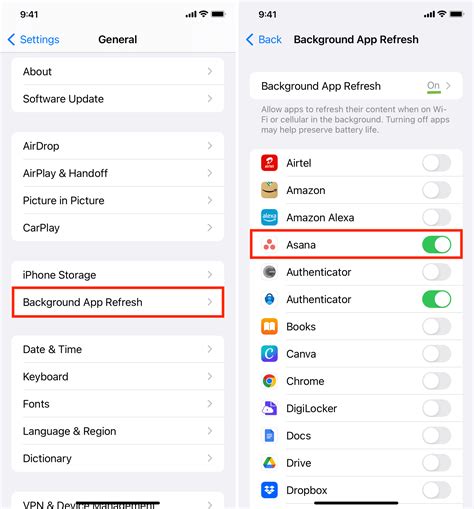
It's worth noting that there isn't a definitive way to automatically identify exactly which apps are refreshing in the background beyond this list. If an app is checked on in this setting, there's a good chance it is permitted to refresh. However, iOS is intelligent enough to manage this, and the actual refreshing often only occurs when the device is connected to Wi-Fi and the phone is idle, to minimize impact.
When to Consider Force Quitting Apps
Apple generally advises against force quitting apps unless they are unresponsive or exhibiting buggy behavior. The practice of frequently force quitting apps is often counterproductive. When you force quit an app, iOS has to completely reload it the next time you open it. This process can consume more processing power and battery life than allowing the app to remain in its suspended state and then resume its previous activity.
To close an app if it is indeed unresponsive:
- On iPhones with Face ID (iPhone X and newer): Swipe up from the bottom of the screen and pause in the middle. Swipe right or left to find the app you want to close, then swipe up on its preview to close it.
- On iPhones with a Home button: Double-click the Home button to show your most recently used apps. Swipe right or left to find the app you want to close, then swipe up on its preview to close it.
Understanding Battery Consumption
If your primary concern is battery life, the Settings > Battery section of your iPhone provides valuable insights. This area shows you which apps have consumed the most battery power over a specific period (e.g., the last 24 hours or the last 10 days). This can help you identify if a particular app is behaving unexpectedly or if you are using certain applications more heavily, which naturally leads to higher battery drain.
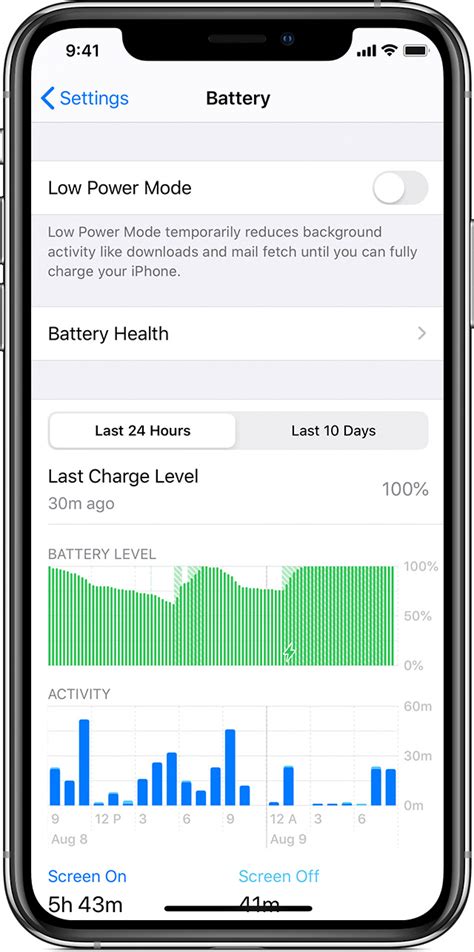
This data is more indicative of actual battery usage than simply looking at apps that appear in the multitasking view. An app listed as recently used might be in a suspended state and consuming negligible power.
AssistiveTouch for App Management
For users who prefer a more direct method of accessing app management functions, or for those who may have difficulty with physical gestures, AssistiveTouch can be a helpful tool. This accessibility feature provides an on-screen menu that can replicate various hardware button functions.
To enable and use AssistiveTouch for app management:
- Go to Settings > General > Accessibility.
- Scroll down and tap on AssistiveTouch, then turn it on.
- A floating on-screen button will appear. Tap this button.
- From the menu, you can access options like the Home button. Tapping the Home button twice (or a simulated double-tap via the AssistiveTouch menu) will bring up the app switcher.
- From there, you can swipe up on app previews to close them, as described earlier.
It's crucial to reiterate that the underlying philosophy of iOS is to manage these processes automatically, minimizing the need for manual intervention. By understanding how iOS handles background tasks and utilizing features like Background App Refresh and the Battery settings, you can effectively manage your iPhone's performance without resorting to potentially detrimental practices like excessive app force quitting. Apple's design aims to provide a seamless experience where users don't need to micromanage their device's operations.
tags: #remove #background #app #iphone