Photoshop's ability to isolate elements from their original backgrounds and seamlessly integrate them into new compositions is a cornerstone of digital image manipulation. This process, often referred to as cutting out, extracting, or masking, is fundamental to photo editing. However, a common challenge that arises after such operations is the presence of jagged or unnatural edges. Achieving a natural look when combining elements from different images hinges on the ability to smooth these edges, making them appear as if they always belonged together. This tutorial delves into the advanced techniques for achieving pristine edges in Photoshop, ensuring your composite images are as convincing as possible.
The Foundation: Understanding Edge Smoothing
When you place an object extracted from one image into another, the transition between its edges and the new background can appear abrupt. This is where edge smoothing techniques become crucial. Two primary methods employed to achieve this are anti-aliasing and feathering.
Anti-aliasing is a technique that gently softens the opacity and color transition between the edge pixels of your selected object and the pixels of the background. This process is vital for preserving the image's inherent clarity and detail, preventing a pixelated or "hard" edge. It effectively blends the boundaries at a sub-pixel level, making the integration appear more natural.
Feathering, on the other hand, softens the edges of a selection by creating a gradual fade between the pixels on the border of the selection and those in the surrounding area. This is achieved by introducing a subtle blur along the selected edge.
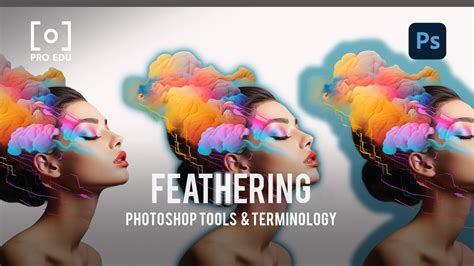
When using the feathering tool, you can specify a Feather Radius. This numerical value determines the extent of pixels, measured from the edge of your selection, that the tool will process before initiating the smoothing and blending process. A larger radius creates a softer, more diffused edge, while a smaller radius offers a more subtle transition.
In conjunction with feathering, the Strength setting, accessible via a drop-down menu, allows you to control the intensity of the blurring effect. This provides an additional layer of control, enabling you to fine-tune the degree of softness applied to the edges. Applying minimal smoothing is often sufficient to prevent jagged edges without significantly impacting the overall quality of the image.
The "New School" Approach: Refine Edge and Select and Mask
While traditional methods have their place, Photoshop has evolved, offering more sophisticated tools for object removal and edge refinement. The advent of the Refine Edge tool, now integrated into the Select and Mask workspace, represents a significant advancement, empowering users to achieve exceptionally clean cutouts.
How to Select Subjects and Refine Edges in Photoshop
Leveraging the Power of Refine Edge
The Refine Edge tool is a remarkably powerful instrument for meticulously tweaking and cleaning up the edges of any selection. Many users are unaware of its full capabilities, often sticking to more basic selection methods. However, mastering this tool can dramatically elevate the quality of your composite images.
The workflow for utilizing Refine Edge typically begins after an initial selection has been made. You can employ any standard selection tool - such as the Lasso tool, Magic Wand, Pen tool, Quick Selection tool, or even the Color Range command - to create a starting point. Once your selection is active, you can then access the Refine Edge functionality.
Sometimes, the Refine Edge option might not be immediately visible in the top menu bar. In such instances, a simple yet effective workaround exists: with your selection still active, choose any of the standard selection tools. This action will cause the Refine Edge button to appear at the top of the menu bar, allowing you to launch the tool.
The Select and Mask Workspace: A Deeper Dive
For more advanced edge control, Photoshop’s Select and Mask workspace offers a dedicated environment. This workspace consolidates powerful tools for refining selections, particularly for complex subjects like hair or fur.
The process within Select and Mask generally involves these steps:
Initial Selection: Begin by using tools like the Select Object tool, Lasso tool, Magic Wand tool, or Quick Selection tool to define the area around the object you wish to isolate. This will result in a visual representation of your selection, often displayed as a series of animated dashed lines, commonly referred to as "marching ants."
Entering Select and Mask: Once your initial selection is made, click on the "Select and Mask" option located in the top menu bar. This action opens a dedicated workspace, typically presenting a Properties tab on the right-hand side of your screen. Within this workspace, you gain access to a suite of tools for fine-tuning your selection's edges. Ensure that the Refine Edge tool (often represented by a brush icon) is selected from the new sidebar.
Refining the Edges: With the Refine Edge tool active, you can now meticulously work on cleaning up the selected edges. The key technique here is to paint over the edges you want to refine. A crucial tip is to always begin painting inside your selection and then draw the brush outward. This stroke direction helps Photoshop better analyze the transition between the subject and the background, leading to more accurate edge refinement. The tool intelligently analyzes the pixels, differentiating between the subject and the background, and applies subtle adjustments to create a smoother, more natural boundary.
Adjusting Global Settings: Within the Select and Mask workspace, you'll find various global sliders and options that affect the entire selection. These include:
- Radius: Similar to feathering, this controls the size of the area Photoshop analyzes around the edge for refinement.
- Smooth: This slider helps to reduce jaggedness and create a smoother contour.
- Feather: Applies a soft edge to the entire selection.
- Contrast: Sharpens the edge after smoothing.
- Shift Edge: Moves the selection boundary inwards or outwards, which can be useful for removing slight halos or ensuring all parts of the subject are included.
Outputting the Selection: After you are satisfied with the refined edges, you need to determine how Photoshop should process the finalized selection. Navigate to the Output To option, typically found at the bottom of the Properties tab. Here, you can choose from a drop-down menu to specify the desired output. Common options include:
- Selection: Outputs a standard marching ants selection.
- Layer Mask: Creates a layer mask based on your refined selection, which is often the most versatile option for compositing.
- New Layer: Copies the selected object to a new layer.
- New Layer with Layer Mask: Creates a new layer with a mask, combining the previous two.
- New Document: Creates a new document containing only the selected object.
- New Document with Layer Mask: Creates a new document with the selected object and its corresponding layer mask.
Choosing the appropriate output setting depends on your subsequent workflow. For compositing, "New Layer with Layer Mask" is frequently the preferred choice.
Tackling Halos and Fringes: A Common Problem, an Elegant Solution
A frequent issue encountered when cutting out subjects from their backgrounds is the appearance of "halos" or "fringes." These are often subtle dark or light outlines that remain around the edges of the subject, remnants of the original background. They are particularly noticeable on subjects with fine details like hair.
The method for removing these halos often involves a combination of layer masking and careful brushing. Once you have created a layer mask for your subject, you can select the mask itself. Then, using a soft-edged brush set to black, you can carefully paint over the affected edges. The black paint on the mask will conceal the unwanted fringe.
Sometimes, a single pass of painting may not fully eliminate the fringe. In such cases, you may need to paint over the edge a second time to achieve the desired result. This manual touch-up, guided by the visual feedback on your screen, is crucial for achieving a truly seamless integration.
While Photoshop offers matting tools specifically designed to address edge issues, this manual brushing technique on the layer mask is often preferred for photographs of people. This is because it allows for differential treatment of various areas. For instance, you wouldn't want to apply the same aggressive matting to delicate hair strands as you would to a solid area of skin. Treating hair the same as skin areas risks creating an unnatural, "helmet hair" effect, where the hair appears stiff and artificial.
Advanced Scenarios: Trees, Hair, and Extreme Precision
The need for precise edge control extends beyond simple objects. Consider scenarios like selecting intricate tree branches for removal from a wedding photo background or carefully extracting children from a family picture to incorporate into a photo collage. In these situations, the Refine Edge tool within the Select and Mask workspace truly shines. It enables the accurate selection of every individual tree branch and strand of hair without inadvertently including any of the surrounding background elements.
The ability to refine these complex edges is what separates amateur composites from professional-grade work. It's about meticulously ensuring that every pixel is in its rightful place, creating an illusion of reality.
Practical Application: A Step-by-Step Example
Let's illustrate with a practical example. Imagine you have a photograph of a model against a simple white background - an ideal scenario for easy extraction. Even with a clean background, refining the edges is essential for a polished look.
- Initial Selection: Use a tool like the Quick Selection Tool or the Lasso Tool to make a rough selection around the model.
- Enter Select and Mask: With the selection active, click "Select and Mask" from the top menu.
- Refine Edge Tool: Select the Refine Edge tool (brush icon) from the left-hand toolbar within the Select and Mask workspace.
- Brush the Edges: Carefully paint along the edges of the model, paying close attention to areas like hair. Remember to paint from inside the selection outwards. The tool will analyze these areas and make intelligent adjustments.
- Adjust Global Settings: Use the sliders in the Properties panel (Radius, Smooth, Feather, Contrast, Shift Edge) to fine-tune the overall edge quality. For instance, a slight increase in "Smooth" can reduce minor jaggedness, while "Shift Edge" might be used to slightly contract the selection if a faint halo is still visible.
- Output: In the "Output To" section, choose "New Layer with Layer Mask." This will create a new layer containing the model, with a mask that precisely isolates her from the background.
Now, if you were to place this model onto a new background, her edges would appear smooth and natural, with no harsh lines or distracting halos. If there were any lingering dark or light fringes, you could further refine them by directly editing the layer mask with a soft brush, as described earlier.
This systematic approach, combining automated tools with manual refinement, is the key to achieving professional-quality cutouts in Photoshop, regardless of the complexity of the subject or the background. The power lies in understanding how to best utilize each tool and when to apply them for optimal results.