In the vast realm of photography and digital imagery, Adobe's Photoshop Elements stands out as a beacon for both beginners and seasoned photographers. Think of it as the sibling of the powerhouse that is Photoshop, but with a charm of its own -- tailor-made for the everyday storyteller. As photography transcends from being just a hobby to a passionate form of expression, the need for tools that seamlessly blend functionality with user-friendliness becomes paramount. This comprehensive guide aims to be your guiding star in this creative journey, demystifying the powerful capabilities of Photoshop Elements and empowering you to achieve big results with its easy-to-use interface.
Getting Your Photo Library Under Control
One of the most significant challenges for any photographer is managing a growing collection of images. Photoshop Elements offers a powerful solution with its Organizer feature, designed to help you quickly sort, tag, and find every photo you’ve ever taken. This tool transforms a chaotic digital library into an easily navigable archive, ensuring that your precious memories are never lost in the digital clutter. The Organizer allows for intuitive cataloging, making every image retrieval a breeze. Imagine needing a specific photo from a vacation years ago; with the Organizer, you can locate it in moments, saving you time and frustration.

Essential Tools for Quick Photo Fixes
The vertical toolbar in Photoshop Elements is a treasure trove of essential tools designed for rapid photo correction. Whether you're dealing with common issues like red-eye, blurry images, or poor lighting, these tools provide quick and effective solutions. For instance, you can quickly correct red or glowing eyes using the Red Eye Removal tool, a common problem in flash photography. If you want a quick fix for overall image sharpness, choosing Enhance > Auto Sharpen can significantly improve your photos. For more targeted adjustments, the Sharpen tool allows you to touch up only a specific area in your photo, giving you precise control over the final look.
Advanced Editing Techniques: Beyond the Basics
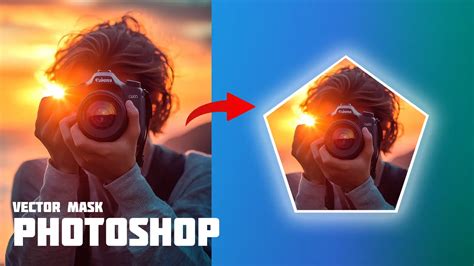
While Photoshop Elements excels at quick fixes, it also offers a deep well of advanced features for those who aspire to edit beautiful photographs with a creative flair they can be proud of. The course aims to take you beyond the basics, introducing you to powerful techniques like masking, gradients, and brushes. Masking, for example, is a fundamental technique that allows you to isolate your subject and instantly replace backgrounds, opening up a world of creative possibilities. Gradients can be used to create smooth transitions of color or tone, adding depth and visual interest to your images. Brushes offer a wide range of artistic effects, from subtle retouching to dramatic painterly styles.
Understanding the Trifecta of Editing Modes
Photoshop Elements provides a trifecta of editing modes, catering to different skill levels and editing needs: Guided, Expert, and Quick. The Guided mode offers step-by-step instructions for common editing tasks, making it ideal for beginners. Quick mode provides a streamlined interface with essential tools for fast edits. Expert mode, however, is where the true power of Photoshop Elements is unleashed. In Expert Mode, you gain access to the full range of tools and features, including layers, masks, filters, and advanced adjustments. This mode empowers you to grasp the power of these editing modes and apply them to achieve professional-looking results.
Learn how to use the GUIDED Mode in Photoshop Elements
Unleashing Creative Potential with Filters and Effects
The Filter menu in Photoshop Elements is a playground for creativity. In Expert Mode, you can choose Filter > Filter gallery to see a sampling of artistic, brush stroke, and sketch filters. These filters allow you to transform your photos into works of art with just a few clicks. Play with the settings on the right for the just-right look, experimenting with different effects until you achieve your desired aesthetic. Whether you want to add a painterly effect, a vintage feel, or a dramatic artistic interpretation, the filter gallery provides endless possibilities.
Mastering Text and Typography in Your Photos
Adding text to your photos can enhance their storytelling capabilities, whether you're creating invitations, adding captions, or designing graphics. The Text tool in Photoshop Elements allows you to add horizontal or vertical text, or even type text along a shape or path. You can use preset shapes, like a heart or circle, follow the shape of an object, or create a custom path for the text, offering immense flexibility in typography design. This feature is invaluable for personalizing your images and adding a professional touch to your creations.
The Power of Layers and Selections
Understanding layers is crucial for advanced image manipulation in Photoshop Elements. Layers allow you to work with different elements of your image independently, making it easy to edit, move, or adjust them without affecting other parts of the photo. This non-destructive editing approach is fundamental to professional workflows. Similarly, mastering selections allows you to isolate specific areas of your image for targeted adjustments, whether it's to change the color of an object, apply a filter to a particular region, or precisely cut out a subject.
Photomerge Group Shot: Perfecting Group Photos
For those who have taken multiple shots of a group, the Photomerge Group Shot option in Photoshop Elements is a lifesaver. This innovative feature allows you to pick and choose the best facial expression or pose from each individual in a series of photos, seamlessly combining them into a single, perfect group shot. No more worries about someone blinking or looking away; Photomerge Group Shot ensures everyone looks their best.
Rotating and Transforming Images
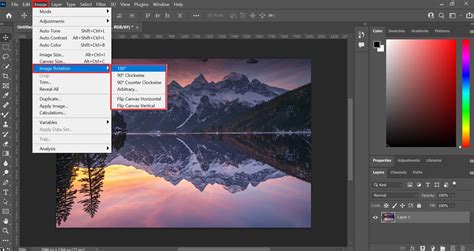
The ability to rotate and transform images is a fundamental aspect of photo editing. In Photoshop Elements, you can rotate the entire photo or a selection within a photo. In the Edit workspace, simply select what you want to rotate, then choose Image > Rotate. This capability is essential for correcting tilted horizons, optimizing framing, or creating specific artistic compositions.
Learning in a Supportive Environment
When you embark on your Photoshop Elements learning journey with platforms like iPhotography, you're not learning alone. A friendly, welcoming space-no egos, no pressure, just progress-is fostered. This supportive community environment ensures that you can ask questions, share your work, and receive constructive feedback without intimidation. Aspire to edit beautiful photographs with a creative flair that you can be proud of, knowing that a fantastic support team is available to assist with course, payment, or account questions.
Comprehensive Online Courses for All Levels
The availability of comprehensive online courses, such as those offering 196 video lessons and over 8 hours of introductory to advanced instruction, provides an invaluable resource. These courses allow you to watch, listen, and learn as an expert instructor guides you through each lesson step-by-step. During this media-rich learning experience, you will see each function performed just as if your instructor were there with you. Whether you are completely new to Photoshop Elements or upgrading from an older version, these courses empower you with the knowledge and skills necessary to be a proficient user. Years of classroom training experience and effective teaching techniques are incorporated to develop easy-to-use courses that you can customize to meet your personal learning needs.
The Value of Online Subscriptions
Online subscriptions offer the most flexibility and value in learning Photoshop Elements. With online training, you can access your courses anytime and anywhere you have an internet connection, including all new releases and updates. Your subscription grants you instant access to ALL of their courses for one low price, with no contracts and the ability to cancel at any time. This model ensures continuous learning and access to the latest software features.
A Bundle of Learning Opportunities
For those seeking an extensive learning experience, comprehensive bundles are available. For example, an Ultimate Photoshop Elements Bundle might combine multiple popular Adobe Photoshop Elements courses into one package, offering over 64 hours of training. These bundles are designed to take you from beginner to pro, covering basic techniques for photo correction, advanced topics, and practical tips and tricks for retouching and enhancing images. You'll learn how to correct skin blemishes and teeth color, clear red eyes, use filters effectively, and fix lighting exposure, all while navigating the Adobe Photoshop Elements interface and its enhanced features. This approach truly takes the mystery out of digital photo enhancement, providing tremendous peace of mind knowing your training needs will be covered for a very long time.
Testimonials: A Testament to Effective Learning
The effectiveness of these Photoshop Elements courses is often echoed in user testimonials. Learners frequently praise the clear explanations, step-by-step guidance, and the ability to learn at their own pace. Many express how the courses have demystified the software, which can otherwise be overwhelming for solo learners. The professional instructors are often commended for their pleasant voices, clear speech, and orderly presentation of menu items and screens, making the learning process memorable and effective. The ability to go back and review lessons is particularly appreciated, ensuring that no concept is left unmastered. The coherent flow and realistic examples used in the courses are highlighted as key factors in making the learning journey engaging and successful.
Photoshop Elements vs. Professional Photoshop
It's important to distinguish Photoshop Elements from its professional counterpart, Adobe Photoshop. Photoshop Elements is Adobe’s popular image editing program that contains most of the features of the professional version but with fewer and simpler options. Elements allows you to create, edit, organize, and share images, making it an accessible and powerful tool for a broad audience. While professional Photoshop is geared towards graphic designers, web designers, and digital artists requiring highly specialized tools, Photoshop Elements is designed for the everyday user who wants to enhance their personal photos, create digital artwork, or manage their photo library effectively.
Raster vs. Vector Graphics
Understanding the fundamental difference between raster and vector graphics is beneficial when working with image editing software. Photoshop Elements primarily works with raster images. Raster graphics, like JPEGs and PNGs, are composed of a grid of pixels. When you zoom in on a raster image, you will eventually see individual pixels, which can lead to a loss of quality if the image is scaled up significantly. Vector graphics, on the other hand, are based on mathematical equations and are resolution-independent. This means they can be scaled infinitely without any loss of quality. While Photoshop Elements focuses on raster editing, understanding this distinction helps in appreciating the nature of the images you are working with and their limitations.
The Journey to Visual Storytelling Mastery
Ultimately, a well-structured Photoshop Elements course is not just a tutorial but an odyssey into the world of digital storytelling. Regardless of your initial familiarity with Elements, by the journey's end, you'll be equipped with the prowess to weave visual tales that captivate and inspire. You will gain tremendous peace of mind knowing that you have the skills to transform your photographs into masterpieces, making every image retrieval a breeze and every edit a creative triumph.